1. บทนำ
This manual provides comprehensive instructions for the setup, operation, and maintenance of your Ducky One 2 RGB Full Size Mechanical Keyboard (Model DKON1808ST). The Ducky One 2 RGB features an updated design, an enhanced RGB interface for customizable lighting, and modern USB-C connectivity. Please read this manual thoroughly to ensure proper use and to maximize your keyboard's potential.

ภาพ: จากบนลงล่าง view of the Ducky One 2 RGB Full Size Mechanical Keyboard, showcasing its full layout and initial RGB lighting on specific keys.
2. เนื้อหาบรรจุภัณฑ์
ตรวจสอบว่ามีรายการทั้งหมดอยู่ในแพ็คเกจ:
- Ducky One 2 RGB Full Size Mechanical Keyboard (DKON1808ST)
- สาย USB-C ถึง USB-A แบบถอดได้
- Additional PBT Double Shot Keycaps (random colors)
- ตัวดึงกุญแจ
- คู่มือการใช้งาน (เอกสารนี้)
3. การตั้งค่า
Follow these steps to set up your Ducky One 2 RGB keyboard:
- แกะ: ถอดคีย์บอร์ดและอุปกรณ์เสริมทั้งหมดออกจากบรรจุภัณฑ์อย่างระมัดระวัง
- เชื่อมต่อสายเคเบิล: Locate the USB-C port on the back of the keyboard. Connect the USB-C end of the provided cable to the keyboard and the USB-A end to an available USB port on your computer.
- เปิดเครื่อง: Your computer should automatically detect the keyboard. No additional drivers are typically required for basic functionality.
- ซอฟต์แวร์เสริม: For advanced RGB customization and macro programming, Ducky may provide optional software. Refer to the official Ducky webเว็บไซต์สำหรับดาวน์โหลดซอฟต์แวร์เวอร์ชั่นล่าสุดและคำแนะนำการใช้งาน

Image: Detail of the USB-C port on the Ducky One 2 RGB keyboard, showing the connection point for the detachable cable.
4. คู่มือการใช้งาน
4.1 ฟังก์ชันพื้นฐานของแป้นพิมพ์
The Ducky One 2 RGB functions as a standard full-size keyboard. All keys perform their labeled actions. The keyboard features Cherry MX Brown switches, providing a tactile bump for keystroke confirmation.

ภาพ: มุมเอียง view of the Ducky One 2 RGB keyboard, showing the full layout and the illuminated RGB backlighting.
4.2 การปรับแต่งแสง RGB
The Ducky One 2 RGB offers extensive lighting customization both through on-board controls and optional software.
- ระบบควบคุมบนตัวรถ: Use the Function (Fn) key in combination with specific keys (often F10, F11, F12, or arrow keys) to cycle through lighting modes, adjust brightness, and change colors. Refer to the keyboard's keycap legends for specific combinations.
- การปรับแต่งซอฟต์แวร์: For more detailed control, download the Ducky RGB software from the official Ducky website. This software allows for per-key lighting customization, advanced effects, and integration with systems like Razer's Chroma broadcasting.
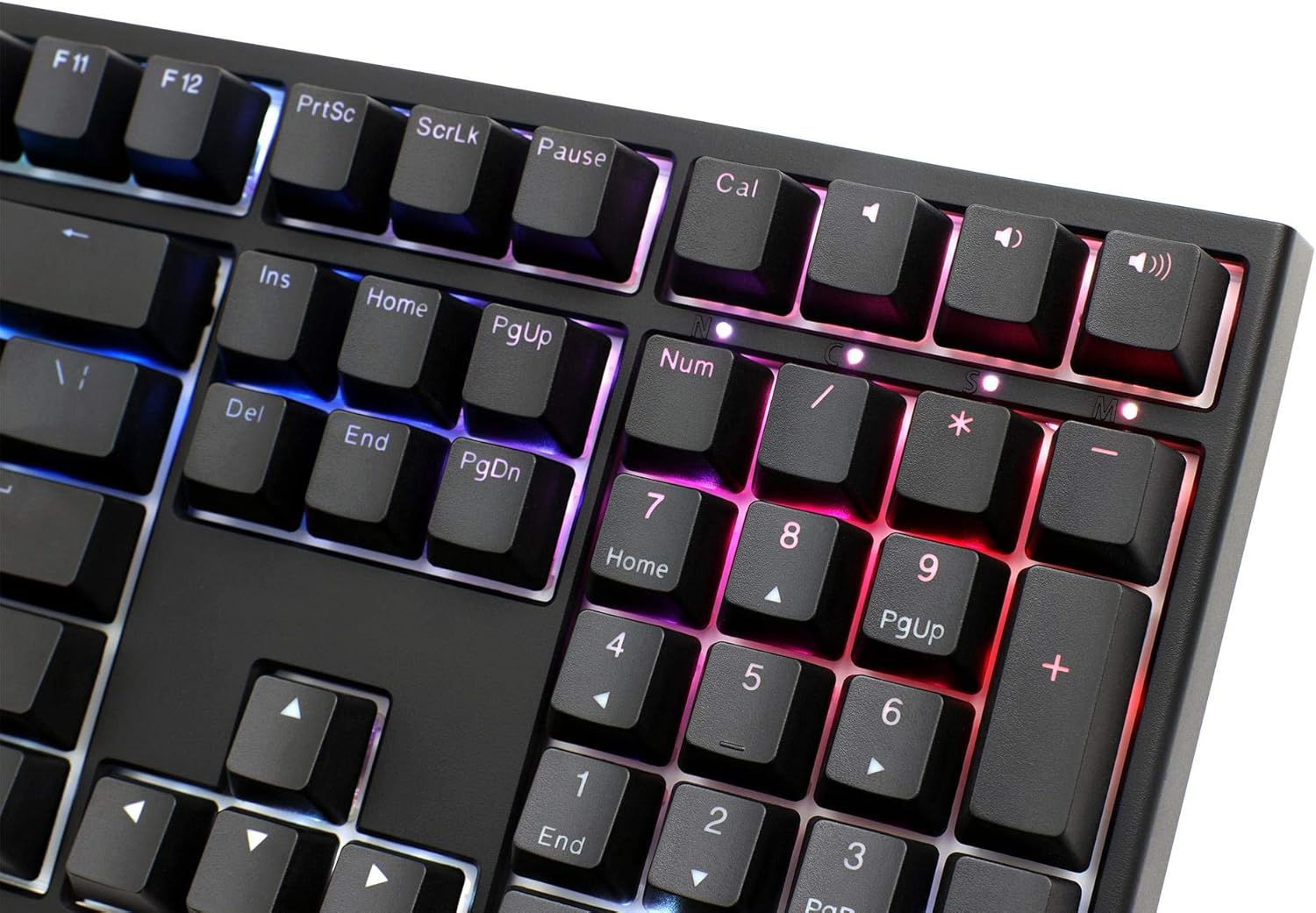
Image: Close-up of the numeric keypad on the Ducky One 2 RGB keyboard, demonstrating the customizable RGB lighting effects.
4.3 การเขียนโปรแกรมมาโคร
The Ducky One 2 RGB supports on-the-fly macro recording. Consult the detailed instructions on the official Ducky website or the full user manual for specific key combinations and procedures to record and assign macros.
4.4 การหมุนปุ่ม N-Key (NKRO)
The keyboard features USB N-Key Rollover, ensuring that every key press is registered accurately, even when multiple keys are pressed simultaneously. This is particularly beneficial for fast typing and gaming.
5. การบำรุงรักษา
การบำรุงรักษาอย่างถูกต้องจะช่วยให้แป้นพิมพ์ของคุณมีอายุการใช้งานยาวนานและมีประสิทธิภาพ
- การทำความสะอาด:
- ถอดแป้นพิมพ์ออกจากคอมพิวเตอร์ของคุณ
- ใช้แปรงขนนุ่มหรือลมอัดเพื่อขจัดฝุ่นและเศษต่างๆ ออกจากระหว่างปุ่มต่างๆ
- For stubborn dirt, gently wipe the keycaps with a damp เช็ดด้วยผ้าชุบน้ำสบู่เจือจาง ระวังอย่าให้ของเหลวเข้าไปในแป้นพิมพ์
- การถอดคีย์แคป: Use the provided keycap puller to carefully remove keycaps for cleaning or replacement. Grip the keycap firmly and pull straight up. Avoid excessive force to prevent damage to the switch.

ภาพ: ไซด์โปรfile of the Ducky One 2 RGB keyboard, illustrating the keycap height and ergonomic design.
6 การแก้ไขปัญหา
If you encounter issues with your Ducky One 2 RGB keyboard, refer to the following common solutions:
| ปัญหา | สาเหตุที่เป็นไปได้ / วิธีแก้ไข |
|---|---|
| Keyboard not detected by computer |
|
| แสง RGB ไม่ทำงานหรือไม่สม่ำเสมอ |
|
| คีย์เฉพาะไม่ตอบสนอง |
|
7. ข้อมูลจำเพาะ
- แบบอย่าง: ดีคอน1808ST
- ยี่ห้อ: เป็ดกี้
- ประเภทสวิตช์: เชอร์รี่ MX บราวน์
- เค้าโครง: ขนาดเต็ม
- การเชื่อมต่อ: พอร์ต USB-C (ถอดได้)
- การแบ็คไลท์: อาร์จีบี
- คีย์แคป: Double Shot PBT and ABS
- N-คีย์โรลโอเวอร์: USB N-Key Rollover
- น้ำหนัก: 771.11 กรัม
- ความเข้ากันได้ของระบบปฏิบัติการ: วินโดวส์, ลินุกซ์, แมคโอเอส
8. การรับประกันและการสนับสนุน
Ducky products are manufactured to high-quality standards. For warranty information, please refer to the warranty card included with your product or visit the official Ducky website. For technical support, driver downloads, and frequently asked questions, please visit the Ducky support page:
ดั๊กกี้อย่างเป็นทางการ Webเว็บไซต์
โปรดเก็บหลักฐานการซื้อของคุณไว้เพื่อเรียกร้องการรับประกัน


