การแนะนำ
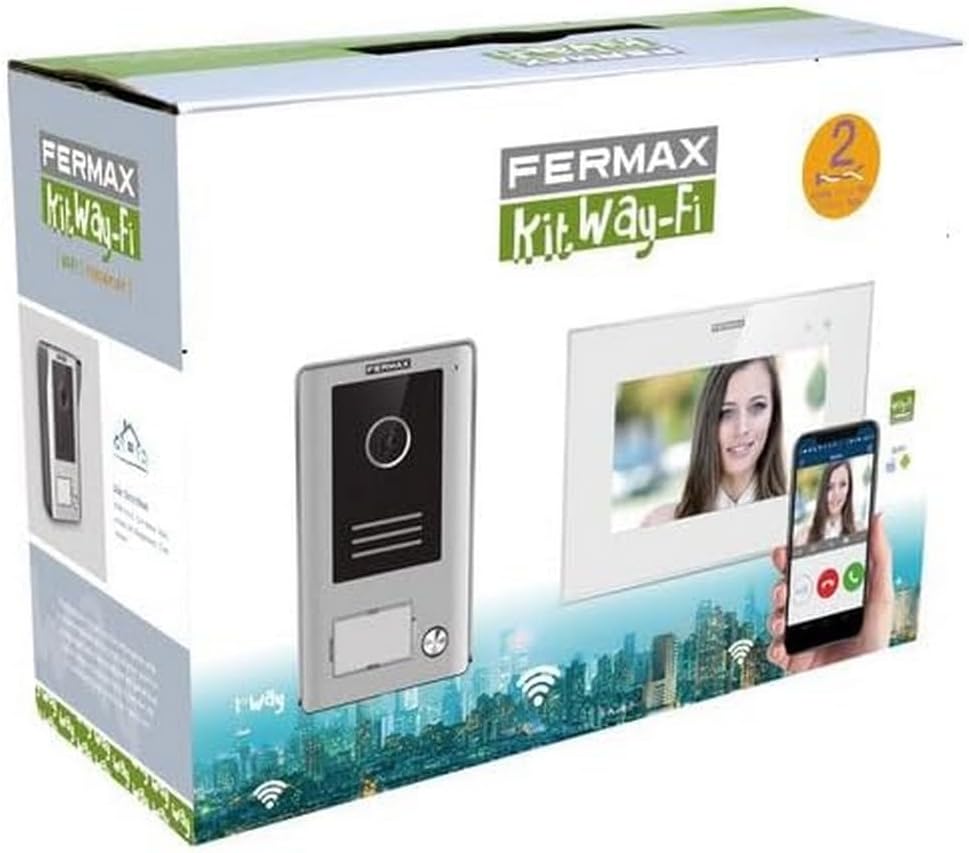
The FERMAX 1431 Video Door Intercom is a comprehensive security solution designed to enhance the safety and convenience of your home or property. This system features a 7-inch video monitor and an outdoor door entry panel, allowing for clear visual and audio communication with visitors. With Wi-Fi connectivity, you can manage your intercom system remotely via a smartphone, ensuring you never miss a visitor, even when you're away.
คุณสมบัติที่สำคัญ ได้แก่:
- WAY-FI Video Kit with 7-inch monitor.
- Robust outdoor door entry panel.
- Wi-Fi connectivity for smartphone integration.
- Compact dimensions for easy installation.
การติดตั้งและการตั้งค่า
Proper installation is crucial for the optimal performance of your FERMAX 1431 Video Door Intercom. It is recommended that installation be performed by a qualified professional. Always ensure power is disconnected before beginning any wiring.
1. การแกะกล่องและการระบุส่วนประกอบ
Carefully unpack all components and verify that all parts are present according to the packing list. The kit typically includes the indoor monitor, outdoor panel, power supply, and mounting accessories.
2. Mounting the Outdoor Panel
Select a suitable location for the outdoor panel, typically near your main entrance, at a height that allows for clear viewing of visitors. Ensure the location is protected from direct heavy rain if possible, although the unit has an IP44 rating for protection against splashing water.

3. Mounting the Indoor Monitor
Mount the indoor monitor in a convenient location within your home, such as a hallway or living area, where it is easily accessible. Ensure there is access to a power outlet and sufficient space for wiring.

4. การเชื่อมต่อสายไฟ
Connect the outdoor panel to the indoor monitor using the provided wiring. The system uses a 2-wire non-polarized connection, simplifying installation. Connect the power supply to the indoor monitor. Refer to the detailed wiring diagram in the official คู่มือการติดตั้ง (PDF) for precise instructions.
5. Initial Power-Up and Wi-Fi Configuration
Once all connections are secure, connect the system to power. Follow the on-screen prompts on the indoor monitor to configure Wi-Fi settings and connect the system to your home network. This step is essential for enabling smartphone app functionality.
คำแนะนำการใช้งาน
The FERMAX 1431 Video Door Intercom is designed for intuitive operation, both from the indoor monitor and via the smartphone application.
1. รับสาย
When a visitor presses the call button on the outdoor panel, the indoor monitor will ring and display the visitor's video feed. To answer the call, press the designated answer button on the monitor. You can then communicate with the visitor.
2. การเปิดประตู
ระหว่างการโทร หรือเมื่อ viewing the outdoor panel, you can activate an electronic door lock (if connected) by pressing the door release button on the indoor monitor.
3. Monitoring the Entrance
You can manually activate the camera on the outdoor panel at any time from the indoor monitor to view your entrance area without a visitor initiating a call.
4. Smartphone App Integration
Download the official FERMAX WAY-FI app from your smartphone's app store. Once installed and configured with your system, you can receive calls, view visitors, and open the door remotely from anywhere with an internet connection.

การซ่อมบำรุง
Regular maintenance ensures the longevity and optimal performance of your FERMAX 1431 Video Door Intercom.
การทำความสะอาด
- ใช้แบบนุ่มๆamp cloth to clean the surfaces of both the indoor monitor and outdoor panel.
- Avoid abrasive cleaners, solvents, or harsh chemicals, as these can damage the finish and electronic components.
- For the camera lens on the outdoor panel, gently wipe with a microfiber cloth to ensure clear image quality.
การพิจารณาด้านสิ่งแวดล้อม
- While the outdoor panel is designed for outdoor use (IP44), extreme weather conditions can affect performance. Ensure it is securely mounted and free from obstructions.
- Keep the indoor monitor away from direct sunlight, excessive heat, or moisture.
การแก้ไขปัญหา
If you encounter issues with your FERMAX 1431 Video Door Intercom, refer to the following common problems and solutions:
| ปัญหา | สาเหตุที่เป็นไปได้ | สารละลาย |
|---|---|---|
| No video on indoor monitor. | Loose wiring, camera malfunction, power issue. | Check all wiring connections. Ensure the outdoor panel has power. Contact support if the issue persists. |
| No audio during calls. | Microphone/speaker issue, wiring problem. | Verify audio settings on the monitor. Check wiring for secure connections. |
| Smartphone app not connecting. | Incorrect Wi-Fi settings, internet connectivity issues, app not configured. | Ensure the monitor is connected to Wi-Fi. Check your home internet connection. Reconfigure the app if necessary. |
| ตัวเปิดประตูไม่ทำงาน | Incorrect wiring to door lock, faulty lock, power issue. | Verify wiring to the electronic lock. Ensure the lock receives power. Test the lock independently. |
If these steps do not resolve the issue, please refer to the full installation manual or contact FERMAX customer support.
ข้อมูลจำเพาะ
Below are the key technical specifications for the FERMAX 1431 Video Door Intercom:
| คุณสมบัติ | รายละเอียด |
|---|---|
| ชื่อรุ่น | 1431 |
| การใช้งานภายใน/ภายนอกอาคาร | Outdoor (Panel) |
| อุปกรณ์ที่รองรับ | สมาร์ทโฟน |
| แหล่งพลังงาน | AC |
| โปรโตคอลการเชื่อมต่อ | ไวไฟ |
| ความละเอียดในการจับภาพวิดีโอ | 480p |
| จำนวนช่องสัญญาณ | 4 |
| วัสดุ | พลาสติก, โลหะ |
| เล่มที่tage | 230 โวลต์ |
| วัดtage | 1 วัตต์ |
| ขนาดรายการ (ยาว x กว้าง x สูง) | 8.27 x 11.42 x 4.72 นิ้ว |
| น้ำหนักสินค้า | 3.34 ปอนด์ (1.52 กิโลกรัม) |
| ประเภทการแจ้งเตือน | การเคลื่อนไหวเท่านั้น |
| การให้คะแนนการคุ้มครองระหว่างประเทศ | IP44 |
การรับประกันและการสนับสนุน
FERMAX products are manufactured to high-quality standards and come with a manufacturer's warranty. For specific warranty terms and conditions, please refer to the documentation included with your product or visit the official FERMAX webเว็บไซต์.
For technical support, troubleshooting assistance, or inquiries regarding your FERMAX 1431 Video Door Intercom, please contact FERMAX customer service. You can also visit the FERMAX Store on Amazon สำหรับข้อมูลผลิตภัณฑ์และทรัพยากรเพิ่มเติม


