1. บทนำ
This manual provides essential information for the installation, configuration, operation, and maintenance of the MOXA AWK-1137C-US-T 802.11n Wireless AP Client. This device is designed for industrial wireless applications, offering reliable 802.11n connectivity in challenging environments with a wide operating temperature range.
2. ข้อมูลด้านความปลอดภัย
- ควรตัดกระแสไฟก่อนทำความสะอาดหรือซ่อมบำรุงอุปกรณ์ทุกครั้ง
- ตรวจสอบให้แน่ใจว่ามีสายดินที่เหมาะสมเพื่อป้องกันอันตรายจากไฟฟ้า
- ใช้งานอุปกรณ์ภายในช่วงอุณหภูมิและความชื้นที่กำหนด
- อย่าให้อุปกรณ์สัมผัสกับความชื้นหรืออุณหภูมิที่สูงเกินไป
- บุคลากรที่มีคุณสมบัติเหมาะสมเท่านั้นที่ควรทำการติดตั้งและบำรุงรักษา
3. เนื้อหาบรรจุภัณฑ์
ตรวจสอบว่าแพ็คเกจของคุณมีรายการต่อไปนี้:
- MOXA AWK-1137C-US-T Wireless AP Client unit
- คู่มือการติดตั้งแบบด่วน
- Documentation CD (or link to online resources)
- Mounting kit (if applicable)
- Power adapter or terminal block (if applicable)
หากมีสินค้าใดสูญหายหรือเสียหาย โปรดติดต่อผู้ขายของคุณทันที
4. ฮาร์ดแวร์โอเวอร์view
The AWK-1137C-US-T features robust industrial design. Key components typically include:
- พอร์ตอีเธอร์เน็ต: สำหรับการเชื่อมต่อเครือข่ายแบบมีสาย
- ขั้วต่อเสาอากาศ: For external antennas to optimize wireless signal.
- กำลังไฟเข้า: Terminal block for DC power input.
- ไฟ LED แสดงสถานะ: Provide status information for power, WLAN, and Ethernet activity.
- ปุ่มรีเซ็ต: สำหรับการคืนค่าเป็นการตั้งค่าเริ่มต้นจากโรงงาน
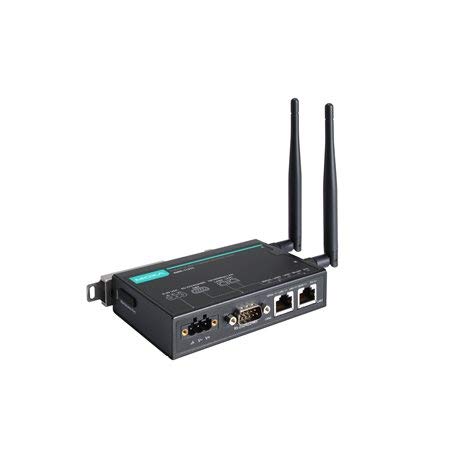
Figure 1: MOXA AWK-1137C-US-T Wireless AP Client. This image shows the compact industrial design of the device, typically featuring antenna ports, Ethernet connections, and power input.
5. การตั้งค่า
5.1 การติดตั้ง
The AWK-1137C-US-T supports DIN-rail mounting. Attach the DIN-rail kit to the device and snap it onto a standard DIN-rail. Ensure the device is securely fastened to prevent vibration or accidental dislodgement.
5.2 การเชื่อมต่อสายไฟ
- Connect a suitable DC power source (e.g., 12-48 VDC) to the device's power input terminal block.
- Ensure correct polarity (+ and -) as indicated on the device.
- Tighten the screws on the terminal block to secure the power wires.
5.3 การเชื่อมต่อเครือข่าย
- Connect an Ethernet cable from your network switch or router to the Ethernet port on the AWK-1137C-US-T.
- Attach appropriate antennas to the antenna connectors. Ensure they are securely tightened.
5.4 การกำหนดค่าเริ่มต้น
เพื่อเข้าถึงอุปกรณ์ webอินเทอร์เฟซการจัดการตาม:
- Connect a computer directly to the device's Ethernet port or ensure it is on the same network segment.
- Configure your computer's IP address to be in the same subnet as the device's default IP address (refer to the Quick Installation Guide for the default IP).
- เปิด web browser and enter the device's default IP address.
- เข้าสู่ระบบโดยใช้ชื่อผู้ใช้และรหัสผ่านเริ่มต้น (ดูคู่มือการติดตั้งด่วน)
- Change the default password immediately for security.
6. ปฏิบัติการ
6.1 โหมดการทำงาน
The AWK-1137C-US-T can operate in various modes, including Access Point (AP) and Client mode. Select the appropriate mode based on your network requirements.
- โหมดจุดเข้าใช้งาน (AP): The device acts as a central hub for wireless clients to connect.
- โหมดไคลเอนต์: The device connects to an existing Access Point, extending wired network connectivity wirelessly.
6.2 การตั้งค่าไร้สาย
Configure the following wireless parameters via the web อินเทอร์เฟซ:
- SSID: The name of your wireless network.
- ช่อง: Select an appropriate wireless channel to avoid interference.
- วงดนตรี: Configure for 2.4 GHz or 5 GHz operation, depending on the model and environment.
- กำลังส่ง: Adjust the output power for optimal coverage and compliance.
6.3 การตั้งค่าความปลอดภัย
Implement strong wireless security to protect your network:
- การเข้ารหัส: Use WPA2/WPA3-PSK or Enterprise for robust security.
- Password/Passphrase: Choose a strong, unique password.
- การกรองที่อยู่ MAC: Optionally restrict access to specific devices.
7. การบำรุงรักษา
การอัปเดตเฟิร์มแวร์ 7.1 รายการ
ตรวจสอบ MOXA อย่างสม่ำเสมอ website for the latest firmware updates. Firmware updates can provide new features, performance improvements, and security patches. Follow the instructions provided with the firmware package for a safe update process.
7.2 การทำความสะอาด
Clean the device periodically with a soft, dry cloth. Do not use liquid or aerosol cleaners. Ensure the device is powered off before cleaning.
7.3 ข้อพิจารณาด้านสิ่งแวดล้อม
Ensure the operating environment remains within the specified temperature and humidity limits (-40 to 75°C). Avoid placing the device near heat sources or in direct sunlight.
8 การแก้ไขปัญหา
8.1 ไม่มีไฟฟ้า
- Check the power cable connection and ensure the power source is active.
- ตรวจสอบปริมาณแหล่งจ่ายไฟtage is within the device's specified range.
- Inspect the power input terminal block for loose connections.
8.2 ไม่มีการเชื่อมต่อเครือข่าย
- Check Ethernet cable connections and ensure they are properly seated.
- Verify that the network switch or router is functioning correctly.
- For wireless connections, ensure the SSID, security settings, and channel match the connected AP/client.
- Check the LED indicators for network activity.
8.3 ความเร็วไร้สายช้า
- Ensure antennas are properly connected and positioned for optimal signal.
- Check for sources of interference (e.g., other wireless devices, microwave ovens).
- Adjust the wireless channel to a less congested one.
- Verify that the device is operating in 802.11n mode and not a slower standard.
8.4 การรีเซ็ตเป็นค่าเริ่มต้นจากโรงงาน
If configuration issues persist, you may need to reset the device to its factory default settings. Locate the reset button (often recessed) and press and hold it for approximately 5-10 seconds while the device is powered on. The device will reboot with default settings.
9. ข้อมูลจำเพาะ
| คุณสมบัติ | ข้อมูลจำเพาะ |
|---|---|
| หมายเลขรุ่น | AWK-1137C-US-ที |
| ไร้มาตรฐาน | 802.11n |
| แบนด์การทำงาน | วงดนตรีสหรัฐฯ |
| อุณหภูมิในการทำงาน | -40 ถึง 75°C |
| ขนาดแพ็คเกจ | 7.87 x 6.57 x 1.97 นิ้ว |
| น้ำหนักสินค้า | 1.15 ปอนด์ |
| ผู้ผลิต | ม็อกซ่า |
| วันที่พร้อมใช้งานครั้งแรก | 30 เมษายน 2018 |
10. การรับประกันและการสนับสนุน
10.1 ข้อมูลการรับประกัน
MOXA products typically come with a standard warranty. For detailed warranty terms and conditions, please refer to the official MOXA webหรือบัตรรับประกันที่ให้มาพร้อมกับผลิตภัณฑ์ของคุณ โปรดเก็บหลักฐานการซื้อไว้เพื่อใช้ในการเรียกร้องการรับประกัน
10.2 การสนับสนุนด้านเทคนิค
For technical assistance, product documentation, or driver downloads, please visit the official MOXA support website. You can also contact MOXA's customer support team directly through the contact information provided on their webเว็บไซต์.