1. บทนำ
This manual provides essential instructions for setting up, operating, maintaining, and troubleshooting your Apple iPad Air (Model MD785LL/A). Please read this guide thoroughly to ensure proper use and to maximize your device's capabilities. The iPad Air is a versatile tablet designed for various tasks, including web browsing, email, media consumption, and app usage.
2. สินค้าหมดview
The Apple iPad Air features a 9.7-inch Retina display, a powerful A6 processor, and a lightweight design. Familiarize yourself with the device's physical components.

รูปที่ 2.1 : ด้านหน้า View of iPad Air. This image shows the front of the iPad Air, featuring its 9.7-inch display with the home screen visible. App icons for FaceTime, Camera, Contacts, Notes, Reminders, App Store, Settings, Safari, Google, Calendar, Messages, Mail, and Clock are arranged on the screen. The Home button is located below the display.

รูปที่ 2.2: ด้านข้าง View of iPad Air. This image illustrates the thin profile of the iPad Air, highlighting its sleek design. The side buttons, typically for volume control and mute/rotation lock, are visible along the edge.
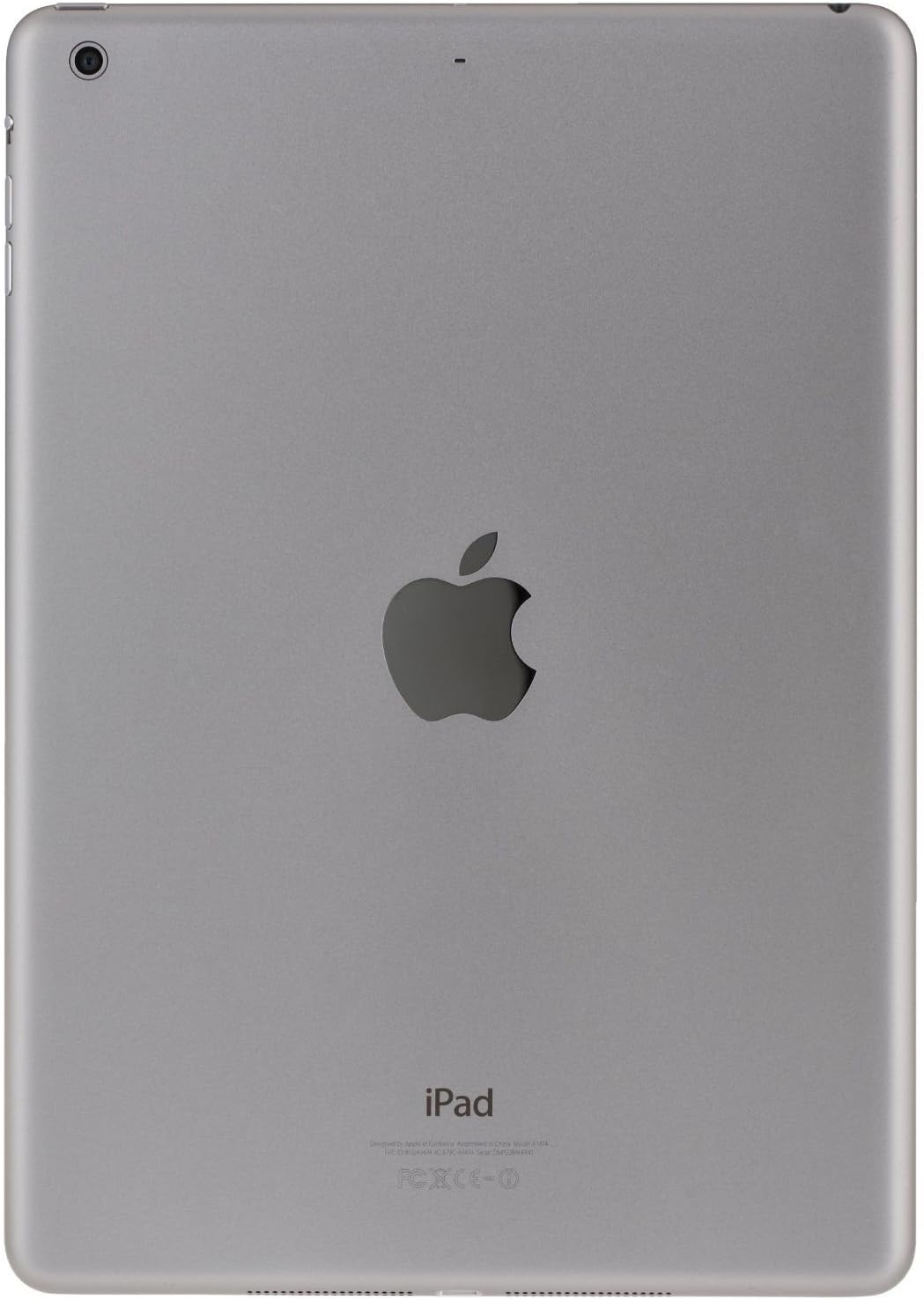
รูปที่ 2.3: ด้านหลัง View of iPad Air. This image displays the back of the iPad Air, featuring the prominent Apple logo in the center. The rear camera lens is visible in the upper left corner, and regulatory information is printed at the bottom.
3. การตั้งค่า
3.1 การเปิดเครื่องครั้งแรก
- กดปุ่มค้างไว้ Power/Sleep/Wake button (located on the top right edge) until the Apple logo appears.
- Follow the on-screen instructions to begin the setup process.
3.2 การกำหนดค่าพื้นฐาน
- ภาษาและภูมิภาค: Select your preferred language and country/region.
- เครือข่าย Wi-Fi: Connect to a Wi-Fi network. This is required for activation and many features.
- บริการตำแหน่งที่ตั้ง: เลือกว่าจะเปิดใช้งานหรือปิดใช้งานบริการตำแหน่ง
- Set Up iPad: You can choose to set up as a new iPad, restore from an iCloud backup, or restore from an iTunes backup.
- แอปเปิลไอดี: Sign in with your existing Apple ID or create a new one. An Apple ID is necessary for downloading apps, using iCloud, and other Apple services.
- รหัสผ่าน: Create a passcode to secure your device.
- iCloud & Find My iPad: Configure iCloud settings and enable Find My iPad for security.
4. คู่มือการใช้งาน
4.1 ท่าทางพื้นฐาน
- แตะ: Touch the screen briefly with one finger to select an item or activate a button.
- ปัด: Drag one finger across the screen to scroll, navigate between home screens, or reveal hidden options.
- หยิก: Use two fingers to pinch in or out to zoom in or out of photos, web pages, or maps.
- ท่าทางสัมผัสหลายจุด: Depending on your settings, you can use four or five fingers to pinch to the Home screen, swipe up to reveal the multitasking bar, or swipe left/right to switch between apps.
4.2 Home Button Functions
- กดครั้งเดียว: กลับไปที่หน้าจอหลัก
- กดสองครั้ง: Opens the multitasking bar, showing recently used apps.
- กดสามครั้ง: Activates Accessibility Shortcut (if configured in Settings).
- กดค้างไว้: Activates Siri (if enabled).
4.3 Control Center and Notification Center
- ศูนย์ควบคุม: ปัดขึ้นจากขอบล่างของหน้าจอเพื่อเข้าถึงการตั้งค่าด่วน เช่น Wi-Fi, Bluetooth, ความสว่าง และการควบคุมสื่อ
- ศูนย์แจ้งเตือน: ปัดลงจากขอบด้านบนของหน้าจอเพื่อ view การแจ้งเตือนและวิดเจ็ต
4.4 แอปสโตร์และแอปพลิเคชัน
Access the App Store icon on your Home screen to browse, search, and download applications. Many apps are free, while others require purchase. Ensure you are signed in with your Apple ID.
5. การบำรุงรักษา
5.1 การทำความสะอาด iPad Air ของคุณ
- ใช้ผ้าที่ไม่เป็นขุยและนุ่ม (เช่น ผ้าไมโครไฟเบอร์) เพื่อทำความสะอาดหน้าจอและภายนอก
- หลีกเลี่ยงการใช้วัสดุที่มีฤทธิ์กัดกร่อน สเปรย์ สารละลาย หรือน้ำยาทำความสะอาดที่มีส่วนผสมของแอมโมเนีย
- Dampen the cloth slightly with water if necessary, but avoid getting moisture into any openings.
5.2 การอัปเดตซอฟต์แวร์
Regularly check for and install software updates to ensure your iPad Air has the latest features, security enhancements, and performance improvements. Go to การตั้งค่า > ทั่วไป > อัปเดตซอฟต์แวร์.
5.3 ขั้นตอนการสำรองข้อมูล
It is recommended to regularly back up your iPad Air to iCloud or your computer using iTunes. This protects your data in case of device loss or damage.
6 การแก้ไขปัญหา
6.1 อุปกรณ์ไม่ตอบสนอง
If your iPad Air becomes unresponsive, perform a force restart:
- กดค้างทั้ง 2 ปุ่ม ปุ่มโฮม และ ปุ่มเปิด/ปิด/พัก/ปลุก simultaneously until the Apple logo appears. Release both buttons once the logo is visible.
6.2 ปัญหาการเชื่อมต่อ Wi-Fi
- ตรวจสอบให้แน่ใจว่าได้เปิดใช้งาน Wi-Fi แล้ว การตั้งค่า > Wi-Fi.
- ลองรีสตาร์ทเราเตอร์ Wi-Fi ของคุณดู
- ไปที่ การตั้งค่า > ทั่วไป > รีเซ็ต > รีเซ็ตการตั้งค่าเครือข่าย. This will clear all network settings, including Wi-Fi passwords.
6.3 App Crashes or Freezes
- Close the app by double-pressing the Home button, then swiping the app's preview card upwards.
- Restart your iPad Air.
- ตรวจสอบการอัปเดตแอปใน App Store
- If the issue persists, delete and reinstall the app.
7. ข้อมูลจำเพาะ
| ชื่อรุ่น | ไอแพดแอร์ |
| หมายเลขรุ่น | MD785LL/A |
| แสดง | 9.7-inch Retina display |
| ปณิธาน | 2048 x 1536 พิกเซล |
| โปรเซสเซอร์ | Apple A6 1.4 GHz |
| ความจุในการเก็บข้อมูล | หน่วยความจำแฟลช 16 GB |
| หน่วยความจำแรม | 1GB |
| ระบบปฏิบัติการ | Apple iOS 5 (initial release, upgradable) |
| อายุการใช้งานแบตเตอรี่ | นานถึง 10 ชั่วโมง |
| น้ำหนัก | 1.00 ปอนด์ (ประมาณ 453 กรัม) |
| ขนาด (กว้าง x ยาว x สูง) | 9.4 x 6.6 x 0.29 นิ้ว (ประมาณ 240 x 169.5 x 7.5 มม.) |
8. Important Information and Support
8.1 Legal Disclaimer for Returns
If you wish to return the iPad: You must erase all your content, which will remove any activation lock from iCloud. Failure to remove activation lock from the iPad will result in no refund or exchange. To erase content, go to: การตั้งค่า > ทั่วไป > รีเซ็ต > ลบเนื้อหาและการตั้งค่าทั้งหมด.
8.2 Warranty and Technical Support
For detailed warranty information, technical support, or service, please refer to the official Apple support website or contact Apple customer service directly. Information regarding your specific warranty coverage can typically be found by entering your device's serial number on the Apple support portal.
You can visit the official Apple Support webเว็บไซต์สำหรับความช่วยเหลือเพิ่มเติม: support.apple.com


