การแนะนำ
This manual provides essential information for setting up, operating, and maintaining your Amazon Kindle Wireless Reading Device. Please read these instructions carefully to ensure optimal performance and longevity of your device. The Kindle is designed for reading digital books and other content with its E Ink display and wireless connectivity.
1. การตั้งค่า
1.1 การแกะกล่องและการชาร์จครั้งแรก
Carefully remove your Kindle device and its accessories from the packaging. Before first use, fully charge your Kindle using the provided USB cable and a compatible power adapter or computer USB port. A full charge typically takes a few hours.
1.2 Powering On and Registration
To power on your Kindle, slide and release the power switch located on the device. Follow the on-screen prompts to select your language and connect to a wireless network. You will then be guided through the registration process, which requires an Amazon account. If you do not have one, you can create it during this step.

Image: The Kindle device displaying an e-book, illustrating its primary function.
1.3 Wireless Connectivity (Whispernet)
Your Kindle uses 3G wireless technology, referred to as Whispernet, to download books and other content without requiring a Wi-Fi connection. This service is typically available in supported regions without monthly fees or service plans. Ensure your device is registered to utilize this feature.
2. การใช้งาน Kindle ของคุณ
2.1 การนำทางและปุ่มควบคุม
The Kindle features a 5-way controller for menu navigation and selection. Page-turn buttons are located on both sides of the device for convenient reading. A full QWERTY keyboard is present for searching, note-taking, and interacting with on-screen elements.
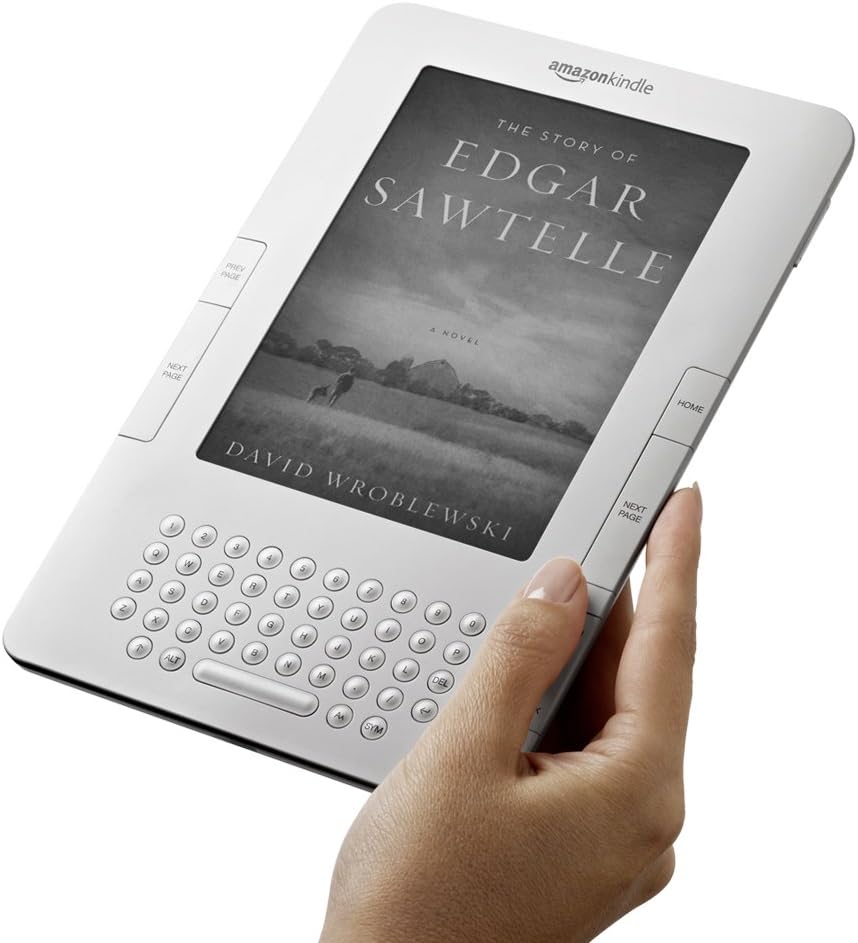
Image: A user's hand demonstrating how to hold the Kindle, highlighting the accessible page-turn buttons and keyboard.
2.2 การจัดซื้อasing และการดาวน์โหลดเนื้อหา
From the Kindle Home screen, you can access the Kindle Store. Use the 5-way controller to browse and select books. Once purchased, content will be delivered wirelessly to your device via Whispernet, typically in under 60 seconds.
2.3 คุณลักษณะการอ่าน
- การแปลงข้อความเป็นคำพูด: Your Kindle can read books aloud using its built-in text-to-speech feature. This can be activated from the reading menu.
- ค้นหาในพจนานุกรม: While reading, move the cursor to any word to instantly view its definition from the integrated New Oxford American Dictionary at the bottom of the screen.
- Notes and Highlights: Use the keyboard to add notes or highlight passages within your books.
- Whispersync: This feature automatically saves and synchronizes your last page read, bookmarks, and notes across all your Kindle devices and applications, allowing you to seamlessly pick up where you left off.
2.4 Managing Your Content
Your Kindle's Home screen displays your downloaded content. You can sort items by title, author, or most recent. To remove content from your device, select the item, then choose the delete option. Deleted items remain available in your Amazon account for re-downloading.
3. การบำรุงรักษา
3.1 การทำความสะอาดอุปกรณ์ของคุณ
To clean your Kindle, use a soft, lint-free cloth. Do not use abrasive cleaners, solvents, or aerosol sprays directly on the device. Keep the device dry and away from extreme temperatures.
3.2 การดูแลแบตเตอรี่
For optimal battery life, charge your Kindle regularly. Avoid fully discharging the battery frequently. If storing the device for an extended period, ensure it has at least a 50% charge and store it in a cool, dry place.
3.3 การอัปเดตซอฟต์แวร์
Your Kindle may receive automatic software updates via its wireless connection. Ensure your device is connected to Whispernet periodically to receive the latest features and improvements.
4 การแก้ไขปัญหา
4.1 อุปกรณ์ไม่ตอบสนอง
If your Kindle becomes unresponsive, try performing a hard reset. Press and hold the power switch for 20 seconds, then release. The device should restart. If the issue persists, ensure the battery is charged.
4.2 ปัญหาการเชื่อมต่อไร้สาย
If you are unable to connect to Whispernet or download content:
- Verify that your device is registered to your Amazon account.
- Check for wireless signal strength in your current location.
- Restart your Kindle (see 4.1).
4.3 Content Download Problems
If content fails to download:
- Ensure your Kindle has a stable wireless connection.
- Check your Amazon account for any payment issues or order problems.
- Sync your Kindle from the Home screen menu to refresh content delivery.
5. ข้อมูลจำเพาะ
| แสดง | 6-inch E Ink display, 16-level grayscale, 800 x 600 pixel resolution |
| ขนาด | ขนาดโดยประมาณ 8.0" x 5.3" x 0.36" (203 มม. x 135 มม. x 9.1 มม.) |
| น้ำหนัก | ประมาณ 10.2 ออนซ์ (289 กรัม) |
| พื้นที่จัดเก็บ | Internal storage for thousands of books (exact capacity varies by content) |
| อายุการใช้งานแบตเตอรี่ | Up to several days of reading on a single charge (25% longer than previous models) |
| การเชื่อมต่อ | 3G Wireless (Whispernet) |
| รูปแบบที่รองรับ | Kindle (AZW), TXT, PDF, unprotected MOBI, PRC; HTML, DOC, JPEG, GIF, PNG, BMP through conversion |

Image: The Kindle's slim design is highlighted by its comparison to a standard pencil.
6. ข้อมูลการรับประกัน
Your Amazon Kindle Wireless Reading Device is covered by a limited warranty. For specific terms and conditions, please refer to the warranty documentation included with your purchase or visit the official Amazon support webเว็บไซต์นี้ การรับประกันนี้โดยทั่วไปครอบคลุมถึงข้อบกพร่องในวัสดุและฝีมือการผลิตภายใต้การใช้งานปกติ
7. การสนับสนุนลูกค้า
For further assistance, technical support, or to access frequently asked questions, please visit the Amazon Kindle Support page on the official Amazon website. You can also contact Amazon Customer Service directly through their webติดต่อเราทางเว็บไซต์หรือทางโทรศัพท์เพื่อรับการสนับสนุนแบบเฉพาะบุคคล


