1. ఉత్పత్తి ముగిసిందిview
The TP-Link Archer TX50E is a high-performance AX3000 Wi-Fi 6 Bluetooth 5.3 PCIe Adapter designed for desktop PCs. It leverages the latest Wi-Fi 6 standard to deliver extreme speeds, ultra-low latency, and uninterrupted connectivity, making it suitable for demanding applications like immersive gaming and VR. The adapter features a customized heat sink and gold-plated contactors for enhanced stability and longevity.
ముఖ్య లక్షణాలు:
- Wi-Fi 6 Performance: Delivers speeds up to 2.4 Gbps (2402 Mbps on 5 GHz + 574 Mbps on 2.4 GHz) with 1024-QAM and 160 MHz bandwidth.
- అల్ట్రా-తక్కువ జాప్యం: Revolutionary OFDMA and MU-MIMO technologies reduce lag for responsive gaming and VR experiences.
- బ్లూటూత్ 5.3: Achieves 2× faster speeds and 4× broader coverage than Bluetooth 4.2, enabling seamless connection with various peripherals.
- విస్తృత కవరేజ్: Equipped with two high-gain antennas to extend Wi-Fi range.
- ప్రీమియం బిల్డ్: Features a customized heat sink for efficient thermal dissipation and gold-plated contactors for improved stability and oxidation resistance.
- అధునాతన భద్రత: Supports WPA3, the latest network security standard, for enhanced network protection.
2. ప్యాకేజీ విషయాలు
మీ ప్యాకేజీలో అన్ని అంశాలు ఉన్నాయని ధృవీకరించండి:

Image: TP-Link Archer TX50E retail box showing the adapter and included accessories.
- TP-Link Archer TX50E Wi-Fi 6 Bluetooth 5.3 PCIe Adapter
- Two High-Gain Antennas
- బ్లూటూత్ USB కేబుల్
- రిసోర్స్ సిడి
- త్వరిత సంస్థాపన గైడ్
- తక్కువ-ప్రోfile బ్రాకెట్
3. హార్డ్వేర్ ఇన్స్టాలేషన్
మీరు ప్రారంభించడానికి ముందు:
- Ensure your computer is powered off and unplugged from the power source.
- Ground yourself to discharge any static electricity before handling components.
- Refer to your computer's manual for specific instructions on opening the case.
దశల వారీ సంస్థాపన:
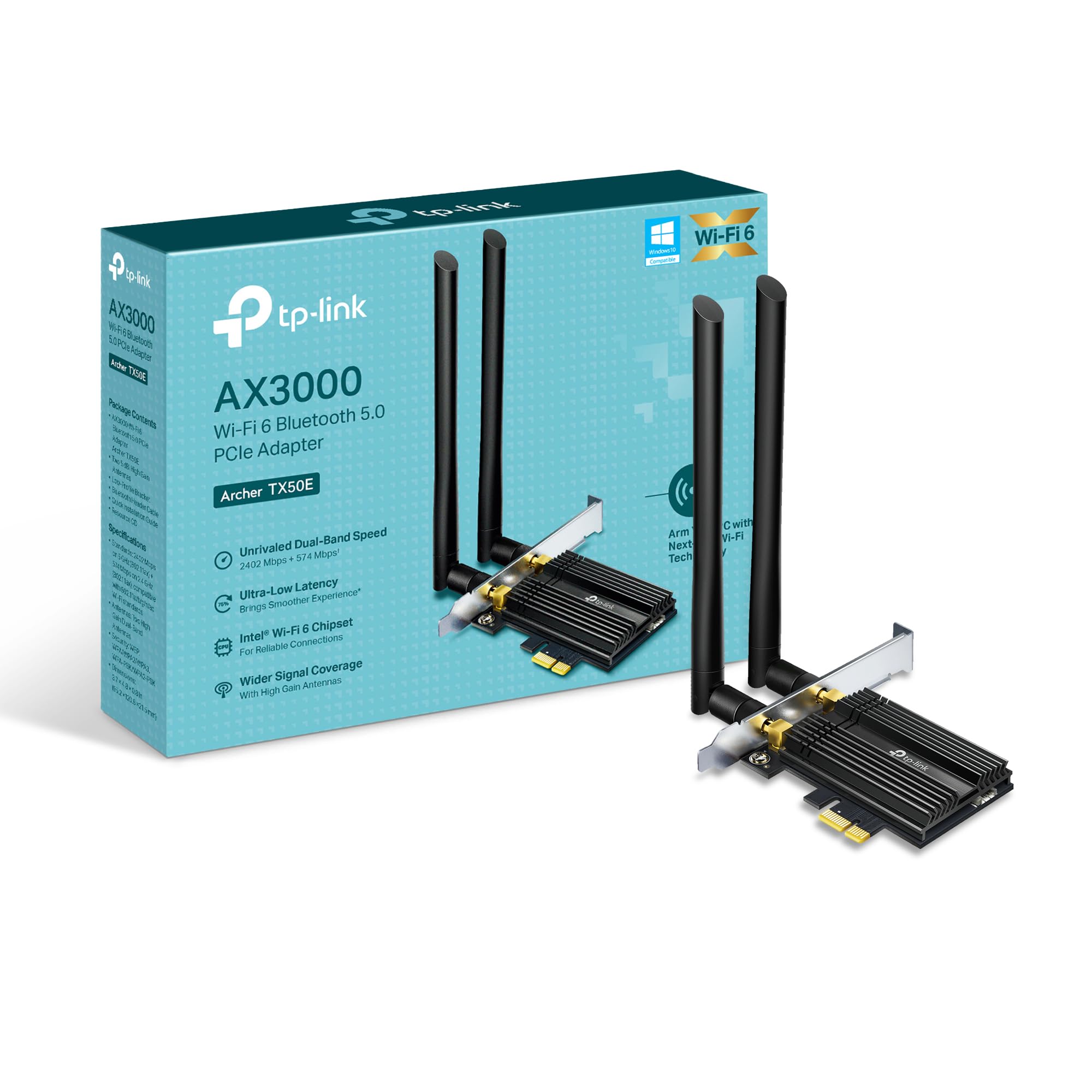
చిత్రం: ముందు భాగం view of the TP-Link Archer TX50E adapter with antennas.
- పవర్ ఆఫ్ మరియు అన్ప్లగ్: మీ కంప్యూటర్ను ఆపివేసి, వాల్ అవుట్లెట్ నుండి పవర్ కేబుల్ను అన్ప్లగ్ చేయండి.
- PC కేసును తెరవండి: మదర్బోర్డును యాక్సెస్ చేయడానికి మీ కంప్యూటర్ కేసు యొక్క సైడ్ ప్యానెల్ను తీసివేయండి.
- బ్లూటూత్ USB కేబుల్ను కనెక్ట్ చేయండి: Connect the provided Bluetooth USB cable to the adapter's Bluetooth header.
- స్లాట్లను గుర్తించండి: Identify an available PCI Express X1 slot on your motherboard and an F_USB connector (usually labeled USB910 or similar).
- అడాప్టర్ను చొప్పించండి: Carefully insert the Archer TX50E adapter into the chosen PCIe X1 slot. Ensure it is seated firmly.
- USB కేబుల్ని కనెక్ట్ చేయండి: Connect the other end of the Bluetooth USB cable to the F_USB connector on your motherboard. This connection is essential for Bluetooth functionality.
- Secure Adapter and Antennas: Secure the adapter with a screw to the computer case. Then, connect the two high-gain antennas to the adapter's connectors. Adjust their position for optimal signal reception.
- PC కేస్ మూసివేయండి: మీ కంప్యూటర్ కేసు యొక్క సైడ్ ప్యానెల్ను భర్తీ చేయండి.
- పవర్ ఆన్: Plug the power cable back into the wall outlet and turn on your computer.
విజువల్ ఇన్స్టాలేషన్ గైడ్:
Video: A step-by-step guide demonstrating the physical installation of the TP-Link Archer TX50E PCIe adapter into a desktop computer.
4 డ్రైవర్ ఇన్స్టాలేషన్
After hardware installation, you need to install the Wi-Fi and Bluetooth drivers for the adapter to function correctly. గమనిక: Do NOT run the Bluetooth and Wi-Fi driver installers at the same time.
Step-by-Step Driver Installation:
- Insert CD or Download Drivers: Insert the provided resource CD into your computer's CD/DVD drive. If your computer does not have a CD/DVD drive, download the latest drivers from the official TP-Link website (search for Archer TX50E).
- Run Autorun: Once the CD is inserted, an Autorun window should appear. Click to run `Autorun.exe`. If it doesn't appear, navigate to 'This PC' or 'My Computer', open your CD/DVD drive, and manually run `Autorun.exe`.
- Install Wi-Fi Drivers: In the TP-Link driver installation utility, select the option to install the Wi-Fi drivers. Follow the on-screen instructions to complete the installation. You may need to restart your computer after this step.
- Install Bluetooth Drivers: After the Wi-Fi drivers are installed and your computer has restarted (if prompted), run the `Autorun.exe` again or manually launch the Bluetooth driver installer. Follow the on-screen instructions to complete the Bluetooth driver installation. Another restart may be required.
For a visual guide on driver installation, please refer to the setup video provided in the Hardware Installation section.
5. ఆపరేటింగ్ సూచనలు
Wi-Fiకి కనెక్ట్ చేస్తోంది:
- After successful driver installation, click the Wi-Fi icon in your system tray (usually in the bottom-right corner of your screen).
- A list of available wireless networks will appear. Select your desired network.
- Click 'Connect' and enter the network security key (password) if prompted.
- మీ కంప్యూటర్ ఇప్పుడు Wi-Fi నెట్వర్క్కి కనెక్ట్ అయి ఉండాలి.
బ్లూటూత్ పరికరాలను జత చేయడం:
- Ensure your Bluetooth device is in pairing mode (refer to your device's manual).
- On your computer, go to 'Settings' > 'Devices' > 'Bluetooth & other devices'.
- Turn on Bluetooth if it's not already enabled.
- 'బ్లూటూత్ లేదా ఇతర పరికరాన్ని జోడించు' పై క్లిక్ చేసి, 'బ్లూటూత్' ఎంచుకోండి.
- జాబితా నుండి మీ పరికరాన్ని ఎంచుకుని, జత చేసే ప్రక్రియను పూర్తి చేయడానికి స్క్రీన్పై ఉన్న ఏవైనా ప్రాంప్ట్లను అనుసరించండి.
6. ట్రబుల్షూటింగ్
If you encounter issues with your Archer TX50E adapter, try the following common troubleshooting steps:
- Wi-Fi కనెక్షన్ లేదు:
- PCIe స్లాట్లో అడాప్టర్ సరిగ్గా అమర్చబడిందని నిర్ధారించుకోండి.
- Verify that the antennas are securely connected.
- Check Device Manager to ensure Wi-Fi drivers are installed and the device is recognized without errors.
- Try updating or reinstalling the Wi-Fi drivers.
- Restart your computer and your wireless router.
- బ్లూటూత్ పనిచేయకపోవడం:
- Confirm the Bluetooth USB cable is properly connected to both the adapter and the motherboard's F_USB header.
- Check Device Manager to ensure Bluetooth drivers are installed and the device is recognized without errors.
- Verify that Bluetooth is enabled in your computer's settings.
- Try updating or reinstalling the Bluetooth drivers.
- తక్కువ వేగం లేదా అడపాదడపా కనెక్షన్:
- Ensure your router supports Wi-Fi 6 (802.11ax) for optimal performance.
- Adjust the position of the antennas for better signal reception.
- Move your computer closer to the router or reduce obstacles between them.
- ఇతర ఎలక్ట్రానిక్ పరికరాల నుండి జోక్యం కోసం తనిఖీ చేయండి.
- మీ రౌటర్ యొక్క ఫర్మ్వేర్ను నవీకరించండి.
If these steps do not resolve your issue, please contact TP-Link Technical Support.
7. సాంకేతిక లక్షణాలు
| ఫీచర్ | స్పెసిఫికేషన్ |
|---|---|
| మోడల్ | ఆర్చర్ TX50E |
| వైర్లెస్ స్టాండర్డ్ | Wi-Fi 6 (802.11ax/ac/b/g/n) |
| బ్లూటూత్ వెర్షన్ | బ్లూటూత్ 5.3 |
| ఇంటర్ఫేస్ | PCI ఎక్స్ప్రెస్ |
| డేటా బదిలీ రేటు | 2402 Mbps (5 GHz), 574 Mbps (2.4 GHz) వరకు |
| ఆపరేటింగ్ సిస్టమ్ మద్దతు | Windows 11, 10 (64-bit) |
| భద్రత | WPA3 |
| కొలతలు (L x W x H) | 9.53 x 12.09 x 2.16 సెం.మీ |
| వస్తువు బరువు | 90.72 గ్రా (0.2 పౌండ్లు) |
| హార్డ్వేర్ ఇంటర్ఫేస్ | బ్లూటూత్ |
| అనుకూల పరికరాలు | డెస్క్టాప్, ల్యాప్టాప్ |
8. వారంటీ మరియు సాంకేతిక మద్దతు
TP-Link అందిస్తుంది a 2 సంవత్సరాల వారంటీ for this product. Additionally, free 24/7 సాంకేతిక మద్దతు మీకు ఎదురయ్యే ఏవైనా ప్రశ్నలు లేదా సమస్యలకు సహాయం చేయడానికి అందుబాటులో ఉంది.
మరింత సహాయం కోసం, దయచేసి అధికారిక TP-Link మద్దతును సందర్శించండి. webసైట్ లేదా వారి కస్టమర్ సేవను నేరుగా సంప్రదించండి.


