1. Utangulizi
Thank you for choosing the LG 34 Inch UltraWide WQHD Curved Monitor. This manual provides essential information for the safe and efficient use of your new monitor. Please read it thoroughly before operating the device and keep it for future reference.
Yaliyomo kwenye Kifurushi
- LG 34 Inch UltraWide Curved Monitor
- Kufuatilia Stand (Msingi na Shingo)
- Cable ya Nguvu
- Kebo ya HDMI
- DisplayPort Cable
- Cable ya USB-C
- Mwongozo wa Mtumiaji & Kadi ya Udhamini
2. Sifa Muhimu
- 34-inch WQHD UltraWide Curved Display: Expansive 21:9 screen (3440 x 1440) for enhanced productivity and immersive viewing.
- HDR Display with 99% sRGB: Delivers vibrant, natural colors and distinct image layers, supporting HDR brightness performance.
- Kiwango cha Juu cha Upyaji wa 120Hz: Ensures fluid scrolling and dynamic content for a comfortable visual experience.
- 5ms (GTG) Response Time: Provides quick pixel response for smooth motion.
- LG Switch for Multitasking & Eye Care: Enables quick split-screen functionality, customizable layouts, and Reader Mode to reduce eye strain.
- Stendi Inayoweza Kurekebishwa: Supports height, tilt, and swivel adjustments for optimal viewpembe za pembe.
- Spika Zilizojengwa ndani: Sauti iliyojumuishwa kwa urahisi.
- Chaguzi Nyingi za Muunganisho: Inajumuisha ingizo za DisplayPort na HDMI.
3. Kuweka
3.1 Kukusanya Stendi
Carefully remove the monitor and stand components from the packaging. Follow the instructions below to attach the stand to the monitor.
- Weka kifusi uso chini kwenye uso laini na safi ili kuzuia mikwaruzo.
- Ambatanisha shingo ya kusimama kwenye paneli ya nyuma ya mfuatiliaji. Hakikisha inabofya mahali pake kwa usalama.
- Attach the stand base to the bottom of the stand neck. Tighten the screw(s) firmly to secure the base.
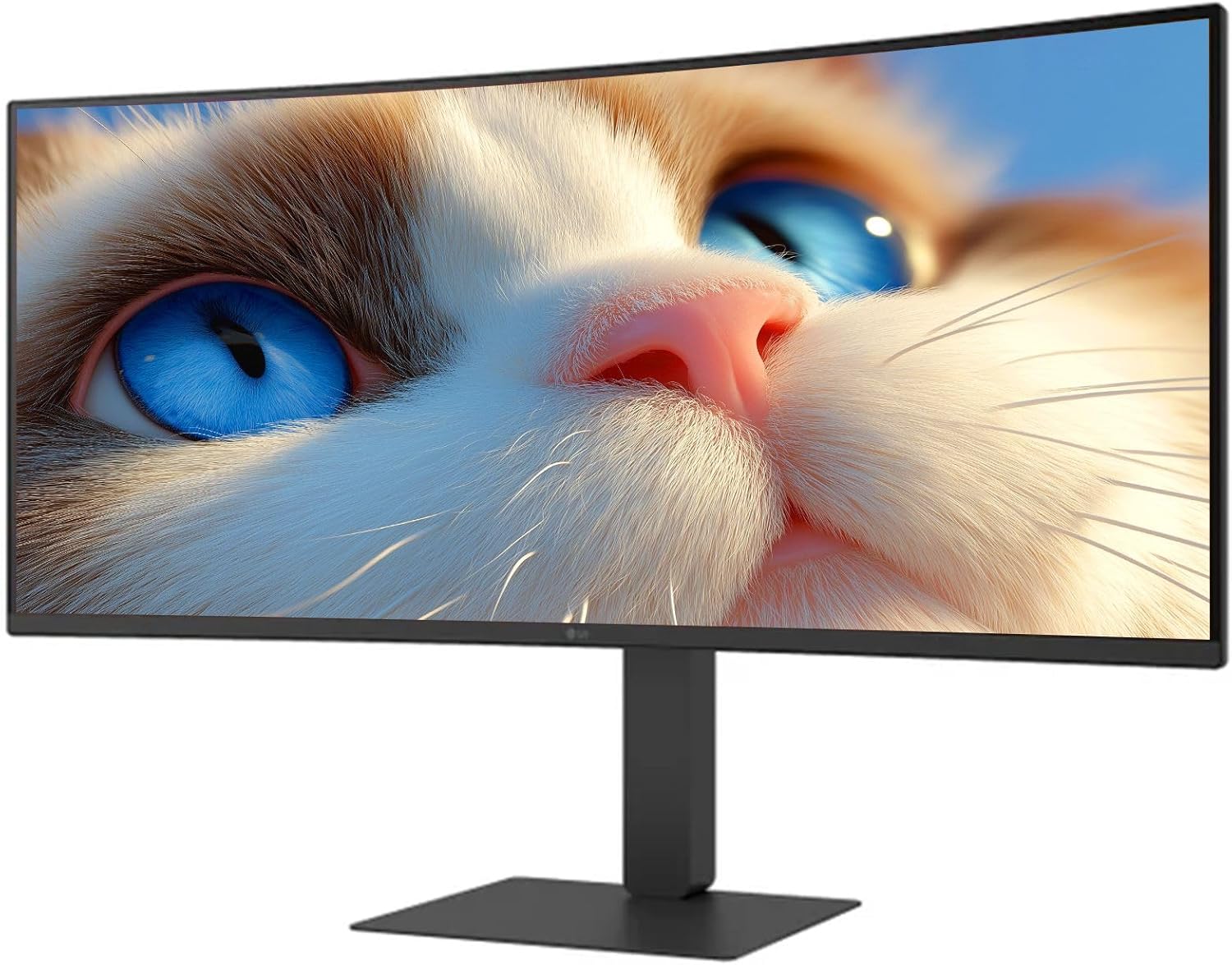
Kielelezo 1: Mbele view of the LG 34 Inch UltraWide Curved Monitor with stand.

Kielelezo 2: Upande view of the LG 34 Inch UltraWide Curved Monitor with stand.
3.2 Kuunganisha Monitor
Unganisha kufuatilia kwenye kompyuta yako au vifaa vingine kwa kutumia nyaya zinazofaa.
- Unganisha kebo ya umeme kwenye kifaa cha kuingiza umeme cha kifuatiliaji na kisha kwenye mkondo wa umeme.
- For video input, connect either an HDMI cable or a DisplayPort cable from your computer's graphics card to the corresponding port on the monitor.
- If your computer supports USB-C, you can use the provided USB-C cable for video, audio, and data transfer.

Kielelezo cha 3: Nyuma view of the monitor showing available ports for connectivity.
4. Uendeshaji wa Monitor
4.1 Washa/Zima
Press the power button, usually located on the bottom center of the monitor, to turn the monitor on or off. The power indicator light will illuminate when the monitor is on.
4.2 Menyu ya Onyesho la Skrini (OSD).
The OSD menu allows you to adjust various monitor settings. Use the joystick button (typically located on the bottom center) to navigate the menu.
- Hali ya Picha: Select from various preset modes (e.g., Custom, Reader, HDR Effect) or customize settings like brightness, contrast, and sharpness.
- Ingizo: Manually select the input source (HDMI, DisplayPort, USB-C).
- Jumla: Access settings for language, OSD transparency, and power-saving options.
4.3 Kurekebisha Stendi
The monitor stand offers ergonomic adjustments for your comfort:
- Marekebisho ya Urefu: Sukuma au vuta kifuatiliaji kwa upole juu au chini hadi urefu unaotaka.
- Marekebisho ya Tilt: Hold both sides of the monitor and tilt it forwards or backwards.
- Marekebisho ya Swivel: Zungusha mfuatiliaji kushoto au kulia kwenye msingi wake.
5. Matengenezo
5.1 Kusafisha Monitor
Ili kuhakikisha muda mrefu na utendaji bora wa skrini yako, fuata miongozo hii ya usafi:
- Daima chomoa kidhibiti kutoka kwa umeme kabla ya kusafisha.
- Tumia kitambaa laini kisicho na pamba kidogo dampimejazwa maji au kifaa maalum cha kusafisha skrini.
- Usinyunyize kisafishaji moja kwa moja kwenye skrini.
- Epuka kutumia visafishaji vya kukwaruza, miyeyusho, au bidhaa zenye amonia.
6. Utatuzi wa shida
Ukikumbana na matatizo na kifuatiliaji chako, rejelea suluhisho zifuatazo za kawaida:
- Hakuna Nguvu: Hakikisha kebo ya umeme imeunganishwa vizuri kwenye kifuatiliaji na soketi ya umeme. Angalia kama soketi ya umeme inafanya kazi.
- Hakuna Ishara: Verify that the video cable (HDMI, DisplayPort, or USB-C) is correctly connected to both the monitor and your computer. Ensure the correct input source is selected in the OSD menu.
- Skrini Inayopepesa: Check the video cable connection. Try adjusting the refresh rate in your computer's display settings.
- Upotoshaji wa Picha: Reset the monitor to factory settings via the OSD menu. Ensure your computer's display resolution matches the monitor's native resolution (3440 x 1440).
- No Sound from Built-in Speakers: Check the volume settings on both the monitor and your computer. Ensure the audio output is correctly routed to the monitor.
If the problem persists after trying these steps, please contact LG customer support.
7. Vipimo
| Kipengele | Vipimo |
|---|---|
| Chapa | LG |
| Nambari ya Mfano | 195174134092 |
| Ukubwa wa skrini | inchi 34 |
| Upeo wa Azimio | WQHD (3440 x 1440) |
| Kiwango cha Kuonyesha upya | 120Hz |
| Muda wa Majibu | 5m (GTG) |
| Uwiano wa kipengele | 21:9 |
| Rangi ya Gamut | sRGB 99% |
| Msaada wa HDR | HDR10 |
| ViewAngle | 178 degrees (R/L), 178 degrees (U/D) |
| Viunganishi vya Kuonyesha | 1 x HDMI, 1 x DisplayPort |
| Eye Relief Features | Low blue light, Flicker-free, Anti-glare, Reader Mode |
| Spika zilizojengwa ndani | Ndiyo |
| Vipimo vya bidhaa (pamoja na stendi) | 8.7"D x 32.1"W x 19.2"H |
| Uzito wa bidhaa (pamoja na stendi) | Pauni 16.8 |
8. Udhamini na Msaada
Your LG 34 Inch UltraWide Curved Monitor comes with a standard manufacturer's warranty. Please refer to the warranty card included in your package for detailed terms and conditions.
For technical support, service, or further inquiries, please visit the official LG website or contact their customer service hotline. Keep your purchase receipt and product serial number (located on the back of the monitor) handy when contacting support.