1. Bidhaa Imeishaview
The Insta360 GO Ultra Ring Remote is a compact, wearable remote control designed to enhance the operation of your compatible Insta360 camera. It allows for convenient control of shooting functions from a distance, providing flexibility during various activities.

Picha ya 1.1: Mbele view of the Insta360 GO Ultra Ring Remote. This image displays the main control button with a circular outline and a blue indicator light above it, all housed within a sleek black casing attached to a fabric strap.
Yaliyomo kwenye Kifurushi
- 1x Insta360 Ring Remote
- Charging Cable (specific type not detailed, typically USB)
- Velcro Strap (for alternative mounting)
2. Kuweka
2.1 Charging the Remote
Before initial use, fully charge the Insta360 GO Ultra Ring Remote. Connect the provided charging cable to the remote and a power source. The indicator light will typically show charging status and turn off or change color when fully charged.
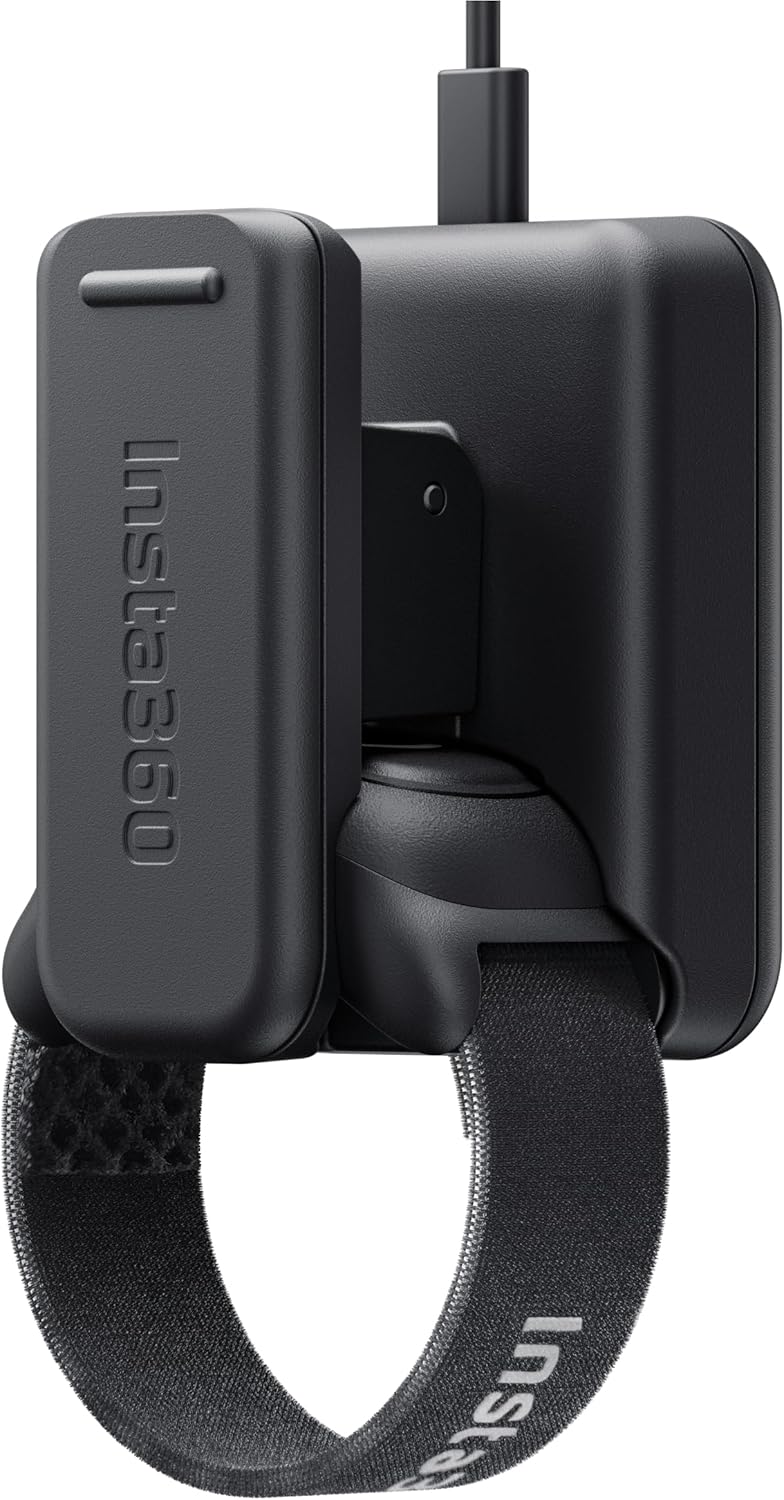
Picha ya 2.1: The Insta360 GO Ultra Ring Remote attached to its dedicated charging dock. The remote is shown from a side angle, highlighting the connection points to the charging base.
2.2 Pairing with Your Insta360 Camera
- Ensure your Insta360 camera is powered on and in pairing mode (refer to your camera's manual for specific instructions).
- Power on the Ring Remote.
- The remote should automatically attempt to pair with nearby compatible Insta360 cameras. Follow any on-screen prompts on your camera or in the Insta360 app to complete the pairing process.
- A successful connection is usually indicated by a specific light pattern or notification on the remote and/or camera.
2.3 Wearing and Mounting
The Ring Remote can be worn on your finger or attached to various accessories using the included Velcro strap.
- Finger Wear: Slide the remote onto your finger with the main button positioned for easy thumb access.
- Uwekaji wa vifaa: Use the Velcro strap to secure the remote to items such as handlebars, fishing rods, or selfie sticks. This provides flexible placement options for different shooting scenarios.

Picha ya 2.2: The Insta360 GO Ultra Ring Remote shown mounted on different accessories including a fishing rod, a selfie stick, bike handlebars, and motorcycle handlebars. This illustrates the flexible mounting options available with the included Velcro strap.
3. Operating the Remote
The Insta360 GO Ultra Ring Remote features a single main button for controlling your camera's functions.

Picha ya 3.1: Karibu-up view of a hand wearing the Insta360 GO Ultra Ring Remote, with the thumb resting on the main control button. This demonstrates the ergonomic design for easy, intuitive operation.
3.1 Kazi za Msingi
- Anza/Acha Kurekodi: A single press of the main button will typically start or stop video recording.
- Piga Picha: A quick press may capture a still image, depending on the camera's current mode.
3.2 Kubadilisha Modi
The remote supports multi-tap features for switching between different camera modes. Refer to your camera's specific firmware and the Insta360 app for detailed instructions on how to configure and utilize these functions.
3.3 Masafa ya Uendeshaji
The remote can control your camera from a distance of up to 66 feet (20 meters) in open environments without obstructions.

Picha ya 3.2: The Insta360 GO Ultra Ring Remote depicted with a large '20m' graphic and radiating signal waves, illustrating its effective operating range of up to 20 meters.
4. Matengenezo
4.1 Kusafisha
To clean the remote, wipe it with a soft, dry cloth. Avoid using harsh chemicals or abrasive materials that could damage the surface.
4.2 Upinzani wa Maji
The Insta360 GO Ultra Ring Remote is IPX7 splash-resistant. This means it can withstand splashes, rain, and brief immersion in shallow water. It is not designed for prolonged underwater use or high-pressure water exposure.

Picha ya 4.1: The Insta360 GO Ultra Ring Remote shown with water splashing around it, demonstrating its IPX7 splash-resistant capability for use in wet conditions.
5. Utatuzi wa shida
- Kidhibiti cha Mbali hakijibu: Ensure the remote is charged and within the operating range of your camera. Re-pair the remote if necessary.
- Remote Stays in Charging Mode: If the remote appears stuck in charging mode, try disconnecting and reconnecting the charging cable. If the issue persists, contact customer support.
- Button Disabled with Phone as Monitor: When your phone is actively used as a monitor for the camera, the remote's button may be temporarily disabled. This is a design feature to prevent conflicting commands.
- Accidental Recording: The remote's button is sensitive. Be mindful of its placement when storing the remote to prevent unintended activation of your camera.
- Masuala ya Utangamano: The remote is designed for specific Insta360 camera models. If you experience compatibility issues with newer or older models, check the official Insta360 website for updated firmware or compatibility lists.
6. Vipimo
| Kipengele | Vipimo |
|---|---|
| Chapa | Insta360 |
| Nambari ya Mfano | CINSCAVJ |
| Vipimo vya Bidhaa | Inchi 4 x 4 x 2 |
| Uzito wa Kipengee | 1.76 wakia |
| Teknolojia ya Uunganisho | Frequency ya Redio |
| Idadi ya Vifungo | 1 |
| Upinzani wa Maji | IPX7 Splash-resistant |
| Safu ya Uendeshaji | Hadi futi 66 (20m) |
7. Udhamini na Msaada
7.1 Taarifa ya Udhamini
For detailed warranty information, please refer to the official Insta360 website or the warranty card included with your product. Warranty terms and conditions may vary by region and product.
7.2 Usaidizi kwa Wateja
If you encounter any issues or have questions regarding your Insta360 GO Ultra Ring Remote, please visit the official Insta360 support page or contact their customer service team for assistance.


