1. Utangulizi
This manual provides comprehensive instructions for the installation, operation, and maintenance of your Cisco CP-DX80-VESA VESA Adapter and Wall Mount. Please read this manual thoroughly before installation to ensure correct setup and to prevent damage to the product or connected devices. Retain this manual for future reference.
2. Taarifa za Usalama
Zingatia tahadhari zifuatazo za usalama wakati wa ufungaji na matumizi:
- Onyo: Improper installation can result in serious personal injury or damage to equipment. Ensure all mounting hardware is securely fastened.
- Tahadhari: Do not exceed the weight capacity specified for this mount. Refer to the specifications section for details.
- Ensure the wall structure can safely support the combined weight of the mount and the attached device.
- Use appropriate tools and follow all steps carefully. If unsure, consult a qualified installer.
- Weka sehemu ndogo mbali na watoto.
3. Yaliyomo kwenye Kifurushi
Thibitisha kuwa vipengele vyote vipo kabla ya kuanza usakinishaji:
- Cisco CP-DX80-VESA VESA Adapter
- Mabano ya Mlima wa Ukuta
- Mounting Hardware Kit (screws, anchors, washers)
- Mwongozo wa Maagizo
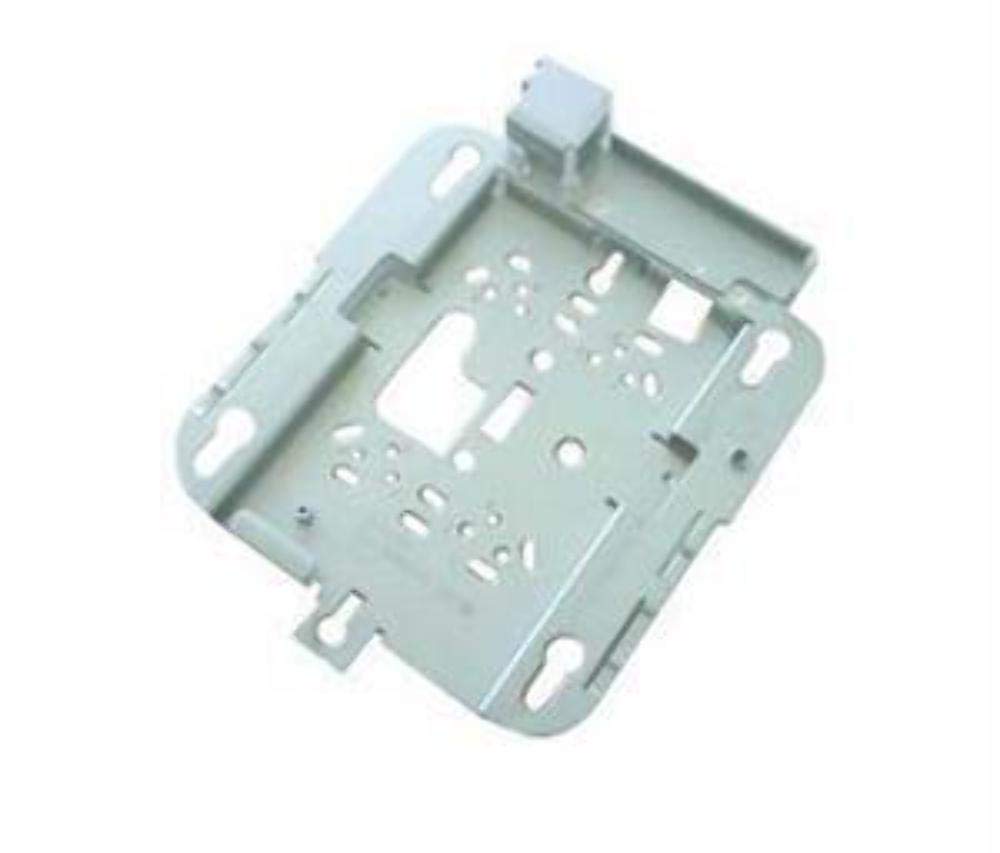
Image: The Cisco CP-DX80-VESA VESA Adapter and Wall Mount. This image displays the primary components of the product, including the adapter plate and the wall mounting bracket, designed to secure a video conferencing system to a wall.
4. Kuweka na Kuweka
4.1 Zana Zinazohitajika
- Chimba
- Drill bits (appropriate for wall material)
- Bisibisi ya kichwa cha Phillips
- Kiwango
- Penseli
- Stud finder (recommended for drywall installation)
4.2 Ufungaji wa Mlima wa Ukuta
- Chagua Mahali: Choose a suitable wall location, ensuring it can support the weight of the mount and the device. Avoid areas with electrical wires or plumbing.
- Mark Drill Holes: Hold the wall mount bracket against the wall at the desired height. Use a level to ensure it is straight. Mark the drill hole locations with a pencil.
- Chimba Mashimo: Drill pilot holes at the marked locations. Use appropriate drill bits for your wall type (e.g., wood studs, concrete, drywall with anchors).
- Mabano Salama: Insert wall anchors (if required) into the pilot holes. Align the wall mount bracket with the holes and secure it to the wall using the provided screws. Ensure it is firmly attached.
4.3 VESA Adapter Attachment to Device
- Identify VESA Pattern: Locate the VESA mounting holes on the back of your Cisco DX80 video conferencing system.
- Ambatisha Adapta: Align the Cisco CP-DX80-VESA adapter with the VESA mounting holes on the DX80 device.
- Adapta salama: Use the appropriate screws from the mounting hardware kit to securely fasten the VESA adapter to the DX80 device. Do not overtighten.
4.4 Mounting the Device to the Wall Bracket
- Lift Device: Carefully lift the DX80 device with the attached VESA adapter. It is recommended to have assistance for this step.
- Engage Mount: Hook the VESA adapter onto the wall mount bracket. Ensure the adapter is fully seated and engaged with the bracket's locking mechanism.
- Salama Kifaa: Depending on the design, there may be additional screws or clips to secure the device to the wall bracket. Fasten these as instructed to prevent accidental dislodging.
- Ukaguzi wa Mwisho: Gently pull on the mounted device to ensure it is stable and securely attached to the wall.
5. Mazingatio ya Uendeshaji
Once the Cisco DX80 is securely mounted using the CP-DX80-VESA adapter and wall mount, its operation remains consistent with its standard functionality. The mount provides a stable platform for the device.
- Ensure all cables (power, network, video) are properly connected and routed to avoid strain or interference.
- Periodically check the stability of the mount and the device, especially after any adjustments or movement.
6. Matengenezo
The Cisco CP-DX80-VESA VESA Adapter and Wall Mount requires minimal maintenance.
- Kusafisha: Futa nyuso za kupachika kwa kitambaa laini na kikavu. Epuka visafishaji au viyeyusho vinavyoweza kuharibu umaliziaji.
- Ukaguzi: Periodically inspect all mounting screws and connections to ensure they remain tight. Over time, vibrations or environmental factors can cause screws to loosen.
- Uharibifu: If any part of the mount appears damaged or worn, discontinue use and contact Cisco support for replacement parts or advice.
7. Utatuzi wa shida
This section addresses common issues related to the installation and stability of the mount.
| Tatizo | Sababu inayowezekana | Suluhisho |
|---|---|---|
| Mount anahisi kutokuwa shwari au kuyumba. | Loose mounting screws; inadequate wall support; incorrect anchors. | Tighten all screws. Verify wall structure and use appropriate anchors. Reinstall if necessary. |
| Device not attaching correctly to VESA adapter. | Incorrect screw size; misalignment. | Ensure correct VESA screws are used. Realign the adapter with the device's mounting holes. |
| Wall mount bracket not level. | Hitilafu ya usakinishaji. | Remove bracket, re-mark holes using a level, and reinstall. |
8. Vipimo
Key technical specifications for the Cisco CP-DX80-VESA VESA Adapter and Wall Mount:
| Kipengele | Maelezo |
|---|---|
| Nambari ya Mfano | CP-DX80-VESA |
| Vipimo vya Bidhaa | Inchi 10.63 x 16.14 x 3.54 |
| Uzito wa Kipengee | Pauni 2.2 |
| Kiunzi cha vifaa | Ethernet (for connected device) |
| Mtengenezaji | Mifumo ya Cisco, Inc |
| Tarehe ya Kwanza Inapatikana | Agosti 21, 2015 |
| UPC | 882658710469 |
9. Udhamini na Msaada
For information regarding the product warranty, please refer to the official Cisco warranty documentation provided with your original purchase or visit the Cisco webtovuti. Masharti mahususi ya udhamini yanaweza kutofautiana kulingana na eneo na bidhaa.
9.1 Msaada wa Kiufundi
If you encounter issues that cannot be resolved using the troubleshooting guide, or require further assistance, please contact Cisco Technical Support:
- Webtovuti: Visit the official Cisco support website for documentation, FAQs, and contact options.
- Simu: Refer to your product's packaging or the Cisco webtovuti kwa nambari za simu za usaidizi wa kikanda.
When contacting support, please have your product model number (CP-DX80-VESA) and purchase information readily available.