1. Bubuka
Hatur nuhun pikeun meuliasing the Keyboard Case for your Samsung Galaxy Tab S9+/S9 Plus (12.4") SM-X810/X816B Tablet. This product combines a protective cover with a functional keyboard, enhancing your tablet's versatility for both work and entertainment. It features a backlight touchpad for improved usability in various lighting conditions.
Important: This case is specifically designed for Samsung Galaxy Tab S9+/S9 Plus (12.4") models SM-X810/X816B. Please verify your tablet's model number before use to ensure compatibility.

Image: The Keyboard Case for Samsung Galaxy Tab S9+/S9 Plus, shown with a tablet inserted, highlighting its integrated keyboard and backlight touchpad.
2. Émbaran Kasalametan
- Jauhkeun alat tina cai, beueus, sareng suhu anu ekstrim.
- Ulah nyobian ngabongkar atawa ngalereskeun alat sorangan. Rujuk ka tanaga anu mumpuni pikeun jasa.
- Use only the provided charging cable or a certified equivalent for charging the keyboard.
- Avoid dropping or subjecting the case to strong impacts.
- Jauhkeun tina jangkauan barudak leutik.
3. Setélan
3.1 Installing Your Tablet
- Gently align your Samsung Galaxy Tab S9+/S9 Plus with the protective frame of the case.
- Press the tablet firmly into the case, ensuring all corners are securely seated. The soft silicon border provides a snug fit and protection.
3.2 Bluetooth Keyboard Connection
The keyboard connects wirelessly via Bluetooth. Follow these steps for initial pairing:
- Ngecas Kibor: Ensure the keyboard has sufficient battery. Connect the charging cable to the keyboard's charging port and a power source. The charging indicator light will illuminate.
- Hurungkeun Kibor: Locate the power switch on the keyboard (usually on the side or top edge) and slide it to the "ON" position. The power indicator light will turn on.
- Lebetkeun Mode Papasangan: Press the "Connect" button on the keyboard. The Bluetooth indicator light will start flashing, indicating it is in pairing mode. For some models, you may need to press Fn + C simultaneously to activate Bluetooth pairing.
- Enable Bluetooth on Your Tablet: On your Samsung Galaxy Tab S9+/S9 Plus, go to Setélan > Alat disambungkeun > Bluetooth sareng hurungkeun Bluetooth.
- Pilih Kibor: In the list of available Bluetooth devices on your tablet, look for "Bluetooth Keyboard" or a similar name. Tap on it to connect.
- Konfirmasi sambungan: Once connected, the Bluetooth indicator light on the keyboard will stop flashing and remain solid or turn off, depending on the model. Your tablet will show the keyboard as "Connected."
After the initial successful pairing, the keyboard will automatically connect to your tablet when both devices are powered on and Bluetooth is enabled on the tablet.

Image: A visual guide illustrating the four steps for connecting the keyboard via Bluetooth, including powering on, pressing connect, and selecting the device on the tablet.
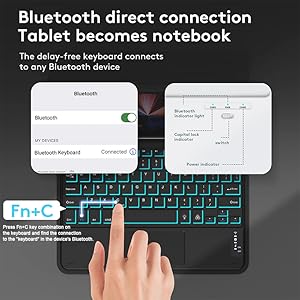
Image: A close-up showing the keyboard with a finger pressing the 'Fn' and 'C' keys, indicating the key combination for Bluetooth pairing.
3.3 Bluetooth Mouse Connection (If Applicable)
If your keyboard case variant includes a separate Bluetooth mouse or supports mouse functionality, follow these general steps:
- Daya dina Mouse: Turn on the mouse using its power switch.
- Lebetkeun Mode Papasangan: Press and hold the Bluetooth pairing button on the mouse (often on the bottom) until its indicator light flashes.
- Enable Bluetooth on Your Tablet: Ensure Bluetooth is ON in your tablet's settings.
- Pilih Beuritna: In the list of available Bluetooth devices, select the mouse (e.g., "Bluetooth Mouse").
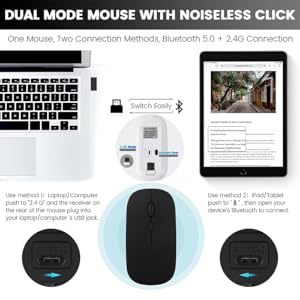
Image: A diagram illustrating the two connection methods for a dual-mode mouse, including Bluetooth pairing for tablets.
4. Parentah Operasi
4.1 Multi-Angle Stand
The case features non-slip grooves that allow you to adjust your tablet to multiple viewing angles. Simply move the tablet forward or backward along the grooves to find the optimal angle for typing, viewing, reading, or drawing.

Image: A visual representation of the keyboard case supporting three distinct viewing angles, highlighting the anti-slip grooves that secure the tablet in place.

Image: A user demonstrating the adjustable viewing angle of the keyboard case, providing a comfortable position for typing.
4.2 Fitur kibor
- Lampu tukang: The keyboard features RGB backlighting. Use the dedicated backlight key (often a light bulb icon) or a function key combination (e.g., Fn + Light Bulb icon) to cycle through colors and brightness levels.
- Touchpad: The integrated touchpad allows for precise cursor control, similar to a laptop. It supports multi-touch gestures (refer to your tablet's operating system for specific gesture support).
- Tombol Fungsi: The top row of keys includes dedicated function keys (F1-F12) that can control media playback, volume, screen brightness, and other tablet functions. These often require pressing the Fn konci sakaligus.

Gambar: A lengkep view of the keyboard's layout, showcasing the keys, touchpad, and the subtle green backlighting.
4.3 Kibor anu tiasa dicabut
The keyboard is magnetically attached to the case, allowing for easy installation and removal. This provides flexibility to use the tablet with or without the keyboard, depending on your needs.

Image: An illustration demonstrating how the keyboard can be easily detached from the case due to its magnetic design.
4.4 Tempat Pulpen
The case includes a built-in pen holder, providing a convenient and secure place to store your stylus (e.g., S Pen) when not in use. This ensures your stylus is always accessible and protected.
5. Pangropéa
5.1 Ngecas kibor
The keyboard has a built-in rechargeable battery. When the battery is low, connect the provided USB charging cable to the keyboard's charging port and a standard USB power adapter (not included) or a computer's USB port. The charging indicator will show the charging status.
5.2 beberesih
- To clean the case and keyboard, use a soft, dry, lint-free cloth.
- Keur kokotor bandel, rada dampen lawon jeung cai. Hindarkeun ngagunakeun bahan kimia kasar, pangleyur, atanapi pembersih abrasive.
- Ensure the keyboard is powered off and disconnected from any power source before cleaning.
6. Cara ngungkulan
| Masalah | Mungkin Cukang lantaranana | Solusi |
|---|---|---|
| Kibor teu nyambung via Bluetooth. | Keyboard is off, low battery, not in pairing mode, or tablet Bluetooth is off. | Ensure keyboard is charged and powered on. Press the 'Connect' button or Fn+C to enter pairing mode. Check tablet's Bluetooth settings. Forget and re-pair the device if necessary. |
| Keys or touchpad not responding. | Keyboard is disconnected, low battery, or a software glitch. | Reconnect the keyboard. Charge the keyboard. Restart your tablet. |
| Lampu tukang teu jalan. | Backlight is off or brightness is too low. | Press the backlight key or Fn + backlight key to turn it on or adjust brightness/color. |
| Tablet does not fit the case. | Incorrect tablet model. | Verify your tablet model number (SM-X810/X816B) against the product's compatibility. This case is specifically designed for the Samsung Galaxy Tab S9+/S9 Plus (12.4"). |
7. Spésifikasi
| Fitur | Rincian |
|---|---|
| Alat nu cocog | Samsung Galaxy Tab S9+/S9 Plus (12.4") SM-X810/X816B |
| Téhnologi konektipitas | Bluetooth |
| Katerangan kibor | Multi Fungsional |
| Fitur husus | Portable, Ergonomic, Rechargeable, Case |
| Warna | Blue (Backlight Touch Pad variant) |
| Jumlah konci | 79 |
| Lampu tukang kibor | RGB |
| Item Beurat | 1.54 pon |
| Ukuran Paket | 13.78 x 11.81 x 1.18 inci |
| Produsén | NuLian |
| Negara asal | Cina |
8. Garansi jeung Rojongan
For warranty information or technical support, please refer to the documentation included with your purchase or contact the seller/manufacturer directly through the platform where the product was purchased. Please have your product model number and purchase details ready when contacting support.