1. Selelekela
This manual provides detailed instructions for the setup, operation, maintenance, and troubleshooting of your Lenovo ThinkVision T24-40 23.8-inch Monitor. Please read this manual thoroughly before using your monitor to ensure proper functionality and to prevent damage.
Likarolo tsa Bohlokoa:
- 23.8" viewable screen size for enhanced clarity.
- WLED backlight technology for uniform illumination.
- 4 ms response time for smooth transitions.
- Designed to meet Eye Comfort standards with a 5-Star Eye Comfort Rating.
- 16:9 widescreen aspect ratio.
- 250 Nit brightness levels for clear visuals.
- Anti-glare matte screen finish.
- 1920 x 1080 maximum resolution.
2. Se ka Lebokoseng
Netefatsa hore lintho tsohle li teng ka har'a sephutheloana:
- ThinkVision T24-40 Widescreen LED Monitor
- DP Cable
- Cable ea USB-A ho ea ho USB-B
3. Seta
3.1. Kopano ea Mohlokomeli
To assemble the monitor stand:
- Tlosa sesupo ka hloko le lisebelisoa tsa ho ema sephuthelong.
- Attach the stand neck to the back of the monitor. Align the tabs and push firmly until it clicks into place. Secure it with the captive thumb screw.
- Attach the base to the stand neck. Align the base with the bottom of the neck and secure it with the captive thumb screw.
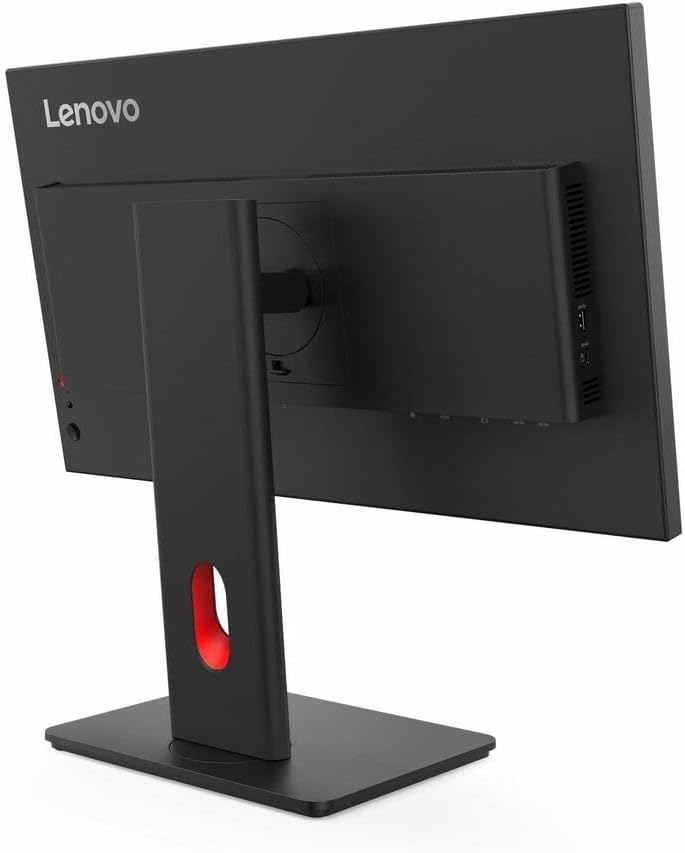
Setšoantšo sa 1: Ka morao view of the monitor with the stand attachment area.

Setšoantšo sa 2: Lehlakore view illustrating the monitor with its stand assembled.
3.2. Ho hokela Mohlahlobi
Connect the monitor to your computer using the provided cables:
- Khokelo ea Matla: Connect the power cable to the monitor's power input port and then to a power outlet.
- Khokahano ea Video: Connect the DisplayPort (DP) cable from your computer's DP output to the monitor's DP input. Alternatively, use an HDMI cable if your computer supports it.
- Khokahano ea USB: Connect the USB-A to USB-B cable from your computer to the monitor to enable the monitor's USB hub functionality.

Setšoantšo sa 3: Ka morao view of the monitor showing various input ports and connected cables.
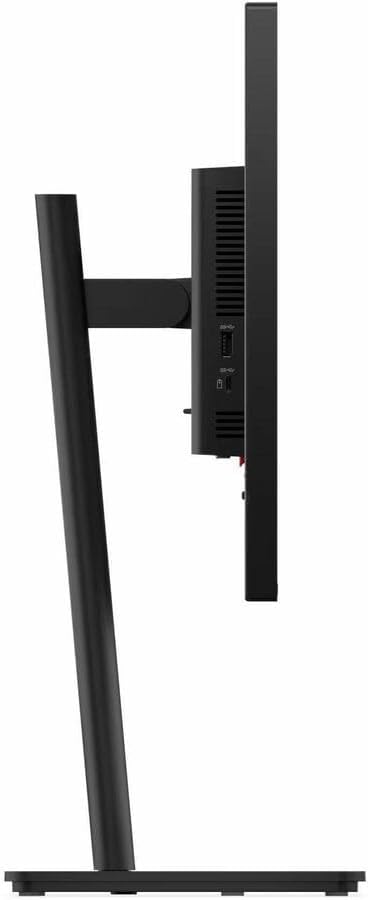
Figure 4: Close-up of the monitor's side ports, including HDMI and VGA.
4. Litaelo tsa Ts'ebetso
4.1. Matla On/O tima
Tobetsa konopo ea ho tima e fumanehang bezel e ka tlase ho le letona ea sekirini ho e bulela kapa ho e tima. Leseli la sesupo sa motlakase le tla bonesa ha sekirini se butsoe.
4.2. Ditaolo tsa Pontšo e Skrineng (OSD)
The monitor features several buttons on the bottom bezel to access and navigate the On-Screen Display (OSD) menu. These controls allow you to adjust various display settings.

Figure 5: Control buttons located on the lower right side of the monitor bezel.
4.3. Ho fetola Litlhophiso tsa Pontšo
Use the OSD buttons to navigate through the menu options. Common adjustments include:
- Khanya/Phapang: Fetola maemo a khanya ka kakaretso le a phapang a pontsho.
- Mohloli oa Kenyelletso: Select between available input sources (e.g., HDMI, DisplayPort, VGA).
- Litlhophiso tsa Mebala: Customize color temperature, gamma, and other color-related parameters.
- Boemo ba Pontšo: Choose from preset display modes optimized for different content types (e.g., Standard, Movie, Game).
4.4. Physical Adjustments
The monitor stand allows for ergonomic adjustments:
- Phetoho ea Bophahamo: Gently push or pull the monitor up or down to achieve the desired viewbophahamo ing.
- Phetoho ea Tilt: Tilt the screen forward or backward to optimize your viewing angle.
- Phetoho ea Swivel: Phetla sekirini ka letsohong le letšehali kapa le letona botlaaseng ba sona.
5. Tlhokomelo
To ensure the longevity and optimal performance of your ThinkVision T24-40 monitor, follow these maintenance guidelines:
- Ho hloekisa skrine: Sebelisa lesela le bonolo, le se nang lint ha bobebe dampened with water or a non-ammonia, non-alcohol-based screen cleaner. Do not spray liquid directly onto the screen.
- Ho hloekisa Casing: Sebelisa lesela le bonolo, le omeletseng ho hlakola mochine casing. Qoba li-abrasive cleaners.
- Moea oa moea: Netefatsa hore masoba a moea a holim'a mochine ha a thibeloa ho thibela mocheso o feteletseng.
- Polokelo: Ha e sa sebelisoe ka nako e telele, boloka sekirini sebakeng se pholileng, se omileng, haholo-holo ka har'a sephutheloana sa eona sa pele.
6. Ho rarolla mathata
Haeba u na le mathata ka sesupo sa hau, sheba mathata a latelang a tloaelehileng le tharollo:
| Bothata | Tharollo e ka khonehang |
|---|---|
| Ha ho setšoantšo skrineng | Ensure power cable is securely connected. Verify video cable is connected to both monitor and computer. Select correct input source via OSD. |
| Image is dim or too bright | Adjust brightness and contrast settings using the OSD menu. |
| Mebala e bonahala e fosahetse | Adjust color settings in the OSD menu. Ensure graphics drivers are up to date. |
| Lekola li-flickers | Check video cable connections. Ensure refresh rate is set correctly in your computer's display settings. |
| Ha ho molumo | If using monitor speakers, ensure volume is not muted and is turned up. Check audio output settings on your computer. |
7. Litlhaloso
| Sebopeho | Lintlha |
|---|---|
| Boholo ba skrine bo emeng | 23.8 lisenthimithara |
| Qeto ea skrine | 1920x1080 |
| Qeto ea Max Screen | 1920 x 1080 Pixels |
| Brand | Lenovo |
| Letoto | Nahana ka pono |
| Nomoro ea mohlala oa ntho | T24-40 |
| Boima ba Ntho | 6.61 liponto |
| Litekanyo tsa Sehlahisoa | 1.8 x 21.3 x 12.4 lisenthimithara |
| Mmala | Eclipse Black, Black |
| Aspect ratio | 16:9 |
| Tlhaloso ea sefahleho sa skrine | Matte |
8. Tiisetso le Tšehetso
For warranty information, technical support, or to download the latest drivers and user manuals, please visit the official Lenovo support websebaka. Boloka rasiti ea hau ea theko bakeng sa likopo tsa tiisetso.
Ts'ehetso ea Lenovo Websebaka: pcsupport.lenovo.com


