1. Selelekela
This manual provides detailed instructions for the installation, operation, and maintenance of the Arducam 16MP Autofocus Camera Module for Raspberry Pi. This camera module features an IMX519 sensor, offering 16 megapixels of resolution and autofocus capabilities, making it suitable for various applications with Raspberry Pi and Jetson Developer Kit boards.
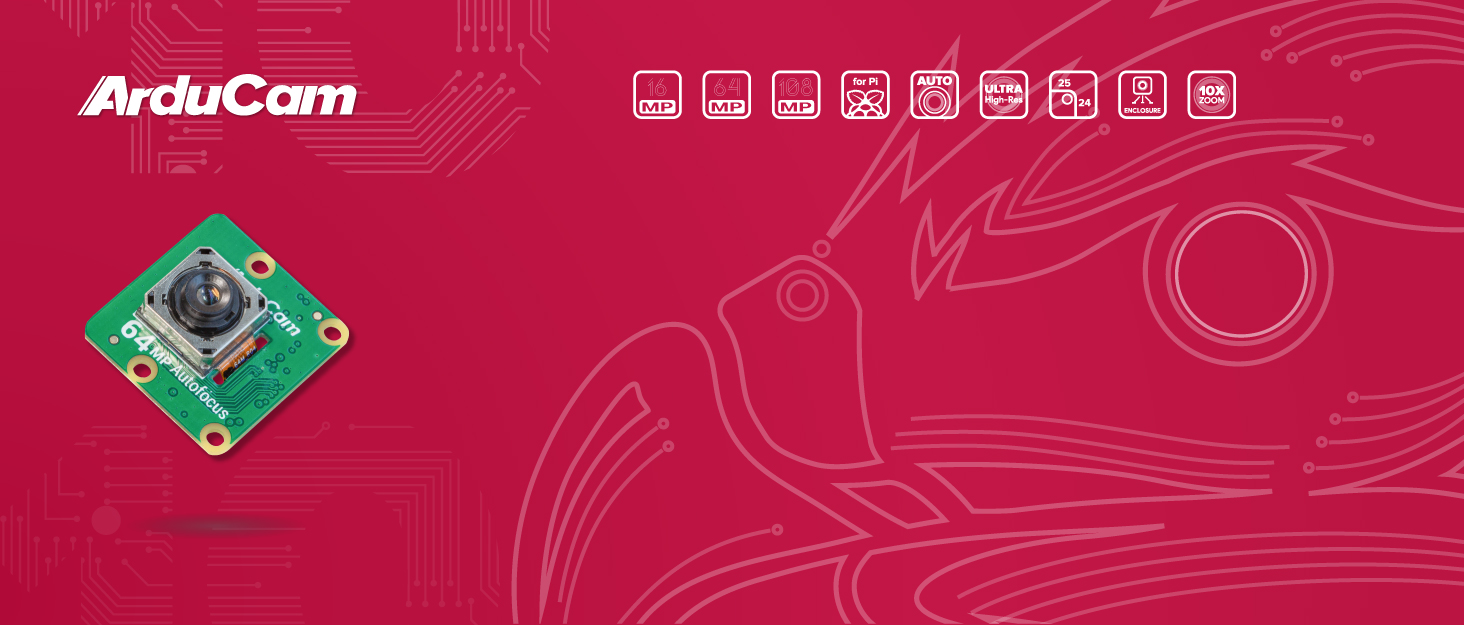
Image 1.1: Arducam 16MP Autofocus Camera Module with Raspberry Pi.
2. Likahare tsa Sephutheloana
Verify that all items listed below are included in your package. If any components are missing or damaged, please contact Arducam support.
- Camera board with IMX519 sensor and autofocus lens
- thapo ea FPC
- Camera housing (ABS case)
- Bukana (setoko sena)

Image 2.1: Contents of the Arducam 16MP Autofocus Camera Module package, including the camera board, FPC cable, and ABS housing.
3. Likarolo tsa Bohlokoa
- 16 Megapixel Resolution: Features an IMX519 sensor with 4656 x 3496 pixel resolution.
- Lense ea Autofocus: Integrated autofocus motor for quick focusing, with a minimum focus distance of 10cm.
- Video ea boleng bo holimo: Supports 1080p Full HD video at up to 30 frames per second and 720p HD video at up to 60 frames per second.
- Bophara ba Tšebelisano: Compatible with all Raspberry Pi models featuring a MIPI/CSI interface and Jetson Developer Kit.
- Moralo oa Compact: Similar form factor to Raspberry Pi Camera Module V3/V2/V1.
- Matlo a Tšireletso: Includes an ABS case with an integrated 1/4-inch tripod mounting hole.

Setšoantšo sa 3.1: Pele view of the 16MP camera module.

Image 3.2: Close-up of the autofocus lens mechanism.

Image 3.3: The camera module housed within its protective ABS shell.
4. Litaelo tsa ho seta
4.1. Khokahano ea Hardware
- Prepare your Raspberry Pi: Ensure your Raspberry Pi is powered off before connecting the camera module.
- Connect the FPC Cable: Gently lift the plastic clip on the CSI camera port of your Raspberry Pi. Insert the FPC cable with the silver contacts facing the CSI port. Ensure the cable is fully seated and then push the clip back down to secure it.
- Attach the Camera Module: Connect the other end of the FPC cable to the camera module's connector.
- Install ABS Case (Optional): If using the provided ABS case, carefully place the camera module into the bottom part of the case, then snap the top cover into place. The case provides protection and a tripod mounting point.

Image 4.1: Arducam 16MP camera module connected to a Raspberry Pi via the FPC cable.
4.2. Sebopeho sa Software
The Arducam 16MP camera module requires specific driver installation and script configuration. It is designed for Raspberry Pi OS Bullseye and does not support Raspbian Buster or older versions. For Jetson Nano, specific guides are available.
- Mokhoa oa tšebetso: Ensure your Raspberry Pi is running Raspberry Pi OS Bullseye (64-bit recommended for RPi 3B+).
- Kemiso ea Bakhanni: Follow the official Arducam guide for IMX519 driver installation. An automatic installation script is available for beginners. Refer to the Arducam documentation for the latest instructions.
- PiCamera2 Library: The camera works with the PiCamera2 library. Ensure it is installed and configured correctly.
- Jetson Nano Compatibility: For Jetson Nano users, refer to the specific Arducam guide for Jetson Nano setup.

Image 4.2: Arducam 16MP camera module connected to an NVIDIA Jetson Developer Kit.
5. Litaelo tsa Ts'ebetso
5.1. Capturing Images and Videos
Once the camera is set up and drivers are installed, you can use the PiCamera2 library or command-line tools to capture images and videos.
- Ho Nka setšoantšo: Use appropriate commands or Python scripts with PiCamera2 to capture still images at 16MP resolution.
- Ho Rekota Lifitio: Record videos in 1080p at 30fps or 720p at 60fps.
5.2. Mosebetsi oa Autofocus
The integrated autofocus motor allows the camera to quickly adjust its focus. This feature is particularly useful for applications requiring clear images at varying distances, from close-up objects (minimum 10cm) to infinity.

Setšoantšo sa 5.1: Ka botlalo view of the autofocus lens on the Arducam 16MP camera module.

Setšoantšo sa 5.2: Examples of image capture demonstrating the camera's capabilities in different scenarios, including macro and landscape shots.
6. Tlhokomelo
To ensure the longevity and optimal performance of your Arducam 16MP Autofocus Camera Module, follow these maintenance guidelines:
- Ho hloekisa Lense: Use a soft, lint-free cloth specifically designed for optics to gently clean the lens. Avoid abrasive materials or harsh chemicals.
- Ho tšoara: Always handle the camera module by its edges to avoid touching the lens or electronic components.
- Polokelo: Store the camera in a dry, dust-free environment when not in use. The included ABS case can provide additional protection.
- Maemo a Tikoloho: Avoid exposing the camera to extreme temperatures, high humidity, or direct sunlight for extended periods.
7. Ho rarolla mathata
If you encounter issues with your Arducam 16MP Autofocus Camera Module, refer to the following common problems and solutions:
- Khamera ha e fumanehe:
- Ensure the FPC cable is correctly and securely connected to both the Raspberry Pi and the camera module.
- Verify that the correct drivers are installed for your operating system (Raspberry Pi OS Bullseye is required).
- Check if the camera interface is enabled in your Raspberry Pi configuration (e.g., via
raspi-config).
- Fuzzy or Out-of-Focus Images:
- Ensure the autofocus mechanism is functioning. Some applications or scripts might require specific commands to trigger autofocus.
- Check for any physical obstructions or smudges on the lens.
- Compatibility Issues with Third-Party OS:
- The camera is fully compatible with Octoprint. For other third-party OS like Motioneye, Klipper, and Octolapse, official support may not yet be available. Refer to Arducam's official documentation or community forums for potential workarounds.
- Performance Issues (e.g., low frame rate):
- Ensure your Raspberry Pi has sufficient power and resources.
- Check for background processes that might be consuming CPU or memory.
If these steps do not resolve your issue, please contact Arducam Support for further assistance. They can provide manual configuration scripts or remote support if needed.
8. Litlhaloso
| Sebopeho | Tlhaloso |
|---|---|
| Brand | Arducam |
| Nomoro ea Mohlala | Arducam Pi |
| Sensoro | IMX519 |
| Qeto | 16 Megapixels (4656 x 3496) |
| Autofocus | Ee |
| Bonyane ba tsepamiso ea maikutlo | 10 cm |
| Qeto ea ho nka video | 1080p (30fps), 720p (60fps) |
| Tšimo ea View | 80 likhato |
| Sehokedi | MIPI/CSI |
| Litekanyo (Pakete) | 2.44 x 2.05 x 1.06 lisenthimithara |
| Boima ba Ntho | 0.634 lik'hilograma |
| Mmala | Botsho, Botala |
| Likarolo Tse Khethehileng | Lightweight, Low Light |
9. Tiisetso le Tšehetso
For technical support, warranty information, or any inquiries regarding your Arducam 16MP Autofocus Camera Module, please contact Arducam directly. Detailed support resources, including guides and forums, are available on the official Arducam websebaka.
If there is any issue with the camera, feel free to contact Arducam, and they will provide technical support.


