1. Selelekela
The Launch Creader 6011 is a versatile diagnostic tool designed for automotive enthusiasts and professional technicians. It offers comprehensive OBDII/EOBD diagnostic capabilities, alongside specialized functions for Anti-lock Braking System (ABS) and Supplemental Restraint System (SRS) diagnostics. This manual provides detailed instructions for the proper use, setup, and maintenance of your Creader 6011 device.
2. Sehlahisoa Overview
The Creader 6011 features a large color display and an intuitive interface for easy navigation and data interpretation. Its robust design ensures durability for use in various automotive environments.

Setšoantšo sa 2.1: The Launch Creader 6011 diagnostic scanner with its main menu displayed.

Setšoantšo sa 2.2: Ka botlalo views of the Creader 6011, showing its various ports and control layout.
3. Litlhaloso
| Sebopeho | Tlhaloso |
|---|---|
| Skrine | 4.0" TFT 320*480 dpi |
| Moqtage Range | 9-18V |
| Mocheso oa ho sebetsa | 0℃ ~ 50℃ |
| Tikoloho Mocheso | -20 ℃ ~ 70 ℃ |
| Litekanyo | 195mm x 86mm x 32mm (7.6" x 3.4" x 1.2") |
| Boima ba 'mele | 460g (1.01 lbs) |
| Mohloli oa Matla | Corded Electric (via OBD II port) |
| Ntho Nomoro ea Mohlala | Launch-IV06 |
| UPC | 680666198909 |
4. Seta
The Creader 6011 is designed for ease of use and requires no external power source or batteries. It draws power directly from the vehicle's OBD II port.
- Locate the OBD II Port: The OBD II port is typically located under the dashboard on the driver's side of the vehicle. Refer to your vehicle's owner's manual if you cannot find it.
- Connect the Scanner: Plug the diagnostic cable of the Creader 6011 into the vehicle's OBD II port. Ensure a secure connection.
- Matlafatsa: Once connected, the scanner will automatically power on and display the main menu. If it does not power on, check the vehicle's ignition status and the connection.
5. Litaelo tsa Ts'ebetso
Navigate the menu using the directional buttons and confirm selections with the OK konopo. The ESC button returns to the previous screen.

Setšoantšo sa 5.1: Key components and button functions of the Creader 6011.
5.1. Full OBDII/EOBD Functions
The Creader 6011 supports all 10 modes of OBDII/EOBD diagnostics:
- Bala Likhoutu: Retrieves Diagnostic Trouble Codes (DTCs) from the vehicle's computer.
- Hlakola Likhoutu: Clears DTCs and turns off the Malfunction Indicator Lamp (MIL).
- I/M Ho itokisa: Checks the readiness of the emission monitoring systems.
- Phatlalatso ea Boitsebiso: Displays live data parameters from the vehicle's sensors.
- Thibela Foreime: Shows a snapshot of operating conditions at the time a fault occurred.
- Teko ea Sensor ea O2: Retrieves O2 sensor monitoring test results.
- On-Board Monitoring Test: Retrieves results for emission-related powertrain components and systems.
- Teko ea Sistimi ea EVAP: Initiates a test of the Evaporative Emission System.
- Lintlha tsa Koloi: Retrieves vehicle identification number (VIN), calibration ID, and calibration verification number (CVN).
- Teko ea Karolo: Allows bi-directional control of certain components (if supported by vehicle).

Setšoantšo sa 5.2: Example of the I/M Readiness screen, showing emission monitor status.
5.2. ABS and SRS System Diagnostic Functions
In addition to standard OBDII functions, the Creader 6011 provides specialized diagnostic capabilities for the Anti-lock Braking System (ABS) and Supplemental Restraint System (SRS).
- Read ABS/SRS DTCs: Retrieves specific trouble codes related to the ABS and SRS systems.
- Clear ABS/SRS DTCs: Erases fault codes from the ABS and SRS modules.
- Data Streams for ABS/SRS: Views live data parameters from ABS and SRS sensors, aiding in diagnosis.
6. Ntlafatso ea Software
The Creader 6011 supports lifetime free online updates to ensure compatibility with new vehicle models and to receive software enhancements. Follow these steps to update your device:
- Download Update Tool: Etela PHALLO ea semmuso websaete (www.dbscar.com). Navigate to 'Products' > 'creader 4001~9081', find 'creader 6011', and download the update tool to your computer.
- Install Update Tool: Install the downloaded update tool software on your computer.
- Hokela Sesebelisoa: Connect your Creader 6011 to your computer using the provided USB data cable.
- Sebelisa Sesebelisoa sa Ntlafatso: Launch the update tool software. You will be prompted to enter the serial number and register code of your Creader 6011. These details will be displayed on the scanner's screen when it is connected to your PC.
- Qala Ntlafatso: Click the 'Update' button within the software. Ensure the device remains connected and your internet connection is stable throughout the update process.
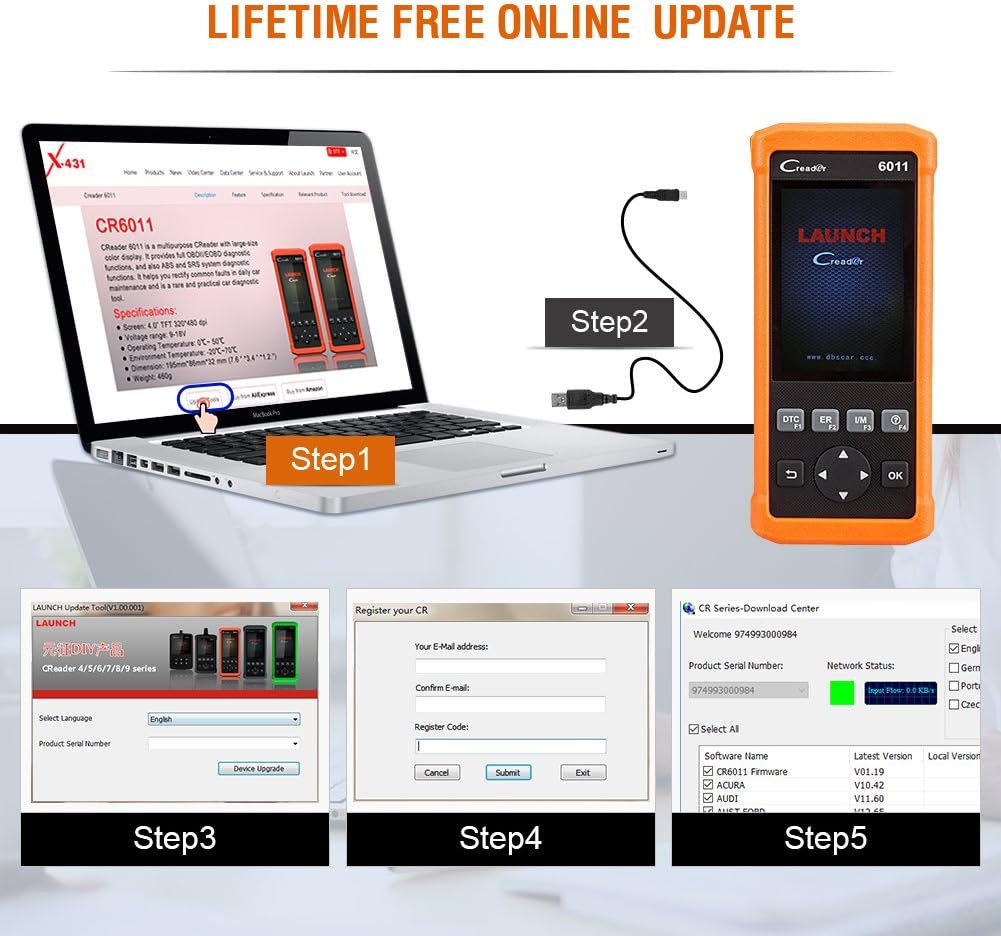
Setšoantšo sa 6.1: Visual guide for the software update process.
7. Vehicle Coverage
The Creader 6011 is compatible with most post-1996 vehicles (OBD II & CAN compliant), including domestic and imported 12V petrol vehicles. Below is a general list of supported car brands (2006-present):

Setšoantšo sa 7.1: Partial list of car brands supported by the Creader 6011.
For a comprehensive and up-to-date list, please refer to the official LAUNCH website or the update tool software.
8. Tlhokomelo
To ensure the longevity and optimal performance of your Creader 6011, follow these maintenance guidelines:
- Ho hloekisa: Sebelisa lesela le bonolo, le omileng ho hloekisa sesebelisoa. Qoba ho sebelisa lihlatsoi tse khorofo kapa li-solvent.
- Polokelo: Store the device in a dry, cool environment, away from direct sunlight and extreme temperatures.
- Tlhokomelo ea Lithapo: Handle the diagnostic cable carefully. Avoid bending or twisting it excessively, which can damage internal wires.
- Lintlafatso tsa Software: Regularly perform software updates as described in Section 6 to maintain compatibility and access new features.
9. Ho rarolla mathata
If you encounter issues with your Creader 6011, consider the following common troubleshooting steps:
- Sesebediswa Ha se Matla: Ensure the diagnostic cable is securely connected to the vehicle's OBD II port. Verify the vehicle's ignition is on. Check for any blown fuses in the vehicle's OBD II circuit.
- Phoso ea Lipuisano: Confirm the vehicle is OBD II compliant. Check for a stable connection between the scanner and the vehicle. Try the scanner on a different OBD II compliant vehicle to rule out vehicle-specific issues.
- Screen Freezes/Unresponsive: Disconnect the device from the vehicle and reconnect it. If the issue persists, perform a software update.
- Update Failure: Ensure a stable internet connection during the update process. Verify the serial number and register code are entered correctly. Temporarily disable any firewall or antivirus software that might interfere with the update tool.
For persistent issues, contact LAUNCH technical support.
10. Likahare tsa Sephutheloana
Upon opening your Launch Creader 6011 package, you should find the following items:
- 1x Launch CReader 6011 OBD2/EOBD Diagnostic Scanner
- 1x USB Data Cable
- 1x Buka ea Mosebelisi (tokomane ena)
- 1x Carrying Pouch (may vary by region/package)

Setšoantšo sa 10.1: The typical contents included in the Creader 6011 package.
11. Tiisetso le Tšehetso
The Launch Creader 6011 comes with a standard manufacturer's warranty. For specific warranty terms and conditions, please refer to the documentation included with your purchase or visit the official LAUNCH website. For technical support, product inquiries, or warranty claims, please contact LAUNCH customer service through their official channels.


