1. Selelekela
This manual provides essential information for the safe and efficient use of your Lenovo IdeaPad Miix 510-12ISK 2-in-1 Tablet. The Miix 510 is a versatile device designed to function as both a laptop and a tablet, adapting to various tasks with its detachable keyboard and integrated kickstand. Please read this manual thoroughly before operating your device.
2. Likahare tsa Sephutheloana
Netefatsa hore lintho tsohle li teng ka har'a sephutheloana sa sehlahisoa sa hau:
- Lenovo IdeaPad Miix 510-12ISK Tablet
- Keyboard e ka fumanehang
- Webcam (integrated)
- Adapter ea Matla
- Tataiso ea ho Qala ka Potlako (haeba e kenyelelitsoe)
3. Seta
3.1 Tefiso ea Pele
Before first use, connect the tablet to a power outlet using the provided power adapter. Allow the device to charge fully. The charging indicator light will typically change color or turn off when charging is complete.
3.2 Attaching the Keyboard
Align the magnetic connectors on the bottom edge of the tablet with the corresponding connectors on the keyboard. The keyboard will snap into place securely. To detach, gently pull the tablet away from the keyboard.

Image: The Lenovo IdeaPad Miix 510-12ISK in laptop mode, showing the tablet connected to its detachable keyboard. The screen displays the Windows 10 operating system interface.
3.3 Matla a Pele a Buletsoe
Press and hold the power button (usually located on the side or top edge of the tablet) until the Lenovo logo appears. Follow the on-screen instructions to complete the initial Windows 10 Pro setup, including language selection, network connection, and user account creation.
4. Litaelo tsa Ts'ebetso
4.1 Power On/Off and Sleep Mode
- Matlafatsa: Tobetsa 'me u tšoare konopo ea matla.
- Tlosa motlakase: From the Windows Start menu, select Power > Shut down.
- Mokhoa oa ho robala: Briefly press the power button, or select Power > Sleep from the Start menu.
4.2 Using Tablet and Laptop Modes
The Miix 510 automatically switches between tablet and laptop modes when the keyboard is attached or detached. You can also manually switch modes via the Action Center in Windows 10.
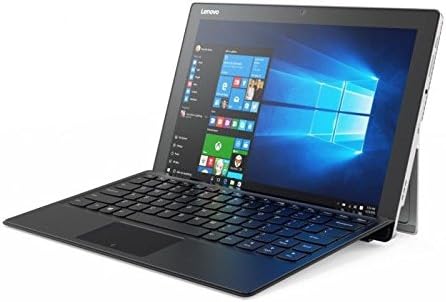
Setšoantšo: Ea angled view of the Lenovo IdeaPad Miix 510-12ISK, showcasing its kickstand functionality when used with the detachable keyboard in laptop configuration.
4.3 Touch Screen and Keyboard Usage
- Skrine se thetsoang: Use gestures such as tap, swipe, pinch-to-zoom, and long-press for navigation and interaction.
- Keybhoto: The detachable keyboard provides a full QWERTY layout and a touchpad for precise input.
4.4 Khokahano
Your device supports Wi-Fi and Bluetooth for wireless connectivity. Access network settings via the Windows Action Center or Settings app to connect to available networks and pair Bluetooth devices.
5. Tlhokomelo
5.1 Ho hloekisa
- Sebelisa lesela le bonolo, le se nang lint hanyenyane dampened with water or a screen cleaner to clean the display.
- Wipe the exterior surfaces with a soft, dry cloth. Avoid harsh chemicals or abrasive materials.
5.2 Lintlafatso tsa Software
Regularly check for and install Windows updates to ensure optimal performance, security, and compatibility. Access updates via Windows Settings > Update & Security.
Tlhokomelo ea Battery
To prolong battery life, avoid extreme temperatures and allow the battery to discharge partially before recharging. For long-term storage, charge the battery to approximately 50%.
6. Ho rarolla mathata
6.1 Sesebediswa ha se bule
- Netefatsa hore sesebediswa se tjhajilwe. Hokela adaptara ya motlakase mme o eme metsotso e mmalwa pele o leka ho e bulela.
- Leka ho tshwara konopo ya ho bulela ka metsotswana e 10-15 ho etsa reset e thata.
6.2 Screen Issues
- If the screen is blank, ensure the device is powered on and not in sleep mode.
- Fetosa litlhophiso tsa khanya ea skrine.
6.3 Keyboard or Touchpad Not Responding
- Ensure the keyboard is securely attached to the tablet.
- Qala hape letlapa.
- Check for updated drivers in Windows Device Manager.
6.4 Mathata a Khokahano ea Wi-Fi kapa Bluetooth
- Tlosa le ho tima Wi-Fi kapa Bluetooth ho di-setting tsa Windows.
- Qala router/modem ea hau hape bakeng sa mathata a Wi-Fi.
- Ensure devices are within range and properly paired for Bluetooth.
For persistent issues, refer to the Lenovo support websebaka kapa ikopanye le litšebeletso tsa bareki.
7. Litlhaloso
| Brand | Lenovo |
| Lebitso la Mohlala | 80U1006EUS |
| Boholo ba skrine | 12.2 lisenthimithara |
| Qeto ea skrine | 1920 x 1080 pixels |
| processor | 2.3 GHz Intel Core i5-6200U |
| RAM | 8 GB |
| Hard Drive | 256 GB Solid State Drive (SSD) |
| Coprocessor ea Graphics | Intel HD Graphics 520 |
| Mokhoa oa tšebetso | Windows 10 Pro |
| Mofuta oa Wireless | bluetooth |
| Boima ba Ntho | 2.78 liponto |
| Litekanyo tsa Sehlahisoa | 4.48 x 5.8 x 0.6 lisenthimithara |
| Ka morao Webcam Qeto | 5 MP |
8. Tiisetso le Tšehetso
This product is covered by Lenovo's standard warranty. For detailed warranty terms, registration, and technical support, please visit the official Lenovo support websebaka kapa ikopanye le litšebeletso tsa bareki. Boloka bopaki ba hau ba theko bakeng sa likopo tsa waranti.
No official product videos were provided by the seller for this model.


