1. Увод
1.1 Производ завршенview
The DBIT AC1200 Dual Band Gigabit WiFi Router (Model T18-21K) is designed to provide wireless internet connectivity for home and small office environments. It supports dual-band operation (2.4GHz and 5GHz) and offers Gigabit Ethernet ports for wired connections. The router includes features such as MU-MIMO, Beamforming, and multiple operating modes to enhance network performance and coverage.
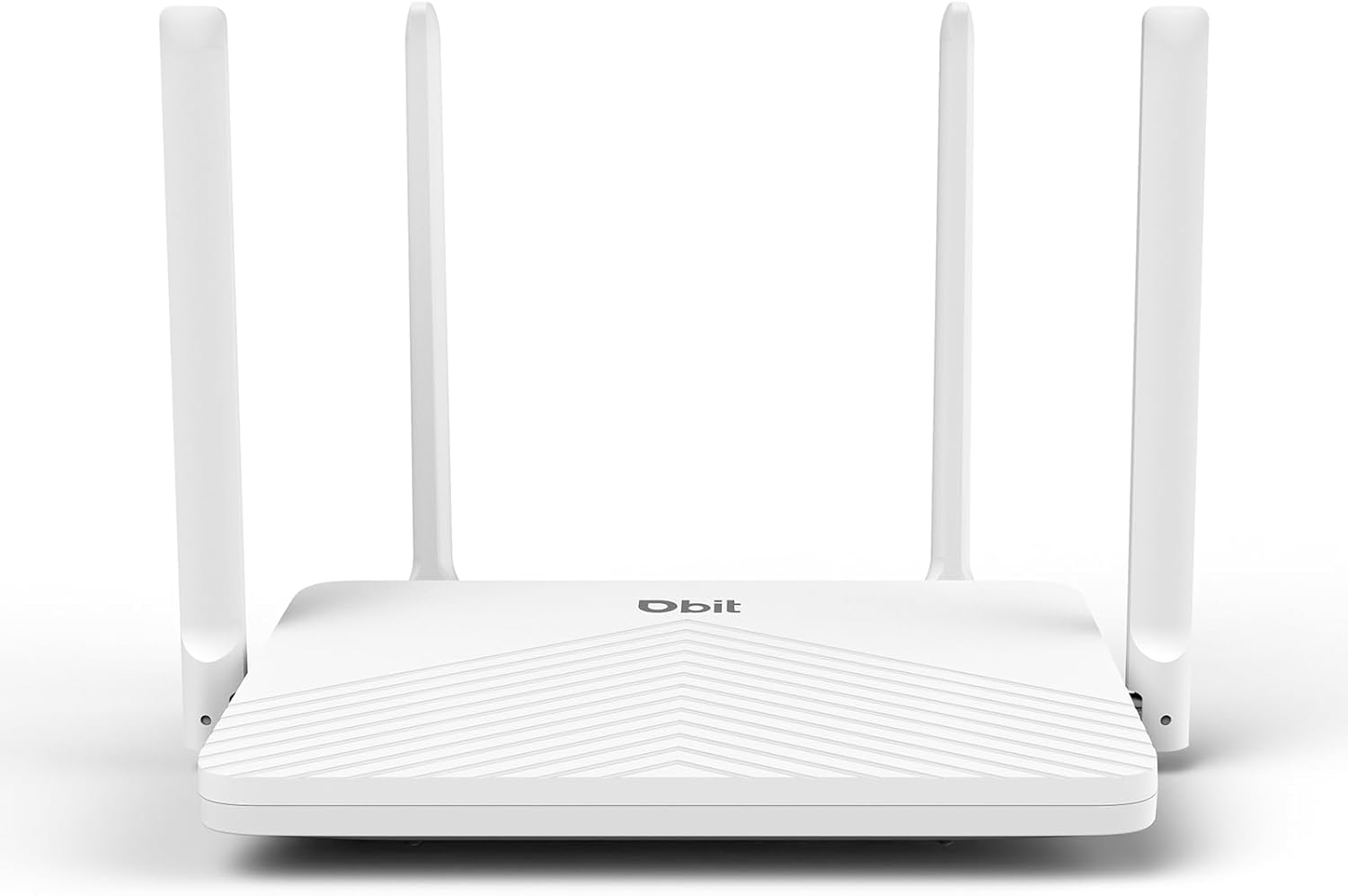
Figure 1: DBIT AC1200 WiFi Router
1.2 Кључне карактеристике
- AC1200 двопојасни WiFi: Provides wireless speeds up to 1200Mbps (300 Mbps on 2.4GHz and 867 Mbps on 5GHz). The 2.4GHz band handles general tasks, while the 5GHz band supports bandwidth-intensive activities like gaming or 4K video streaming.
- Пуни гигабитни портови: Equipped with one Gigabit WAN port and three Gigabit LAN ports for high-speed internet plans and stable wired connections to devices such as smart TVs, gaming consoles, or PCs.
- Triple-Mode Flexibility: Functions as a Router, Repeater, or Bridge to suit various network requirements.
- Whole-Home Coverage with Beamforming: Four external 5dBi high-gain antennas and Beamforming technology focus Wi-Fi signals towards connected devices, improving coverage.
- МУ-МИМО технологија: Enables simultaneous communication with multiple devices, reducing network latency.
- Робусна безбедност: Features WPA2-PSK encryption and access control to protect the network and connected devices.
- Лако подешавање: Configuration is managed through an intuitive web user interface. WPS button for quick device connection.
- Универзална компатибилност: Compatible with major internet service providers (requires a functioning modem).
2. Садржај пакета
Проверите да ли су све ставке присутне у вашем пакету:
- DBIT AC1200 WiFi Router
- Повер Адаптер
- Етхернет Цабле
- Водич за брзи почетак
3. Производ је готовview (Хардвер)
3.1 Предња плоча
The front panel of the router typically features LED indicators that display the status of the power, internet connection, and wireless networks (2.4GHz and 5GHz).
3.2 Задња плоча (портови и дугмад)
The rear panel contains all the physical connection ports and control buttons:
- Ресет: Користи се за враћање рутера на фабричка подешавања. Притисните и држите отприлике 5-10 секунди док је рутер укључен.
- ВПС дугме: For quickly connecting WPS-compatible devices to the wireless network without entering a password.
- LAN портови (LAN1, LAN2, LAN3): Three Gigabit Ethernet ports for connecting wired devices such as computers, gaming consoles, or smart TVs.
- ВАН порт: One Gigabit Ethernet port for connecting to your modem or primary internet source.
- ДЦ ИН: Power input port for connecting the included power adapter.

Figure 2: Router Rear Panel with Ports and Buttons
4. Почетно подешавање
4.1 Повезивање хардвера
- Искључивање: Disconnect power from your modem and router (if replacing an old one).
- Повежите ВАН порт: Connect one end of the provided Ethernet cable to the WAN port of the DBIT router and the other end to your modem's Ethernet port.
- Прикључите напајање: Прикључите адаптер за напајање на DC IN порт рутера и укључите га у утичницу.
- Укључено: Power on your modem first, wait for it to fully boot up (usually indicated by stable lights), then power on the DBIT router.
- Подешавање антене: Adjust the four external antennas for optimal signal reception.
4.2 Web Конфигурација интерфејса
Након повезивања хардвера, конфигуришите рутер преко његовог web интерфејс:
- Повежите се са Wi-Fi мрежом рутера: On your computer or mobile device, connect to the default Wi-Fi network broadcast by the router. The default SSID and password are usually found on a label on the bottom of the router or in the Quick Start Guide.
- Приступ Web Интерфејс: Отвори а web прегледач и унесите подразумеване податке за пријаву URL, typically
192.168.10.1, into the address bar. - Пратите чаробњака за подешавање: Рутера web interface will guide you through the initial setup process, including setting up your internet connection type, Wi-Fi network name (SSID), and password.
- Поново повежи: After configuration, reconnect your devices to the new Wi-Fi network using the updated SSID and password.

Слика 3: Web Management Setup Steps
5. Радни режими
The DBIT AC1200 router supports multiple operating modes to adapt to different network setups.
5.1 Режим рутера
In Router Mode, the device acts as the primary internet gateway, connecting to your modem and distributing internet access to all connected wired and wireless devices. This is the default mode for most home networks.
5.2 Режим понављања
Repeater Mode extends the coverage of an existing wireless network. The router connects wirelessly to your main router and re-broadcasts the signal, eliminating Wi-Fi dead zones.

Figure 4: Repeater Mode Configuration
5.3 Режим моста
Bridge Mode allows the router to convert a wired network connection into a wireless one, or to connect two separate networks. When configured as a bridge, the device can provide wireless access to devices connected to a wired network, or extend a network segment.
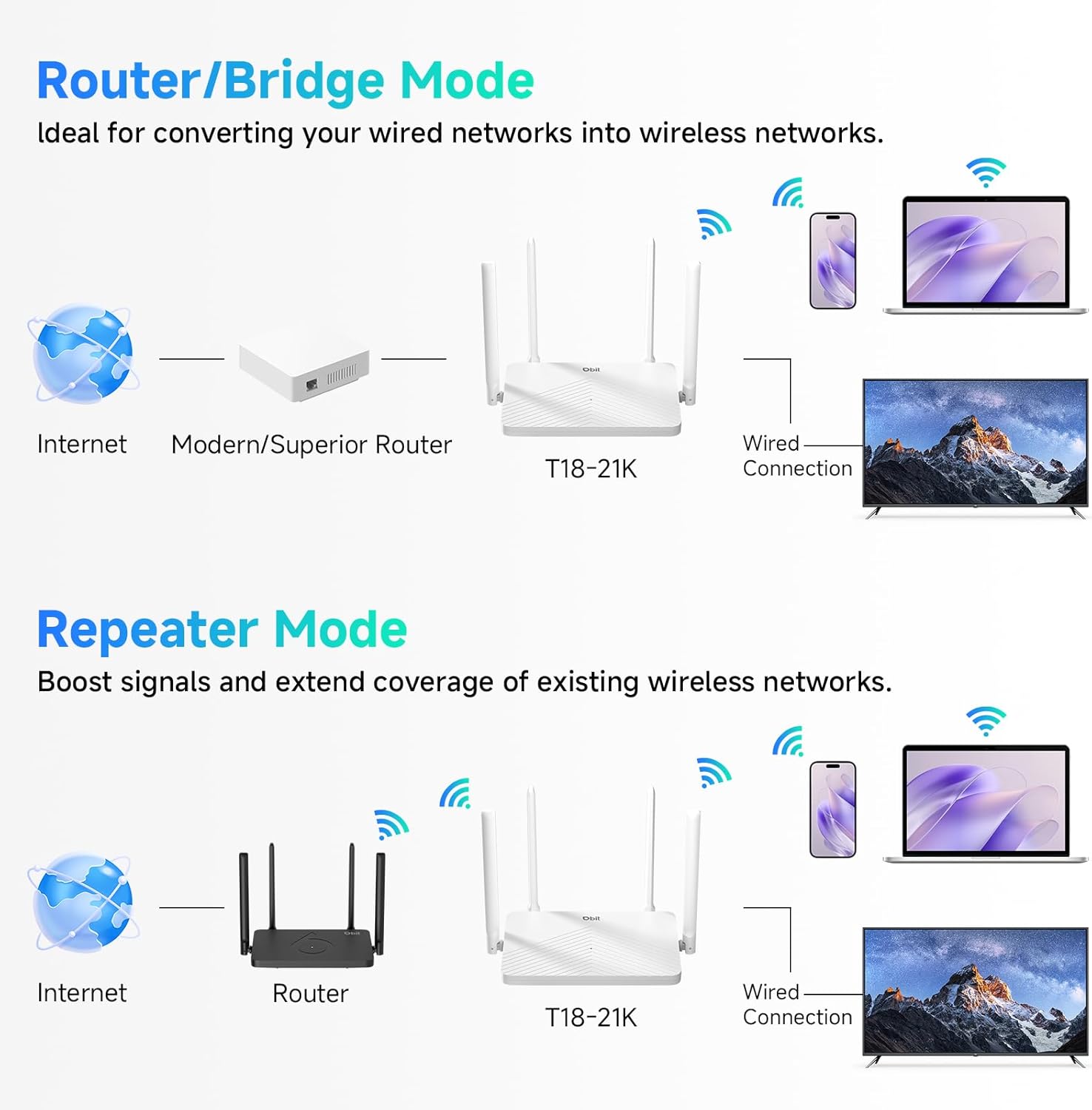
Figure 5: Router/Bridge Mode Setup
6. Напредне функције
6.1 Dual-Band Wireless
The router operates on two distinct frequency bands: 2.4GHz and 5GHz. The 2.4GHz band offers broader coverage and better penetration through obstacles, suitable for general internet use. The 5GHz band provides higher speeds and lower latency, ideal for online gaming and high-definition video streaming.

Figure 6: Dual-Band Speed Distribution
6.2 MU-MIMO технологија
Multi-User, Multiple-Input, Multiple-Output (MU-MIMO) technology allows the router to transmit data to multiple devices simultaneously, rather than sequentially. This improves network efficiency and reduces buffering when multiple devices are active on the network.

Figure 7: MU-MIMO Operation
6.3 Beamforming and Antennas
The router is equipped with four 5dBi high-gain antennas and utilizes Beamforming technology. Beamforming directs the Wi-Fi signal directly towards connected devices, improving signal strength and coverage, particularly in areas further from the router.

Figure 8: Beamforming Coverage
6.4 EasyMesh Functionality
The EasyMesh function allows for the creation of a seamless whole-home network. When multiple EasyMesh-compatible devices are used, they automatically select the best connection as you move around your home, ensuring consistent Wi-Fi coverage.

Figure 9: EasyMesh Network Coverage
6.5 Безбедност мреже
The router supports WPA2-PSK encryption to secure your wireless network. Access control features allow you to manage which devices can connect to your network, enhancing overall security.
6.6 Мрежа за госте
A guest network feature allows you to provide separate Wi-Fi access for visitors, keeping your main network private and secure.
6.7 Родитељска контрола
Parental control features enable you to manage internet access times and block specific websites for connected devices, promoting a safer online environment.
КСНУМКС. Решавање проблема
- Нема приступа интернету:
- Ensure your modem is working correctly and its internet indicator light is stable.
- Check that the Ethernet cable is securely connected between the modem's LAN port and the router's WAN port.
- Рестартујте и модем и рутер.
- Проверите подешавања интернет конекције у рутеру web интерфејс.
- Слаб Wi-Fi сигнал или мртве зоне:
- Adjust the router's antennas for optimal positioning.
- Relocate the router to a central location in your home, away from obstructions and interference sources (e.g., microwaves, cordless phones).
- Consider using Repeater Mode or adding another EasyMesh compatible device to extend coverage.
- Не могу приступити рутерима Web Интерфејс:
- Уверите се да је ваш уређај повезан на Wi-Fi мрежу рутера или путем Ethernet кабла на LAN порт.
- Verify that you are entering the correct IP address (default is
192.168.10.1) у вашем прегледачу. - Обришите кеш меморију прегледача или покушајте са другим прегледачем.
- If you have changed the router's IP address, use the new address. If forgotten, a factory reset may be necessary.
- Заборављена лозинка за Wi-Fi или лозинка за пријаву:
- Perform a factory reset by pressing and holding the RESET button for 5-10 seconds while the router is powered on. This will revert all settings, including passwords, to their factory defaults.
8. Спецификације
| Феатуре | Детаљ |
|---|---|
| Назив модела | АЦ1200 ВиФи рутер |
| Број модела ставке | Т18-21К |
| Димензије производа | 8.99 к 5.78 к 6.89 инча |
| Тежина артикла | 1.12 фунти |
| Бранд | ДБИТ |
| Произвођач | Схензхен Дбит Нетворк Екуипмент Цо., Лтд. |
| Класа фреквенцијског опсега | Двопојасни (2.4 GHz, 5 GHz) |
| Стандард бежичне комуникације | 802.11a, 802.11ac, 802.11b, 802.11g, 802.11n |
| Технологија повезивања | Етхернет, Ви-Фи |
| Етхернет портови | 1 WAN, 3 LAN (Gigabit) |
| Антене | 4 x 5dBi External Antennas |
| Посебне карактеристике | Beamforming, Guest Mode, Internet Security, MU-MIMO, Parental Control |
| Компатибилни уређаји | Gaming Console, Personal Computer, Tablet, Smart Television, Smartphone, Printer, Security Camera |
| Препоручена употреба | Посао, дом |
9. Гаранција и подршка
9.1 Информације о гаранцији
Please refer to the warranty card included in your product packaging for detailed warranty terms and conditions. The warranty typically covers manufacturing defects for a specified period from the date of purchase.
9.2 Техничка подршка
For technical assistance, troubleshooting, or further inquiries, please contact DBIT customer support. Contact information can usually be found on the manufacturer's official webсајту или у Водичу за брзи почетак.
Online resources, including FAQs and firmware updates, may also be available on the DBIT support page.


