1. Увод
The Havit H2002BG Wireless Gaming Headphones are designed to provide a versatile audio experience for gaming and entertainment. Featuring tri-mode connectivity, these headphones offer seamless switching between 2.4GHz wireless, Bluetooth, and wired connections (3.5mm and Type-C). Enjoy immersive sound with 53mm dynamic drivers and virtual 7.1 surround sound support, all while benefiting from a comfortable design with an adjustable head beam and memory foam earcups. The detachable omnidirectional microphone ensures clear communication.
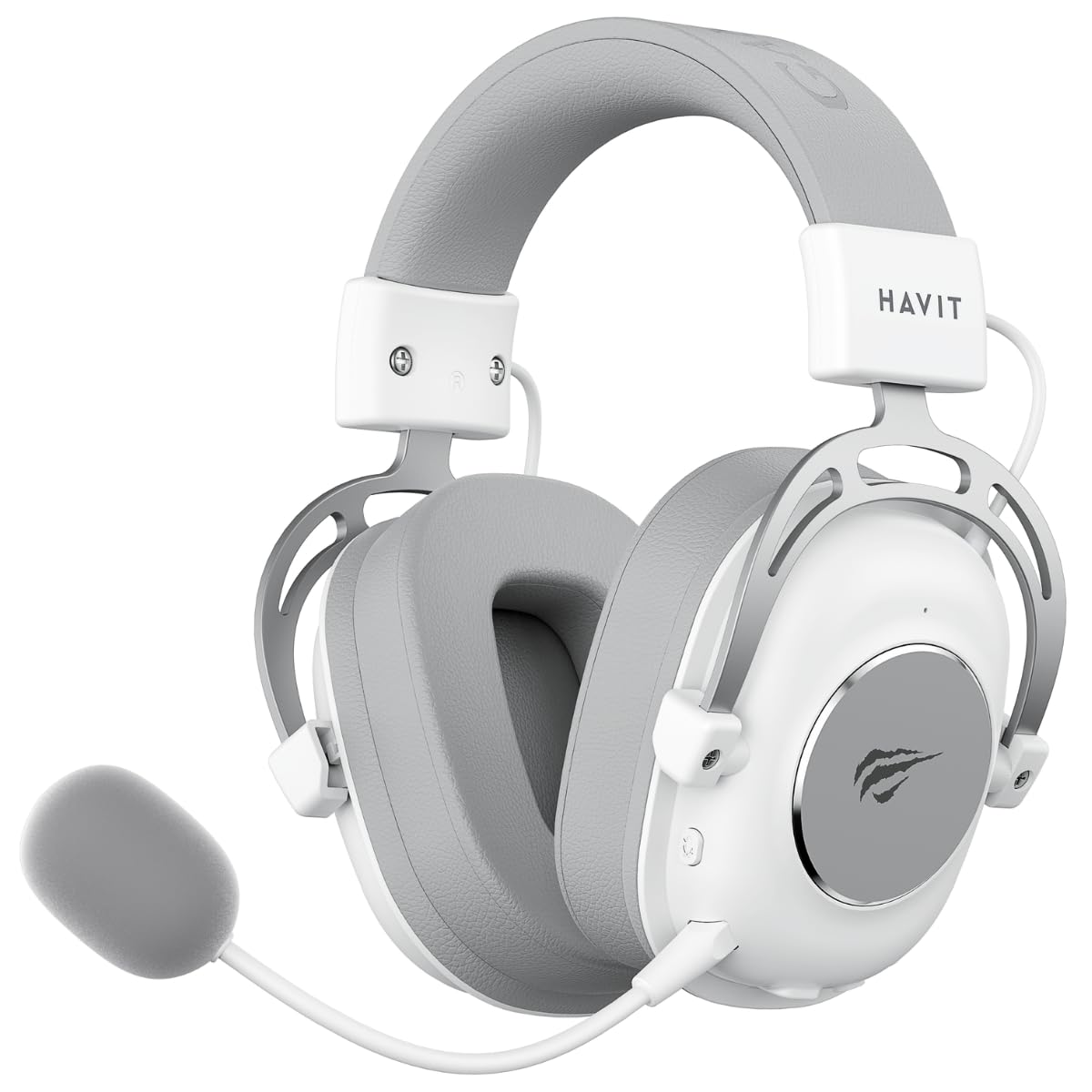
Figure 1: Havit H2002BG Wireless Gaming Headphones
2. Карактеристике производа
- Тромодална повезаност: Supports 2.4GHz wireless, Bluetooth, 3.5mm audio jack, and Type-C wired connections for broad compatibility.
- 53мм динамички драјвери: Delivers powerful and clear audio for an immersive experience.
- Виртуелни 7.1 окружујући звук: Enhances spatial audio awareness for gaming.
- Удобан дизајн: Features an adjustable head beam and memory foam earcups for extended wear comfort.
- Detachable Omnidirectional Microphone: Provides clear voice communication and can be removed when not needed.
- Дуг век трајања батерије: Up to 26 hours of playtime on a single charge with a 1200mAh battery.

Figure 2: Tri-Mode Connection Capabilities

Figure 3: Virtual 7.1 Surround Sound Feature
3. Садржај пакета
Молимо вас да проверите пакет за следеће ставке:
- 1 x Havit H2002BG Wireless Gaming Headphones
- 1 x Detachable Omnidirectional Microphone
- 1 x 2.4GHz USB Dongle
- 1 к 3.5 мм аудио кабл
- 1 к Типе-Ц кабл за пуњење
- 1 x Упутство за употребу (овај документ)
4. Подешавање
4.1 Почетно пуњење
- Connect the Type-C charging cable to the charging port on the headphones.
- Plug the other end of the Type-C cable into a USB power source (e.g., computer USB port, USB wall adapter).
- Allow the headphones to fully charge before first use. The LED indicator will show charging status.
4.2 Прикључак за микрофон
- Locate the microphone port on the left earcup of the headphones.
- Insert the detachable microphone firmly into the port until it clicks into place.
4.3 Connecting the Headphones
The Havit H2002BG offers multiple connection options:

Figure 4: Headphone Controls and Ports
4.3.1 2.4GHz Wireless Connection (PC/Console with USB-A)
- Plug the 2.4GHz USB dongle into an available USB-A port on your PC or compatible gaming console.
- Power on the headphones by pressing and holding the power button.
- The headphones should automatically connect to the dongle. The LED indicator will confirm connection.
- On your device, ensure the Havit H2002BG is selected as the audio output and input device.
4.3.2 Bluetooth Connection (Mobile Devices/PC with Bluetooth)
- Power on the headphones and switch to Bluetooth mode (refer to Operating Instructions for mode switching). The LED indicator will flash, indicating pairing mode.
- On your mobile device or PC, enable Bluetooth and search for new devices.
- Select "Havit H2002BG" from the list of available devices to pair.
- Једном упарени, ЛЕД индикатор ће стално светлети.
4.3.3 Wired Connection (3.5mm Audio Jack)
- Connect one end of the 3.5mm audio cable to the 3.5mm port on the headphones.
- Plug the other end of the 3.5mm audio cable into the audio output jack of your device (e.g., gaming console controller, PC, smartphone).
- The headphones will operate in passive wired mode.
4.3.4 Wired Connection (Type-C Cable)
- Connect the Type-C cable to the Type-C port on the headphones.
- Plug the other end of the Type-C cable into a compatible Type-C port on your device. This connection can provide both audio and charging simultaneously.
5. Упутство за употребу
5.1 Укључивање/искључивање
- Укључено: Притисните и држите дугме за напајање око 3 секунде док се ЛЕД индикатор не упали.
- Искључивање: Притисните и држите дугме за напајање око 3 секунди док се ЛЕД индикатор не искључи.
5.2 Контрола јачине звука
- Use the volume wheel or dedicated volume buttons on the earcup to adjust the audio output level.
5.3 Microphone Mute/Unmute
- Press the microphone mute button to toggle the microphone on or off. An indicator light on the microphone or headphones may show its status.
5.4 Промена режима
- Use the mode button to cycle between 2.4GHz wireless, Bluetooth, and wired (3.5mm/Type-C) connection modes. The LED indicator will change to reflect the active mode.
5.5 Virtual 7.1 Surround Sound
- Activate or deactivate the virtual 7.1 surround sound feature using the dedicated button on the headphones or through compatible software on your PC.
5.6 RGB контрола осветљења
- If applicable, use the designated button to cycle through different RGB lighting effects or turn them off.
6. Одржавање
6.1 Чишћење
- Обришите слушалице меком, сувом крпом која не оставља влакна.
- Немојте користити јаке хемикалије, раствараче за чишћење или јаке детерџенте.
- Избегавајте улазак влаге у било какве отворе.
6.2 Складиштење
- Слушалице чувајте на хладном и сувом месту, даље од директне сунчеве светлости и екстремних температура.
- If storing for an extended period, ensure the battery is partially charged (around 50%) to maintain battery health.
6.3 Одржавање батерије
- Избегавајте често потпуно пражњење батерије.
- Charge the headphones regularly, even if not in frequent use, to prevent deep discharge.
КСНУМКС. Решавање проблема
7.1 Нема звука
- Уверите се да су слушалице укључене и напуњене.
- Check the volume levels on both the headphones and the connected device.
- Verify that the headphones are correctly connected (2.4GHz dongle, Bluetooth paired, or wired cable securely inserted).
- Confirm that the Havit H2002BG is selected as the primary audio output device in your PC or console settings.
7.2 Микрофон не ради
- Ensure the detachable microphone is securely attached to the headphones.
- Check if the microphone mute function is active.
- Verify microphone input settings on your connected device and ensure Havit H2002BG is selected.
- Test the microphone in different applications or communication software.
7.3 Проблеми са повезивањем
- 2.4 ГХз: Ensure the USB dongle is fully inserted and there are no significant obstructions or interference sources nearby. Try re-pairing by restarting both headphones and the device.
- Блуетоотх: Ensure the headphones are in Bluetooth pairing mode and within the effective range (typically 10 meters). Try unpairing and re-pairing the device.
- Виред: Ensure all cables (3.5mm or Type-C) are fully inserted into their respective ports and are not damaged.
7.4 Проблеми са пуњењем
- Ensure the Type-C charging cable is properly connected to both the headphones and the power source.
- Try using a different Type-C charging cable or a different USB power adapter/port.
- Check if the charging port on the headphones is clean and free of debris.
8. Спецификације
| Феатуре | Спецификација |
|---|---|
| Модел | H2002BG |
| Дривер Диаметер | 53мм |
| Импеданса | 64 ± 15% Ω |
| Осетљивост | 111 ± 3дБ |
| Фреквенцијски одзив | 20Hz - 20kHz |
| Капацитет батерије | 1200мАх |
| Плаитиме | До 26 сати |
| Повезивање | 2.4GHz Wireless, Bluetooth, 3.5mm, Type-C |
| Микрофон | Свесмерни, одвојиви |
| Форм Фацтор | Преко уха |
| Материјал | Метал, Пластика |
| Боја | Бела/Сива |
9. Гаранција и подршка
9.1 Информације о гаранцији
The Havit H2002BG Wireless Gaming Headphones are covered by a 1-годишња ограничена гаранција from the date of purchase. This warranty covers manufacturing defects and workmanship under normal use. It does not cover damage caused by misuse, accidents, unauthorized modifications, or normal wear and tear. Please retain your proof of purchase (receipt or invoice) for any warranty claims.
9.2 Корисничка подршка
For further assistance, technical support, or warranty inquiries, please contact Havit customer service or visit the official Havit website. You may find FAQs, additional troubleshooting guides, and contact information there.
Званични Хавит Webсајт: ввв.хавит.цом