Увод
This manual provides detailed instructions for the setup, operation, and maintenance of your JOMAA Wireless Bluetooth Trackball Mouse. Designed for ergonomic comfort and multi-device compatibility, this trackball mouse offers versatile connectivity and customizable features for various computing environments.

Фронт view of the JOMAA Wireless Bluetooth Trackball Mouse, showcasing its ergonomic design and RGB lighting around the trackball.
Сетуп
1. Распакивање и почетна наплата
Upon unboxing, ensure you have the JOMAA Trackball Mouse, the USB receiver (typically stored in the mouse's underside compartment), and the USB-C charging cable. It is recommended to fully charge the mouse before first use.
- Connect the provided USB-C cable to the charging port on the front of the mouse and to a USB power source.
- The LED indicator will show charging status and alert for low power (below 3.3V).
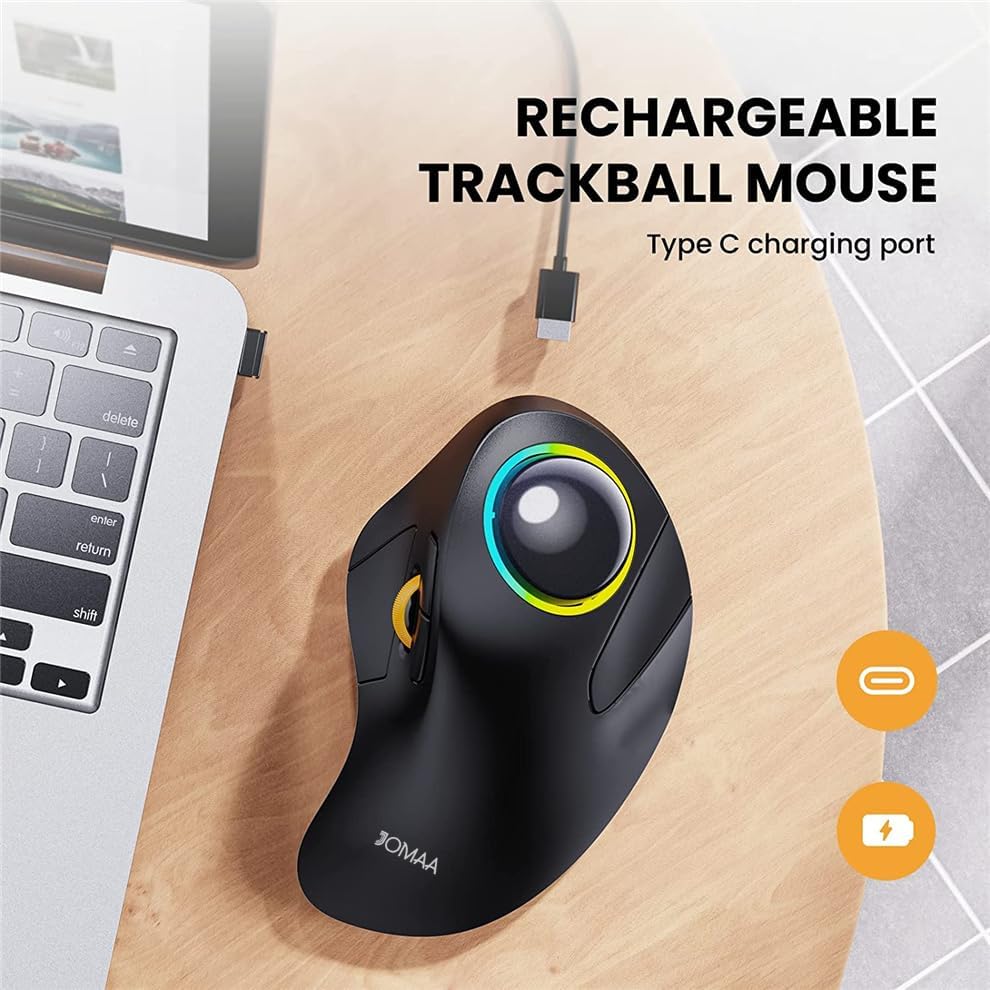
The JOMAA Trackball Mouse connected to a laptop via a USB-C cable for charging, highlighting the charging port.
2. Укључивање/искључивање
Locate the power switch on the underside of the mouse. Slide it to the 'ON' position to power on the device.
3. Опције повезивања
The JOMAA Trackball Mouse supports dual wireless modes: 2.4G USB dongle and Bluetooth 5.0, allowing connection to up to three devices.
3.1. 2.4G USB Dongle Connection
- Remove the USB receiver from its storage slot on the mouse's underside.
- Укључите УСБ пријемник у слободан УСБ порт на рачунару.
- Slide the channel switch on the mouse's underside to the '2.4G' position. The mouse should connect automatically.
3.2. Bluetooth 5.0 Connection (BT1 / BT2)
- Slide the channel switch on the mouse's underside to either 'BT1' or 'BT2' position.
- The indicator light will flash, indicating it's in pairing mode.
- On your device (laptop, tablet, phone), go to Bluetooth settings and search for 'JOMAA Mouse' (or similar).
- Select the mouse to pair. Once connected, the indicator light will stop flashing.
- Repeat these steps for a second Bluetooth device using the other 'BT' channel.

The JOMAA Trackball Mouse positioned on a desk, demonstrating its ability to connect to a laptop, tablet, and smartphone simultaneously.
Упутство за употребу
1. Basic Trackball and Button Functions
The trackball allows for precise cursor control using your index finger, reducing wrist movement. The mouse features standard left/right click buttons, a scroll wheel, and forward/backward buttons for navigation.

A detailed diagram labeling the various buttons and features of the JOMAA Trackball Mouse, including the trackball, left/right buttons, scroll wheel, forward/backward buttons, light switch, channel switch, power switch, and USB receiver.

A user's hand demonstrating the ergonomic grip and index finger control of the trackball, designed to reduce wrist strain.
2. DPI (CPI) Adjustment
The mouse offers 5 stages of customizable CPI (Counts Per Inch) ranging from 200 to 1600, allowing you to adjust cursor sensitivity for different tasks.
- To change the CPI setting, press and hold the scroll wheel and the right mouse button simultaneously for approximately 5 seconds.
- The indicator light will flash blue a certain number of times (1 to 5) to indicate the current CPI setting. Each flash corresponds to a different CPI level.
- Release the buttons once the desired CPI level is indicated.
3. Multi-Device Switching
To switch between connected devices (2.4G, BT1, BT2), use the channel switch located on the underside of the mouse. Simply slide the switch to the desired connection mode.
4. RGB контрола осветљења
The mouse features RGB backlighting around the trackball with 4 dynamic lighting modes. To cycle through these modes or turn off the lighting, use the dedicated light switch button on the mouse.
5. Auto-Sleep Feature
To conserve battery life, the mouse will automatically enter a sleep mode after 30 seconds of inactivity. To wake it up, simply move the trackball or press any button.
Одржавање
Чишћење трекбола
For optimal performance, it is recommended to periodically clean the trackball and its housing. The ceramic trackball is designed for easy removal.
- Gently push the trackball from the underside opening to remove it from its socket.
- Користите меку крпу без влакана да бисте обрисали куглу за мерење.
- Clean any dust or debris from the trackball's socket and the optical sensor inside the mouse.
- Пажљиво вратите куглу у њено лежиште док не кликне на своје место.
Званична видео презентација производаasing the JOMAA Trackball Mouse in operation, including how to remove and clean the trackball, and highlighting its ergonomic design and multi-device connectivity.
Решавање проблема
- Проблеми са повезивањем: Ensure the mouse is powered on and the channel switch is set to the correct mode (2.4G, BT1, or BT2). For 2.4G, ensure the USB receiver is securely plugged in. For Bluetooth, verify that Bluetooth is enabled on your device and the mouse is paired correctly. Try re-pairing if issues persist.
- Cursor Not Moving/Lagging: Check the battery level. If low, charge the mouse. Clean the trackball and its internal sensor for any obstructions. Ensure the mouse is within range of your device.
- DPI Adjustment Not Working: Confirm you are pressing and holding both the scroll wheel and the right mouse button simultaneously for 5 seconds. The blue indicator light should flash to confirm the change. Ensure the mouse is connected to a device for this function to work.
- RGB светла нису укључена: Check if the RGB lighting has been turned off using the light switch button.
Спецификације
| Бранд | ЈОМАА |
| Модел | B0FMJQM8DF |
| Технологија повезивања | Блутут 5.0, 2.4G УСБ |
| Технологија детекције покрета | Оптицал |
| ЦПИ Сеттингс | 200-1600 (5 adjustable stagес) |
| Батерија | 930mAh (3.7V), Rechargeable |
| Посебне карактеристике | Portable, Rechargeable, RGB Backlight, Multi-Device Switch, Silent Click |
| Тежина артикла | 11.3 унци |
| Димензије пакета | 6.93 к 4.37 к 2.52 инча |
Гаранција и подршка
Specific warranty details are not provided in the product information. For warranty claims, technical support, or further assistance, please refer to the contact information provided with your product packaging or visit the official JOMAA webсајту.


