1. Увод
This manual provides essential information for the safe and efficient use of your KOORUI G2711P 27-inch IPS Full HD Gaming Monitor. Please read it thoroughly before operating the device and retain it for future reference.
The KOORUI G2711P monitor features a 27-inch IPS non-glare panel with Full HD (1920x1080) resolution, a 200Hz refresh rate, and a 1ms MPRT response time, designed for an immersive gaming and viewing experience. It includes multiple connectivity options and eye-care features.

Слика 1.1: Предња страна view of the KOORUI G2711P 27-inch IPS Full HD Gaming Monitor.
2. Безбедносне информације
- Не излажите монитор киши или влази како бисте спречили пожар или струјни удар.
- Не отварајте монитор цasinг. Унутра нема делова које корисник може сам да поправи. Сво сервисирање препустите квалификованом сервисном особљу.
- Поставите монитор на стабилну, равну површину како бисте спречили његов пад.
- Обезбедите одговарајућу вентилацију око монитора. Не блокирајте вентилационе отворе.
- Користите само адаптер за напајање који се испоручује са монитором.
- Искључите монитор из утичнице током грмљавине или када га не користите дуже време.
3. Подешавање
3.1 Распакивање
Carefully remove all components from the packaging. Ensure all parts listed in the packing list are present and undamaged. Keep packaging materials for future transport or return.
3.2 Склапање постоља
- Причврстите постоље на врат постоља.
- Secure the assembled stand to the back of the monitor panel. Refer to the product images for visual guidance on the attachment method.

Image 3.1: Monitor dimensions and side view, illustrating the stand attachment area.
3.3 Повезивање са уређајем
The monitor supports various input options:
- ДВИ: Connect an HDMI cable from your computer or other device to one of the two HDMI 2.0 ports on the monitor.
- ДисплаиПорт (ДП): Connect a DisplayPort cable from your computer to the DP 1.4 port on the monitor.
- Audio Out (A/O): Connect external speakers or headphones to the audio output port if desired, as the monitor does not have built-in speakers.

Слика 3.2: Позади view of the monitor showing HDMI, DisplayPort, and Audio Out connections, along with the 75x75mm VESA mount.
3.4 Прикључак за напајање
Connect the power adapter to the monitor's power input, then plug the power cable into a wall outlet. The monitor is designed for 110V power input.
4. Упутство за употребу
4.1 Укључивање/искључивање
Press the power button, typically located on the back or bottom of the monitor, to turn the monitor on or off. An indicator light will show the power status.
4.2 Навигација кроз мени на екрану (OSD)
The monitor features a 5-way joystick for intuitive OSD menu navigation. This joystick allows you to access and adjust various display settings.
- Притисните џојстик: Потврдите избор.
- Move joystick up/down: Adjust or select options.
- Move joystick left/right: Adjust or select options.
- Move joystick back (usually left): Exit menu or go back.

Image 4.1: Illustration of the 5-way joystick control for OSD menu navigation.
4.3 Подешавања екрана
- Резолуција: The native resolution is 1920x1080 Full HD. Ensure your device is set to this resolution for optimal display quality.
- Брзина освежавања: The monitor supports up to 200Hz. Adjust your graphics card settings to utilize the higher refresh rate for smoother visuals.
- Време одговора (МПРТ): The monitor features 1ms MPRT (Moving Picture Response Time) for reduced motion blur. This setting can usually be enabled or adjusted in the OSD menu.
- Прилагодљива синхронизација: This technology synchronizes the monitor's refresh rate with your graphics card's frame rate to eliminate screen tearing and stuttering. Enable it in the OSD menu and your graphics card control panel.
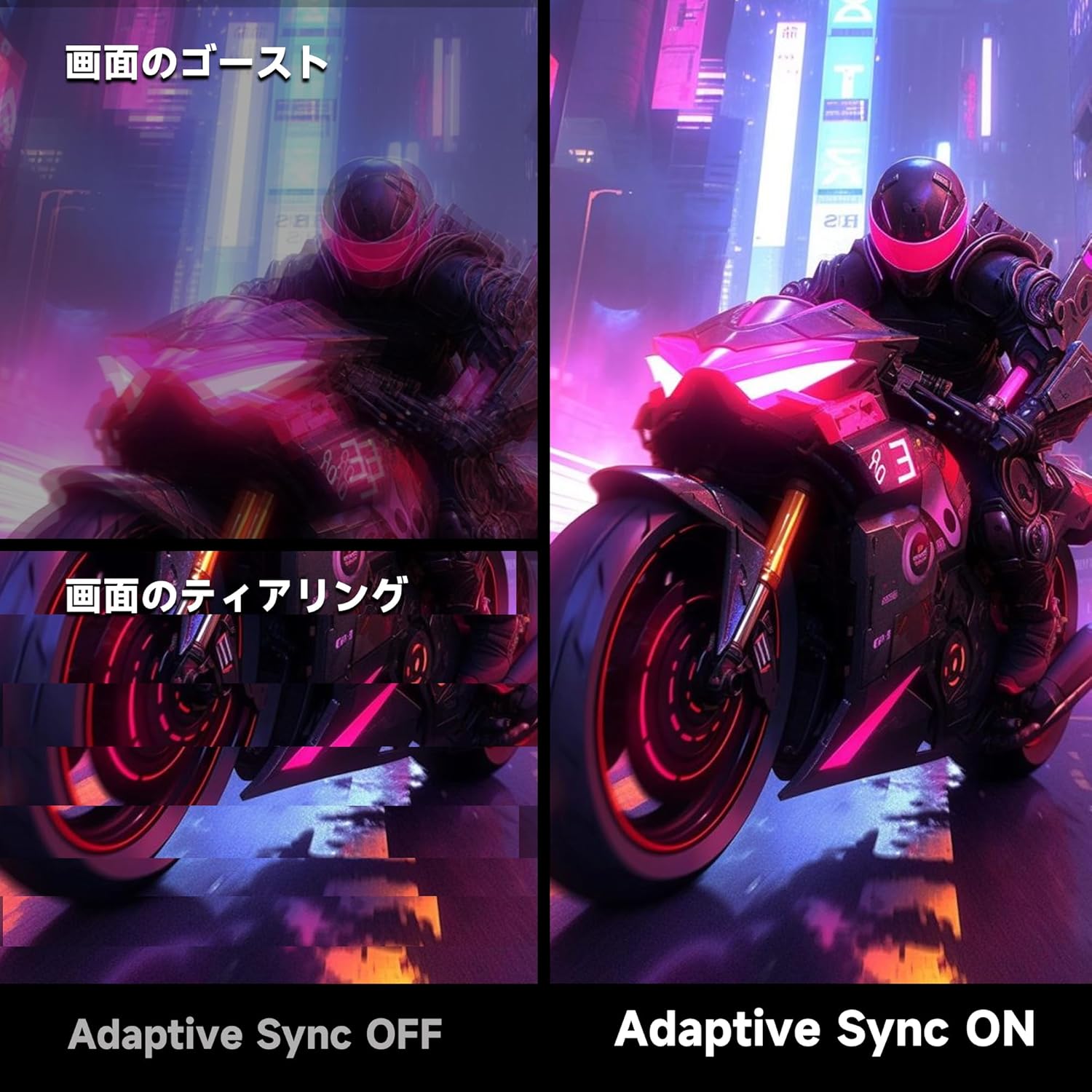
Image 4.2: Visual comparison demonstrating the effect of Adaptive Sync being OFF (showing ghosting and tearing) versus ON (smooth image).

Image 4.3: Comparison illustrating the difference in motion clarity between 200Hz 1ms MPRT and 75Hz 5ms settings.
- ХДР 400: The monitor supports HDR 400 for enhanced contrast and color depth. Enable HDR in your operating system settings for compatible content.

Image 4.4: Visual representation of HDR 400 providing more impressive and vibrant images compared to standard HDR 10.
- Подешавања боја: The monitor offers 93% DCI-P3 color gamut for accurate and vibrant color reproduction. Adjust brightness, contrast, and color temperature via the OSD menu.

Image 4.5: Display showing a wide range of colors, indicating 93% DCI-P3 color gamut coverage for accurate and vivid visuals.
- Eye Care Features: The monitor incorporates 'Blue Light Reduction' and 'Flicker-Free' technologies to minimize eye strain during prolonged use. These settings can be adjusted in the OSD menu.
- Функција крста: For shooting games, a built-in crosshair overlay can be enabled via the OSD menu to assist with aiming.

Image 4.6: A gaming scene demonstrating the monitor's crosshair function, which can be toggled ON or OFF to assist players in shooting games.
5. Одржавање
5.1 Чишћење екрана
Нежно обришите екран меком крпом која не оставља влакна. За тврдокорне мрље, дampen the cloth with a small amount of screen cleaner specifically designed for monitors. Do not spray cleaner directly onto the screen.
5.2 Чишћење Casing
Користите меку, суву крпу да обришете монитор casing. Avoid using abrasive cleaners or solvents that may damage the surface.
КСНУМКС. Решавање проблема
- Нема напајања: Уверите се да је кабл за напајање безбедно повезан и са монитором и са утичницом. Проверите да ли утичница функционише.
- Нема сигнала: Verify that the video cable (HDMI or DisplayPort) is correctly connected to both the monitor and your computer. Ensure the correct input source is selected in the monitor's OSD menu.
- Треперећи екран: Проверите везу видео кабла. Покушајте са другим каблом или портом. Уверите се да су драјвери ваше графичке картице ажурирани.
- Image Distortion/Tearing: Ensure Adaptive Sync is enabled in both the monitor's OSD and your graphics card settings. Check for correct resolution and refresh rate settings.
- Poor Color Quality: Adjust color settings (brightness, contrast, color temperature) in the OSD menu. Ensure HDR is enabled for HDR content.
7. Спецификације
| Феатуре | Спецификација |
|---|---|
| Бранд | КООРУИ |
| Модел | ГКСНУМКСП |
| Величина екрана | 27 инча |
| Панел Типе | IPS, Non-Glare |
| Резолуција | 1920 к 1080 (Фулл ХД) |
| Аспецт Ратио | 16:9 |
| Рефресх Рате | 200Хз |
| Време одговора | 1ms MPRT (GTG) |
| Осветљеност | 300 цд/м² |
| Однос контраста | 1000:1 |
| Viewинг Англе | 178° (хоризонтално/вертикално) |
| Гамут боја | 93% ДЦИ-П3 |
| ХДР подршка | ХДР 400 |
| Повезивање | 2x HDMI 2.0, 1x DisplayPort 1.4, 1x аудио излаз |
| Звучници | Није укључено |
| Компатибилност ВЕСА носача | 75к75мм |
| Димензије (Ш к В к Д) | 61.34 x 47.23 x 21.49 цм (са постољем) |
| Тежина | 5.8 кг |
| Повер Инпут | 110В |
8. Гаранција
The KOORUI G2711P monitor screen is covered by a 1 година гаранције from the date of purchase. All other included accessories are covered by a 3 година гаранције. Please retain your proof of purchase for warranty claims. The warranty covers manufacturing defects and malfunctions under normal use conditions.
9. Подршка
For technical assistance, troubleshooting, or warranty inquiries, please contact KOORUI customer support through the retailer where you purchased the product or visit the official KOORUI website for contact information. When contacting support, please have your monitor model number (G2711P) and proof of purchase readily available.


