1. Увод
This manual provides comprehensive instructions for the iClever MD179 Multi-Device Wireless Mouse. It covers setup, operation, maintenance, and troubleshooting to ensure optimal performance and a seamless user experience. Please read this manual thoroughly before using the product.
2. Садржај пакета
Проверите да ли су све ставке присутне у вашем пакету:
- iClever MD179 Wireless Mouse
- USB 2.4GHz Receiver (stored inside the mouse)
- УСБ-Ц кабл за пуњење
- Кориснички приручник (овај документ)
3. Производ је готовview
Упознајте се са компонентама и контролама миша:

Слика 1: iClever MD179 Mouse Button Layout
- Десни клик: Standard right-click functionality.
- Леви клик: Standard left-click functionality.
- Scroll Wheel / Middle Click Button: For scrolling and middle-click actions.
- Дугме за напред: Навигација напред у web претраживачи или file explorers (Windows only).
- Дугме за назад: Навигација уназад web претраживачи или file explorers (Windows only).
- Дугме за прекидач DPI-ја: Подешава осетљивост курсора (DPI).
- Прекидач за укључивање / искључивање напајања: Located on the bottom of the mouse to turn it on or off.
- 2.4GHz / Bluetooth 1 / Bluetooth 2 Channel Indicator: Displays the active connection mode.
4. Подешавање
4.1 Пуњење миша
Before initial use, fully charge the mouse.
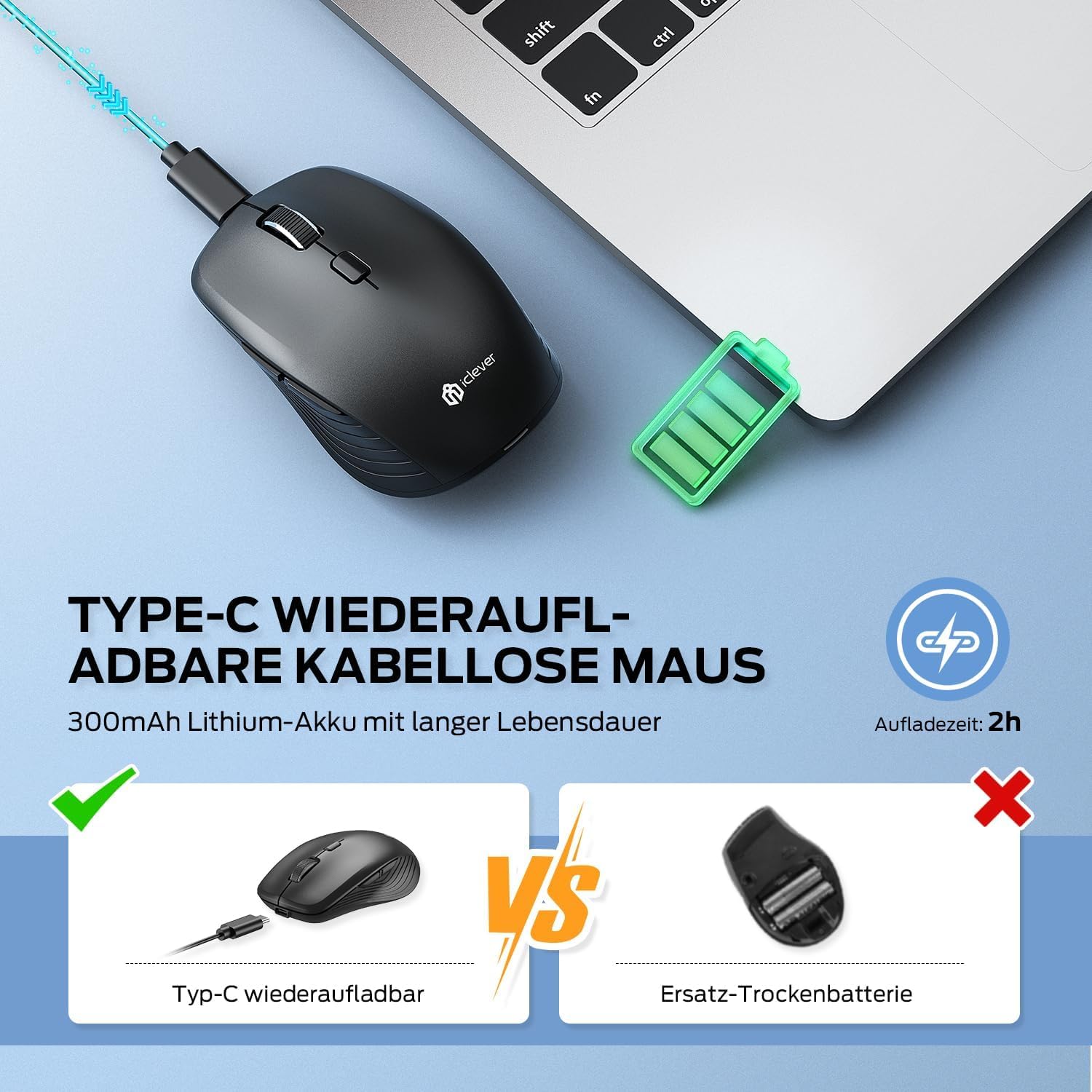
- Connect the provided USB-C cable to the charging port on the front of the mouse and to a USB power source (e.g., computer USB port, USB wall adapter).
- Индикаторска лампица пуњења ће светлети током пуњења и искључити се када се потпуно напуни.
- A full charge typically provides up to 2 months of use, depending on usage.
- The mouse can be used wirelessly while it is charging.
Слика 2: USB-C Rechargeable Feature
4.2 Повезивање путем бежичне мреже од 2.4 GHz
For a stable and quick connection:
- Locate the USB 2.4GHz receiver. It is stored in a compartment under the magnetic top cover of the mouse. Gently lift the top cover to access it.
- Уметните УСБ пријемник у слободан УСБ порт на рачунару.
- Укључите миш помоћу прекидача УКЉУЧЕНО/ИСКЉУЧЕНО на дну.
- Switch the connection mode to 2.4GHz (refer to the channel indicator on the bottom).
- Миш би требало да се аутоматски повеже.

Слика 3: Опције везе
4.3 Connecting via Bluetooth (BT1 / BT2)
The mouse supports two Bluetooth connections:
- Укључите миш помоћу прекидача УКЉУЧЕНО/ИСКЉУЧЕНО на дну.
- Switch the connection mode to either Bluetooth 1 (BT1) or Bluetooth 2 (BT2) using the channel switch button on the bottom. The indicator light will confirm the selected channel.
- Press and hold the channel switch button for 3-5 seconds until the indicator light flashes rapidly. This indicates the mouse is in pairing mode.
- On your device (PC, Mac, laptop, tablet), go to Bluetooth settings.
- Тражи "iClever MD179" or a similar name in the list of available devices and select it to pair.
- Поновите ове кораке за други Bluetooth уређај користећи други Bluetooth канал (BT2).

Слика 4: Повезивање са више уређаја
4.4 Пребацивање између уређаја
Да бисте се пребацивали између повезаних уређаја:
- Use the channel switch button on the bottom of the mouse to cycle between the 2.4GHz, Bluetooth 1, and Bluetooth 2 connections.
- The indicator light will confirm the currently active channel.
5. Упутство за употребу

Слика 5: Mouse in Use with Multiple Devices
5.1 ДПИ подешавање
Adjust the cursor sensitivity to match your preference or task:
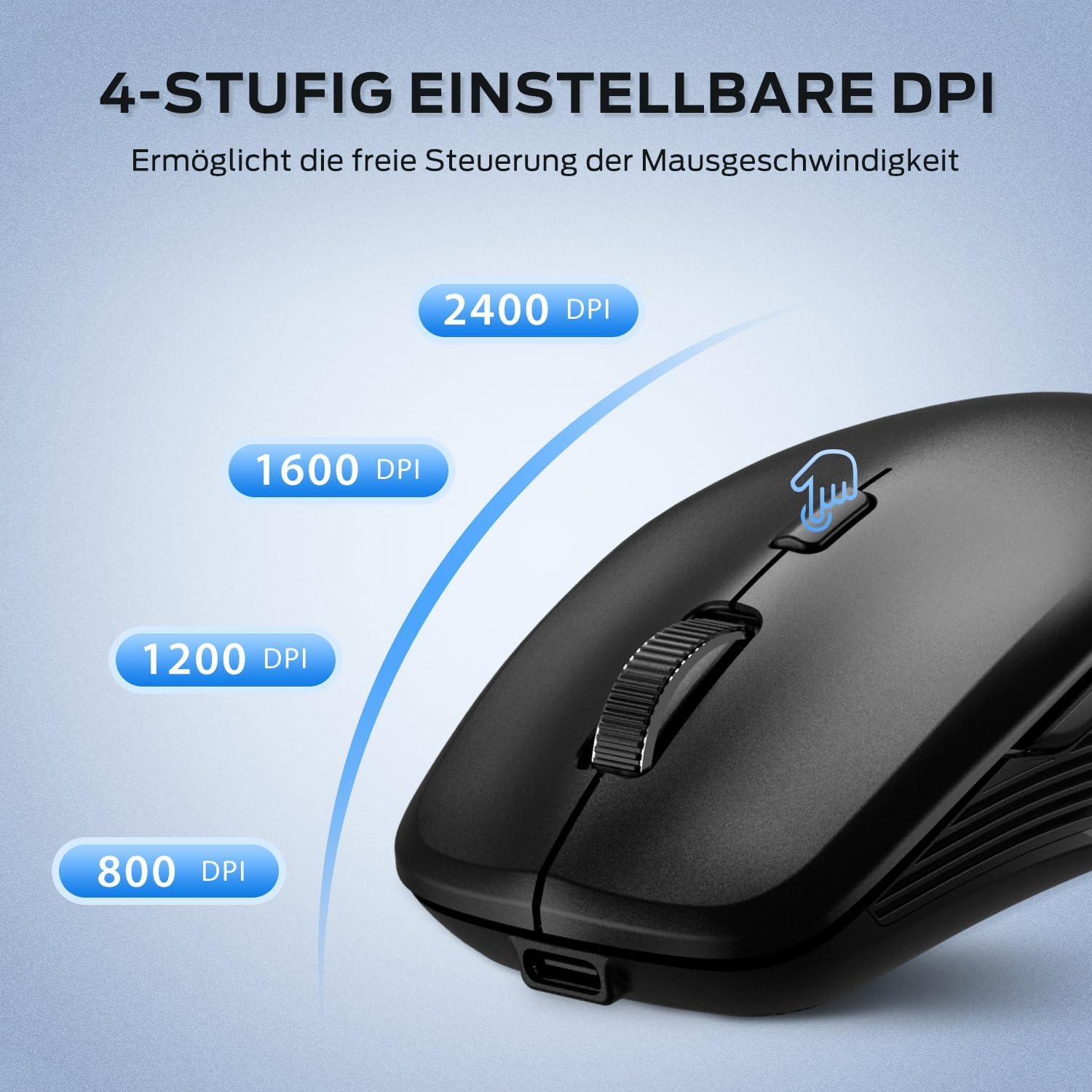
- Press the DPI switch button (button 6 in Product Overview) to cycle through the available DPI settings: 800, 1200, 1600, and 2400 DPI.
- The indicator light may flash briefly to confirm the DPI change.
- Higher DPI settings result in faster cursor movement across the screen.
Слика 6: Подесива подешавања DPI-ја
5.2 Функција тихог клика
The iClever MD179 mouse is designed with silent left and right click buttons to minimize noise, making it ideal for quiet environments such as libraries, offices, or late-night use at home.

Слика 7: Silent Click Benefits
5.3 Side Buttons (Forward/Back)
The forward and back buttons (buttons 4 and 5 in Product Overview) provide convenient navigation in web претраживачи и file explorers. Please note that these buttons are primarily functional on Windows operating systems. Their functionality may vary or require specific software configuration on macOS or other operating systems.
5.4 Управљање напајањем
The mouse incorporates features to optimize battery life:
- Аутоматски режим спавања: The mouse will enter an automatic sleep mode after a period of inactivity to conserve power. Move the mouse or click any button to wake it up.
- ОН/ОФФ прекидач: For extended periods of non-use, it is recommended to turn off the mouse completely using the ON/OFF switch (button 7 in Product Overview) located on the bottom.
6. Одржавање
6.1 Чишћење
To keep your mouse in optimal condition:
- Gently wipe the mouse surface with a soft, slightly damp тканина.
- Избегавајте употребу јаких хемикалија, абразивних средстава за чишћење или растварача, јер они могу оштетити површину.
- Уверите се да течност не улази у унутрашње компоненте миша.
- Periodically clean the optical sensor on the bottom of the mouse with a dry cotton swab to ensure accurate tracking.
6.2 Одржавање батерије
Proper battery care extends the lifespan of your mouse:
- Charge the mouse regularly and avoid letting the battery fully deplete frequently.
- If storing the mouse for an extended period, charge it to approximately 50% and turn it off using the power switch.
- Avoid exposing the mouse to extreme temperatures, which can affect battery performance.

Слика 8: Складиштење USB пријемника
КСНУМКС. Решавање проблема
If you encounter issues with your iClever MD179 mouse, refer to the following common solutions:
- Миш не реагује:
- Ensure the mouse is powered on using the ON/OFF switch.
- Проверите ниво батерије и напуните миш ако је потребно.
- For 2.4GHz connection: Verify the USB receiver is securely plugged into a working USB port and the mouse is set to 2.4GHz mode. Try a different USB port.
- For Bluetooth connection: Ensure Bluetooth is enabled on your device, the mouse is in the correct Bluetooth mode (BT1/BT2), and it is paired correctly. Try removing the mouse from your device's Bluetooth list and re-pairing it.
- Поново покрените рачунар или уређај.
- Покрет курсора је неправилан или спор:
- Очистите оптички сензор на дну миша.
- Уверите се да користите миш на одговарајућој површини (нерефлектујућој, непрозирној).
- Adjust the DPI setting to a higher value using the DPI switch button if the cursor is too slow.
- Не могу да прелазим између уређаја:
- Ensure the channel switch button on the bottom of the mouse is pressed firmly.
- Verify that each device is correctly connected to its respective channel (2.4GHz, BT1, BT2).
8. Спецификације
| Феатуре | Опис |
|---|---|
| Бранд | иЦлевер |
| Модел | MD179 Bluetooth Mouse |
| Димензије производа | 10.1 к 6.1 к 3.4 цм |
| Тежина артикла | 70 грама |
| Компатибилност оперативног система | Виндовс, мацОС, ЦхромеОС |
| Хардверска платформа | Линукс, Мак, рачунар |
| Компатибилни уређаји | ПЦ, таблет |
| Посебне карактеристике | Wireless, Silent Click, Multi-Device Connectivity |
| Извор напајања | Напајање батеријама (пуњиво преко USB-C) |
| Технологија повезивања | Bluetooth, 2.4 GHz Wireless |
| Технологија сензора покрета | Оптицал |
| Оријентација руке | Амбидектроус |
| ДПИ подешавања | 800 / 1200 / 1600 / 2400 ДПИ |
| Капацитет батерије | 300 mAh Lithium |
9. Гаранција и подршка
iClever products are designed for reliability and performance. For detailed warranty information, technical support, or service inquiries, please visit the official iClever webсајт или директно контактирајте њихову корисничку подршку. Сачувајте рачун о куповини за потребе рекламације у гаранцији.


