1. Производ је готовview
The TP-Link Archer TX50E is a high-performance AX3000 Wi-Fi 6 Bluetooth 5.3 PCIe Adapter designed for desktop PCs. It leverages the latest Wi-Fi 6 standard to deliver extreme speeds, ultra-low latency, and uninterrupted connectivity, making it suitable for demanding applications like immersive gaming and VR. The adapter features a customized heat sink and gold-plated contactors for enhanced stability and longevity.
Кључне карактеристике:
- Перформансе Wi-Fi 6: Delivers speeds up to 2.4 Gbps (2402 Mbps on 5 GHz + 574 Mbps on 2.4 GHz) with 1024-QAM and 160 MHz bandwidth.
- Ултра-ниско кашњење: Revolutionary OFDMA and MU-MIMO technologies reduce lag for responsive gaming and VR experiences.
- Блуетоотх КСНУМКС: Achieves 2× faster speeds and 4× broader coverage than Bluetooth 4.2, enabling seamless connection with various peripherals.
- Широка покривеност: Equipped with two high-gain antennas to extend Wi-Fi range.
- Премиум Буилд: Features a customized heat sink for efficient thermal dissipation and gold-plated contactors for improved stability and oxidation resistance.
- Напредна безбедност: Подржава WPA3, најновији стандард мрежне безбедности, за побољшану заштиту мреже.
2. Садржај пакета
Проверите да ли су све ставке присутне у вашем пакету:

Image: TP-Link Archer TX50E retail box showing the adapter and included accessories.
- TP-Link Archer TX50E Wi-Fi 6 Bluetooth 5.3 PCIe Adapter
- Two High-Gain Antennas
- Блуетоотх УСБ кабл
- ЦД са ресурсима
- Водич за брзу инсталацију
- Лов-Проfile Заграда
3. Инсталација хардвера
Пре него што почнете:
- Ensure your computer is powered off and unplugged from the power source.
- Ground yourself to discharge any static electricity before handling components.
- Refer to your computer's manual for specific instructions on opening the case.
Инсталација корак по корак:
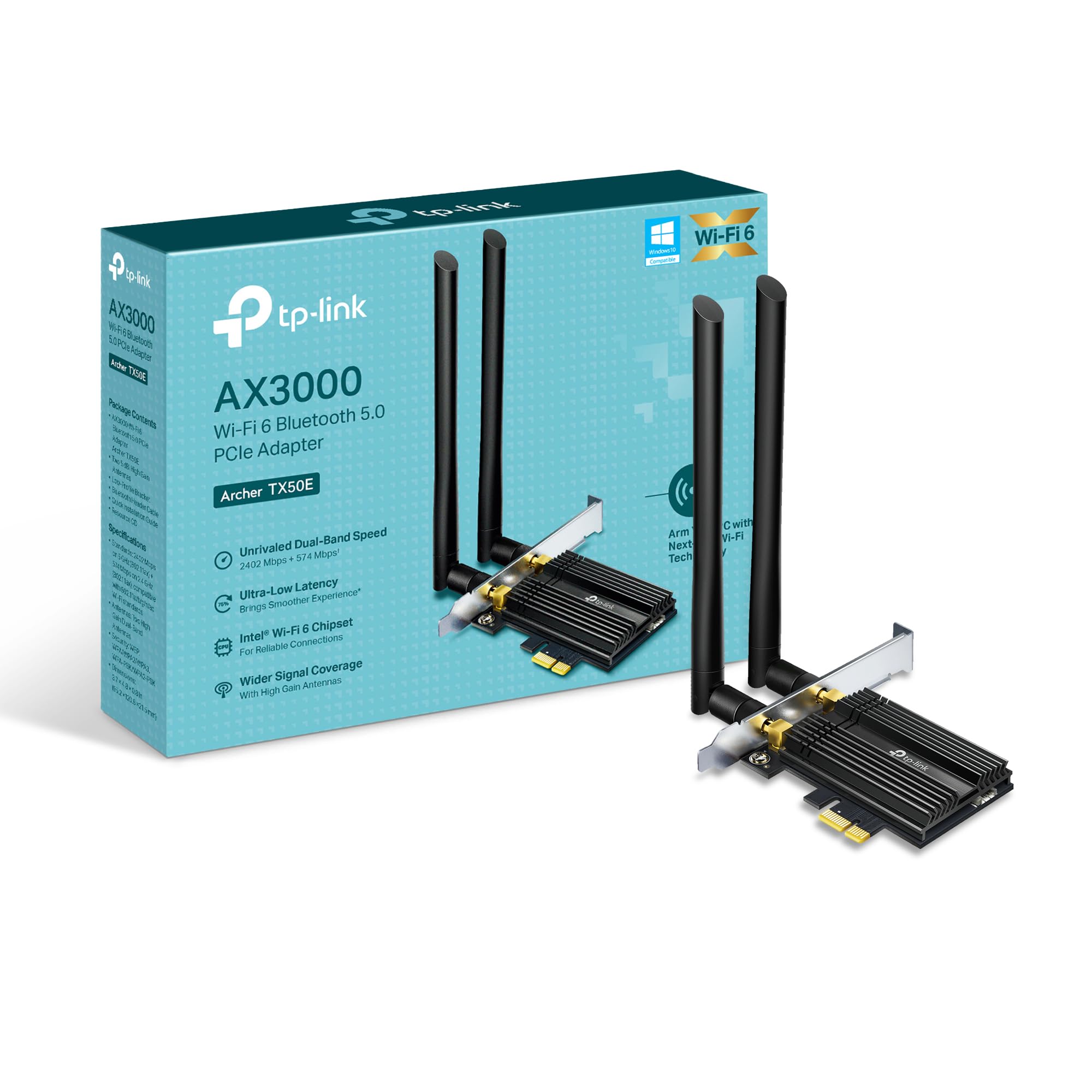
Слика: Фронт view of the TP-Link Archer TX50E adapter with antennas.
- Искључите и извуците утикач: Искључите рачунар и искључите кабл за напајање из зидне утичнице.
- Отворите кућиште рачунара: Уклоните бочну плочу кућишта рачунара да бисте приступили матичној плочи.
- Повежите Bluetooth USB кабл: Connect the provided Bluetooth USB cable to the adapter's Bluetooth header.
- Locate Slots: Identify an available PCI Express X1 slot on your motherboard and an F_USB connector (usually labeled USB910 or similar).
- Уметни адаптер: Carefully insert the Archer TX50E adapter into the chosen PCIe X1 slot. Ensure it is seated firmly.
- Повежите УСБ кабл: Connect the other end of the Bluetooth USB cable to the F_USB connector on your motherboard. This connection is essential for Bluetooth functionality.
- Secure Adapter and Antennas: Secure the adapter with a screw to the computer case. Then, connect the two high-gain antennas to the adapter's connectors. Adjust their position for optimal signal reception.
- Затвори кућиште рачунара: Замените бочну плочу кућишта рачунара.
- Укључено: Plug the power cable back into the wall outlet and turn on your computer.
Визуелни водич за инсталацију:
Video: A step-by-step guide demonstrating the physical installation of the TP-Link Archer TX50E PCIe adapter into a desktop computer.
4. Инсталација драјвера
After hardware installation, you need to install the Wi-Fi and Bluetooth drivers for the adapter to function correctly. Напомена: НЕ покрећите инсталатере драјвера за Bluetooth и Wi-Fi истовремено.
Step-by-Step Driver Installation:
- Insert CD or Download Drivers: Insert the provided resource CD into your computer's CD/DVD drive. If your computer does not have a CD/DVD drive, download the latest drivers from the official TP-Link website (search for Archer TX50E).
- Run Autorun: Once the CD is inserted, an Autorun window should appear. Click to run `Autorun.exe`. If it doesn't appear, navigate to 'This PC' or 'My Computer', open your CD/DVD drive, and manually run `Autorun.exe`.
- Install Wi-Fi Drivers: In the TP-Link driver installation utility, select the option to install the Wi-Fi drivers. Follow the on-screen instructions to complete the installation. You may need to restart your computer after this step.
- Install Bluetooth Drivers: After the Wi-Fi drivers are installed and your computer has restarted (if prompted), run the `Autorun.exe` again or manually launch the Bluetooth driver installer. Follow the on-screen instructions to complete the Bluetooth driver installation. Another restart may be required.
For a visual guide on driver installation, please refer to the setup video provided in the Hardware Installation section.
5. Упутство за употребу
Повезивање на Ви-Фи:
- After successful driver installation, click the Wi-Fi icon in your system tray (usually in the bottom-right corner of your screen).
- Појавиће се листа доступних бежичних мрежа. Изаберите жељену мрежу.
- Кликните на „Повежи се“ и унесите безбедносни кључ мреже (лозинку) ако се то од вас затражи.
- Your computer should now be connected to the Wi-Fi network.
Упаривање Блуетоотх уређаја:
- Ensure your Bluetooth device is in pairing mode (refer to your device's manual).
- On your computer, go to 'Settings' > 'Devices' > 'Bluetooth & other devices'.
- Укључите Блутут ако већ није омогућен.
- Кликните на „Додај Блутут или други уређај“ и изаберите „Блутут“.
- Изаберите свој уређај са листе и пратите упутства на екрану да бисте завршили процес упаривања.
КСНУМКС. Решавање проблема
If you encounter issues with your Archer TX50E adapter, try the following common troubleshooting steps:
- Нема Wi-Fi везе:
- Уверите се да је адаптер правилно постављен у PCIe слот.
- Проверите да ли су антене безбедно повезане.
- Check Device Manager to ensure Wi-Fi drivers are installed and the device is recognized without errors.
- Try updating or reinstalling the Wi-Fi drivers.
- Поново покрените рачунар и бежични рутер.
- Bluetooth Not Working:
- Confirm the Bluetooth USB cable is properly connected to both the adapter and the motherboard's F_USB header.
- Check Device Manager to ensure Bluetooth drivers are installed and the device is recognized without errors.
- Verify that Bluetooth is enabled in your computer's settings.
- Try updating or reinstalling the Bluetooth drivers.
- Споре брзине или повремена веза:
- Ensure your router supports Wi-Fi 6 (802.11ax) for optimal performance.
- Adjust the position of the antennas for better signal reception.
- Move your computer closer to the router or reduce obstacles between them.
- Проверите да ли има сметњи од других електронских уређаја.
- Ажурирајте фирмвер вашег рутера.
If these steps do not resolve your issue, please contact TP-Link Technical Support.
7. Техничке спецификације
| Феатуре | Спецификација |
|---|---|
| Модел | Арцхер ТКС50Е |
| вирелесс стандард | Wi-Fi 6 (802.11ax/ac/b/g/n) |
| Блуетоотх верзија | Блуетоотх 5.3 |
| Интерфејс | ПЦИ Екпресс |
| Брзина преноса података | До 2402 Mbps (5 GHz), 574 Mbps (2.4 GHz) |
| Подршка за оперативни систем | Виндоус 11, 10 (64-битни) |
| Безбедност | ВПА3 |
| Димензије (Д к Ш к В) | 9.53 к 12.09 к 2.16 цм |
| Тежина артикла | 90.72 г (0.2 фунти) |
| Хардверски интерфејс | Блуетоотх |
| Компатибилни уређаји | Стони рачунар, Лаптоп |
8. Гаранција и техничка подршка
ТП-Линк нуди 2 година гаранције for this product. Additionally, free 24/7 техничка подршка је доступан да вам помогне са свим питањима или проблемима на које можете наићи.
За додатну помоћ, посетите званичну подршку компаније TP-Link. webсајт или директно контактирајте њихову корисничку службу.