1. Увод
The Comfast CF-WU720N is a compact 150Mbps Wireless USB Adapter designed to provide high-speed wireless connectivity for your desktop or notebook computer. It allows you to connect to a wireless network and access the internet, share files, and enjoy online gaming at speeds up to 150Mbps. This adapter is compliant with IEEE 802.11b/g/n standards and supports USB 2.0 for efficient data transfer.
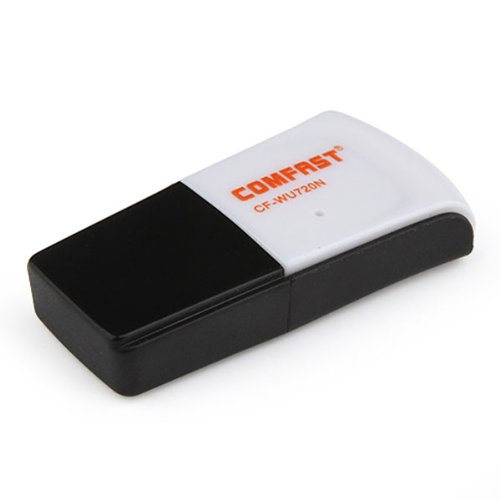
Image 1.1: The Comfast CF-WU720N Wireless USB Adapter, a compact device for wireless connectivity.
2. Карактеристике производа
- Meets IEEE 802.11b/g/n wireless standards.
- Supports USB 2.0 interface for broad compatibility.
- Utilizes Realtek 8191 SU chipset for reliable performance.
- Achieves wireless connection rates up to 150Mbps.
- Supports wireless roaming technology for seamless connectivity.
- Strong compatibility with various popular operating systems.
- Compact size: approximately 39 x 12 x 7mm (1.5 x 0.7 x 0.3 inches).
- Lightweight design: approximately 5g.
3. Садржај пакета
Молимо вас да проверите да ли су све ставке присутне у пакету:
- 1 x Comfast CF-WU720N Wireless USB Adapter
- 1 к Упутство за брзу инсталацију
- 1 x CD-ROM Driver
- 1 к Гарантни лист

Image 3.1: The retail packaging for the Comfast CF-WU720N, showing the adapter inside.
4. Подешавање и инсталација
4.1. Инсталација драјвера
Before connecting the USB adapter, it is recommended to install the necessary drivers from the provided CD-ROM. This ensures proper functionality and compatibility with your operating system.
- Insert the driver CD-ROM into your computer's optical drive.
- If the installer does not launch automatically, navigate to "My Computer" or "This PC," open the CD-ROM drive, and run the setup executable (e.g., "setup.exe" or "autorun.exe").
- Follow the on-screen instructions to complete the driver installation. You may be prompted to restart your computer after installation.
- Напомена: If your computer does not have an optical drive, you may need to download the latest drivers from the manufacturer's official webсајту.
4.2. Connecting the USB Adapter
Once the drivers are installed, you can connect the Comfast CF-WU720N Wireless USB Adapter to your computer.
- Locate an available USB 2.0 or 3.0 port on your desktop or laptop computer.
- Carefully insert the Comfast CF-WU720N adapter into the USB port. Ensure it is fully seated.
- The operating system should automatically detect the adapter and configure it using the installed drivers. A small LED indicator on the adapter may light up or blink, indicating activity.
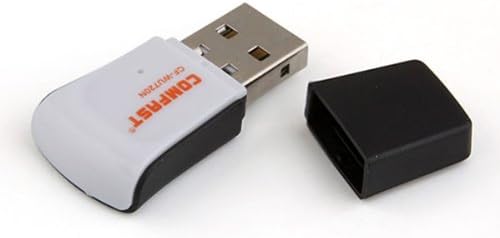
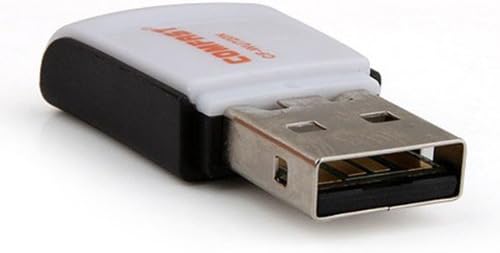
Image 4.1: The Comfast CF-WU720N adapter with its protective cap removed, revealing the USB connector. Image 4.2: A side view of the adapter, highlighting its compact design and USB interface.
5. Упутство за употребу
After successful driver installation and adapter connection, you can now connect to a wireless network.
- Подешавања приступа мрежи:
- Виндовс: Кликните на икону бежичне мреже у системској палети (обично у доњем десном углу).
- мацОС: Кликните на икону Wi-Fi мреже у траци менија (обично у горњем десном углу).
- Линук: Access network settings through your desktop environment's network manager.
- Изаберите своју мрежу: A list of available wireless networks (SSIDs) will appear. Select the name of your desired network.
- Повежите се: Click "Connect" or "Join." If the network is secured, you will be prompted to enter the network security key (password).
- Потврдите везу: Once connected, the network icon will typically change to indicate a successful connection, and you should be able to access the internet.
6. Одржавање
To ensure optimal performance and longevity of your Comfast CF-WU720N Wireless USB Adapter, follow these simple maintenance guidelines:
- Одржавати уредним одржавати чистим: Нежно обришите адаптер меком, сувом крпом да бисте уклонили прашину. Избегавајте употребу течних средстава за чишћење или растварача.
- Заштитите УСБ конектор: When not in use, keep the protective cap on the USB connector to prevent dust and damage.
- Избегавајте екстремне услове: Не излажите адаптер екстремним температурама, влажности или директној сунчевој светлости.
- Рукујте пажљиво: Избегавајте испуштање или излагање адаптера јаким ударцима.
- Ажурирања драјвера: Периодично проверавајте произвођачеве website for updated drivers to ensure the best performance and compatibility.
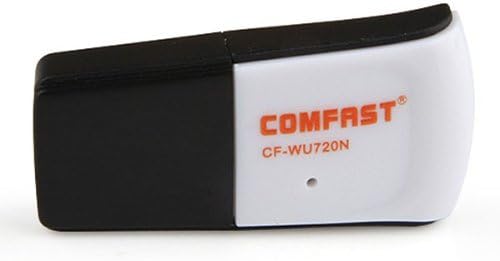
Image 6.1: The Comfast CF-WU720N adapter with its protective cap in place, ready for storage or transport.
КСНУМКС. Решавање проблема
If you encounter issues with your Comfast CF-WU720N Wireless USB Adapter, refer to the following common solutions:
| Проблем | Могуће решење |
|---|---|
| Adapter not detected / No Wi-Fi networks visible. |
|
| Cannot connect to a specific Wi-Fi network. |
|
| Slow connection speed or frequent disconnections. |
|
8. Спецификације
| Феатуре | Детаљ |
|---|---|
| Модел | CF-WU720N |
| Вирелесс Стандардс | ИЕЕЕ 802.11б/г/н |
| Интерфејс | УСБ 2.0 |
| Чипсет | Realtek 8191 SU |
| Бежична брзина | До 150 Мбпс |
| Фреквенцијски опсег | 2.4 ГХз |
| Сигурносне карактеристике | WPA/WPA2, WPA-PSK/WPA2-PSK, 64/128-bit WEP |
| Оперативни системи | Windows XP/Vista/7/8/10, macOS, Linux (driver dependent) |
| Димензије (Д к Ш к В) | Приближно 39 x 12 x 7 мм (1.5 x 0.7 x 0.3 инча) |
| Тежина | Прибл. 5г |
9. Гаранција и подршка
This product comes with a warranty as specified on the included Warranty Card. Please refer to the card for details regarding warranty period, terms, and conditions.
For technical support, driver updates, or further assistance, please visit the official Comfast webсајт или контактирајте њихову службу за кориснике. Контакт информације се обично могу наћи на паковању производа или на произвођачевој webсајту.
Молимо вас да сачувате рачун о куповини ради гаранције.


