1. Увод
This manual provides detailed instructions for the installation, operation, and maintenance of your Zenec ZE-NC3711D navigation device. Please read this manual thoroughly before using the device to ensure proper function and to maximize your user experience. The Zenec ZE-NC3711D is an advanced in-car navigation and multimedia system designed for specific vehicle models, offering a range of features for navigation, entertainment, and communication.
2. Производ је готовview
The Zenec ZE-NC3711D features a digital 6.5-inch WVGA TFT HD LCD screen with LED backlight, providing clear visuals at an 800 x 480 pixel resolution. Its animated ZENEC Graphical User Interface (GUI) supports 'slide-touch' operation for intuitive control. This device integrates navigation, multimedia playback, and Bluetooth hands-free functionality.
Кључне карактеристике:
- Pre-loaded maps for 43 European countries, including Premium Points of Interest (POIs).
- 3D High-Definition satellite navigation with realistic terrain and object display.
- Integrated CD/DVD drive supporting various formats, including Xvid.
- USB, SD, iPod, and iPhone connectivity for music and video playback, with Apple album artwork support.
- Блуетоотх за хандс-фрее комуникацију.
- Compatibility with Opel OE computer for date/time settings.
- Designed for specific vehicle models: FIAT Ducato III (250/251) 2006-2011 and FIAT Ducato III Euro 5 (250/251) from 2011.
Изглед уређаја:
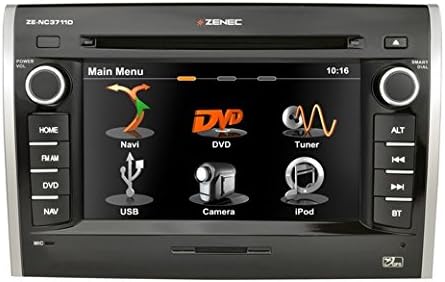
Слика 1: Фронт view of the Zenec ZE-NC3711D navigation device, showing the main menu on its 6.5-inch touchscreen. The menu displays icons for Navi, DVD, Tuner, USB, Camera, and iPod. Physical buttons are visible on both sides for functions like Home, FM/AM, DVD, NAV, ALT, track controls, and Bluetooth.
3. Подешавање
The Zenec ZE-NC3711D is designed for integration into specific vehicle dashboards. Due to the complexity of vehicle electronics and the precise fit required, professional installation by a qualified technician is highly recommended. Incorrect installation can lead to damage to the device or the vehicle's electrical system.
Почетна конфигурација:
- Укључено: After installation, turn on your vehicle's ignition. The device should power on automatically.
- Избор језика: Пратите упутства на екрану да бисте изабрали жељени језик.
- Датум и време: Set the correct date and time. For compatible Opel vehicles, these settings can be synchronized via the E>GO device.
- Подешавања навигације: Access the navigation menu to configure initial settings such as vehicle type (e.g., car, motorhome), dimensions (height, width, weight), and routing preferences. These settings are crucial for accurate route calculation, especially for larger vehicles.
- Блуетоотх упаривање: Navigate to the Bluetooth menu to pair your mobile phone for hands-free calling.
4. Упутство за употребу
The device's main menu provides access to all primary functions. Use the touchscreen with 'slide-touch' gestures or the physical buttons on the side panels to navigate.
4.1 Навигација
- Starting Navigation: Tap the 'Navi' icon on the main menu.
- Унос одредишта: Enter your destination using the on-screen keyboard. You can search by address, city, or Points of Interest (POIs).
- Прорачун руте: The system will calculate the optimal route based on your configured vehicle profile и преференције.
- 3Д мапа View: Enjoy realistic 3D high-definition map views with terrain and object rendering.
- POI Search: Utilize the extensive database of Premium POIs, including campsites and service areas.
4.2 Репродукција медија
- ЦД/ДВД: Insert a CD or DVD into the slot. The device supports various audio and video formats, including Xvid.
- УСБ/СД: Connect a USB drive or insert an SD card into the designated slot. Select the 'USB' or 'iPod' (for USB devices) icon to browse and play media files (music, videos, AVI fileс).
- иПод/иПхоне: Connect your Apple device via USB. The system will display album artwork and allow control of your music library.
4.3 Radio (Tuner)
- Accessing Radio: Tap the 'Tuner' icon or press the 'FM/AM' button.
- Station Search: Use the on-screen controls or physical buttons to scan for radio stations.
- Пресетс: Save your favorite stations as presets for quick access.
4.4 Блуетоотх
- Упаривање: Ensure your phone's Bluetooth is enabled and discoverable. On the device, go to the Bluetooth menu and search for available devices. Select your phone and confirm the pairing code.
- Хандс-фрее позивање: Once paired, you can make and receive calls directly through the device.
4.5 Камера
- Позадиview камера: Ако позадиview camera is connected, the display will automatically switch to the camera view when the vehicle is in reverse gear.
5. Одржавање
Regular maintenance ensures the longevity and optimal performance of your Zenec ZE-NC3711D.
- Чишћење екрана: Use a soft, lint-free cloth to gently wipe the touchscreen. For stubborn marks, slightly dampen the cloth with water or a screen-cleaning solution. Avoid abrasive cleaners or harsh chemicals.
- Ажурирања софтвера: Periodically check the Zenec website or consult your dealer for available software and map updates. Keeping your software updated ensures access to the latest features and map data.
- Општа нега: Избегавајте излагање уређаја екстремним температурама, директној сунчевој светлости током дужег периода или прекомерној влази.
КСНУМКС. Решавање проблема
If you encounter issues with your Zenec ZE-NC3711D, refer to the following common problems and solutions:
- Уређај се не укључује:
Акција: Check the vehicle's ignition and the device's power connections. Ensure the vehicle's battery is adequately charged. If professionally installed, contact your installer. - Slow Touchscreen Response:
Акција: Ensure the screen is clean. A system reset (refer to the device's specific reset procedure, usually a small reset button or a combination of buttons) may resolve temporary software glitches. - Long Boot-Up Time:
Акција: This can be normal for complex multimedia systems. If the device consistently crashes during startup, ensure stable power supply. A factory reset might be necessary, but this will erase personal settings. - Слаб радио пријем:
Акција: Check the antenna connection. Ensure the antenna is properly installed and not obstructed. In some cases, an external antenna booster may be required. - Проблеми са Блуетоотх везом:
Акција: Ensure both the device and your phone have Bluetooth enabled and are in pairing mode. Delete previous pairings on both devices and attempt to re-pair. Ensure your phone's software is up to date. - DVD Playback Restricted:
Акција: For safety reasons, DVD video playback is typically restricted while the vehicle is in motion. Ensure the parking brake is engaged. If the issue persists while stationary, verify the parking brake signal wire connection. - Navigation Inaccurate or Not Working:
Акција: Уверите се да GPS антена има јасан view of the sky. Verify that map data is installed and up to date. Check navigation settings for correct vehicle profile (height, width, weight).
If these steps do not resolve the issue, contact Zenec customer support or your authorized dealer.
7. Спецификације
| Феатуре | Спецификација |
|---|---|
| Бранд | Зенец |
| Назив модела | ZE-NC3711D |
| Број модела | ZENC3711D |
| Величина екрана | 6.5 Inch (visible screen diagonal 7" / 16 cm) |
| Дисплаи Типе | ЛЦД |
| Резолуција | 800 к 480 пиксела |
| Аспецт Ратио | 16:9 |
| Капацитет меморије | 8 ГБ |
| Компатибилни уређаји | Смартпхоне |
| Посебне карактеристике | Радио |
| Технологија повезивања | УСБ |
| Инпут Девице | Тоуцхсцреен |
| Медиа Типе | CD |
| Тип монтаже | Панел Моунт |
| Блуетоотх компатибилан | Да |
| Режим аудио излаза | Дигитал |
| Мап Типе | Европа |
| Тип услуге возила | Ауто |
8. Гаранција и подршка
For warranty information, please refer to the documentation provided with your purchase or contact your authorized Zenec dealer. Warranty terms and conditions may vary by region and retailer.
For technical support, software updates, or service inquiries, please visit the official Zenec website or contact their customer service department. Keep your proof of purchase and model number (ZE-NC3711D) readily available when seeking support.


