TP-Link TL-MR3420 Wireless N300 3G/4G Router User Manual
Модел: TL-MR3420
1. Увод
The TP-Link TL-MR3420 Wireless N300 3G/4G Router is designed to share a 3G/4G mobile broadband connection wirelessly. By connecting a compatible UMTS/HSPA/EVDO USB modem to the router, a Wi-Fi hotspot is instantly established, allowing multiple devices to access the internet. This router also features a 3G/WAN connection backup strategy, ensuring a continuous internet connection by switching between 3G/4G and WAN (Ethernet) connections as needed. It supports wireless N speeds of up to 300Mbps, suitable for various online activities.
2. Садржај пакета
- TP-Link TL-MR3420 Wireless N300 3G/4G Router
- Повер Адаптер
- Етхернет Цабле
- Водич за брзу инсталацију
3. Хардвер је готовview
3.1 Front Panel and LEDs
The front panel of the router features LED indicators that provide information about the device's status, including power, system, WLAN, WAN, LAN, and 3G/4G connection status.

Слика: Фронт view of the TL-MR3420 router, showing the TP-Link logo and status LEDs.
3.2 Side Panel (USB Port)
The side panel includes a USB 2.0 port, primarily used for connecting a compatible 3G/4G USB modem.
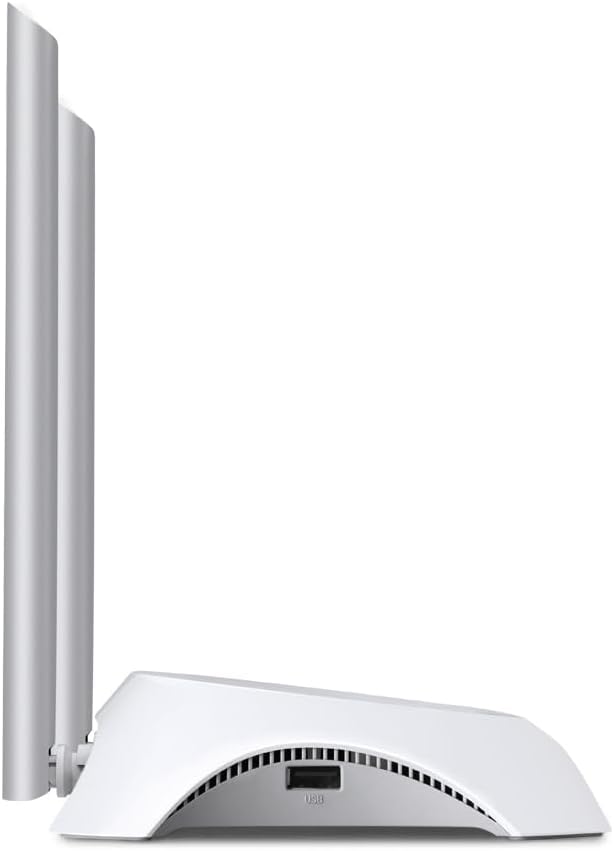
Слика: Са стране view of the TL-MR3420 router, highlighting the USB port for modem connection.
3.3 Задња плоча (портови и дугмад)
The rear panel provides various ports and buttons for connectivity and control.
- Напајање: Повезује се на адаптер за напајање.
- Дугме за укључивање/искључивање: Укључује или искључује рутер.
- WAN порт (плави): Connects to a DSL/Cable modem for traditional internet access.
- ЛАН портови (жути): Four ports for connecting wired devices like computers or switches.
- Дугме WPS/Ресетовање: Press for WPS function; press and hold for factory reset.
- Антенски конектори: За причвршћивање две спољне антене.

Слика: Позади view of the TL-MR3420 router, displaying the power port, WAN port, LAN ports, WPS/Reset button, and antenna connectors.
4. Водич за подешавање
4.1 Физичка веза
- Прикључите антене: Screw the two detachable antennas firmly into their connectors on the rear panel.
- Connect 3G/4G USB Modem: Insert your compatible 3G/4G USB modem into the USB port on the side of the router.
- Укључено: Прикључите адаптер за напајање на порт за напајање рутера и укључите га у зидну утичницу. Притисните дугме за укључивање/искључивање ако је потребно.
- (Optional) Connect to WAN: If using a wired internet connection as a backup or primary, connect an Ethernet cable from your DSL/Cable modem to the blue WAN port on the router.
- (Optional) Connect Wired Devices: Connect your computer or other wired devices to the yellow LAN ports using Ethernet cables.

Image: The TL-MR3420 router with a 3G USB modem connected to its side USB port.
4.2 Почетна конфигурација (Web Интерфејс)
- Повежите се са рутером: Connect your computer to the router either via an Ethernet cable to a LAN port or wirelessly using the default Wi-Fi SSID printed on the router's label (e.g., TP-Link_XXXX).
- Приступ Web Прегледач: Отвори а web прегледач (нпр. Chrome, Firefox) и откуцајте
http://tplinkwifi.netorhttp://192.168.0.1(илиhttp://192.168.1.1) у адресну траку. Притисните Ентер. - Пријава: Унесите подразумевано корисничко име и лозинку, који су обично
adminfor both. If these do not work, check the label on the bottom of your router. - Покрените брзо подешавање: Follow the on-screen Quick Setup Wizard to configure your internet connection and wireless settings.
4.3 3G/4G Connection Setup
During the Quick Setup, select 3Г/4Г рутер mode. The router will automatically detect your USB modem. You may need to select your region and ISP, and enter APN (Access Point Name) details if prompted. Ensure your 3G/4G USB modem is compatible with the TL-MR3420.
4.4 WAN Connection Setup (Optional)
If you are using a wired internet connection, configure the WAN settings. This can be done via Dynamic IP, Static IP, or PPPoE, depending on your Internet Service Provider (ISP) requirements. The TL-MR3420 supports a 3G/WAN failover strategy, allowing you to set a preferred connection (3G/4G or WAN) and use the other as a backup.
4.5 Подешавање бежичне мреже
Set your desired Wireless Network Name (SSID) and a strong password (WPA/WPA2 Personal recommended) for your Wi-Fi network. This will secure your wireless connection.
5. Управљање рутером
5.1 Разумевање ЛЕД индикатора
| ЛЕД | Статус | Индикација |
|---|---|---|
| Повер | On | Router is powered on. |
| Систем | Трепери | Рутер ради нормално. |
| ВЛАН | Укључено/трепери | Wireless function is enabled/data is being transmitted. |
| ВАН | Укључено/трепери | WAN port is connected/data is being transmitted. |
| ЛАН (1-4) | Укључено/трепери | Corresponding LAN port is connected/data is being transmitted. |
| 3Г/4Г | Укључено/трепери | 3G/4G modem is connected and working/data is being transmitted. |
5.2 Повезивање уређаја
- Бежични уређаји: Тражи your Wi-Fi network (SSID) on your device and enter the password you configured.
- Жични уређаји: Connect an Ethernet cable from your device to any of the yellow LAN ports on the router.
5.3 Пребацивање на 3G/WAN мрежу у случају отказа
The router can be configured to use either 3G/4G or WAN as the primary internet connection, with the other serving as a backup. If the primary connection fails, the router will automatically switch to the backup, ensuring continuous internet access. This setting can be managed in the router's web interface under Network > WAN Backup.
6. Одржавање
6.1 Надоградња фирмвера
Редовно проверавајте и инсталирајте ажурирања фирмвера од званичног провајдера компаније ТП-Линк. website. Firmware updates can improve performance, add new features, and fix bugs. Download the correct firmware for your model and follow the instructions provided on the TP-Link support page for upgrading via the web interface (System Tools > Firmware Upgrade).
6.2 Конфигурација резервне копије и враћања
Можете направити резервну копију подешавања конфигурације рутера на file on your computer. This allows you to restore your settings quickly after a factory reset or if you need to revert to a previous configuration (System Tools > Backup & Restore).
6.3 Поновно покретање система
If the router is experiencing issues, a simple reboot can often resolve them. You can reboot the router from the web interface (System Tools > Reboot) or by unplugging and replugging the power adapter.
6.4 Ресетовање на фабричка подешавања
A factory reset will revert all settings to their default values. This can be done by pressing and holding the WPS/Reset button on the rear panel for approximately 5-10 seconds until the System LED flashes rapidly, or via the web interface (System Tools > Factory Defaults).
КСНУМКС. Решавање проблема
- Не могу да приступим интернету:
- Check LED indicators: Ensure Power, System, WLAN, and 3G/4G (or WAN) LEDs are on or flashing correctly.
- Verify physical connections: Ensure all cables are securely connected.
- Check 3G/4G modem: Ensure it is properly inserted and recognized by the router.
- Confirm ISP settings: Verify that your 3G/4G or WAN settings (APN, connection type) are correct in the router's web интерфејс.
- Reboot the router and modem.
- Проблеми са бежичном везом:
- Ensure WLAN LED is on/flashing.
- Verify correct Wi-Fi SSID and password.
- Приближите се рутеру да бисте проверили јачину сигнала.
- Change wireless channel in router settings to avoid interference.
- Спора брзина интернета:
- Check your 3G/4G signal strength or WAN connection speed.
- Ensure no other devices are heavily using bandwidth.
- Ажурирајте фирмвер рутера.
8. Спецификације
| Феатуре | Детаљ |
|---|---|
| Назив модела | ТЛ-МР3420 |
| вирелесс стандард | IEEE 802.11n, 802.11g, 802.11b |
| Бежична брзина | До 300 Мбпс |
| Фрекуенци Банд | 2.4 ГХз |
| Антенна Типе | 2x 5dBi Detachable Omni Directional Antennas |
| Интерфејси | 1x 10/100Mbps WAN Port, 4x 10/100Mbps LAN Ports, 1x USB 2.0 Port |
| Дугмад | WPS/Reset Button, Power On/Off Button |
| Димензије (Ш к Д к В) | 11.34 к 8.9 к 2.8 инча (димензије производа) |
| Тежина артикла | 9.5 унци |
| Повер Суппли | 12VDC / 1A (External Power Adapter) |
| Вирелесс Сецурити | 64/128-битно WEP, WPA/WPA2, WPA-PSK/WPA2-PSK енкрипција |
| Компатибилни уређаји | Personal Computer, UMTS/HSPA/EVDO USB Modems |
9. Гаранција и подршка
9.1 Гаранција на производ
The TP-Link TL-MR3420 Wireless N300 3G/4G Router typically comes with a 2-year limited warranty. Please refer to the warranty card included in your package or visit the official TP-Link webсајт за детаљне услове гаранције специфичне за ваш регион.
9.2 Техничка подршка
За техничку помоћ, решавање проблема или додатна питања, посетите званичну TP-Link подршку webсајт. Можете пронаћи честа питања, ажурирања фирмвера и контакт информације за корисничку подршку.
- Подршка за ТП-Линк Webсајт: ввв.тп-линк.цом/суппорт/