1. Nhanganyaya
This manual provides detailed instructions for the installation, operation, and maintenance of your Peplink Mobility 40G Cellular Antenna. This advanced antenna system is designed to enhance cellular and GPS connectivity for compatible routers, offering robust performance in various environments.
The Peplink Mobility 40G is a 5-in-1 antenna system featuring 4x4 MIMO for 5G/LTE cellular frequencies and an integrated GPS receiver. Its durable design ensures reliable operation in challenging conditions.
2. Chigadzirwa Pamusoroview

Mufananidzo 2.1: Pamusoro view of the Peplink Mobility 40G Cellular Antenna.
2.1 Mamiriro Akakosha
- 5G/LTE Ready: Supports a wide range of cellular frequencies from 600-6000MHz for future-proof connectivity.
- 4x4 MIMO Technology: Maximizes signal strength and reliability for stable connections.
- Integrated GPS Receiver: Enables accurate location tracking.
- Durable Construction: IP68 rated for dust and water ingress protection, UL 746C UV resistance, 220 km/h wind survival, and MIL-STD 810F/ASTM 8117 salt spray resistance.
- QMA Connectors: Features robust QMA connectors for secure and easy snap-lock connections.
2.2 Package Zviri mukati
The Peplink Mobility 40G Cellular Antenna package typically includes:
- Peplink Mobility 40G Antenna with integrated 1 ft (0.3m) cables.
- 3M Adhesive Pad for mounting.
3. Kuisa Nongedzo
Proper installation is crucial for optimal performance of your Mobility 40G antenna. Ensure the mounting surface is clean, dry, and flat.
3.1 Kuisa Antenna
- Sarudza Nzvimbo Inokwirisa: Choose a location with a clear line of sight to cellular towers and GPS satellites. Avoid obstructions like metal structures or other antennas. The antenna can be mounted on a flat surface or a railing.
- Gadzirira Surface: Clean the mounting surface thoroughly. If using the 3M adhesive pad, ensure the surface is free of grease and debris.
- Secure the Antenna:
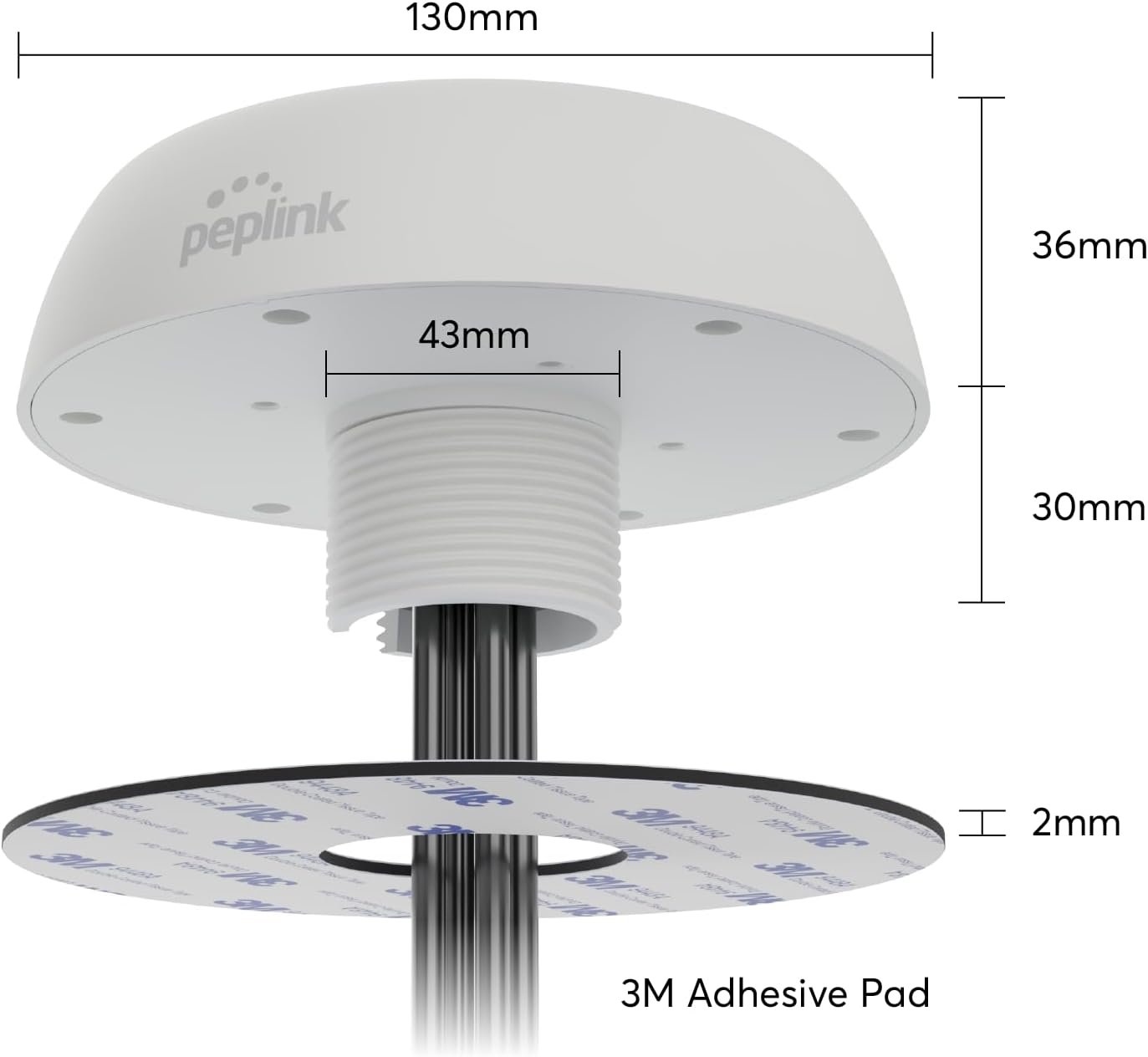
Image 3.1: Antenna dimensions and 3M adhesive pad for mounting.

Mufananidzo 3.2: Eksample of the antenna mounted on a railing.
- For surface mounting, peel the backing from the 3M adhesive pad and firmly press the antenna onto the chosen surface.
- For railing or pole mounting, use appropriate clamps or brackets (not included) to secure the antenna.
3.2 Kubatanidza maCables
The Mobility 40G antenna comes with integrated cables terminated with QMA connectors.

Image 3.3: QMA connectors feature an easy snap-lock mechanism.
- Route the Cables: Carefully route the antenna cables to your compatible cellular router. Ensure cables are not kinked or pinched.
- Batanidza kune Router: Attach the QMA connectors from the antenna to the corresponding cellular and GPS ports on your router. QMA connectors provide a secure snap-lock connection.
- Adapter Note: This antenna uses QMA connectors. If your router uses SMA connectors, you may require QMA to SMA adapters or extension cables (not included). Peplink also offers antennas with SMA connectors.
4. Kushanda
Once properly installed and connected to a compatible Peplink router, the Mobility 40G antenna operates automatically to provide enhanced cellular and GPS signals.
- The antenna will receive and transmit cellular signals across its supported frequency bands (600-6000MHz), improving your router's cellular performance.
- The integrated GPS receiver will provide location data to your router, which can be utilized by various applications or services.
- No user configuration is typically required for the antenna itself; all settings related to cellular and GPS functionality are managed through your connected Peplink router.
5. Maintenance uye Durability
The Peplink Mobility 40G antenna is designed for minimal maintenance due to its robust construction and high durability ratings.

Image 5.1: IP68 Ingress Protection against dust and water.

Image 5.2: UL 746C UV Resistance Rating for long-term exposure.

Image 5.3: Wind Survival up to 220 km/h.

Image 5.4: MIL-STD 810F/ASTM 8117 Salt Spray Resistance.
5.1 Kuchenesa
If necessary, gently wipe the antenna housing with a damp cloth to remove dirt or debris. Avoid using harsh chemicals or abrasive materials that could damage the surface.
5.2 Kuongorora
Periodically inspect the antenna and its cables for any signs of physical damage, wear, or loose connections. Ensure the mounting remains secure.
6. Kugadzirisa matambudziko
If you experience issues with your cellular or GPS connectivity, consider the following troubleshooting steps:
- No Signal or Weak Signal:
- Verify all QMA connectors are securely attached to the router.
- Check the antenna's mounting location for new obstructions (e.g., trees, buildings).
- Ensure the router's cellular module is active and configured correctly.
- Try repositioning the antenna to a location with a clearer line of sight.
- GPS Not Locking or Inaccurate:
- Ensure the GPS cable is properly connected to the router's GPS port.
- Confirm the antenna has an unobstructed view yedenga.
- Check your router's GPS settings and ensure GPS functionality is enabled.
- Kukuvadza Pamuviri: If the antenna or cables appear physically damaged, contact Peplink support for assistance.
7. Zvinotsanangurwa

Image 7.1: Detailed specifications of the Peplink Mobility 40G.
| Feature | Detail |
|---|---|
| Model Number | ANT-MB-40G-QW-1 |
| Antenna Elements | 4x LTE / 5G, 1x GPS |
| Cellular Frequency Bands | 600-6000MHz (0.3dBi @ 617-960MHz, 5.1dBi @ 1710-2700MHz, 5.8dBi @ 3400-4200MHz, 7.0dBi @ 4900-6000MHz) |
| GPS Frequency Bands | 1561-1602MHz (1.6dBi, LNA 28dB) |
| Impedance | 50 Ohm |
| Connector Type | QMA male (4G / 5G, GPS) |
| Cable Length | 1 ft (0.3m) |
| Dimensions (Diameter x Urefu) | 5.12 x 1.42 inches (130 x 36 mm) |
| Item Weight | 1.52 makirogiramu |
| Color | Chena |
| Ingress Dziviriro | IP68 |
| UV Kupokana | UL 746C |
| Kupona Kwemhepo | 220 km/h |
| Munyu Spray Kuramba | MIL-STD 810F/ASTM 8117 |
8. Warranty uye Tsigiro
For information regarding product warranty, please refer to the warranty documentation provided with your Peplink product or visit the official Peplink website. Peplink offers technical support for their products.
8.1 Kubata Rutsigiro
If you require technical assistance or have questions not covered in this manual, please contact Peplink customer support through their official website or authorized distributors. Have your product model number (ANT-MB-40G-Q-W-1) and purchase details ready when contacting support.
Unogona kuwana rumwe ruzivo uye zviwanikwa zvekutsigira pa Peplink Store on Amazon.


