1. Folasaga
Fa'afetai mo le fa'atauasing the 2BOOM BX390 Bass King Wireless Bluetooth Boombox Stereo Speaker. This manual provides essential information for setting up, operating, and maintaining your speaker to ensure optimal performance and longevity. Please read this manual thoroughly before using the product.

Image 1.1: The 2BOOM BX390 Bass King Wireless Bluetooth Boombox Stereo Speaker.
This image shows the 2BOOM BX390 Bass King speaker in blue, featuring a cylindrical design with a handle/strap attached. The front panel displays the control interface and speaker grille.
2. Mea i totonu o le afifi
Fa'amolemole siaki le afifi mo mea nei:
- 1 x 2BOOM BX390 Bass King Speaker
- 1 x 3.5mm Aux Cable
- 1 x USB Uaea Fa'atau
- 1 x User Manual (lenei pepa)
- 1 x Attachable Shoulder Strap

Image 2.1: The 2BOOM BX390 speaker shown with its detachable shoulder strap, 3.5mm Aux cable, and USB charging cable.
This image displays the blue 2BOOM BX390 speaker from an angled perspective, highlighting the included shoulder strap attached to its side rings. The USB charging cable and 3.5mm Aux cable are visible in the foreground.
3. Vaega o Oloa
- Powerful Bass Sound: Equipped with 4-inch subwoofers and vibrating disks for crisp, clear, loud sound, booming low tones, and dynamic sound effects.
- Feso'ota'iga Bluetooth: Connects wirelessly to smartphones, tablets, and other Bluetooth-enabled devices up to 33 ft.
- Maliofoni ua fausia i totonu: Supports hands-free calls.
- Fuafuaga umi ma feaveai: Features a rugged, rubberized exterior and an attachable strap for easy carrying.
- Filifiliga Ulufale Tele: Includes FM Radio, Aux-in Line, USB port, and SD Card slot.
- Vaega Pule Fa'atasi: Direct control over volume, bass, and sound equalizer.

Image 3.1: The 2BOOM BX390 speaker with visual callouts for Deep Digital Bass, FM Radio, Long-Lasting Battery, and Straps Included.
This image shows the blue 2BOOM BX390 speaker from the front, with graphic overlays pointing out its key features: deep digital bass, FM radio capability, long-lasting battery, and the inclusion of straps for portability.
4. Pulea ma Taulaga
Familiarize yourself with the control panel and input ports of your BX390 speaker:

Image 4.1: Detailed diagram of the 2BOOM BX390 control panel and input ports.
O lenei ata e maua ai se fa'alatalata view of the speaker's front panel, clearly labeling each button, port, and indicator. Labels include USB, DC 5V (charging), AUX, Previous, Play/Pause, Next, Mode, EQ, SD card slot, LED display, Power ON/OFF switch, Volume controls, and Bass controls.
- Taulaga USB: Mo le toe ta'aloina o le masini USB.
- DC 5V (Charging Port): Connect the USB charging cable here to charge the speaker.
- Ulufale AUX: 3.5mm jack for connecting external audio devices via an Aux cable.
- Previous / Volume -: Short press for previous track; long press to decrease volume.
- Ta'alo/Taofi: Press to play or pause audio. In FM mode, short press to auto-scan.
- Next / Volume +: Short press for next track; long press to increase volume.
- Faiga: Press to switch between Bluetooth, FM Radio, USB, SD Card, and AUX modes.
- EQ (Equalizer): Press to cycle through different equalizer presets.
- SD Card Slot: Insert an SD card for audio playback.
- Faaali atu TAITAIINA: Fa'aalia ai le faiga o lo'o iai nei, numera o le ala, po'o le televave FM.
- Suiga ON/OFF Malosi: Slide to turn the speaker on or off.
- Volume +/-: Fa'amau e fa'atele pe fa'aitiitia le leo atoa.
- Bass +/-: Buttons to increase or decrease the bass level.
5. Seti
5.1 Tuuina atu o le Fofoga Fetalai
Before first use, fully charge the speaker. Connect the supplied USB charging cable to the DC 5V port on the speaker and the other end to a USB power adapter (not included) or a computer's USB port. The LED display may indicate charging status.
- Charging time may vary.
- Motusi le masini fa'atumu pe a uma ona fa'atumuina ina ia sefe ai le umi e ola ai le maa.
5.2 Fa'aola i luga/Pepe
To turn the speaker ON, slide the Power ON/OFF switch to the 'ON' position. You will hear an audible prompt, and the LED display will light up.
To turn the speaker TOTO, slide the Power ON/OFF switch to the 'OFF' position.
6. Fa'atonuga o Galuega
6.1 Faiga Bluetooth
The speaker automatically enters Bluetooth pairing mode when powered on if no other input source is connected, or after pressing the TULAGA button until "Bluetooth" is indicated.
- Ia mautinoa ua ola le sipika.
- I luga o lau masini e mafai ai le Bluetooth (smartphone, tablet, ma isi), fa'agaoioi le Bluetooth ma saili mo masini avanoa.
- Filifili"2BOOM BX390" or similar from the list.
- Once paired, the speaker will confirm with an audible prompt.
- Ua mafai nei ona e taina leo mai lau masini e ala i le sipika.
Fa'aaliga: The speaker will automatically reconnect to the last paired device if it's within range and Bluetooth is enabled.
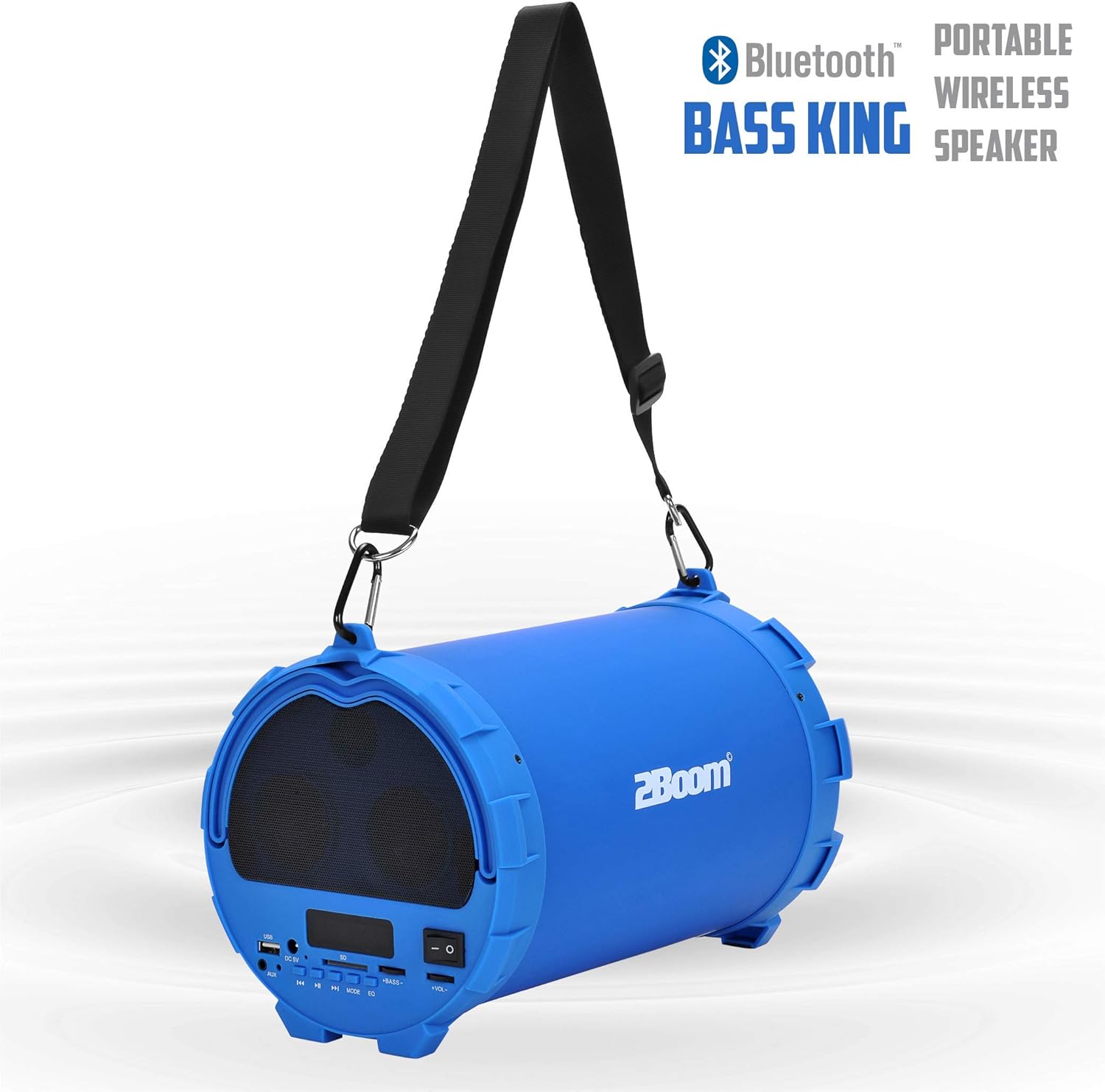
Image 6.1: The 2BOOM BX390 speaker highlighting its Bluetooth connectivity.
This image shows the blue 2BOOM BX390 speaker with a prominent "Bluetooth" logo and "PORTABLE WIRELESS BASS KING SPEAKER" text, emphasizing its wireless audio capabilities.
6.2 FM Leitio Ala
To switch to FM Radio mode, press the TULAGA button until "FM" or the radio frequency is displayed.
- I le FM mode, oomi puupuu le Ta'alo/Taofi button to automatically scan and save available FM stations. The speaker will cycle through frequencies and store them.
- Fa'aaoga le Muamua ma Sosoo ai fa'amau e feoa'i ai i le va o nofoaga ua sefeina.
- For better reception, extend the antenna (if applicable, or reposition the speaker).
6.3 USB / SD Card Mode
The speaker supports audio playback from USB flash drives and SD cards.
- Fa'aofi se USB flash drive i totonu o le Taulaga USB po o se SD card i totonu o le SD Card Slot.
- The speaker will automatically switch to the corresponding mode (USB or SD) and begin playing audio files. Afai e leai, oomi le TULAGA faamau e filifili ai.
- Fa'aaoga le Muamua, Ta'alo/Taofi, ma Sosoo ai faamau e pulea ai le toe faia.
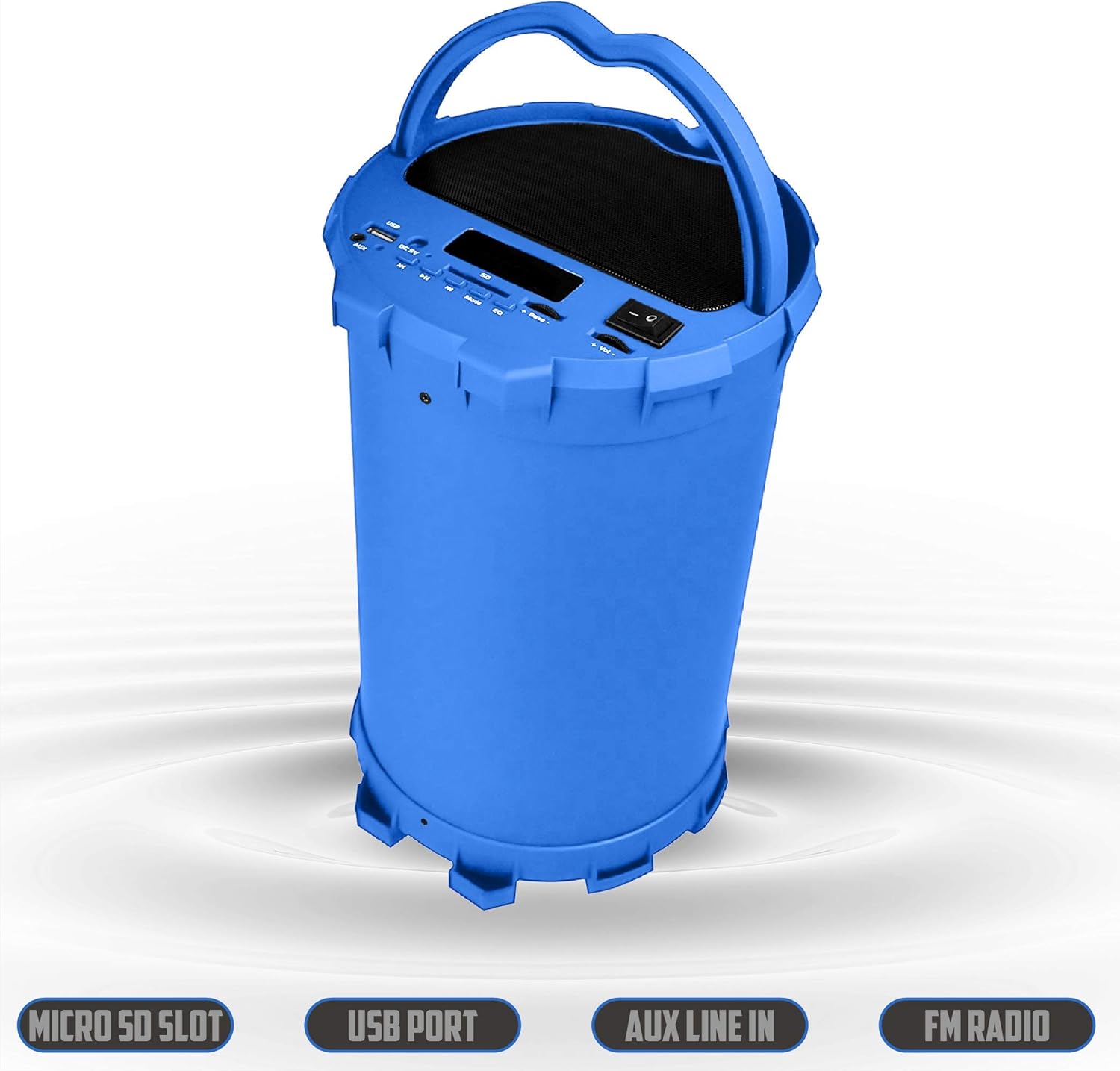
Image 6.2: The 2BOOM BX390 speaker shown upright, emphasizing the Micro SD Slot, USB Port, Aux Line In, and FM Radio capabilities.
This image displays the blue 2BOOM BX390 speaker in an upright position, with graphic overlays highlighting the Micro SD Slot, USB Port, Aux Line In, and FM Radio features on its control panel.
6.4 AUX Input Mode
Connect external audio devices (e.g., MP3 players, computers) using the supplied 3.5mm Aux cable.
- Connect one end of the 3.5mm Aux cable to the AUX sao uafu i luga o le sipika.
- Connect the other end to the audio output jack of your external device.
- The speaker will automatically switch to AUX mode. If not, press the TULAGA faamau e filifili ai.
- Pulea le toe ta'alo mai lau masini fafo.
6.5 Adjusting Volume, Bass, and Equalizer
- Volume: Fa'aaoga le Volume +/- buttons (long press Previous/Next) to increase or decrease the overall volume.
- Bass: Fa'aaoga le Bass +/- buttons to adjust the bass level to your preference.
- Equalizer (EQ): Oomi le EQ button to cycle through various preset equalizer modes (e.g., Pop, Rock, Jazz, Classical, Normal) to optimize sound for different music genres.
7. Tausiga
- Fa'amamaina: Fa'aaogā se ie mālū ma mago e fa'amama ai fafo o le sipika. Aua ne'i fa'aogaina ni mea e fa'amama fa'amama po'o ni so'o.
- Teuina: Teu le sipika i se nofoaga mālūlū ma matutu mamao ese mai le susulu o le la ma le vevela tele pe a le faʻaaogaina mo se taimi umi.
- Tausiga maa: Ina ia faaumiumi le ola o le maa, aloese mai le lafoaia atoatoa o le maa i taimi uma. Totogi le sipika e le aunoa, tusa lava pe le o faaaogaina.
- Suavai Tetee: E lē tete'e i le vai lenei sipika. 'Alo'ese mai le vai pe susu tele.
8. Faʻafitauli
| Fa'afitauli | Mafuaaga e ono tupu | Fofo |
|---|---|---|
| Leai se mana | Ua vaivai pe ua mate le maa. | Charge the speaker fully using the supplied USB cable. |
| Leai se leo | E maualalo tele le leo; le sa'o le faiga ua filifilia; e le'i feso'ota'i lelei le masini. | Increase volume on speaker and connected device. Press TULAGA to select correct input. Reconnect Bluetooth or Aux cable. |
| Ua le manuia le feso'ota'iga Bluetooth | Le failauga e le o fa'atasi; mamao tele le masini; fa'alavelave. | Ensure speaker is in Bluetooth mode. Move device closer to speaker. Turn off other Bluetooth devices. Forget "2BOOM BX390" on your device and re-pair. |
| Le lelei le taliaina o FM | Weak signal; speaker position. | Reposition the speaker. Try auto-scanning again. |
| E le ta'alo le kata USB/SD | Le lagolagoina file faatulagaga; e le'i fa'apipi'iina sa'o le kata/tietie ta'avale; ua fa'aleagaina files. | Ia mautinoa files are in a supported format (e.g., MP3). Reinsert the USB drive/SD card. Try a different drive/card. |
9. Fa'amatalaga
| Fa'aaliga | Fa'amatalaga |
|---|---|
| Fa'ailoga | 2BOOM |
| Fa'ata'ita'iga | BX390 Bass King |
| Tekinolosi Feso'ota'i | Fesoasoani, Bluetooth, USB |
| Ituaiga Fofoga Fetalai | Stereo |
| Masini Fegalegaleai | Laptop, Smartphone, Tablet |
| Subwoofers | 4-inch (Quantity not specified, but implied by "subwoofers" and "dual subwoofers" in image) |
| Lau'ele'ele Bluetooth | E oo atu ile 33 ft (10 mita) |
| Taulaga Ulufale | USB, SD Card, 3.5mm AUX |
| Leitio | Leitio FM |
10. Fa'amaonia ma Lagolago
The 2BOOM BX390 Bass King speaker comes with an UNLIMITED 2BOOM WARRANTY.
For warranty claims or technical support, please contact 2BOOM customer service. Refer to the product packaging or 2BOOM's official webnofoaga mo faʻamatalaga faʻafesoʻotaʻi.
Fa'amolemole taofi lau fa'amaoniga o le fa'atau mo fa'amoemoega fa'amaonia.


