Uvod
This manual provides essential information for setting up, operating, and maintaining your HP 27f 4K Monitor. Please read these instructions carefully before using your monitor to ensure proper functionality and longevity.
Ključne značilnosti
- Ultra High Definition 4K: Experience cinematic quality with the incredible definition of 4K.
- Height Adjustment Stand: Easily adjust your display to the most comfortable position with 100 mm range of travel.
- Panoramsko View: Izjemno širok kot 178° viewz doslednimi podrobnostmi in živahnimi barvami.
- Sodoben dizajn: A sleek design that complements your workspace.
- Micro-edge Display: Virtually no bezel encircling the display for an ultra-wide viewing experience and seamless multi-monitor setups.
- Tehnologija plošč IPS: Provides consistent color and image clarity across a wide viewvhodni kot.
- AMD FreeSync™: Reduces blurring and tearing for smoother visuals.
Kaj je v škatli
Preverite, ali so v embalaži prisotne vse komponente:
- HP 27f 4K Monitor
- A/C power cable (1.9 m / 6.2 ft)
- Power adapter (1.0 m / 3.3 ft)
- HDMI cable (1.8 m / 5.9 ft)
- Quick setup poster
- Kartica s seznamom telefonskih številk službe
- Garancijska dokumentacija
Nastavitev
1. Sestavljanje monitorja
Carefully remove the monitor and stand components from the packaging. Attach the stand base to the stand column, then secure the stand to the back of the monitor. Ensure all connections are firm.
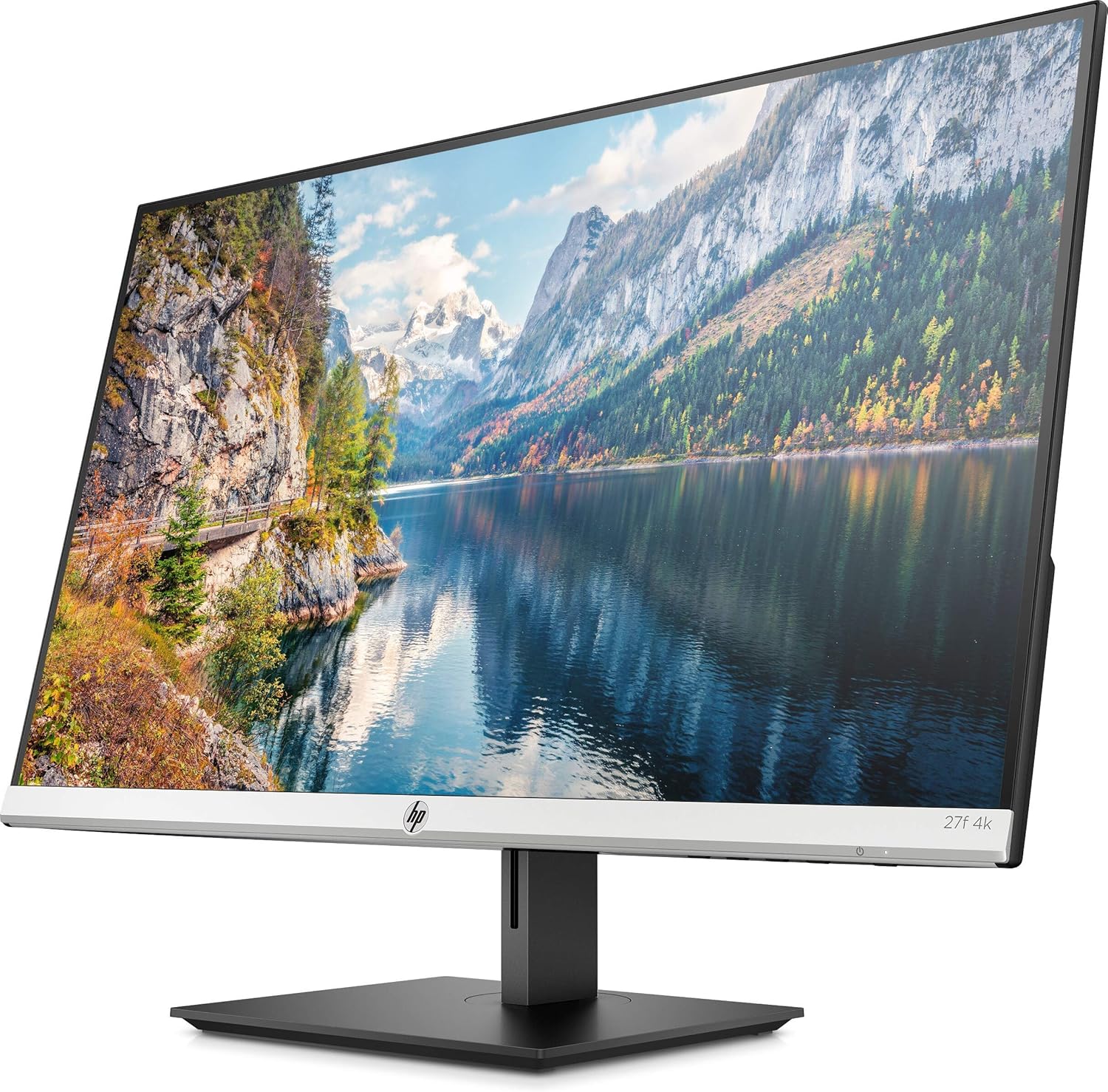
Slika 1: Spredaj view of the HP 27f 4K Monitor with its stand.
2. Priključni kabli
Connect the power adapter to the monitor's power input and then to a power outlet. Use the provided HDMI cable to connect your computer to one of the HDMI ports on the monitor. Alternatively, use a DisplayPort cable if your computer supports it.

Slika 2: Zadaj view of the monitor displaying the HDMI and DisplayPort inputs.
3. Vklopite
Press the power button on the monitor to turn it on. The monitor should automatically detect the input signal from your computer.
Upravljanje monitorja
Prilagajanje zaslona
The HP 27f 4K Monitor features a height-adjustable stand and can be tilted and rotated for optimal viewing comfort. Adjust the height by gently pushing or pulling the monitor up or down. Tilt the screen forward or backward as needed. The monitor can also be rotated to a portrait orientation.

Slika 3: Stranski profesionalecfile of the monitor demonstrating its adjustable stand.
Zaslonski meni (OSD).
Use the buttons located on the bottom bezel of the monitor to access the On-Screen Display (OSD) menu. This menu allows you to adjust various settings such as brightness, contrast, color temperature, input source, and other display preferences.
Multi-Monitor Setup
The micro-edge bezel design allows for seamless multi-monitor configurations, enhancing your productivity and immersive experience.

Slika 4: Nprample of a multi-monitor setup using HP 27f 4K Monitors.
Vizualna izkušnja
The HP 27f 4K Monitor delivers stunning 4K resolution and utilizes IPS Panel Technology for wide viewing angles and vibrant colors. AMD FreeSync™ technology helps reduce screen tearing and stuttering for a smoother visual experience, especially during fast-paced content.
Video 1: An official HP video showcasing the stunning 4K clarity of the HP 27f 4K Display.
Vzdrževanje
Čiščenje monitorja
To clean the screen, gently wipe it with a soft, lint-free microfiber cloth. For stubborn smudges, slightly dampen the cloth with water or a screen-cleaning solution specifically designed for monitors. Avoid using harsh chemicals, abrasive cleaners, or spraying liquid directly onto the screen.
To clean the monitor's exterior, use a soft, damp cloth. Ensure the monitor is powered off and unplugged before cleaning.
Odpravljanje težav
Brez moči
- Prepričajte se, da je napajalni kabel varno priključen na monitor in delujočo električno vtičnico.
- Preverite, ali je napajalnik pravilno priključen.
- Preverite delovanje vtičnice tako, da vanjo priključite drugo napravo.
No Signal/Blank Screen
- Confirm that the video cable (HDMI or DisplayPort) is securely connected to both the monitor and your computer.
- Prepričajte se, da je računalnik vklopljen in ne v načinu spanja.
- Use the OSD menu to manually select the correct input source (e.g., HDMI 1, HDMI 2, DisplayPort).
- Try connecting the monitor to a different video port on your computer or using a different video cable to rule out cable or port issues.
Display Issues (Flickering, Blurry Image)
- Preverite video kabel za poškodbe ali ohlapne povezave.
- Prepričajte se, da so grafični gonilniki vašega računalnika posodobljeni.
- Adjust the display resolution and refresh rate settings on your computer to match the monitor's capabilities.
- If using AMD FreeSync™, ensure it is enabled in both the monitor's OSD and your graphics card settings.
Specifikacije
Detailed technical specifications for the HP 27f 4K Monitor:

Figure 5: Diagram illustrating the dimensions of the HP 27f 4K Monitor.
| Funkcija | Specifikacija |
|---|---|
| Velikost stoječega zaslona | 27 palcev |
| Ločljivost zaslona | 3840 x 2160 (4K UHD 2160p) |
| Največja ločljivost zaslona | 3840 slikovnih pik |
| Znamka | HP |
| serija | HP 27f 4K Display |
| Številka modela artikla | 27f 4K |
| Teža predmeta | 10.56 funtov |
| Dimenzije izdelka | 24.16 x 7.62 x 19.74 palcev |
| barva | Natural silver and Black |
| voltage | 240 voltov (AC) |
| Razmerje stranic | 16:9 |
| Opis površine zaslona | Proti bleščanju |
Garancija in podpora
Your HP 27f 4K Monitor comes with a standard manufacturer's warranty. Please refer to the warranty documentation included in your product packaging for specific terms and conditions.
Za tehnično podporo, prenos gonilnikov ali dodatne informacije o izdelku obiščite uradno spletno mesto za podporo HP. website or contact HP customer service using the contact information provided in your documentation.