
 SC2 Motorcycle Intercom
User Manual
SC2 Motorcycle Intercom
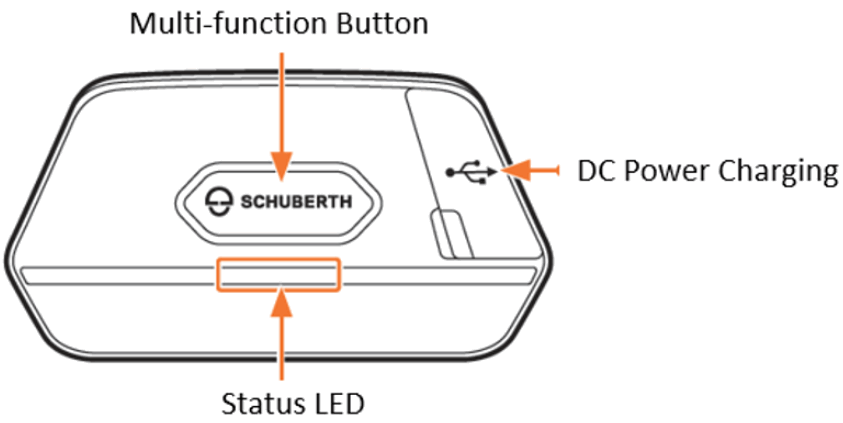
Charging
SC2
Red LED: Charging
Blue LED: Fully charged
Power On/Off
SC2
Press and hold the Multi-function Button for 1 second
SC2 Remote Control
Tap the Center Button
Volume Adjustment
(+) Button – Increase the volume
(-) Button – Decrease the volume
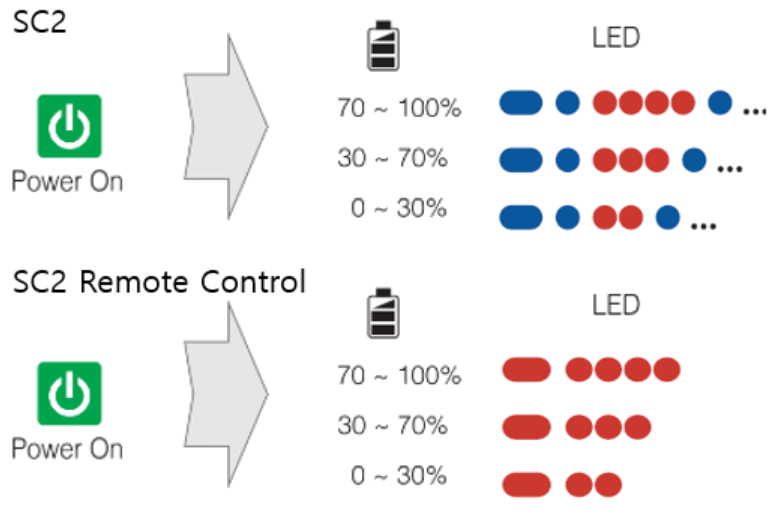
Battery Check
Phone, Music Pairing
- Press the Center Button for 10 seconds.
- Press the (+) Button to enter into Phone Pairing
- Search for Bluetooth devices on your mobile phone. Select the SC2 in the list of the devices detected on the mobile phone.
- Enter 0000 for the PIN. Some mobile phones may not ask for the PIN.
Music Operation
Play or pause music: Press the Center Button for 1 second.
Track back: Press the (-) Button for 1 second.
Track forward: Press the (+) Button for 1 second.
Mobile Phone Call Making and Answering
Answering a call: Tap the Center Button
Ending a call: Press the Center Button for 2 seconds.
Voice dial: Press the Center Button for 3 seconds.
Speed dial: Press the (+) Button for 3 seconds.
Rejecting a call: Press the (+) Button for 2 seconds.
Intercom
Intercom Pairing
- Press and hold the Center Button of two headsets for 5 seconds until red LEDs of both units start to flash rapidly.
- The SC2 will automatically pair with a Sena headset
Intercom Start/End : Tap the Center Button
Mesh Intercom
Mesh Intercom On/Off : Tap the Mesh Button
Radio On/Off
Turn on the FM radio: Press the (-) Button for 1 second.
Turn off the FM radio: Press the (-) Button for 1 second.
Radio Scan Up FM Band
Start scanning: Press (+) Button for 1 second.
Stop scanning: Press (+) Button for 1 second.
Radio Seek Stations
Seek up stations: Double tap the (+) Button.
Seek down stations: Double tap the (-) Button.
Setting
Configuration Menu: Press the Center Button for 10 seconds.
Troubleshooting
SC2 Factory Reset
If you want to restore the SC2 to factory default settings, press and hold the Multi-function Button for 12 seconds. The SC2 automatically restores the default settings and turns off.
Certification and Safety Approvals FCC Compliance Statement
This device complies with part 15 of the FCC rules. Operation is subject to the following two conditions: (1) This device may not cause harmful interference, and
(2) This device must accept any interference received, including interference that may cause undesired operation.
This equipment has been tested and found to comply with the limits for a Class B digital device pursuant to part 15 of the FCC rules. These limits are designed to provide reasonable protection against harmful interference in a residential installation. This equipment generates, uses and can radiate radio frequency energy and, if not installed and used in accordance with the instructions, may cause harmful interference to radio communications. However, there is no guarantee that interference will not occur in a particular installation. If this equipment does cause harmful interference to radio or television reception, which can be determined by turning the equipment on and off, the user is encouraged to try to correct the interference by one or more of the following measures:
- Reorient or relocate the receiving antennae
- Increase the separation between the equipment and the receiver
- Connect the equipment into an outlet on a circuit different from that to which the receiver is connected.
- Consult the dealer or an experienced radio/TV technician for help.
FCC RF Exposure Statement
This equipment complies with FCC/IC radiation exposure limits set forth for an uncontrolled environment. End users must follow the specific operating instructions for satisfying RF exposure compliance. The antenna used for this transmitter must not transmit simultaneously with any other antenna or transmitter, except in accordance with FCC multi-transmitter product procedures. When equipped, the distance between antenna and one’s head surface is 40.9mm.
FCC Caution
Any changes or modifications to the equipment not expressly approved by the party responsible for compliance could void user’s authority to operate the equipment.
Industry Canada(IC) Statement
This device complies with Industry Canada license-exempt RSS standard(s). Operation is subject to the following two conditions:
- this device may not cause interference, and
- this device must accept any interference, including interference that may cause undesired operation of the device.
Documents / Resources
 | SC2 Motorcycle Intercom |
References
- User Manualmanual.tools
はじめまして。
質問をお願い致します。
携帯をiPhone11からiPhone13
(ios18.0)
に機種変更後ペアリングができなくなりました。
デバイスで検知しません。
他のBluetoothスピーカーはペアリングできます。
どこに問題がありますでしょうか?
よろしくお願い致します。
質問をお願い致します。
携帯をiPhone11からiPhone13
(ios18.0)
に機種変更後ペアリングができなくなりました。
デバイスで検知しません。
他のBluetoothスピーカーはペアリングできます。
どこに問題がありますでしょうか?
よろしくお願い致します。
How do I pair my SENA SC2 with a new iPhone 13 if it is not being detected?
To resolve pairing issues with your new iPhone 13, please follow these steps to ensure the SENA SC2 is in the correct pairing mode:
0000.Note: Ensure that the SC2 is not currently connected to your old iPhone 11, as this can prevent it from being discovered by new devices.
Read the full Q&A page