تعارف
This manual provides essential information for the safe and efficient use of your Thunderobot Zero 16 Pro Gaming Laptop. Please read this manual thoroughly before using the device and retain it for future reference. The Thunderobot Zero 16 Pro is designed for high-performance computing, featuring an Intel Core Ultra 9 275HX processor, NVIDIA GeForce RTX 5070 Ti graphics, a 16-inch QHD+ 360Hz display, 32GB DDR5 RAM, and a 2TB SSD.
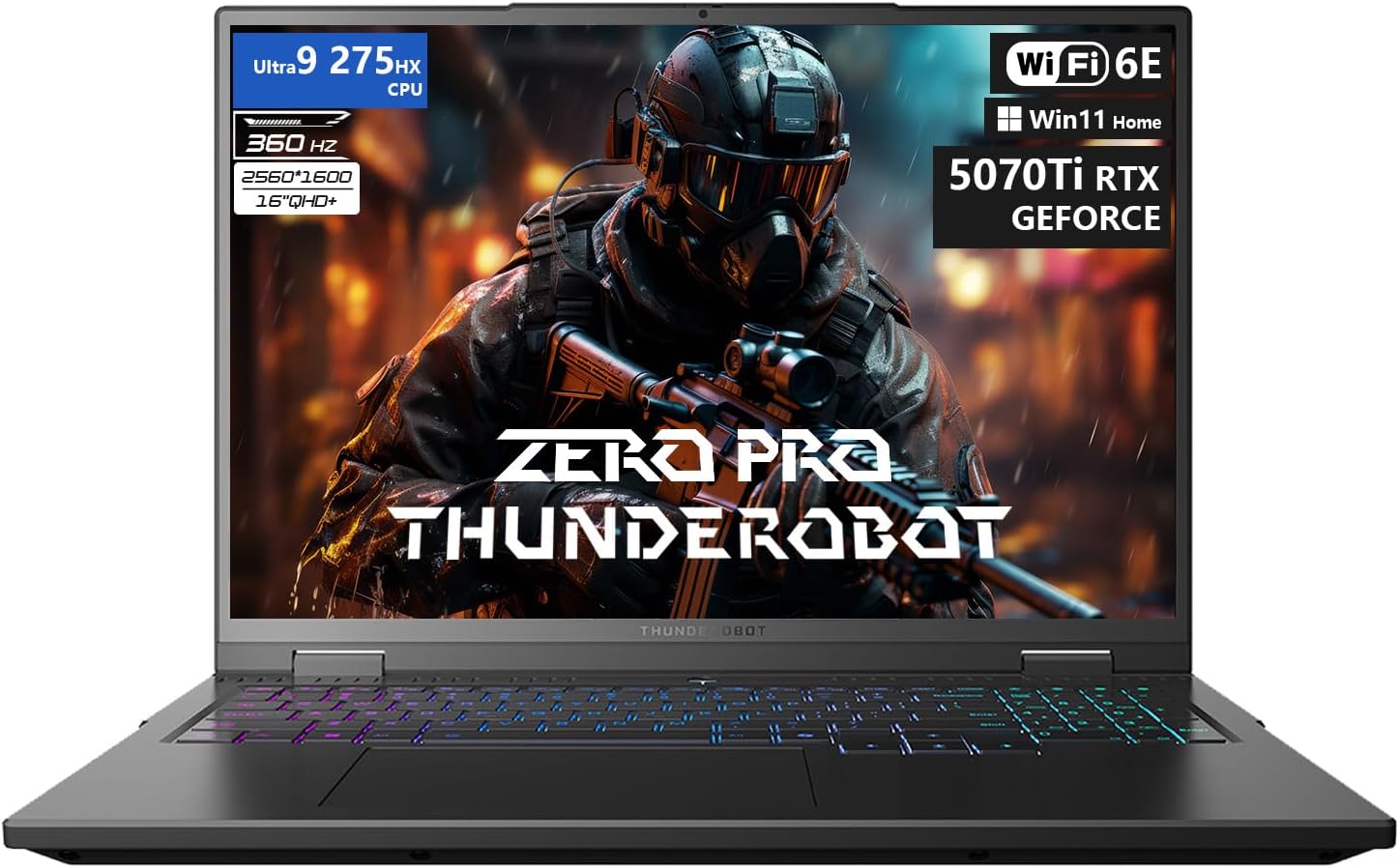
Figure 1: The Thunderobot Zero 16 Pro Gaming Laptop, showcasing its 16-inch QHD+ display and per-key RGB keyboard.
1. سيٽ اپ
1.1 شروعاتي پاور آن
- Unpack the laptop and all accessories from the packaging.
- Connect the power adapter to the laptop's power port and then to a power outlet.
- ليپ ٽاپ جو ڍڪ کوليو ۽ ڊوائيس کي آن ڪرڻ لاءِ پاور بٽڻ کي دٻايو.
- شروعاتي ونڊوز 11 هوم سيٽ اپ مڪمل ڪرڻ لاءِ اسڪرين تي ڏنل هدايتن تي عمل ڪريو.
1.2 ڊرائيور جي انسٽاليشن ۽ تازه ڪاريون
It is recommended to update all drivers after the initial setup to ensure optimal performance and compatibility. Visit the official Thunderobot support website to download the latest drivers for your Zero 16 Pro model. This process may take some time.
1.3 Connecting Peripherals and External Devices
The Thunderobot Zero 16 Pro offers a variety of ports for connecting external devices. Refer to the diagram below for port locations and types.
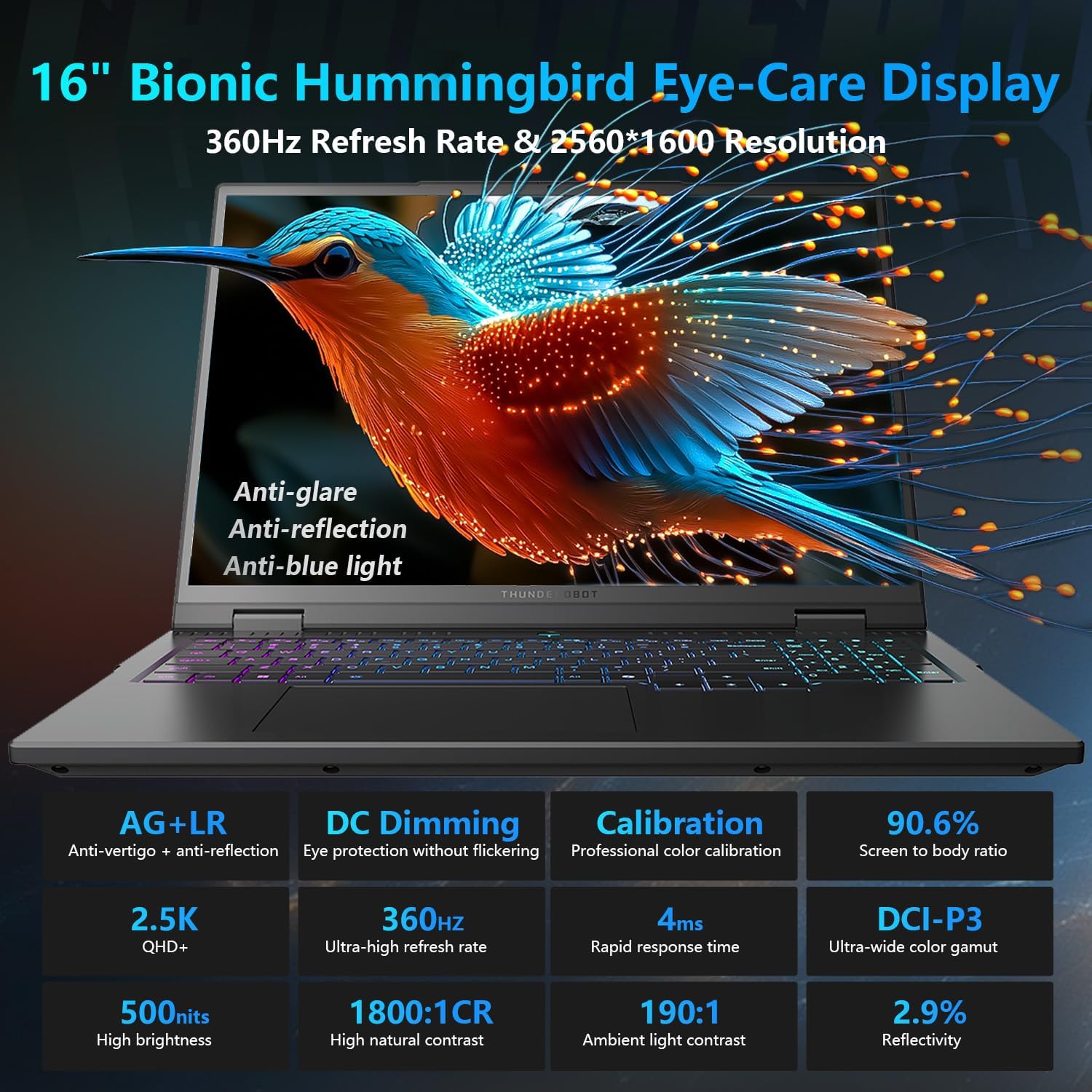
Figure 2: Diagram illustrating the various ports and connectivity options available on the Thunderobot Zero 16 Pro, such as USB-A, USB-C, HDMI, RJ-45, and audio jack.
- USB-A بندرگاهن (x3): For connecting USB devices like mice, keyboards, and external storage.
- USB-C Port (Thunderbolt 5): For high-speed data transfer, display output, and power delivery.
- HDMI 2.1 پورٽ: For connecting to external displays or TVs.
- RJ-45 پورٽ: For wired Ethernet network connection.
- 3.5mm آڊيو جيو: For connecting headphones or external speakers.
2. آپريشن
2.1 ڏيکاريو خاصيتون
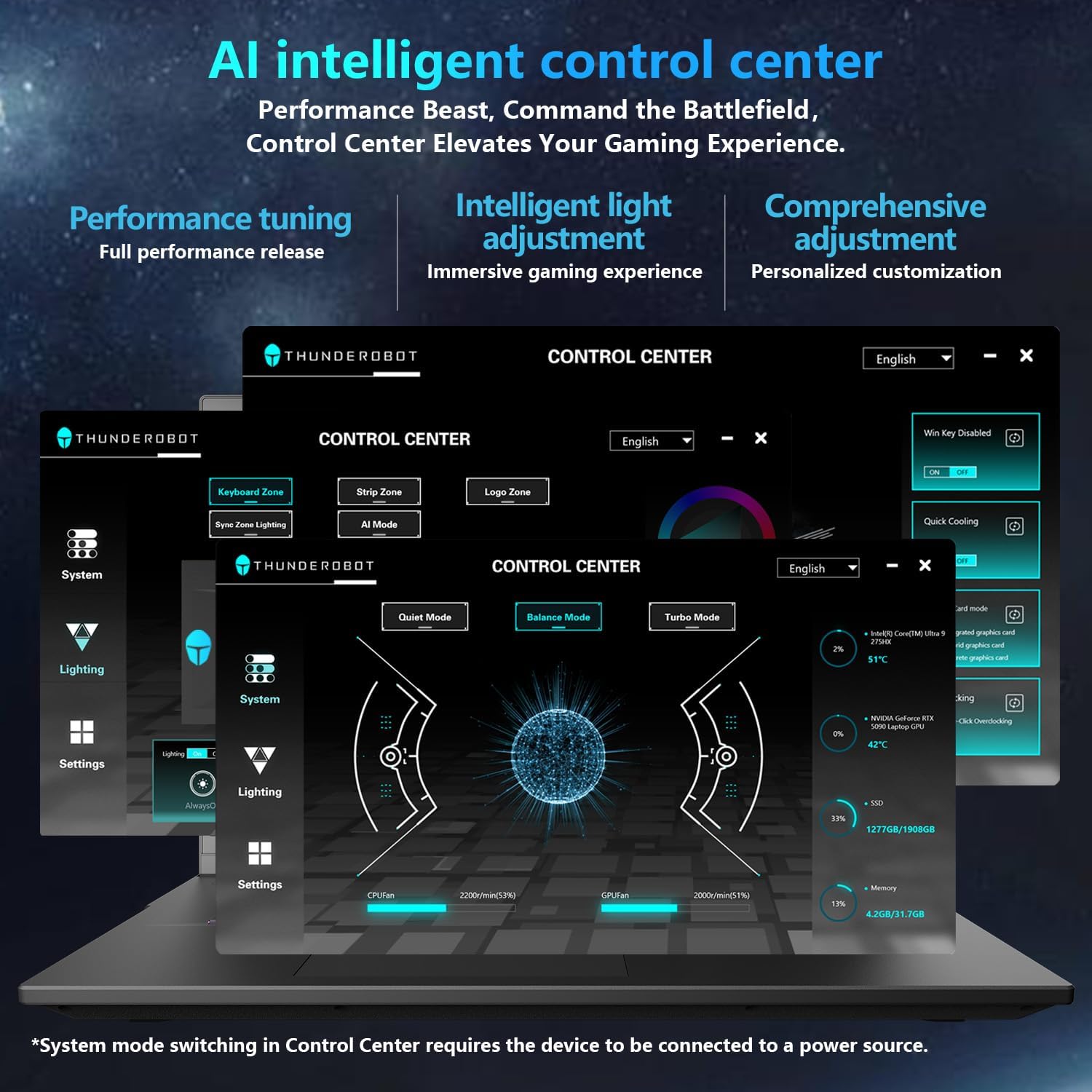
Figure 3: Detailed features of the 16-inch Bionic Eye-Care Display, including QHD+ resolution, 360Hz refresh rate, anti-glare, and anti-blue light technologies.
The 16-inch QHD+ (2560x1600) Bionic Eye-Care Display features a 360Hz refresh rate and 4ms response time for smooth visuals. It includes anti-glare, anti-reflection, and blue-light reduction technologies for comfortable viewing. To utilize the highest refresh rate, ensure the dedicated graphics direct connection mode is enabled in the control center.
2.2 Performance Modes and Cooling
The laptop features dedicated keys for quick switching between performance profiles and activating maximum cooling.
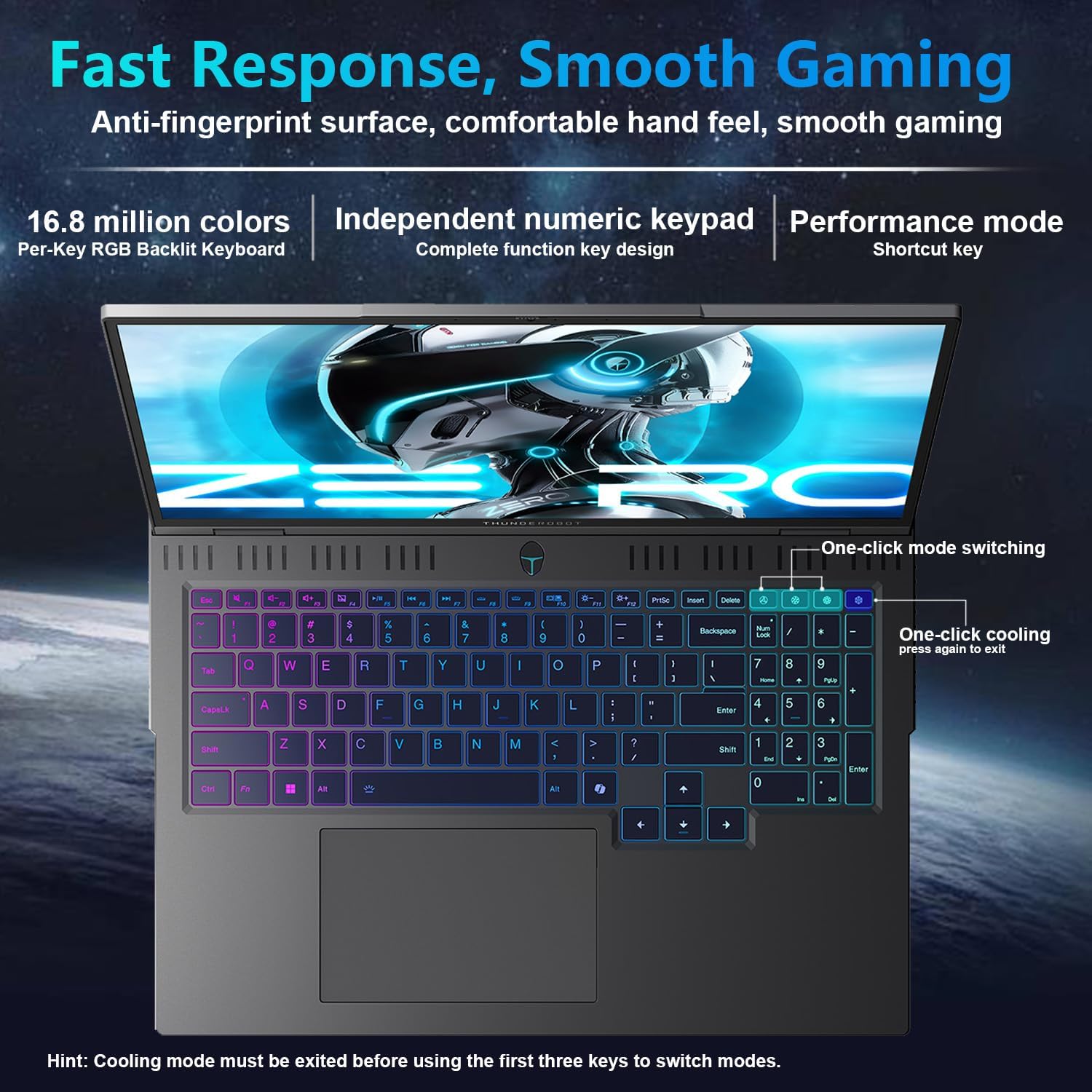
Figure 4: The laptop's per-key RGB backlit keyboard, along with dedicated keys for one-click mode switching and cooling control.
- One-click mode switching: Easily toggle between Quiet, Balance, and Turbo performance profiles.
- One-click cooling: Instantly activate maximum cooling for demanding tasks.
2.3 AI انٽيليجنٽ ڪنٽرول سينٽر
The AI Intelligent Control Center software allows for detailed customization of performance, lighting, and system settings.
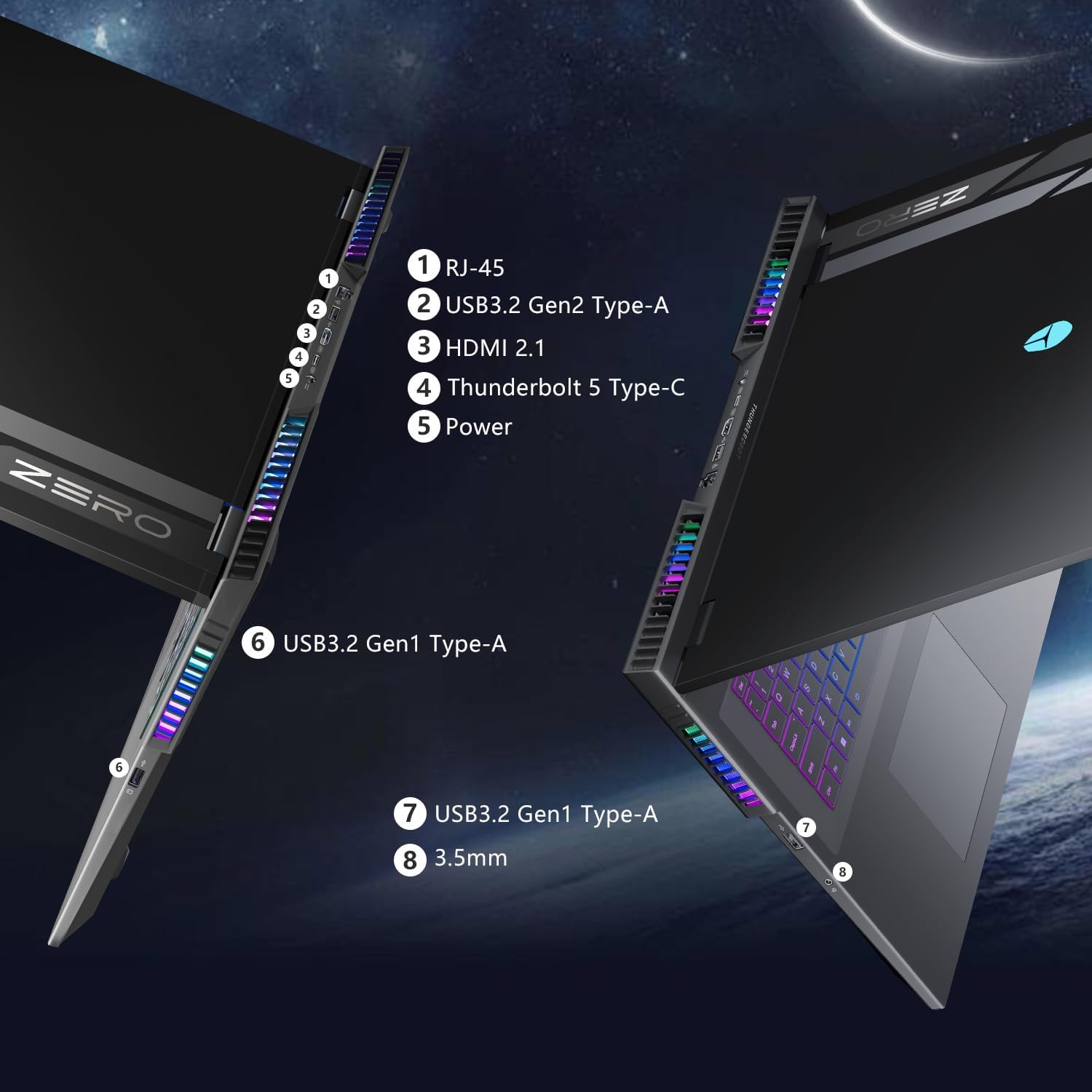
Figure 5: Screenshot of the AI Intelligent Control Center software, showing options for performance tuning, intelligent light adjustment, and comprehensive system customization. Note: System mode switching in Control Center requires the device to be connected to a power source.
- ڪارڪردگي ٽيوننگ: Adjust CPU and GPU settings for optimal performance or power saving.
- Intelligent Light Adjustment: Customize the "Spectra" RGB lighting system, including per-key RGB keyboard backlighting and chassis lighting.
- سسٽم جي نگراني: View real-time CPU and GPU temperatures and fan speeds.
2.4 ڪي بورڊ ۽ ان پٽ
The laptop features a full-size keyboard with per-key customizable RGB backlighting and an independent numeric keypad.
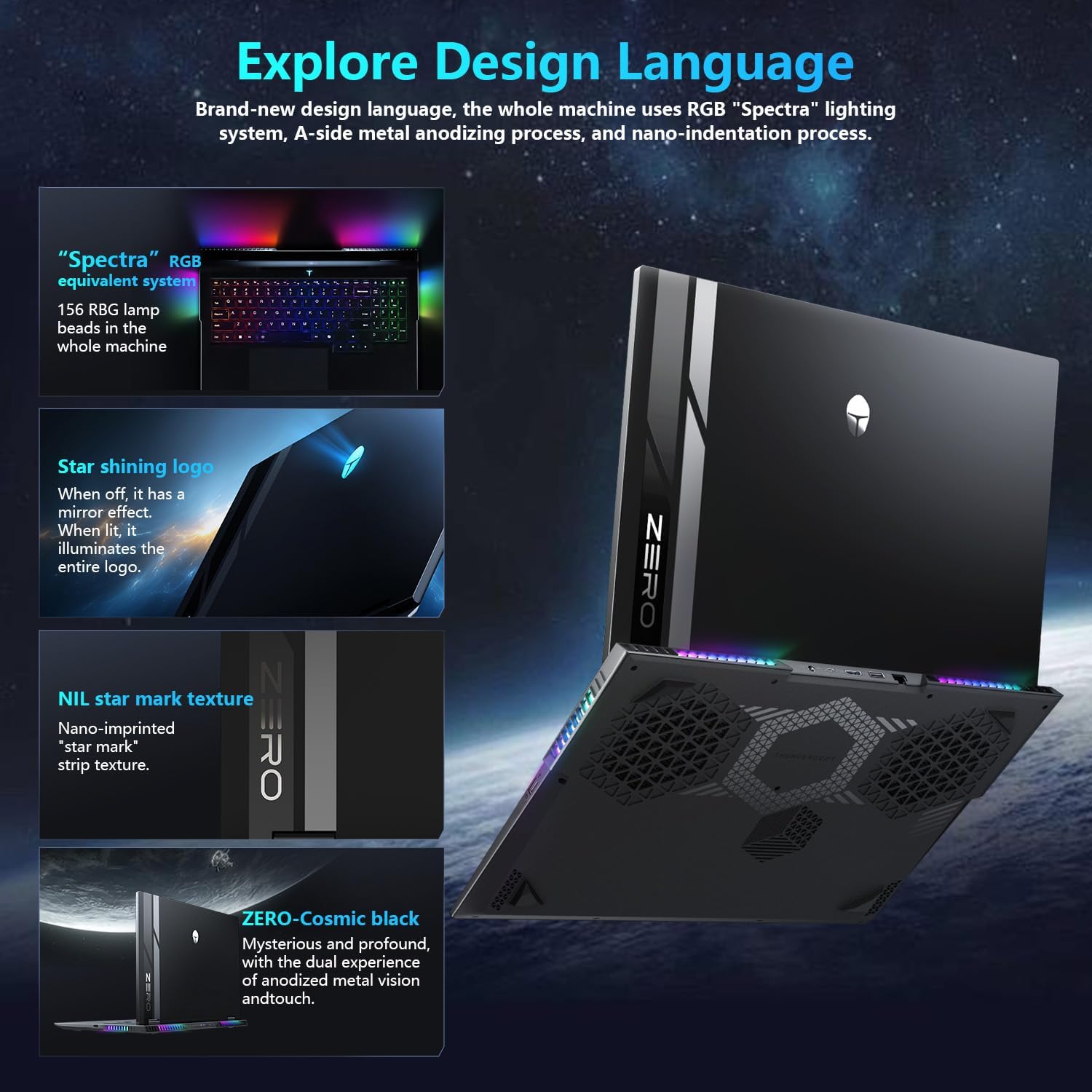
Figure 6: Close-up of the Thunderobot Zero 16 Pro's per-key RGB keyboard and chassis lighting.
2.5 انٽيگريٽيڊ ڪيمرا
The laptop is equipped with an FHD IR Camera, providing high-definition video capabilities and supporting Windows Hello for secure facial recognition login.
3. سار سنڀال
3.1 Cooling System Care
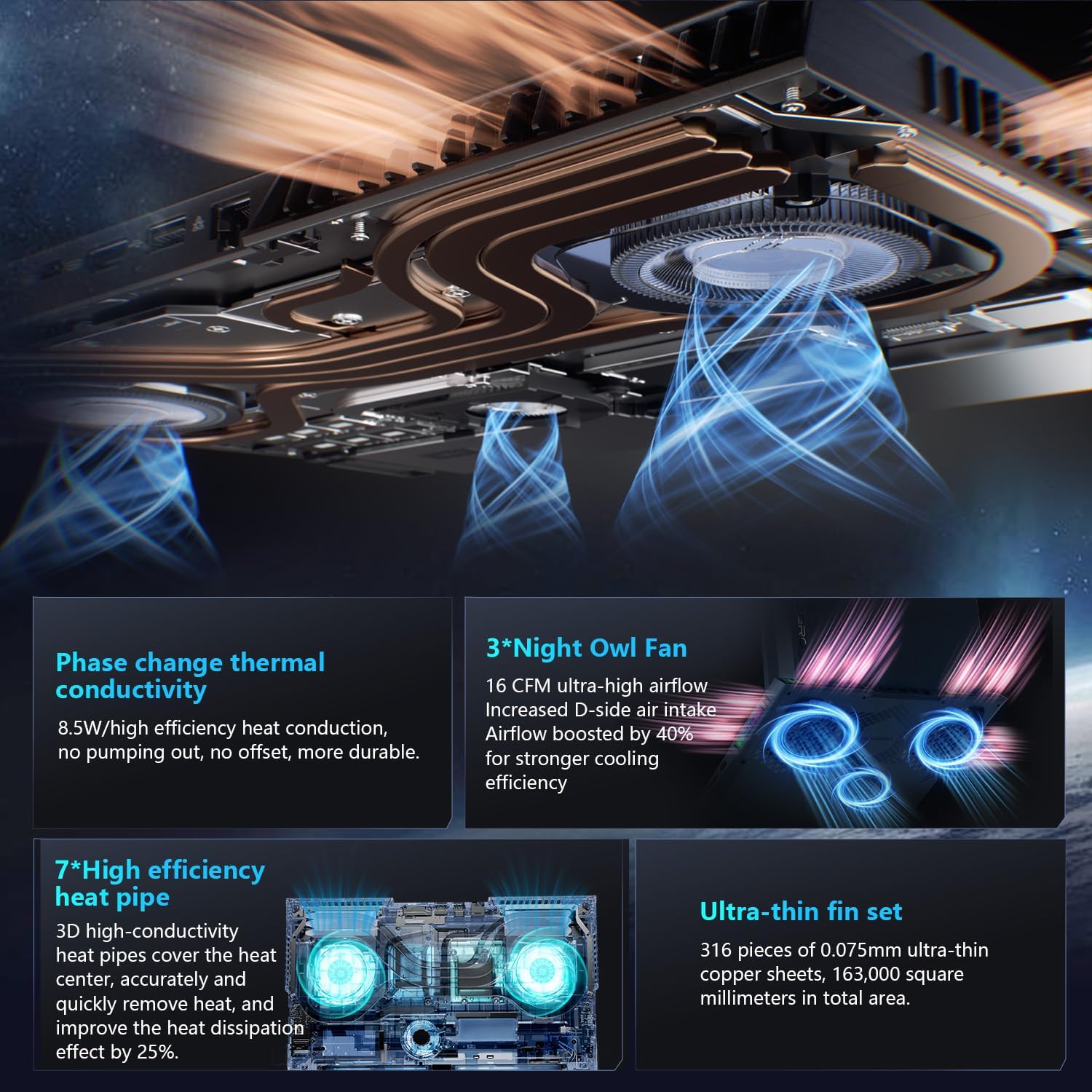
شڪل 7: هڪ اندروني view of the laptop's cooling system, featuring dual Night Owl fans, multiple heat pipes, and ultra-thin copper fins for efficient heat dissipation.
The Thunderobot Zero 16 Pro features a robust cooling system with dual Night Owl fans, 7 extended heat pipes, and 316 ultra-thin copper fins. To maintain optimal cooling performance:
- Ensure the laptop's vents are clear of obstructions.
- Regularly clean dust from the fan vents using compressed air.
- Operate the laptop on a hard, flat surface to allow for proper airflow.
3.2 عام صفائي
- اسڪرين ۽ چيسس کي صاف ڪرڻ لاءِ نرم، لِنٽ فري ڪپڙو استعمال ڪريو.
- سخت ڪيميائي يا ٻرندڙ مواد استعمال ڪرڻ کان پاسو ڪريو.
- ضدي داغن لاءِ، هلڪو ڊيampڪپڙي کي پاڻي يا اسڪرين محفوظ ڪلينر سان ڌوئڻ ڏيو.
4. مسئلا حل ڪرڻ
4.1 عام مسئلا ۽ حل
- Loud Fan Noise: This is normal during high-performance tasks, especially when "one-click cooling" is activated. Ensure vents are clear and consider using the "Quiet Mode" for less demanding applications.
- Driver-Related Problems: If you experience unexpected behavior, ensure all system and component drivers are up-to-date. Visit the official Thunderobot support webجديد ڊرائيور ڊائون لوڊ لاءِ سائيٽ.
- Display Refresh Rate Not Max: Verify that the dedicated graphics direct connection mode is enabled in the AI Intelligent Control Center to achieve the highest refresh rate.
- مختصر بيٽري جي زندگي: High-performance gaming laptops typically have shorter battery life, especially under heavy load. For extended usage, keep the laptop connected to the power adapter. Adjust power settings in Windows or the AI Control Center to optimize battery usage.
5. وضاحتون
Below are the key technical specifications for the Thunderobot Zero 16 Pro Gaming Laptop (Model: ZERO 16 Pro).
| خاصيت | تفصيل |
|---|---|
| برانڊ | ٿنڊر بوٽ |
| ماڊل نالو | زيرو 16 پرو |
| اسٽينڊنگ اسڪرين ڊسپلي سائيز | 16 انچ |
| وڌ ۾ وڌ اسڪرين ريزوليوشن | 2560x1600 پڪسلز |
| پروسيسر | Intel Core Ultra 9 275HX (5.4 GHz, 24 Cores) |
| رام | 32 جي بي ڊي ڊي آر 5 (4800 ميگا هرٽز) |
| هارڊ ڊرائيو | 2 ٽي بي ايس ايس ڊي (PCIE x 4) |
| گرافڪس ڪوپروسيسر | GeForce RTX 5070 Ti |
| آپريٽنگ سسٽم | ونڊوز 11 گهر |
| وائرليس جو قسم | 802.11ax (وائي فائي 6E) |
| USB 3.0 بندرگاهن جو تعداد | 3 |
| شيءِ جو وزن | 12 پائونڊ |
| پيداوار جي ماپ | 14.09 x 10.52 x 1.03 انچ |
| رنگ | ڪارو |
| خاص خصوصيت | انگن اکرن واري ڪيپ |
6. وارنٽي ۽ سپورٽ
هر ٿنڊروبوٽ ليپ ٽاپ ۾ شامل آهي هڪ 12-مهيني وارنٽي، ماهر مدد، مڪمل تشخيص، ۽ مرمت جي ضرورت جي صورت ۾ حقيقي پرزا پيش ڪندي. اضافي طور تي، هڪ 90 ڏينهن وارنٽي is provided on all warranty replacement parts, ensuring hassle-free repairs. For technical assistance, driver downloads, or warranty claims, please visit the official Thunderobot support webسائيٽ يا ڪسٽمر سروس سان رابطو ڪريو.
For further information, you may visit the Thunderobot Store on Amazon.


