1. تعارف
This manual provides essential information for setting up, operating, and maintaining your Thunderobot Storm 17 5060 Gaming Laptop. Please read this guide thoroughly to ensure proper usage and to maximize your product's performance and longevity. Keep this manual for future reference.
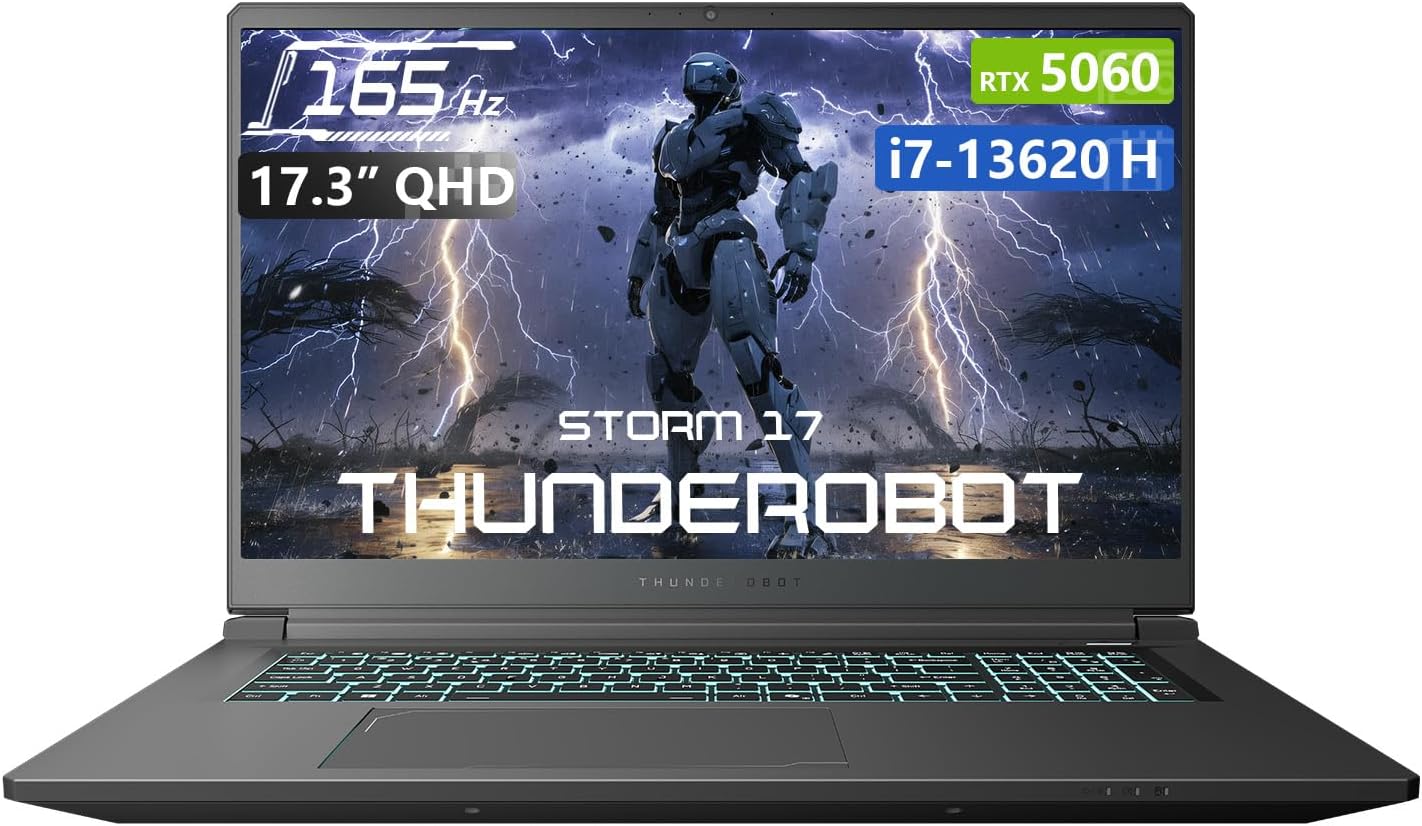
شڪل 1.1: سامهون view of the Thunderobot Storm 17 5060 Gaming Laptop.
2. پراڊڪٽ ختمview
The Thunderobot Storm 17 5060 is a high-performance gaming laptop designed for immersive experiences. It features advanced components and a robust cooling system.
2.1 اهم خاصيتون
- ڏيکاريو: 17.3-inch QHD (2560x1440) display with a 165Hz refresh rate, 100% sRGB color accuracy, and 1000:1 contrast ratio for crisp visuals.
- پروسيسر: Intel Core i7-13620H processor, featuring 10 cores and 16 threads, with a base frequency of 1.80GHz and a max turbo frequency of up to 4.9GHz.
- گرافڪس: NVIDIA GeForce RTX 5060 dedicated graphics card for high-fidelity gaming and creative tasks.
- ياداشت: 16GB DDR5 RAM, providing fast multitasking capabilities.
- اسٽوريج: 1TB PCIe M.2 SSD for rapid boot times and ampاسٽوريج جي جاء.
- کولنگ سسٽم: Advanced thermal design with ultra-thin 0.2mm copper fins (245pcs) and dual 12V turbofans (60mm, 164 LCP blades, 19.8CFM) for efficient heat dissipation. Features four omnidirectional outlets and a dual-zone air duct.
- رابطي: Multiple ports including 3x USB 3.0 Type-A, 1x USB Type-C, 1x HDMI, 1x RJ-45 Ethernet, and 1x Audio Port. Supports Wi-Fi 6 and Bluetooth.
- ڪي بورڊ: RGB Backlit Keyboard with a full-size numeric keypad.
- بيٽري: 53Wh battery with support for 100W PD fast charging.
2.2 بصري جزا

شڪل 2.1: ڪارڪردگي ختمview highlighting the RTX 5060 graphics and Intel Core i7-13620H processor capabilities.

شڪل 2.2: تفصيلي view of the 17.3-inch QHD 165Hz display specifications.
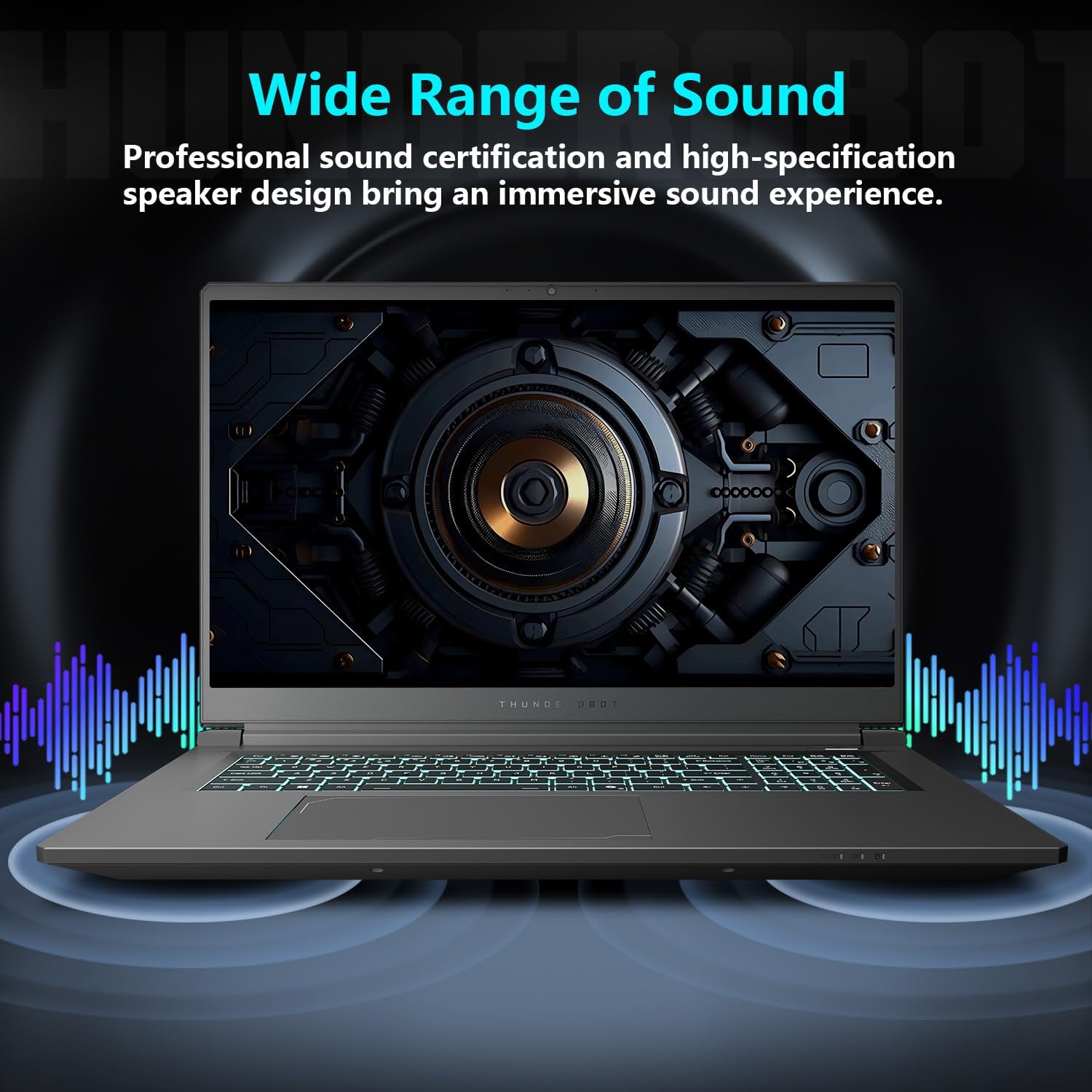
Figure 2.3: Diagram illustrating the various ports and slots on the Thunderobot Storm 17 laptop.

Figure 2.4: Illustration of the Direct-Flow Cooling Technology with pure copper heat pipes, high-speed fans, and four air outlets.
وڊيو 2.1: ختمview of the THUNDEROBOT Series Display, showcasing visual features and design.
Video 2.2: THUNDEROBOT Gaming Gear showcase, featuring various peripherals and laptops in a gaming setup.
Video 2.3: THUNDEROBOT Storm 17 product highlights, demonstrating key features and design elements.
3. سيٽ اپ
3.1 انباڪسنگ ۽ شروعاتي معائنو
Carefully remove the laptop and its accessories from the packaging. Verify that all components listed in the "What's in the Box" section are present and undamaged. The box should contain:
- THUNDEROBOT Storm 17 Laptop
- پاور اڊاپٽر ۽ ڪيبل
- استعمال ڪندڙ جو دستياب (ھي دستاويز)
جيڪڏهن ڪا به شيءِ غائب يا خراب آهي، ته فوري طور تي ڪسٽمر سپورٽ سان رابطو ڪريو.
3.2 پاور اڊاپٽر کي ڳنڍڻ
- پاور ڪيبل کي پاور اڊاپٽر سان ڳنڍيو.
- پاور اڊاپٽر کي گرائونڊ ٿيل برقي آئوٽليٽ ۾ لڳايو.
- Connect the DC-in plug from the adapter to the DC-in port on the laptop. The DC-in port is typically located on the side or rear of the laptop.
It is recommended to fully charge the laptop before its first use.
3.3 شروعاتي پاور آن ۽ ونڊوز سيٽ اپ
- ليپ ٽاپ جي لڪير کي کوليو.
- Press the power button, usually located on the keyboard deck.
- ونڊوز 11 هوم سيٽ اپ مڪمل ڪرڻ لاءِ اسڪرين تي ڏنل هدايتن تي عمل ڪريو. ان ۾ توهان جو علائقو، ٻولي چونڊڻ، وائي فائي نيٽ ورڪ سان ڳنڍڻ، ۽ صارف اڪائونٽ ٺاهڻ شامل آهي.
4. آپريٽنگ هدايتون
4.1 پاور مئنيجمينٽ
- پاور آن: پاور بٽڻ کي دٻايو.
- سمهڻ جو طريقو: Close the lid or press the power button briefly. You can also select "Sleep" from the Windows Start menu.
- بند ڪريو: ونڊوز اسٽارٽ مينيو مان "شٽ ڊائون" چونڊيو.
- ٻيهر شروع ڪريو: ونڊوز اسٽارٽ مينيو مان "ٻيهر شروع ڪريو" چونڊيو.
4.2 ڪي بورڊ ۽ ٽچ پيڊ
The laptop features an RGB backlit keyboard and a precision touchpad.
- پٺتي ڪنٽرول: استعمال ڪريو Fn + اسپيس بار combination to cycle through different backlight modes or turn it off.
- عددي ڪي پيڊ: The full-size numeric keypad is integrated for convenient data entry.
- ٽچ پيڊ: نيويگيشن لاءِ ملٽي ٽچ اشارن کي سپورٽ ڪري ٿو. ڪسٽمائيزيشن لاءِ ونڊوز سيٽنگون ڏسو.

Figure 4.1: The RGB backlit keyboard of the Storm 17 laptop.
4.3 خارجي ڪنيڪشن
Connect external devices using the available ports:
- USB ٽائپ-اي پورٽس: For connecting USB devices like mice, keyboards, and external drives.
- USB قسم-سي پورٽ: مطابقت رکندڙ USB-C ڊوائيسز کي ڳنڍڻ لاءِ.
- HDMI پورٽ: وڌايل ڊسپلي لاءِ ٻاهرين مانيٽر يا ٽي وي سان ڳنڍيو.
- RJ-45 Ethernet پورٽ: وائرڊ نيٽ ورڪ ڪنيڪشن لاءِ.
- آڊيو پورٽ: هيڊفون يا ٻاهرين اسپيڪرن کي ڳنڍڻ لاءِ.
4.4 وائرليس ڪنيڪشن
- وائي فائي 6: Connect to wireless networks for internet access. Manage Wi-Fi settings through Windows.
- بلوٽوٿ: Pair with Bluetooth-enabled devices such as headphones, speakers, or game controllers. Manage Bluetooth settings through Windows.
4.5 Control Center Software
The Thunderobot Control Center software allows you to customize various laptop settings for optimal performance and user experience. This includes:
- System Performance Modes: Switch between performance, entertainment, and low-noise modes based on your usage. Note: System mode switching requires the device to be connected to a power source.
- LED Keyboard Customization: آر جي بي جي روشني جي اثرات ۽ رنگن کي ترتيب ڏيو.
- FlexiCharger: Manage battery charging settings to extend battery lifespan.
- Flexikey: Customize key and mouse functions.

Figure 4.2: Interface of the Thunderobot Control Center software.
5. سار سنڀال
5.1 پنهنجي ليپ ٽاپ کي صاف ڪرڻ
- نرم، لِنٽ کان خالي ڪپڙو استعمال ڪريو ڊيampڊسپلي کي صاف ڪرڻ لاءِ پاڻي يا خاص اسڪرين ڪلينر سان صاف ڪريو.
- For the keyboard and chassis, use a soft cloth. A can of compressed air can help remove dust from between keys and vents.
- سخت ڪيميڪلز، محلولن، يا رگڙيندڙ مواد استعمال ڪرڻ کان پاسو ڪريو.
5.2 بيٽري جي سنڀال
- بيٽري کي بار بار مڪمل طور تي چارج ڪرڻ کان پاسو ڪريو.
- If storing the laptop for an extended period, charge the battery to about 50-60% and store it in a cool, dry place.
- Utilize the FlexiCharger feature in the Control Center to optimize battery health.
5.3 سافٽ ويئر ۽ ڊرائيور اپڊيٽس
بهترين ڪارڪردگي ۽ سيڪيورٽي کي يقيني بڻائڻ لاءِ پنهنجي آپريٽنگ سسٽم ۽ ڊرائيورن کي باقاعدي طور تي اپڊيٽ ڪريو.
- ونڊوز اپڊيٽس: ڏانهن وڃو سيٽنگون > ونڊوز اپڊيٽ اپڊيٽس جي جانچ ۽ انسٽال ڪرڻ لاءِ.
- ڊرائيور اپڊيٽ: Visit the official Thunderobot support website for the latest drivers for your Storm 17 model. NVIDIA graphics drivers can also be updated via the GeForce Experience application.
5.4 حرارتي انتظام
To maintain optimal cooling performance:
- Ensure the laptop's vents are unobstructed. Avoid placing the laptop on soft surfaces like beds or carpets during heavy use.
- وقتي طور تي دٻيل هوا استعمال ڪندي وينٽن مان مٽي صاف ڪريو.
- Use the "One-click forced cooling" feature in the Control Center during intensive tasks if needed.
6. مسئلا حل ڪرڻ
This section addresses common issues you might encounter with your Thunderobot Storm 17 laptop.
6.1 No Power or Laptop Not Turning On
- پڪ ڪريو ته پاور اڊاپٽر ليپ ٽاپ ۽ ڪم ڪندڙ بجلي جي آئوٽليٽ ٻنهي سان محفوظ طور تي ڳنڍيل آهي.
- ٻئي ڊوائيس ۾ پلگ ان ڪندي پڪ ڪريو ته پاور آئوٽليٽ ڪم ڪري رهيو آهي.
- جيڪڏهن بيٽري مڪمل طور تي ختم ٿي وئي آهي، ته پوءِ ليپ ٽاپ کي آن ڪرڻ جي ڪوشش ڪرڻ کان اڳ گهٽ ۾ گهٽ 30 منٽن تائين چارج ٿيڻ ڏيو.
6.2 ڊسپلي مسئلا
- اسڪرين تي ڪا به تصوير ناهي: هڪ ٻاهرين مانيٽر کي HDMI پورٽ سان ڳنڍيو ته ڏسو ته ڇا مسئلو ليپ ٽاپ جي اندروني ڊسپلي سان آهي.
- چمڪندڙ يا بگڙيل تصوير: Update your graphics drivers. Check display cable connections if using an external monitor.
- Incorrect resolution or refresh rate: Adjust display settings in Windows (Settings > System > Display).
6.3 ڪارڪردگي جا مسئلا
- سست ڪارڪردگي: Close unnecessary applications. Check for background processes consuming high CPU/RAM in Task Manager. Ensure the laptop is in a high-performance mode via the Control Center (when plugged in).
- گهڻو گرم ٿيڻ: Ensure vents are clear. Use the forced cooling feature. Consider using a laptop cooling pad.
- Game stuttering: Update graphics drivers. Lower in-game graphics settings. Ensure the laptop is using the dedicated RTX 5060 GPU for games.
6.4 Connectivity Issues (Wi-Fi, Bluetooth, USB)
- وائي فائي ڳنڍجي نه رهيو آهي: Restart your router and modem. Check Wi-Fi settings in Windows. Ensure Wi-Fi is enabled.
- بلوٽوٿ ڊيوائس جوڙو نه پيو ٺاهي: Ensure the Bluetooth device is in pairing mode. Check Bluetooth settings in Windows. Restart the laptop.
- USB ڊوائيس سڃاڻي نه سگهيو: Try a different USB port. Ensure the device drivers are installed.
For persistent issues, refer to the Thunderobot support webسائيٽ يا ڪسٽمر سروس سان رابطو ڪريو.
7. وضاحتون
The following table outlines the key technical specifications for the Thunderobot Storm 17 5060 Gaming Laptop:
| خاصيت | تفصيل |
|---|---|
| ماڊل نالو | طوفان 17 |
| اسڪرين جي ماپ | 17.3 انچ |
| اسڪرين جي قرارداد | 2560 x 1600 پڪسل (QHD) |
| وڌ ۾ وڌ اسڪرين ريزوليوشن | 2560x1440 |
| پروسيسر | Intel Core i7-13620H (up to 4.9 GHz) |
| رام | 16 جي بي ڊي ڊي آر 5 (4800 ميگا هرٽز) |
| هارڊ ڊرائيو | 1 TB SSD (PCIE x 4) |
| گرافڪس ڪوپروسيسر | GeForce RTX 5060 (Dedicated) |
| آپريٽنگ سسٽم | ونڊوز 11 گهر |
| وائرليس جو قسم | 802.11ax (وائي فائي 6) |
| USB 3.0 بندرگاهن | 4 (3x Type-A, 1x Type-C) |
| شيءِ جو وزن | 11 پائونڊ |
| پيداوار جي ماپ | 15.59 x 10.86 x 1.05 انچ |
| رنگ | ڀورو |
| خاص خصوصيت | انگن اکرن واري ڪيپ |
8. وارنٽي ۽ سپورٽ
8.1 پروڊڪٽ وارنٽي
Every Thunderobot laptop includes a 12-مهيني وارنٽي from the date of purchase. This warranty covers manufacturing defects and provides expert support, thorough diagnostics, and genuine parts for necessary repairs. Additionally, a 90 ڏينهن وارنٽي is provided on all warranty replacement parts, ensuring hassle-free repairs. Your complete satisfaction is our commitment.
8.2 ڪسٽمر سپورٽ
For technical assistance, warranty claims, or general inquiries, please visit the official Thunderobot support webسائيٽ تي وڃو يا انهن جي ڪسٽمر سروس ڊپارٽمينٽ سان رابطو ڪريو. مدد حاصل ڪرڻ وقت پنهنجي خريداري جي رسيد ۽ پراڊڪٽ سيريل نمبر آساني سان دستياب رکو.
توهان وڌيڪ معلومات ۽ سپورٽ وسيلا هتي ڳولي سگهو ٿا Thunderobot Store on Amazon.

شڪل 8.1: ختمview of Thunderobot's warranty and service commitment.


