1. تعارف
This manual provides essential information for setting up, operating, and maintaining your Thunderobot Radiant 16 Gaming Laptop. Please read this manual thoroughly before using your device to ensure optimal performance and longevity.
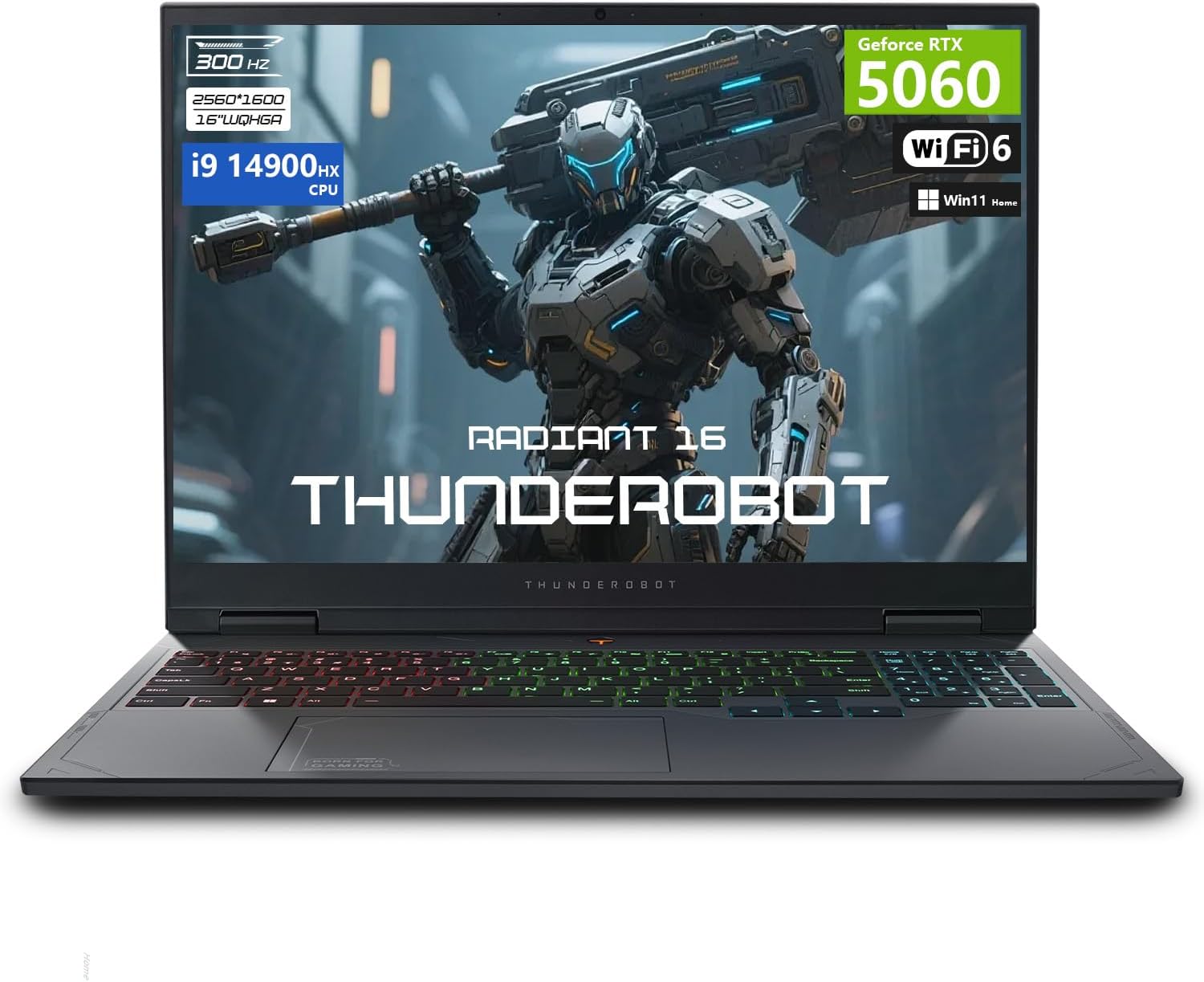
Image: The Thunderobot Radiant 16 Gaming Laptop, showcasing its design and RGB keyboard.
2. دٻي ۾ ڇا آهي
Upon unboxing your Thunderobot Radiant 16, ensure all components are present:
- THUNDEROBOT Radiant Laptop
- پاور اڊاپٽر
- استعمال ڪندڙ دستي
- وارنٽي ڪارڊ
Video: An unboxing video of the Thunderobot Radiant 16 Gaming Laptop, demonstrating the contents and initial setup.
3. شروعاتي سيٽ اپ
3.1 ڳنڍڻ واري طاقت
- Connect the power adapter to the laptop's AC power supply port.
- پاور ڪيبل کي وال آئوٽليٽ ۾ لڳايو.
- The laptop is designed to operate on AC power and battery.
3.2 پهريون بوٽ ۽ ونڊوز سيٽ اپ
- ليپ ٽاپ جو ڍڪ کوليو ۽ پاور بٽڻ دٻايو.
- Follow the on-screen instructions to complete the Windows 11 Home setup. This includes setting up your region, keyboard layout, network connection, and user account.
Video: A user demonstrating the initial boot-up and setup process of the Thunderobot Radiant 16 laptop, including the RGB keyboard illumination.
4. توهان جي ليپ ٽاپ کي هلائڻ
4.1 ڪي بورڊ جون خاصيتون
The Thunderobot Radiant 16 features an RGB backlit keyboard with a numeric keypad.
- آر جي بي بيڪ لائيٽ: Customize keyboard lighting effects and colors via the Control Center software.
- عددي ڪي پيڊ: Provides dedicated keys for numerical input.
- فنڪشن ڪيچ: Utilize Fn key combinations for quick access to system functions like volume, brightness, and display modes.
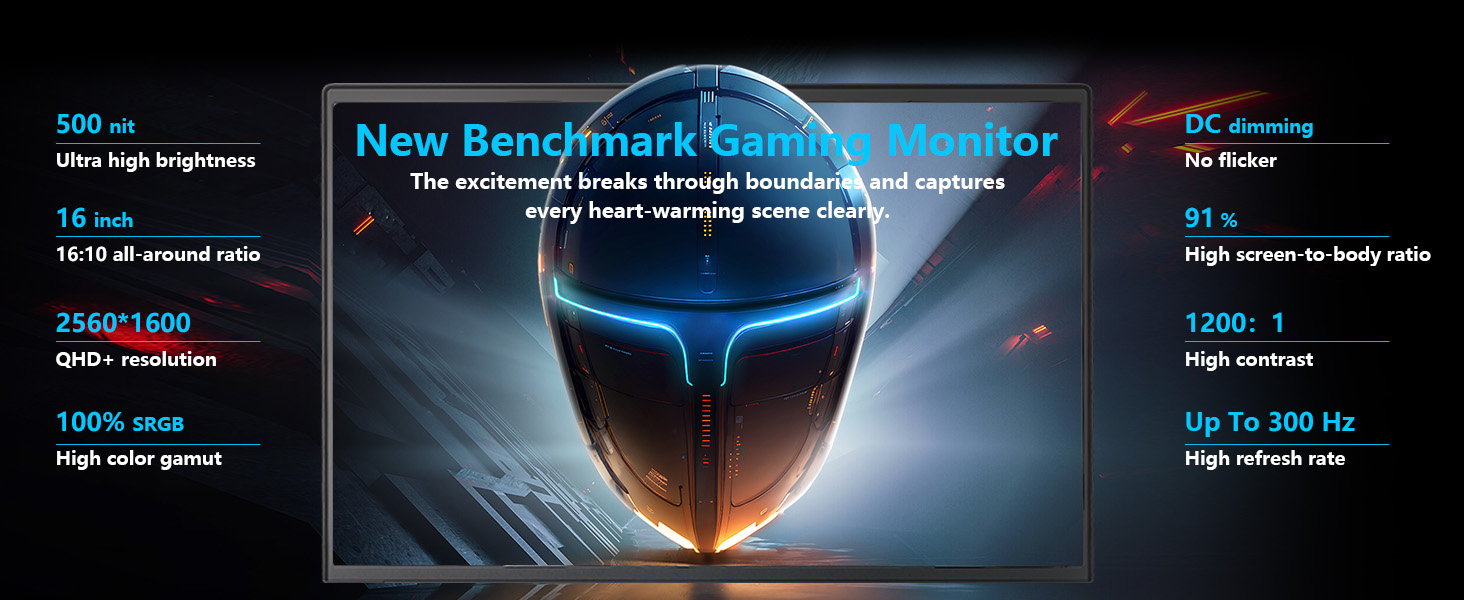
Image: Close-up of the Thunderobot Radiant 16's full-score RGB backlit keyboard with independent numeric keypad.
4.2 ڊسپلي سيٽنگون
Your laptop is equipped with a 16-inch QHD+ (2560x1600) display with a refresh rate of up to 300Hz.
- ريفريش جي شرح: To utilize the highest refresh rate (300Hz), ensure the dedicated graphics direct connection mode is enabled in the Control Center.
- قرارداد: The native resolution is 2560x1600 pixels. Adjust display scaling in Windows settings for optimal viewing.

Image: The 16-inch QHD+ 2.5K display of the Thunderobot Radiant 16, highlighting its 300Hz refresh rate and color accuracy.
4.3 ڪنٽرول سينٽر
The Control Center software allows you to manage various performance and system settings:
- ڪارڪردگي جا طريقا: Switch between modes like "Berserk mode" for full performance, "Game mode" for balanced gaming, and "Audio and video office" for power efficiency.
- فين جي ترتيب: Customize fan speeds for optimal cooling.
- روشني سيٽنگون: Control RGB keyboard backlighting.
- Display Mode Switch: Manage integrated and discrete graphics settings.
Note: System mode switching in Control Center requires the device to be connected to a power source.

Image: Screenshots of the Control Center interface, showing options for performance modes, fan control, and lighting settings.
4.4 ڪنيڪٽوٽي پورٽس
The laptop offers a variety of ports for external devices:
- 3 x Superspeed USB Type-A
- 1 x Superspeed USB Type-C
- 1 x HDMI 2.1
- 1 x آر جي-45 (ايٿرنيٽ)
- 1 x Audio Port

Image: Diagram illustrating the various ports and slots available on the Thunderobot Radiant 16 laptop.
5. سار سنڀال
5.1 کولنگ سسٽم
The Thunderobot Radiant 16 features an advanced cooling system to maintain performance:
- Copper Fins: Ultra-thin 0.2mm copper fins (245pcs) for efficient heat dissipation.
- Turbofans: Dual 12V turbofans (60mm, 164 LCP blades, 19.8CFM) for rapid cooling.
- هوا جو وهڪرو: Four omnidirectional outlets and a dual-zone air duct design ensure comprehensive cooling.
- زبردستي کولنگ: Use the one-click forced cooling function in the Control Center during heavy loads.
Regularly clean dust from the vents to ensure optimal airflow and prevent overheating.

Image: Illustration of the Thunderobot Radiant 16's "Wind-Driven Thermal Mastery" cooling system, showing copper tubes, heat pipes, and cooling fans.
6. مسئلا حل ڪرڻ
6.1 عام مسئلا ۽ حل
| مسئلو | ممڪن سبب | حل |
|---|---|---|
| ليپ ٽاپ آن نٿو ٿئي | No power, discharged battery | Ensure power adapter is securely connected and plugged into a working outlet. Charge the battery for at least 30 minutes before attempting to power on. |
| اسڪرين خالي آهي | Display output issue, sleep mode | Press any key or move the mouse to wake from sleep. Check external display connections if applicable. Ensure dedicated graphics mode is active if using a high refresh rate. |
| ڪيبورڊ بيڪ لائيٽ ڪم نه ڪري رهي آهي | Backlight disabled, software issue | Adjust backlight settings using Fn keys (e.g., Fn+Space) or through the Control Center software. Restart the laptop. |
| Poor performance during gaming | Incorrect power mode, overheating, outdated drivers | Ensure laptop is plugged in and "Berserk mode" or "Game mode" is selected in Control Center. Clean cooling vents. Update graphics drivers. |
7. وضاحتون
| خاصيت | تفصيل |
|---|---|
| ماڊل نالو | چمڪندڙ 16 |
| پروسيسر | Intel Core i9-14900HX (24 Cores, 32 Threads, up to 5.8 GHz) |
| گرافڪس ڪوپروسيسر | NVIDIA GeForce RTX 5060 ليپ ٽاپ GPU |
| رام | 16 GB DDR5 (expandable up to 64 GB) |
| ذخيرو | 1 TB PCIe M.2 SSD (expandable up to 4 TB) |
| ڏيکاريو | 16-inch QHD+ (2560x1600) IPS, 300Hz refresh rate |
| آپريٽنگ سسٽم | ونڊوز 11 گهر |
| رابطي | Wi-Fi 6, Bluetooth, 3x USB Type-A, 1x USB Type-C, 1x HDMI 2.1, 1x RJ-45, 1x Audio Port |
| ڪي بورڊ | RGB Backlit Keyboard, Numeric Keypad |
| طول و عرض (LxWxH) | 14.09 x 10 x 0.82 انچ |
| شيءِ جو وزن | 12 پائونڊ |
8. وارنٽي ۽ سپورٽ
Every Thunderobot laptop includes a 12-month warranty, offering expert support, thorough diagnostics, and genuine parts if a repair is needed. We also provide a 90-day warranty on all warranty replacement parts, ensuring hassle-free repairs. Your complete satisfaction is our commitment.
For further assistance, please refer to the official Thunderobot support channels or visit their webسائيٽ.

Image: An image detailing Thunderobot's warranty and service commitment.


