1. تعارف
This manual provides essential information for setting up, operating, maintaining, and troubleshooting your Thunderobot Zero 18 Pro 5070 Ti Gaming Laptop. Please read this manual thoroughly to ensure proper use and to maximize your device's performance and longevity.
The Thunderobot Zero 18 Pro is a high-performance gaming laptop featuring an 18-inch QHD+ 240Hz display, Intel Core Ultra 9 275HX processor, NVIDIA GeForce RTX 5070 Ti graphics, 32GB DDR5 RAM, and a 1TB PCIe M.2 SSD. It is designed for demanding applications and immersive gaming experiences.

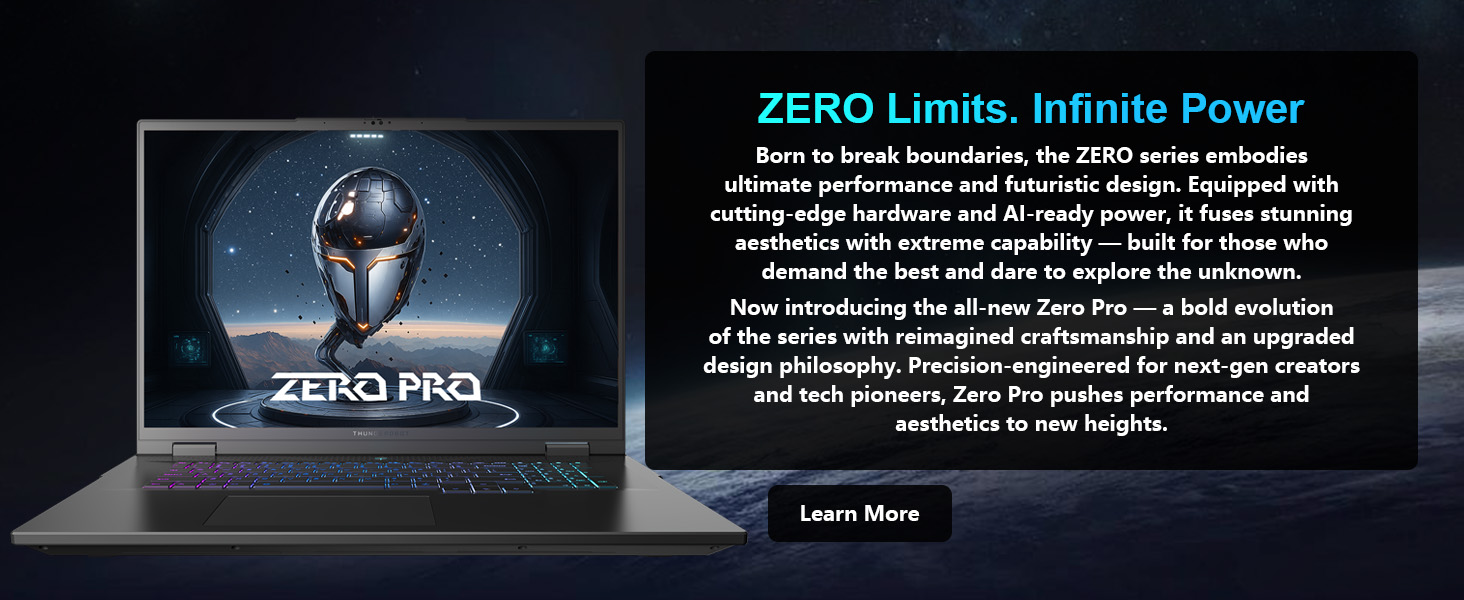
سامهون view of the Thunderobot Zero 18 Pro gaming laptop, showcasing its 18-inch QHD+ display and RGB keyboard.
2. سيٽ اپ
2.1 کولڻ
Carefully remove the Thunderobot Zero 18 Pro laptop and its accessories from the packaging. Ensure all components are present:
- Thunderobot Zero Laptop
- پاور اڊاپٽر ۽ ڪيبل
- دستاويز (هي دستور العمل)
2.2 شروعاتي پاور آن
- Connect the power adapter to the laptop's power input port and then to a power outlet. The laptop operates on AC power.
- ليپ ٽاپ جي لڪير کي کوليو.
- Press the power button, typically located above the keyboard, to turn on the laptop.
- شروعاتي ونڊوز 11 هوم سيٽ اپ مڪمل ڪرڻ لاءِ اسڪرين تي ڏنل هدايتن تي عمل ڪريو.
2.3 پردي کي ڳنڍڻ
Your laptop features various ports for connecting external devices. Refer to the diagram below for port locations:
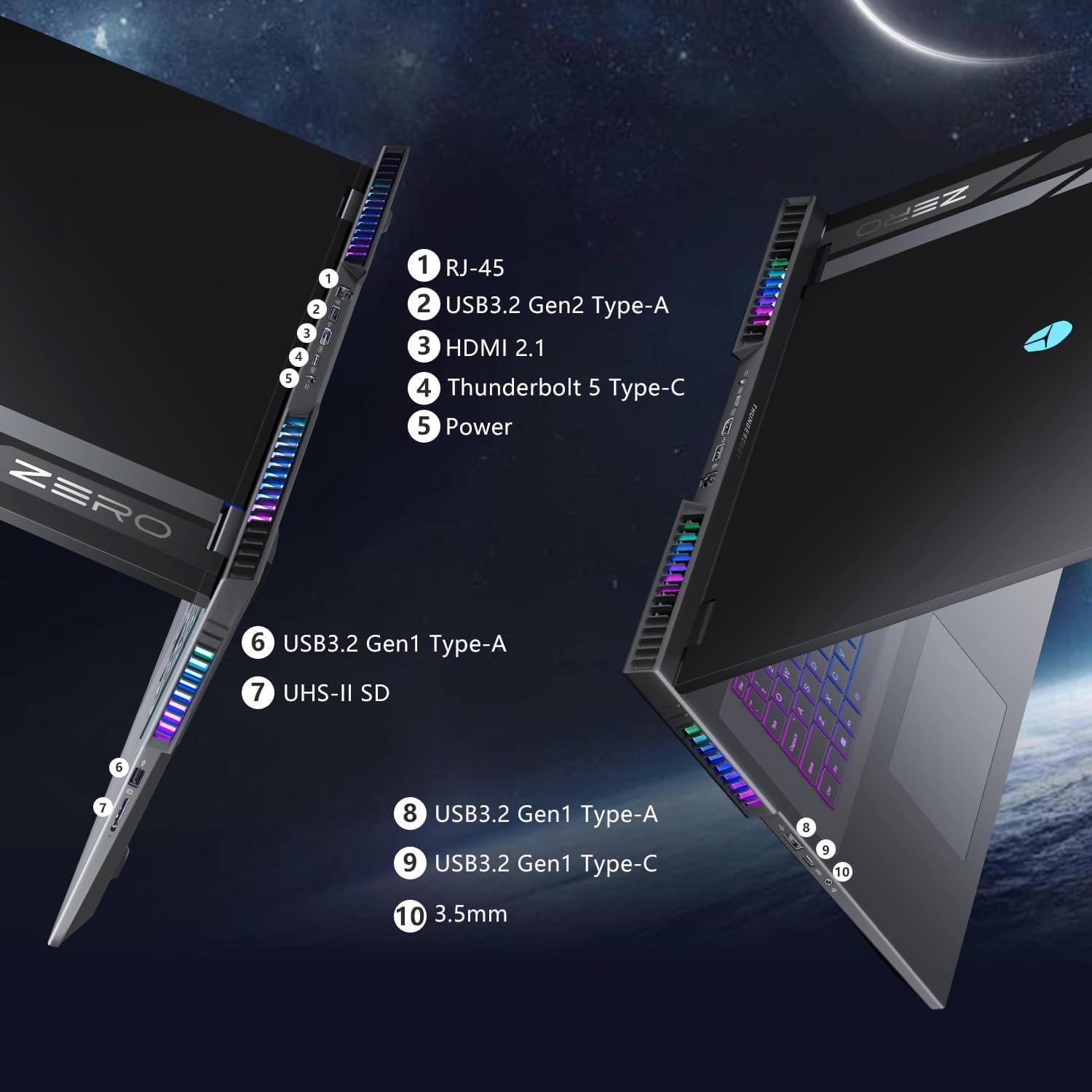
Diagram illustrating the various ports on the laptop, including USB Type-A, USB Type-C (Thunderbolt 5), HDMI, RJ-45, and audio jack.
- USB ٽائپ-اي پورٽس: For connecting USB devices like mice, keyboards, and external drives.
- USB Type-C Ports (Thunderbolt 5): For high-speed data transfer, display output, and power delivery.
- HDMI پورٽ: ٻاهرين مانيٽر يا ٽي وي سان ڳنڍڻ لاءِ.
- RJ-45 (Ethernet) Port: وائرڊ نيٽ ورڪ ڪنيڪشن لاءِ.
- آڊيو پورٽ: هيڊفونز يا ٻاهرين اسپيڪرن لاءِ.
3. آپريٽنگ هدايتون
3.1 ڏيکاريو خاصيتون
The 18-inch QHD+ (2560x1600) Bionic Hummingbird Eye-Care display offers a 240Hz refresh rate for smooth visuals. It includes anti-glare, anti-reflection, and anti-blue light technologies to reduce eye strain during extended use.
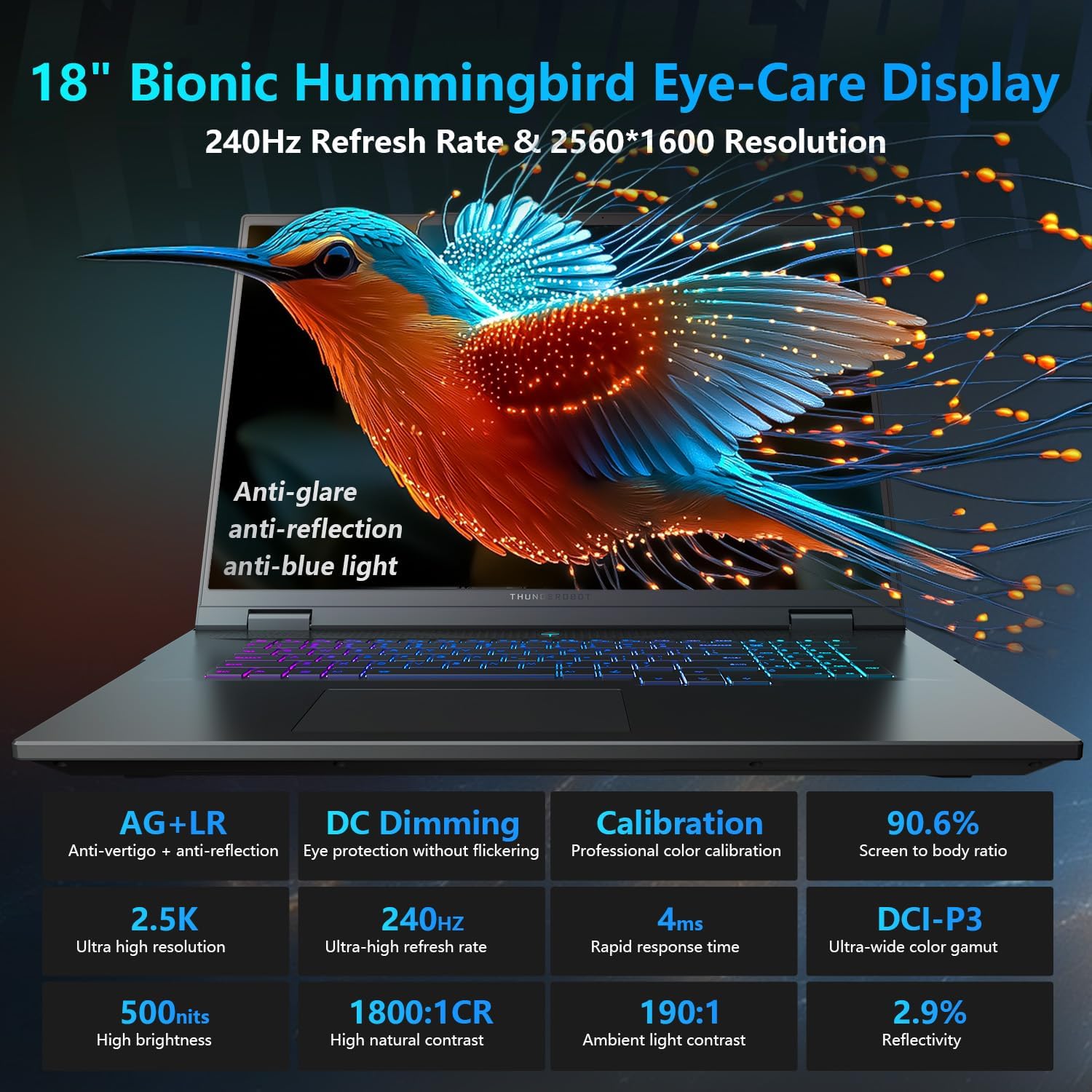
A visual representation of the 18-inch QHD+ 240Hz Bionic Hummingbird Eye-Care display, emphasizing its anti-glare, anti-reflection, and anti-blue light features for enhanced visual comfort.
3.2 ڪي بورڊ ۽ ان پٽ
The laptop features a Per-Key RGB backlit keyboard with an independent numeric keypad. You can customize the RGB lighting effects through the Thunderobot Control Center software.
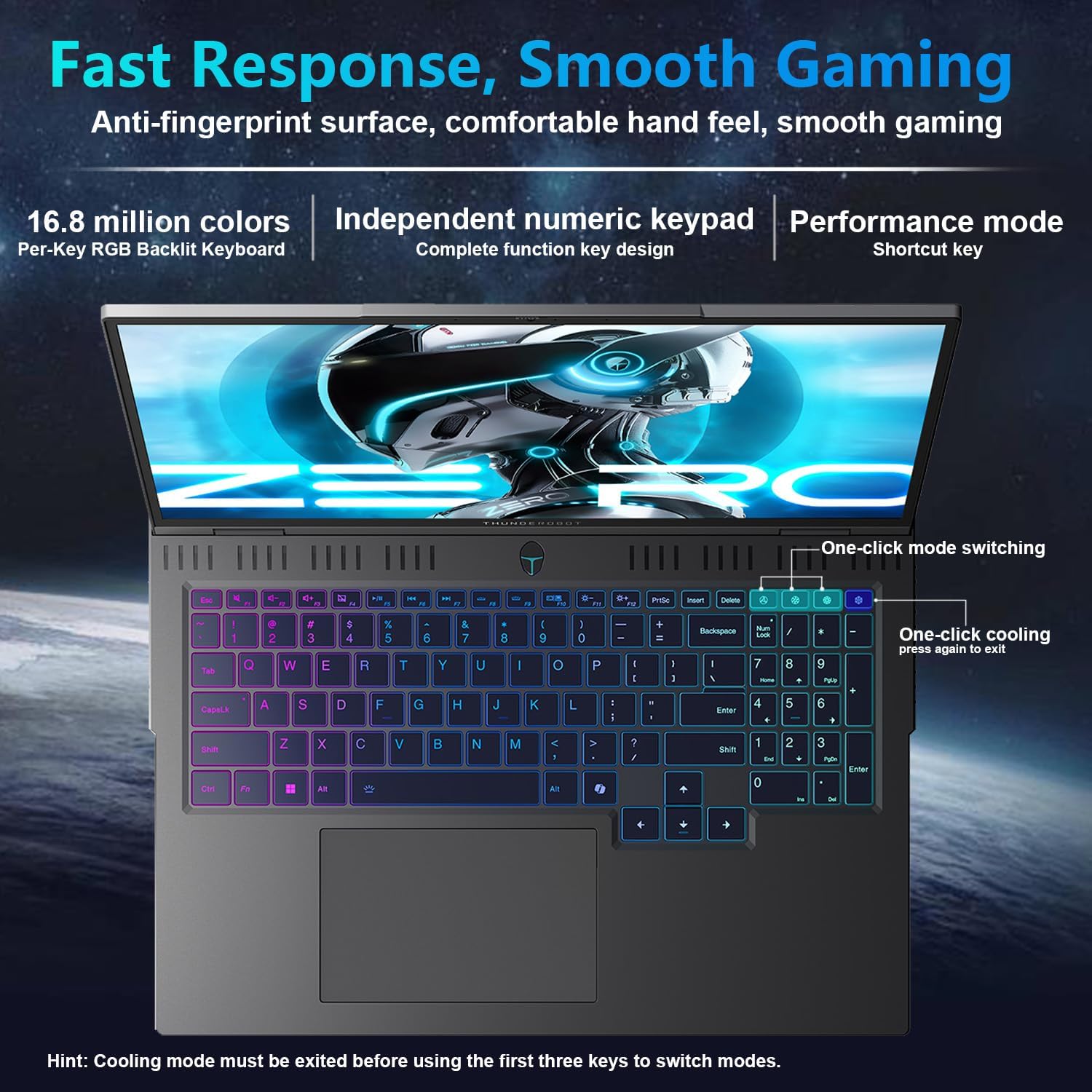
Close-up of the Per-Key RGB backlit keyboard, highlighting the independent numeric keypad and one-click mode switching for performance and cooling.
فنڪشن ڪيچ: Utilize the 'Fn' key in combination with other keys for quick access to system functions such as volume control, screen brightness, and keyboard backlight adjustments.
ڪارڪردگي جا طريقا: The laptop supports one-click mode switching for performance and cooling. Refer to the Thunderobot Control Center for detailed configuration.
3.3 Thunderobot Control Center
The AI Intelligent Control Center software allows for comprehensive system management, including performance tuning, intelligent lighting adjustment, and fan speed control. This software is crucial for optimizing your gaming and productivity experience.

Screenshots of the AI Intelligent Control Center software, showing options for performance tuning, intelligent lighting adjustment, and comprehensive system customization.
نوٽ: ڪنٽرول سينٽر ۾ سسٽم موڊ سوئچنگ لاءِ ڊوائيس کي پاور سورس سان ڳنڍڻ جي ضرورت آهي.
3.4 آڊيو سسٽم
The laptop features a Soundstage Full audio system with 4 speakers and Smart AMP technology for an immersive sound experience. Nahimic provides high-quality sound effects.
4. سار سنڀال
4.1 صفائي
- اسڪرين ۽ چيسس کي صاف ڪرڻ لاءِ نرم، لِنٽ کان پاڪ ڪپڙو استعمال ڪريو. رگڙيندڙ مواد کان پاسو ڪريو.
- ضدي نشانن لاءِ، هلڪو ڊيampڪپڙي کي پاڻي يا اسڪرين محفوظ صفائي واري محلول سان وينجن ڪريو.
- مٽي ۽ ملبي جي جمع ٿيڻ کي روڪڻ لاءِ ڪيبورڊ ۽ ٽچ پيڊ کي باقاعدي صاف ڪريو.
4.2 کولنگ سسٽم جي سنڀال
The Thunderobot Zero 18 Pro features an advanced cooling system with 3 Night Owl fans and 7 high-efficiency heat pipes. To maintain optimal cooling performance:
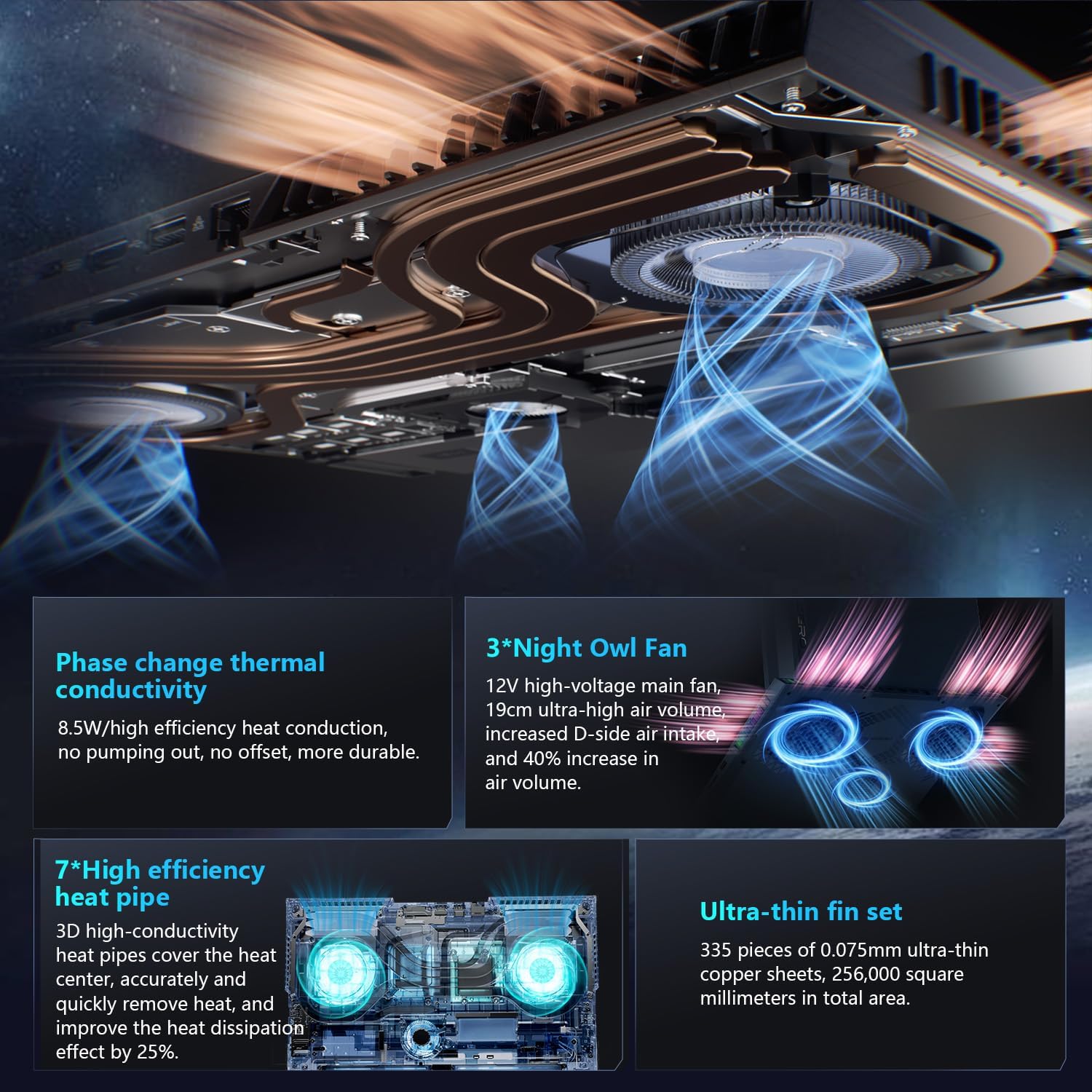
هڪ اندروني view of the laptop's cooling architecture, detailing the 3 Night Owl fans, 7 high-efficiency heat pipes, and ultra-thin fin set designed for optimal heat dissipation.
- Ensure the laptop's ventilation openings are clear and unobstructed.
- ليپ ٽاپ کي سخت، هموار مٿاڇري تي هلايو ته جيئن هوا جو مناسب وهڪرو رهي سگهي.
- Periodically use compressed air to clear dust from the fan vents.
4.3 بيٽري جي سنڀال
- بيٽري کي بار بار مڪمل طور تي چارج ڪرڻ کان پاسو ڪريو.
- جيڪڏهن ليپ ٽاپ کي گهڻي عرصي تائين استعمال نه ڪيو وڃي ته ان کي ٿڌي، سڪل جاءِ تي رکو.
5. مسئلا حل ڪرڻ
This section addresses common issues you might encounter with your Thunderobot Zero 18 Pro laptop.
5.1 بجلي جا مسئلا
- ليپ ٽاپ آن نٿو ٿئي: پڪ ڪريو ته پاور اڊاپٽر ليپ ٽاپ ۽ ڪم ڪندڙ پاور آئوٽليٽ ٻنهي سان محفوظ طور تي ڳنڍيل آهي. چيڪ ڪريو ته پاور آئوٽليٽ ڪم ڪري رهيو آهي يا نه.
- بيٽري نه ڀريندي: Verify the power adapter connection. Try a different power outlet.
5.2 ڊسپلي مسئلا
- اسڪرين تي ڪابه ڊسپلي ناهي: Connect an external monitor to check if the issue is with the laptop's display or the graphics output. Ensure the laptop is powered on.
- چمڪندڙ يا مسخ ٿيل ڊسپلي: Update your graphics drivers. Check display cable connections if using an external monitor.
5.3 ڪارڪردگي جا مسئلا
- سست ڪارڪردگي: Close unnecessary applications. Check for background processes consuming high resources. Ensure the cooling system is not obstructed. Adjust performance settings in the Thunderobot Control Center.
- گهڻو گرم ٿيڻ: پڪ ڪريو ته وينٽ صاف آهن. ليپ ٽاپ کي سخت، سڌي مٿاڇري تي استعمال ڪريو. ڪولنگ پيڊ استعمال ڪرڻ تي غور ڪريو.
5.4 ڪنيڪٽيويٽي جا مسئلا
- وائي فائي ڳنڍجي نه رهيو آهي: Check if Wi-Fi is enabled. Restart your router. Update Wi-Fi drivers.
- بلوٽوٿ ڊيوائس جوڙو نه پيو ٺاهي: Ensure Bluetooth is enabled on both devices. Make sure the device is in pairing mode.
If issues persist, consult the Thunderobot support webسائيٽ يا ڪسٽمر سروس سان رابطو ڪريو.
6. وضاحتون
Below are the detailed specifications for the Thunderobot Zero 18 Pro 5070 Ti Gaming Laptop:
| خاصيت | تفصيل |
|---|---|
| برانڊ | ٿنڊر بوٽ |
| ماڊل نالو | Zero 18 Pro |
| اسڪرين جي ماپ | 18 انچ |
| اسڪرين جي قرارداد | 2560 x 1600 پڪسل (QHD+) |
| وڌ ۾ وڌ اسڪرين ريزوليوشن | 2560x1600 پڪسلز |
| پروسيسر | انٽيل ڪور الٽرا 9 275HX (5.4 GHz، 24 ڪور) |
| رام | 32 جي بي ڊي ڊي آر 5 (4800 ميگا هرٽز) |
| هارڊ ڊرائيو | 1 ٽي بي ايس ايس ڊي (PCIe M.2) |
| گرافڪس ڪوپروسيسر | GeForce RTX 5070 Ti (Dedicated) |
| آپريٽنگ سسٽم | ونڊوز 11 گهر |
| وائرليس جو قسم | 802.11ax (وائي فائي 6E) |
| USB 3.0 بندرگاهن | 3 |
| شيءِ جو وزن | 15 پائونڊ |
| پيداوار جي ماپ | 16.04 x 11.78 x 1.41 انچ |
| رنگ | ڪارو |
| طاقت جو ذريعو | اي سي ۽ بيٽري |
7. وارنٽي ۽ سپورٽ
هر ٿنڊروبوٽ ليپ ٽاپ ۾ شامل آهي هڪ 12-مهيني وارنٽي، ماهر مدد، مڪمل تشخيص، ۽ مرمت جي ضرورت جي صورت ۾ حقيقي پرزا پيش ڪندي. اضافي طور تي، هڪ 90 ڏينهن وارنٽي is provided on all warranty replacement parts, ensuring hassle-free repairs. Your complete satisfaction is our commitment.
For further assistance, please visit the official Thunderobot support webسائيٽ يا انهن جي ڪسٽمر سروس سان رابطو ڪريو.
An image detailing the rigorous durability tests the laptop undergoes, including keyboard life tests, screen stress tests, drop tests, and temperature/humidity trials, ensuring product quality.


