1. تعارف
This manual provides essential information for the safe and efficient use of your HUAWEI PixLab B5 Multifunction Laser Printer. Please read it thoroughly before operating the device and keep it for future reference.
The HUAWEI PixLab B5 is a versatile 3-in-1 device, offering high-speed printing, copying, and scanning functionalities. It features automatic duplex printing, a user-friendly one-step toner replacement system, and multiple connectivity options including USB, Wi-Fi, and LAN.
2. حفاظت جي ڄاڻ
باهه، بجليءَ جي جھٽڪي، ۽ ماڻهن جي زخمي ٿيڻ جي خطري کي گهٽائڻ لاءِ هن پراڊڪٽ کي استعمال ڪندي هميشه بنيادي حفاظتي احتياطن تي عمل ڪريو.
- پرنٽر کي غير مستحڪم ڪارٽ، اسٽينڊ، يا ٽيبل تي نه رکو.
- Do not block or cover the slots and openings in the printer.
- Use only the power cord and power source indicated in this manual.
- پرنٽر جي پاڻ سروس ڪرڻ جي ڪوشش نه ڪريو. سڀني سروسنگ کي قابل سروس اهلڪارن جي حوالي ڪريو.
- پرنٽر کي پاڻي ۽ نمي کان پري رکو.
- پرنٽر جي چوڌاري مناسب وائيٽليشن کي يقيني بڻائي.
3. پيڪيج مواد
پڪ ڪريو ته سڀئي شيون پيڪيج ۾ شامل آهن:
- HUAWEI PixLab B5 Multifunction Laser Printer
- پاور ڪيبل
- USB ڪيبل
- HUAWEI F-1500BZ Toner Cartridge
- HUAWEI X-15000BZ Drum Unit
- استعمال ڪندڙ جو دستياب (ھي دستاويز)
4. پراڊڪٽ ختمview
Familiarize yourself with the main components of your HUAWEI PixLab B5 printer.

شڪل 4.1: سامهون view of the HUAWEI PixLab B5 printer, showing the HUAWEI logo on the front panel.

شڪل 4.2: مٿي کان هيٺ view of the HUAWEI PixLab B5 printer, illustrating a document exiting the output tray after printing.
5. سيٽ اپ
5.1 کولڻ
- ان جي پيڪنگنگ مان پرنٽر کي احتياط سان هٽايو.
- پرنٽر جي ٻاهرين ۽ اندروني حصي مان سڀئي حفاظتي ٽيپ ۽ پيڪنگ مواد هٽايو.
5.2 ٽونر ۽ ڊرم يونٽ جي انسٽاليشن
The HUAWEI PixLab B5 features an innovative drawer-type toner cartridge for easy replacement.
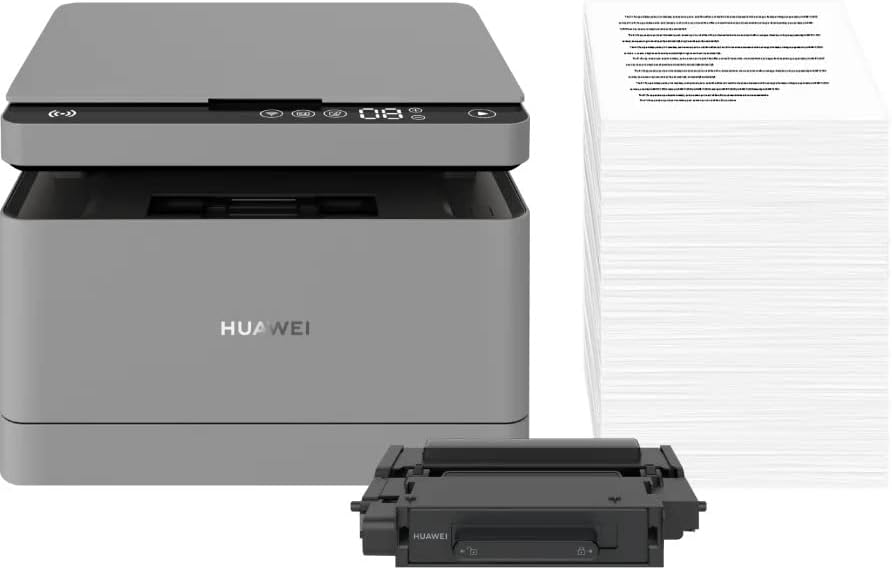
شڪل 5.1: The HUAWEI PixLab B5 printer shown alongside a replacement toner cartridge and a stack of paper, highlighting the separate components.

شڪل 5.2: A diagram illustrating the toner cartridge detached from the drum unit, demonstrating the modular design for replacement.
- پرنٽر جي سامهون ڍڪ کوليو.
- Gently pull out the toner cartridge drawer.
- Insert the HUAWEI F-1500BZ toner cartridge into the HUAWEI X-15000BZ drum unit until it clicks into place.
- Slide the assembled toner and drum unit back into the printer until it is securely seated.
- اڳيان ڪپڙا بند ڪريو.
5.3 پيپر لوڊنگ
- پيپر ٽري کوليو.
- پيپر گائيڊز کي صحيح پيپر سائيز (مثال طور، A4) مطابق ترتيب ڏيو.
- Load paper into the tray, ensuring it is not overfilled (maximum capacity: 150 sheets).
- ڪاغذ جي ٽري بند ڪريو.
5.4 پاور ڪنيڪشن
- Connect the power cable to the printer's power port.
- پاور ڪيبل جي ٻئي ڇيڙي کي گرائونڊ ٿيل اليڪٽريڪل آئوٽليٽ ۾ لڳايو.
- پرنٽر کي چالو ڪرڻ لاء پاور بٽڻ کي دٻايو.
5.5 سافٽ ويئر جي انسٽاليشن ۽ ڪنيڪٽوٽي
The HUAWEI PixLab B5 supports multiple connection methods for seamless integration with various devices.
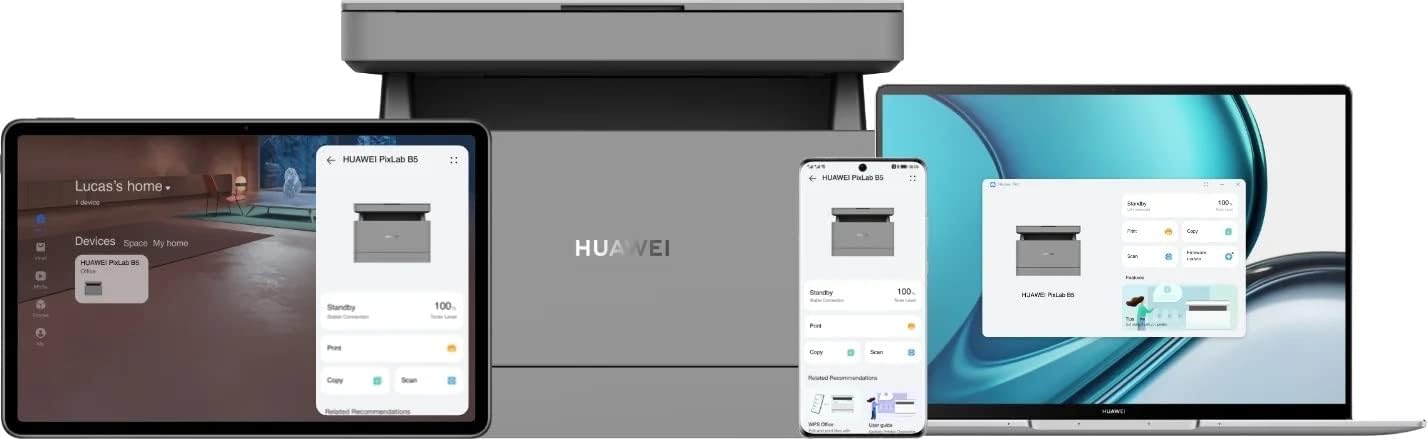
شڪل 5.3: The HUAWEI PixLab B5 printer demonstrating its versatile connectivity by being linked to a tablet, a smartphone, and a laptop, all displaying the printer's interface.

شڪل 5.4: An illustrative image depicting various devices such as a tablet, smartphone, and laptop connected to the printer, emphasizing multi-device compatibility.


شڪل 5.5: Icons representing various connectivity options: USB, LAN, Wi-Fi, and Printer Hotspot.
- USB ڪنيڪشن: Connect the printer to your computer using the provided USB cable. The necessary drivers should install automatically.
- LAN ڪنيڪشن: Connect an Ethernet cable from your router or network switch to the LAN port on the printer.
- وائي فائي ڪنيڪشن:
- Download and install the HUAWEI AI Life app on your smartphone or tablet.
- Follow the in-app instructions to connect your printer to your Wi-Fi network.
- For PC/laptop, ensure your device is on the same Wi-Fi network as the printer and add the printer through your operating system's printer settings.
- اين ايف سي ڪنيڪشن: For compatible devices, tap your device to the NFC tag on the printer to establish a quick connection.
6. آپريٽنگ هدايتون
6.1 ڇپائي
The HUAWEI PixLab B5 offers high-speed monochrome printing at up to 30 pages per minute.

شڪل 6.1: An image highlighting the printer's capability of printing 30 pages per minute for single-sided documents.
- Open the document you wish to print on your connected device.
- پرنٽ آپشن چونڊيو (عام طور تي File > پرنٽ ڪريو).
- Choose the HUAWEI PixLab B5 from the list of available printers.
- Adjust print settings as needed:
- Duplex ڇپائي: The printer supports automatic double-sided printing. Select this option in your print settings to save paper.
- معيار: The printer uses Q14 grayscale for clear and layered black and white prints.
- 'پرنٽ' تي ڪلڪ ڪريو.
6.2 ڪاپي ڪرڻ
The printer can make up to 100 copies in a single series.

شڪل 6.2: A person placing a smart card on the scanner bed of the HUAWEI PixLab B5, demonstrating the Smart Card Copy function.

شڪل 6.3: An image showing a user placing a card on the scanner glass, indicating the process for copying or scanning small items like ID cards.
- Place the document face down on the scanner glass or face up in the automatic document feeder (if available).
- پرنٽر جي ڪنٽرول پينل تي، 'ڪاپي' فنڪشن چونڊيو.
- Adjust settings such as number of copies, darkness, or paper size.
- Smart Card Copy: This feature automatically corrects the position and orientation of cards for perfect copies, even if not perfectly aligned.
- ڪاپي ڪرڻ شروع ڪرڻ لاءِ 'شروع' بٽڻ دٻايو.
6.3 اسڪيننگ
The HUAWEI PixLab B5 functions as a photo and sheet-fed scanner.
- Place the document on the scanner glass or in the document feeder.
- On your connected computer or mobile device, open the scanning software (e.g., HUAWEI AI Life app or your operating system's scanning utility).
- Select the HUAWEI PixLab B5 as your scanner.
- Choose scan settings such as resolution, color mode (monochrome), and destination folder.
- اسڪين شروع ڪريو.
6.4 Remote Printing
The HUAWEI AI Life app allows for flexible remote printing.

شڪل 6.4: The HUAWEI PixLab B5 printer positioned on a desk next to a computer monitor, which displays the printer's software interface, indicating remote management capabilities.
- Ensure your HUAWEI PixLab B5 is connected to the internet via Wi-Fi or LAN.
- Open the HUAWEI AI Life app on your smartphone or tablet.
- Select your PixLab B5 printer from the device list.
- You can now send print jobs to your printer remotely, even when you are away from your office.
7. سار سنڀال
7.1 ٽونر ڪارٽريج جي متبادل
The HUAWEI PixLab B5 uses separate toner and drum units, allowing for independent replacement and cost savings.

شڪل 7.1: An image displaying the maximum page yield for the drum cartridge (15,000 pages) and the toner cartridge (1,500 pages).
- When the toner low indicator appears, prepare a new HUAWEI F-1500BZ toner cartridge.
- پرنٽر جي سامهون ڍڪ کوليو.
- ٽونر ڪارٽريج جي دراز کي ٻاهر ڪڍو.
- Remove the empty toner cartridge from the drum unit.
- Unpack the new toner cartridge and insert it into the drum unit until it clicks.
- Slide the assembled unit back into the printer and close the front cover.
7.2 ڊرم يونٽ جي متبادل
The HUAWEI X-15000BZ drum unit has a yield of up to 15,000 pages.
- When the drum unit needs replacement, open the front cover of the printer.
- Pull out the toner cartridge drawer, which contains the drum unit.
- Remove the toner cartridge from the old drum unit.
- Insert the toner cartridge into the new HUAWEI X-15000BZ drum unit.
- Slide the new assembled unit back into the printer and close the front cover.
7.3 صفائي
- پرنٽر کي بند ڪريو ۽ پاور ڪنڊ کي ختم ڪريو.
- نرم، لِنٽ کان خالي ڪپڙو استعمال ڪريو ڊيampپرنٽر جي ٻاهرين حصي کي صاف ڪرڻ لاءِ پاڻي سان ٻوڙيو وڃي.
- For the scanner glass, use a glass cleaner applied to a cloth (not directly to the glass) to clean any smudges or dust.
- استعمال نه ڪريو abrasive cleaners يا solvents.
8. مسئلا حل ڪرڻ
This section addresses common issues you might encounter with your HUAWEI PixLab B5 printer.
8.1 پرنٽر جواب نه ڏئي رهيو آهي
- Check if the printer is powered on and the power cable is securely connected.
- Verify the USB, LAN, or Wi-Fi connection. For Wi-Fi, ensure the printer is connected to the correct network.
- Restart both the printer and your connected device.
- پڪ ڪريو ته پرنٽر ڊرائيور صحيح طرح سان انسٽال ٿيل ۽ اپڊيٽ ٿيل آهن.
8.2 پرنٽ جي معيار جا مسئلا
- Check the toner level and replace the toner cartridge if it is low.
- Ensure the drum unit is not worn out (check its page yield).
- سار سنڀال واري حصي مطابق پرنٽر جي اندروني حصن کي صاف ڪريو.
- Use recommended paper types and ensure paper is loaded correctly.
8.3 پيپر جام
- پرنٽر کي بند ڪريو ۽ ان کي ختم ڪريو.
- احتياط سان سڀئي ڍڪ کوليو ۽ ڪنهن به جام ٿيل ڪاغذ کي هٽايو، ڪاغذ جي رستي جي طرف ڇڪيو.
- پڪ ڪريو ته ڪاغذ جا ننڍا ٽڪرا اندر نه رهن.
- Close all covers, plug in, and power on the printer.
9. وضاحتون
| خاصيت | تفصيل |
|---|---|
| برانڊ | HUAWEI |
| ماڊل نالو | HUPIXLABB5 |
| پيداوار جو قسم | Copy, Scan, Print |
| ڇپائي ٽيڪنالاجي | ليزر |
| پرنٽر آئوٽ | مونوڪروم |
| وڌ ۾ وڌ مونوڪروم پرنٽ اسپيڊ | 30 صفحا في منٽ |
| وڌ ۾ وڌ پرنٽ ريزوليوشن | 600،600 x XNUMX،XNUMX ڊي پي آئي |
| Duplex پرنٽنگ | ها (خودڪار) |
| اسڪينر جو قسم | Photo, Sheet-fed |
| Max Copies per Series | 100 |
| رابطي ٽيڪنالاجي | Ethernet, NFC, USB, Wi-Fi |
| ڪل USB بندرگاهن | 1 |
| مطابقت رکندڙ ڊوائيسز | Desktop Computer, Laptop, Smartphone, Tablet |
| آپريٽنگ سسٽم جي حمايت | OS X 10.9 Mavericks, Windows 10 |
| وڌ ۾ وڌ ميڊيا سائيز | A4 |
| شيٽ جي ماپ | 210 × 297 ملي ايم |
| وڌ ۾ وڌ شيٽ فيڊنگ جي گنجائش | 150 |
| ياداشت جي صلاحيت | 512 ايم بي |
| بجلي جو استعمال | 410 واٽ |
| Power (Operating) | 240 واٽ |
| شيءِ جو وزن | 12.3 ڪلوگرام |
| پيداوار جي ماپ | 10D x 20W x 10H سينٽي ميٽر |
| رنگ | ڪارو |
| خاص خاصيتون | Versatile connectivity (USB, LAN, Wi-Fi), Stable Wi-Fi, High print quality (Q14 grayscale), Remote printing (AI Life app), Print history erase for privacy. |
10. وارنٽي ۽ سپورٽ
وارنٽي جي معلومات ۽ ٽيڪنيڪل سپورٽ لاءِ، مھرباني ڪري سرڪاري HUAWEI جو حوالو ڏيو. website or contact your local HUAWEI customer service center. Keep your purchase receipt as proof of purchase.
اسپيئر پارٽس جي دستيابي ۽ گارنٽيڊ سافٽ ويئر اپڊيٽس بابت معلومات هن وقت موجود ناهي.


