1. تعارف
The ACT AC7049 Dual Monitor Docking Station transforms your laptop into a complete workstation. This versatile 11-in-1 docking station allows you to connect up to two Full HD displays (max. 2048 x 1152 resolution) to your laptop via HDMI, using a single USB-C/A cable. It expands your laptop's connectivity with a Gigabit LAN port, microphone and headphone jacks, and six additional USB ports. Featuring DisplayLink® technology, it ensures advanced screen display on both MacOS and Windows computers.
2. اهم خاصيتون
- ڊبل مانيٽر سپورٽ: Connect up to two external displays with HDMI ports, supporting resolutions up to 2048x1152@60Hz.
- يونيورسل مطابقت: Works with laptops featuring a USB-C or USB-A 3.2 Gen1 (USB 3.0) port, compatible with MacOS and Windows thanks to DisplayLink technology.
- وسيع ڪنيڪشن: Includes 2x HDMI, 1x Gigabit Ethernet, 3x USB-A 3.2 Gen 1 (one with fast charging), 4x USB-A 2.0, and 3.5mm audio jacks for microphone and headphones.
- لچڪدار جڳهه: Designed for both vertical and horizontal placement to optimize desk space and port accessibility.
- USB چارجنگ پورٽ: Dedicated USB port for charging smartphones and tablets.
3. پيڪيج مواد
مھرباني ڪري ھيٺ ڏنل شين لاءِ پيڪيج چيڪ ڪريو:
- ACT AC7049 Docking Station
- USB-C/A 3.2 Gen1 Connection Cable (USB-A to USB-C)
- پاور اڊاپٽر
- عمودي اسٽينڊ
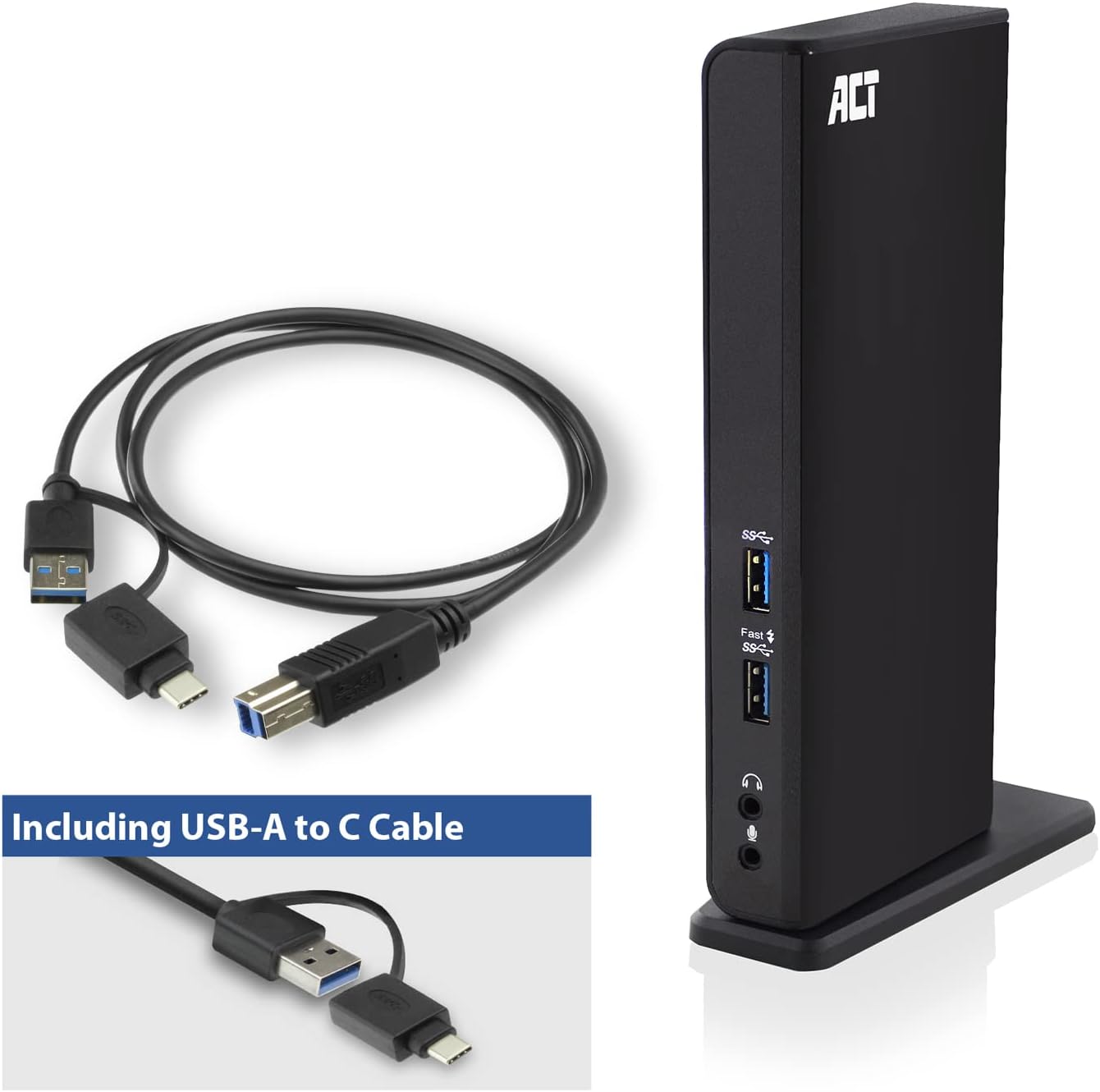
Image: The ACT AC7049 Docking Station shown with its included USB-A to USB-C connection cable and power adapter, highlighting the components provided in the package.
4. سيٽ اپ گائيڊ
4.1. پاور اڊاپٽر کي ڳنڍڻ
- Connect the power adapter to the DC 5V input port on the back of the AC7049 docking station.
- Plug the power adapter into a wall outlet. The docking station will power on.
4.2. توهان جي ليپ ٽاپ سان ڳنڍڻ
- Use the provided USB-C/A 3.2 Gen1 connection cable. Connect the USB-B end to the corresponding port on the docking station.
- Connect the other end (USB-A or USB-C, depending on your laptop's port) to an available USB 3.2 Gen1 (USB 3.0) or USB-C port on your laptop.
4.3. Driver Installation (DisplayLink)
The AC7049 utilizes DisplayLink technology for extended monitor functionality. Drivers are typically installed automatically on most operating systems. If not, please follow these steps:
- سرڪاري ڊسپلي لنڪ جو دورو ڪريو webسائيٽ (www.displaylink.com/downloads) to download the latest drivers for your operating system (Windows or MacOS).
- Install the downloaded driver package and follow the on-screen instructions.
- توهان جي ڪمپيوٽر کي ٻيهر شروع ڪريو جيڪڏهن اشارو ڪيو وڃي.

Image: The official DisplayLink 'Plug and Display' logo, indicating the technology used for multi-monitor support.
5. آپريٽنگ هدايتون
5.1. Connecting External Displays
- Connect your HDMI monitors to the two HDMI ports on the back of the docking station.
- Once connected, your operating system should detect the new displays. You can configure display settings (extend, mirror, primary display) through your computer's display settings.

Image: A visual representation of the docking station enabling both 'Mirror your content' and 'Extend your content' display modes across a laptop and two external monitors.
5.2. USB پيري فيرلز کي ڳنڍڻ
- سامهون USB بندرگاهن: Two USB-A 3.2 Gen1 ports (one with fast charging capability) are located on the front for easy access to frequently used devices like USB drives, smartphones, or tablets.
- Rear USB Ports: Four USB-A 2.0 ports are located on the back for connecting peripherals such as keyboards, mice, printers, or other less frequently connected devices.
5.3. نيٽ ورڪ ڪنيڪشن
Connect an Ethernet cable from your router or network switch to the Gigabit Ethernet port on the docking station. Your laptop will automatically gain wired network access.
5.4. آڊيو ڪنيڪشن
Connect your headphones and/or microphone to the dedicated 3.5mm audio jacks on the front of the docking station.

Image: An isometric diagram showcasing the comprehensive connectivity of the ACT AC7049, demonstrating how a laptop, two monitors, a keyboard, mouse, network cable, headphones, and a smartphone can all be connected simultaneously.
6. جڳهه جا آپشن
The ACT AC7049 docking station offers flexible placement options to suit your workspace:
- عمودي جڳهه: Use the included stand to position the docking station vertically. This saves desk space and provides easy access to all ports.
- افقي جڳهه: The docking station can also be placed horizontally if preferred.

Image: The ACT AC7049 Docking Station positioned vertically on its stand, highlighting its compact design and accessible ports.
7. سار سنڀال
To ensure optimal performance and longevity of your ACT AC7049 Docking Station, follow these maintenance guidelines:
- صفائي: Use a soft, dry cloth to clean the exterior of the docking station. Avoid using liquid cleaners or aerosols, as they may damage the device.
- وينٽيليشن: پڪ ڪريو ته ڊاکنگ اسٽيشن کي وڌيڪ گرم ٿيڻ کان روڪڻ لاءِ سٺي هوادار علائقي ۾ رکيو ويو آهي. ڪنهن به وينٽيليشن جي سوراخن کي نه بلاڪ ڪريو.
- اسٽوريج: جڏهن گهڻي عرصي تائين استعمال ۾ نه هجي، ته ڊاکنگ اسٽيشن کي سڌي سج جي روشني ۽ انتهائي گرمي پد کان پري ٿڌي، سڪل جاءِ تي ذخيرو ڪريو.
- ڪيبل جو انتظام: Keep cables organized and free from kinks or excessive bending to prevent damage to the cables and ports.
8. مسئلا حل ڪرڻ
If you encounter issues with your ACT AC7049 Docking Station, please refer to the following common troubleshooting steps:
- ڪابه ڊسپلي آئوٽ پٽ ناهي:
- Ensure the docking station is powered on and correctly connected to your laptop.
- تصديق ڪريو ته HDMI ڪيبل محفوظ طور تي ڊاکنگ اسٽيشن ۽ مانيٽر ٻنهي سان ڳنڍيل آهن.
- Check your laptop's display settings to ensure the external monitors are detected and configured correctly (e.g., extended or mirrored).
- Reinstall or update the DisplayLink drivers from www.displaylink.com/downloads.
- مسئلي کي الڳ ڪرڻ لاءِ هڪ وقت ۾ هڪ مانيٽر کي ڳنڍڻ جي ڪوشش ڪريو.
- USB ڊوائيسز ڪم نه ڪري رهيون آهن:
- Ensure the docking station is properly connected to your laptop and powered.
- USB ڊوائيس کي سڌو سنئون پنهنجي ليپ ٽاپ سان ڳنڍڻ جي ڪوشش ڪريو ته جيئن تصديق ڪري سگهجي ته اهو ڪم ڪري رهيو آهي.
- Connect the USB device to a different USB port on the docking station.
- پنهنجي ليپ ٽاپ کي ٻيهر شروع ڪريو.
- ڪوبه نيٽ ورڪ ڪنيڪشن ناهي:
- Verify the Ethernet cable is securely connected to both the docking station and your router/switch.
- Check your laptop's network settings to ensure the wired connection is enabled.
- جيڪڏهن ممڪن هجي ته، ايٿرنيٽ ڪيبل کي ٻئي ڊوائيس سان ٽيسٽ ڪريو.
- آڊيو ڪم نه ڪري رهيو آهي:
- Ensure headphones/microphone are fully plugged into the correct 3.5mm jacks.
- Check your laptop's sound settings to ensure the docking station's audio output/input is selected as the default device.
9. وضاحتون
| خاصيت | تفصيل |
|---|---|
| ماڊل نمبر | AC7049 |
| برانڊ | ايڪٽ |
| رنگ | ڪارو |
| رابطي ٽيڪنالاجي | USB-A، USB-C |
| وڊيو آئوٽ | 2 x HDMI (Max. 2048 x 1152 @ 60Hz) |
| USB بندرگاهن | 3 x USB-A 3.2 Gen 1 (5Gbps, 1x Fast Charging), 4 x USB-A 2.0 (480Mbps) |
| نيٽ ورڪ پورٽ | 1 x گيگابٽ ايٿرنيٽ (RJ45) |
| آڊيو پورٽ | 1 x 3.5mm Headphone Jack, 1 x 3.5mm Microphone Jack |
| مطابقت رکندڙ ڊوائيسز | Laptop, Computer (with USB 3.2 Gen1 / USB 3.0 or USB-C port) |
| آپريٽنگ سسٽم جي حمايت | Windows, MacOS (via DisplayLink) |
| طول و عرض (L x W x H) | 10.9 x 6 x 18.1 سينٽي ميٽر (تقريبن) |
| شيءِ جو وزن | 317 گرام |
10. وارنٽي ۽ سپورٽ
ACT products are designed for reliability and adhere to international standards and EU legislation. The ACT AC7049 Docking Station comes with a manufacturer's warranty, typically ranging from 2 to 5 years. For specific warranty details and support, please refer to the official ACT webسائيٽ يا پنهنجي پرچون ڪندڙ سان رابطو ڪريو.
For technical support or further inquiries, please visit the official ACT connectivity webسائيٽ: www.act-connectivity.com


