1. Введение
This manual provides detailed instructions for the RisoPhy Wireless Mechanical Keyboard. This keyboard offers versatile connectivity options, customizable RGB backlighting, and programmable keys, designed for both gaming and everyday use. Please read this manual thoroughly to ensure proper setup and operation of your device.
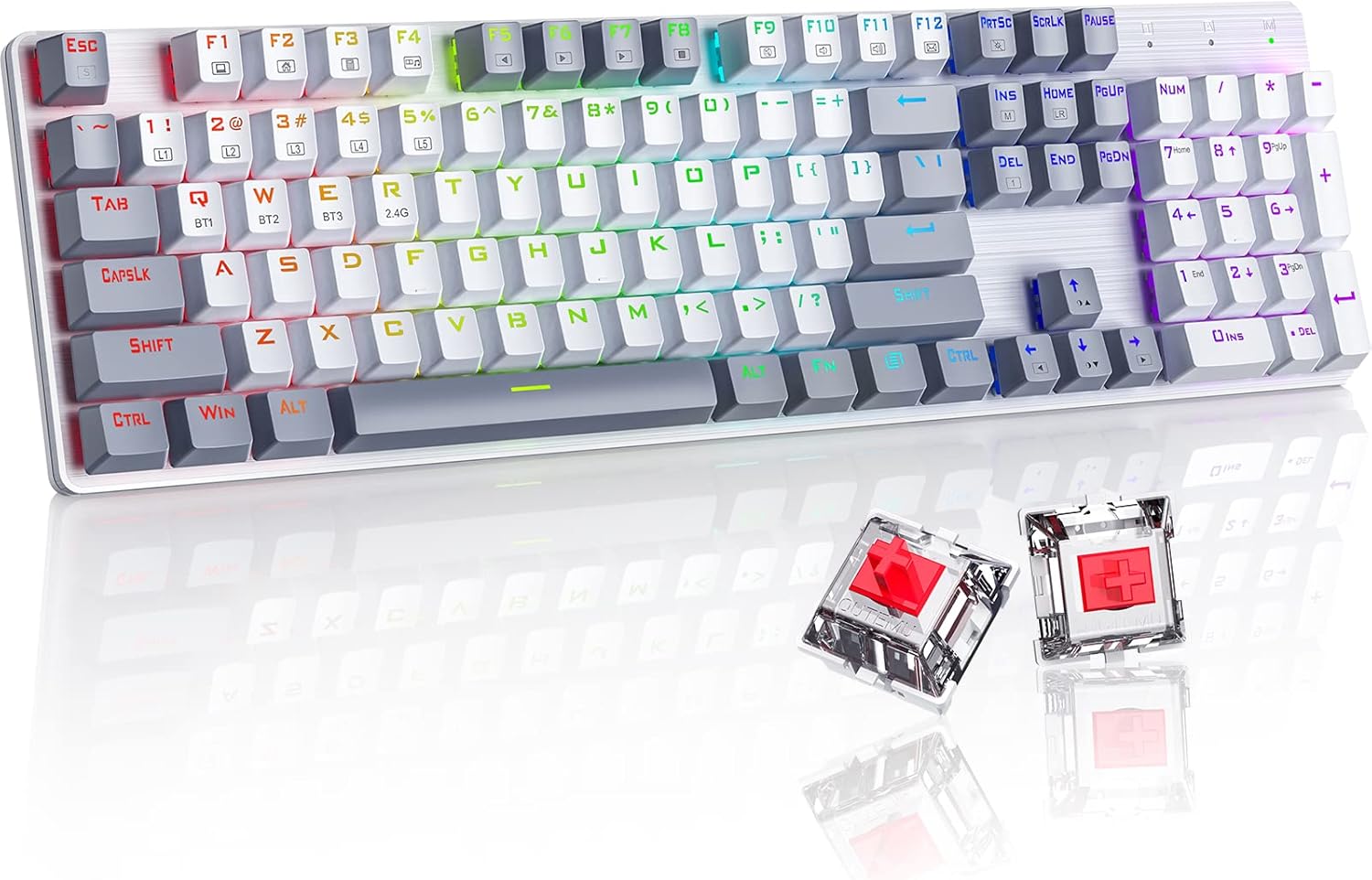
Image: The RisoPhy Wireless Mechanical Keyboard, showcasing its full 104-key layout, RGB backlighting, and two red mechanical switches detached for display.
2. Содержимое упаковки
Проверьте наличие всех предметов в посылке:
- 1 x RisoPhy Wireless Mechanical Keyboard
- 1 x USB-кабель Type-C
- 1 х 2.4 ГГц USB-приемник
- 1 x Руководство пользователя (этот документ)
- 1 x Съемник клавиш

Image: A visual representation of the package contents, including the keyboard, USB-C cable, 2.4GHz receiver, user manual, and keycap puller.
3. Настройка и подключение
The RisoPhy keyboard supports three connection modes: Wired (USB-C), 2.4GHz Wireless, and Bluetooth. You can connect up to 5 devices simultaneously (1 via 2.4G, 3 via Bluetooth, 1 via Wired).

Image: An illustration demonstrating the three connectivity modes: Bluetooth 5.0, 2.4G Wireless, and Wired Mode, with the keyboard connected to a PC, laptop, and tablet.
3.1 Проводной режим
- Connect the provided USB Type-C cable to the keyboard's port and the other end to your computer's USB port.
- Клавиатура будет автоматически распознана и готова к использованию.
3.2 Беспроводной режим 2.4 ГГц
- Locate the 2.4GHz USB receiver in the keyboard's storage compartment (usually on the underside).
- Подключите USB-приемник к свободному USB-порту на вашем компьютере.
- Switch the keyboard's mode selector to 2.4G. The keyboard will connect automatically.
3.3 Режим Bluetooth
Клавиатура поддерживает до трех устройств Bluetooth (BT1, BT2, BT3).
- Переключите переключатель режимов клавиатуры в положение Bluetooth.
- To pair a new device, press and hold FN + Q (BT1), ФН + В (БТ2), или ФН + Э (БТ3) Подождите 3-5 секунд, пока соответствующая клавиша (Q, W или E) не начнет быстро мигать. Это означает, что установлен режим сопряжения.
- На вашем устройстве (ПК, ноутбуке, планшете, телефоне) включите Bluetooth и выполните поиск новых устройств.
- Select "RisoPhy Keyboard" (or similar name) from the list of available devices to complete pairing.
- После сопряжения клавиша (Q, W или E) перестанет мигать и будет гореть постоянно.
3.4 Переключение между подключенными устройствами
To switch between paired Bluetooth devices or the 2.4G connection:
- For Bluetooth devices: Briefly press ФН + Q, ФН + В, или ФН + Э to switch to the corresponding paired device.
- For 2.4G Wireless: Ensure the mode selector is set to 2.4G.
4. Эксплуатационные характеристики
4.1 Управление подсветкой RGB
The keyboard features 20 RGB backlight modes, 16.8 million colors, and 5 brightness levels. Use the following FN key combinations to control the backlighting:
- ФН + ИНС: Switch Backlight Mode (cycle through 20 modes).
- ФН + ↑: Увеличьте яркость подсветки.
- ФН + ↓: Уменьшить яркость подсветки.
- ФН + ←: Speed Down Backlight Effect.
- ФН + →: Speed Up Backlight Effect.
- ФН + ДЕЛ: Switch Backlight Color (for modes that support color changes).
- ФН + ПРТСЦ: Turn On/Off Backlight.

Image: A close-up of the keyboard's right side, highlighting the FN key combinations for controlling RGB backlight modes, brightness, speed, and color.
4.2 Custom Lighting Modes
The keyboard offers 5 custom lighting modes (FN+1 to FN+5).
- Нажимать FN + 1~5 to enter one of the custom lighting modes.
- While in a custom mode, press ФН + Главная to begin customizing the light.
- Press each key you wish to customize to set its light to your preferred color.
- After customization, press ФН + Главная again to save the settings for that custom mode.
4.3 Программируемые клавиши и макросы
All 104 keys can be reassigned, and macros can be created using the dedicated driver software. This allows for personalized key functions and complex command sequences for enhanced productivity or gaming.
- Download the RisoPhy keyboard driver software from the official webсайт.
- Установите программное обеспечение на свой компьютер.
- Use the software interface to remap keys, create macros, and fine-tune RGB lighting effects.

Image: A screenshot of the RisoPhy keyboard's software interface, showing options for backlight customization, programmable key settings, and macro creation.
4.4 Мультимедийные и функциональные клавиши
The keyboard includes dedicated FN key combinations for multimedia control and system functions:
| Комбинация клавиш | Функция |
|---|---|
| ФН + Ф1 | Мой компьютер |
| ФН + Ф2 | Домашняя страница |
| ФН + Ф3 | Калькулятор |
| ФН + Ф4 | Медиаплеер |
| ФН + Ф5 | Предыдущая песня |
| ФН + Ф6 | Следующая песня |
| ФН + Ф7 | Воспроизведение/Пауза |
| ФН + Ф8 | Хватит играть |
| ФН + Ф9 | Немой |
| ФН + Ф10 | Уменьшить громкость |
| ФН + Ф11 | Увеличить громкость |
| ФН + Ф12 | Электронная почта |

Image: A visual guide to the FN key combinations (F1-F12) and their corresponding multimedia and system functions.
5. Техническое обслуживание
5.1 Чистка клавиатуры
Регулярная чистка помогает поддерживать работоспособность и внешний вид клавиатуры.
- Перед чисткой отключите клавиатуру от всех источников питания.
- Используйте мягкую, безворсовую ткань, слегкаampСмочите водой или мягким чистящим раствором колпачки клавиш и корпус.
- Для удаления пыли и мусора между клавишами используйте сжатый воздух.
- Избегайте использования едких химикатов и абразивных материалов.
5.2 Снятие и установка клавишного колпачка
The keyboard features durable PBT keycaps. You can remove them for deeper cleaning or customization using the provided keycap puller.
- Gently attach the keycap puller to the keycap you wish to remove.
- Pull upwards with steady, even pressure until the keycap detaches from the switch stem.
- Чтобы установить колпачок на место, совместите его со штоком переключателя и нажмите на него с усилием, пока он не защелкнется на месте.

Image: A close-up showing keycaps removed from the keyboard, revealing the mechanical switches underneath, alongside a keycap puller tool.
6. Поиск Неисправностей
If you encounter issues with your RisoPhy keyboard, refer to the following common solutions:
| Проблема | Возможное решение |
|---|---|
| Клавиатура не отвечает в беспроводном режиме. | Ensure the keyboard is charged. Check if the 2.4G receiver is properly plugged in or if Bluetooth is paired. Switch to wired mode to confirm basic functionality. |
| Проблемы с подключением Bluetooth. | Ensure the keyboard is in Bluetooth mode and the correct BT channel (Q, W, or E) is selected. Forget the device on your computer/phone and re-pair. Ensure your device's Bluetooth is enabled. |
| Backlighting not working or incorrect. | Нажимать ФН + ПРТСЦ to toggle backlighting. Adjust brightness with ФН + ↑/↓Режимы циклической работы с ФН + ИНС. |
| Keys double-typing or not registering. | Clean under the keycaps. If the issue persists, it might indicate a switch problem. Contact customer support if under warranty. |
| Клавиатура не заряжается. | Ensure the USB Type-C cable is securely connected to both the keyboard and a working USB port. Try a different cable or USB port. |
7. Технические характеристики
- Модель: Ризофи
- Связь: Беспроводная связь 2.4G, Bluetooth 5.0, проводная связь USB-C
- Количество ключей: 104 клавиш
- Тип переключателя: Механические красные переключатели
- Колпачки клавиш: Bicolor PBT Keycaps
- Подсветка: RGB (20 modes, 16.8 million colors, 5 brightness levels)
- Программируемость: All keys programmable, macro support via driver
- Анти-привидение: N-клавиша Rollover
- Совместимые устройства: PC, Laptop, Gaming Console, Phone, Tablet
- Материал: Акрилонитрилбутадиенстирол (АБС)
- Вес товара: Примерно 2.01 фунта (0.91 кг)
- Размеры упаковки: 17.68 x 5.91 x 2.17 дюйма (44.9 x 15 x 5.5 см)

Image: A close-up of the mechanical red switches, detailing their specifications such as 80 million click life, 40g force, and 2.0mm distance, along with a force-travel diagram.
8. Гарантия и поддержка
RisoPhy products are designed for reliability and performance. For warranty information, please refer to the documentation included with your purchase or visit the official RisoPhy website. If you require technical assistance or have questions not covered in this manual, please contact RisoPhy customer support.
Более подробную информацию и контактные данные вы можете найти на RisoPhy Store.

Изображение: представитель службы поддержки клиентов в гарнитуре, символизирующей доступную помощь по вопросам, связанным с продуктами.


