Введение
This manual provides instructions for setting up, operating, and maintaining your HP 235 Wireless Keyboard and Mouse Combo. Please read this guide thoroughly before using the product to ensure proper functionality and longevity.
Содержимое упаковки
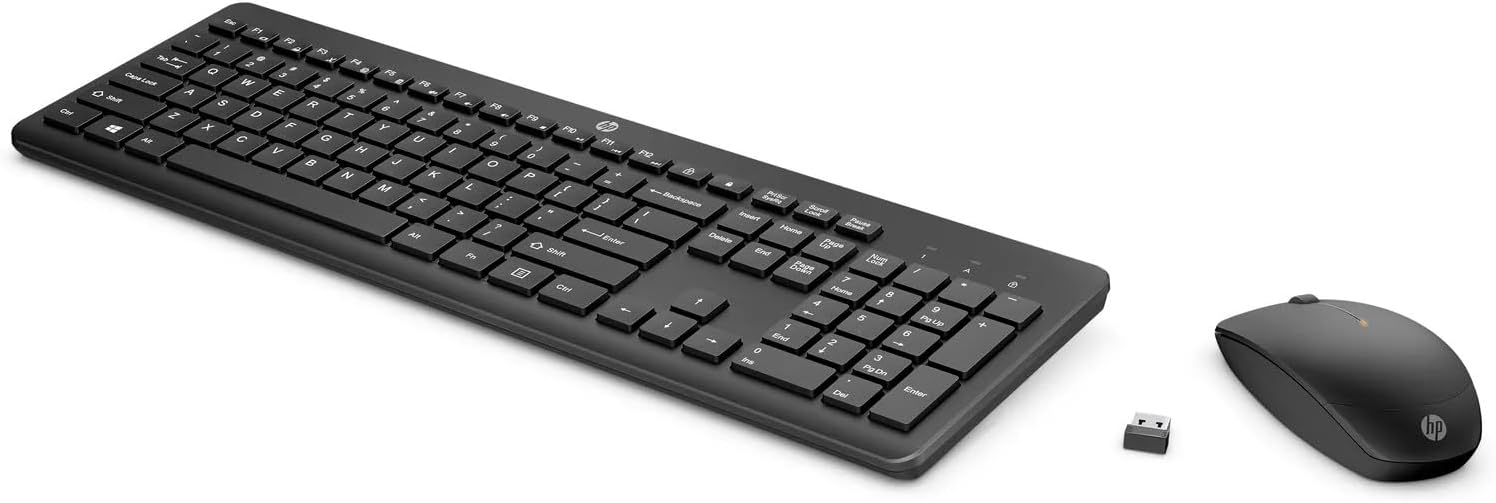
- HP Wireless Keyboard
- Беспроводная мышь HP
- Беспроводной USB-приемник типа A
- Батарейки типа АА (предварительно установлены или поставляются отдельно)
Настраивать
Follow these steps to set up your HP 235 Wireless Keyboard and Mouse Combo:
- Вставьте батареи: If not already installed, open the battery compartments on the underside of both the keyboard and the mouse. Insert the AA batteries, ensuring correct polarity. Close the compartments.
- Подключите USB-приемник: Locate an available USB Type-A port on your computer. Insert the USB wireless receiver into the port. Your computer should automatically detect the device.
- Включение питания: Turn on the keyboard and mouse using their respective power switches, usually located on the underside. The devices should connect automatically to the receiver.

Работа с клавиатурой
The HP 235 Wireless Keyboard features a standard layout with additional function keys.
- Стандартные ключи: Use the alphanumeric keys for typing text and numbers.
- Функциональные клавиши (F1–F12): При одновременном нажатии с другими клавишами эти клавиши могут выполнять дополнительные функции (например, регулировка громкости, воспроизведение мультимедиа, регулировка яркости). Fn key. Refer to your computer's documentation for specific Fn key combinations.
- Цифровая клавиатура: The dedicated numeric keypad on the right provides quick entry for numbers and calculations. Ensure Num Lock is active for numeric input.
Управление мышью
The HP 235 Wireless Mouse provides precise cursor control.
- Левая кнопка: Primary click function, typically used for selecting items or opening applications.
- Правая кнопка: Secondary click function, typically used for context menus.
- Колесо прокрутки: Roll the wheel to scroll through documents or web страниц. Колесо прокрутки также может выполнять функцию средней кнопки.
Обслуживание
Proper maintenance ensures the longevity of your wireless combo.
- Уборка: Для очистки поверхностей клавиатуры и мыши используйте мягкую сухую ткань. Для удаления стойких загрязнений слегка потрите.ampСмочите ткань водой. Избегайте использования агрессивных химикатов и абразивных материалов.
- Замена батареи: When performance degrades (e.g., delayed response, intermittent connection), replace the batteries in both the keyboard and mouse with new AA batteries. Dispose of old batteries according to local regulations.
- Хранилище: When not in use for extended periods, turn off the devices to conserve battery life. Store the USB receiver in a safe place, possibly inside the mouse's battery compartment if available.
Поиск неисправностей
If you encounter issues with your HP 235 Wireless Combo, try the following solutions:
| Проблема | Решение |
|---|---|
| Клавиатура/мышь не отвечает |
|
| Прерывистое соединение |
|
| Курсор мыши хаотичен или движется неплавно |
|
Технические характеристики
- Бренд: HP
- Модель: 235
- Технологии подключения: Wireless (USB Type A receiver)
- Совместимость с операционными системами: Виндовс 10
- Вес товара: Примерно 1.83 фунта (0.83 кг)
- Размеры продукта (ДхШхВ): Примерно 18 х 8.8 х 1.9 дюйма (45.7 х 22.4 х 4.8 см)
- Источник питания: Питание от батареек (батарейки типа АА)
Гарантия и поддержка
For warranty information and technical support, please visit the official HP support website or contact HP customer service. Keep your purchase receipt for warranty claims.
Более подробную информацию и ресурсы поддержки вы можете найти по адресу: www.hp.com/support.