1. Introducere
Welcome to the user manual for your new UXD A5 Android 13 Tablet. This guide provides essential information on setting up, operating, maintaining, and troubleshooting your device to ensure optimal performance and user experience. Please read this manual thoroughly before using your tablet.
2. Conținutul pachetului
Verificați dacă toate articolele enumerate mai jos sunt incluse în pachetul dumneavoastră:
- UXD A5 Android 13 Tablet
- Stylus
- Protector de ecran
- Dongle OTG
- Tastatura
- Mouse
- Foldable Bag
- Cablu de încărcare
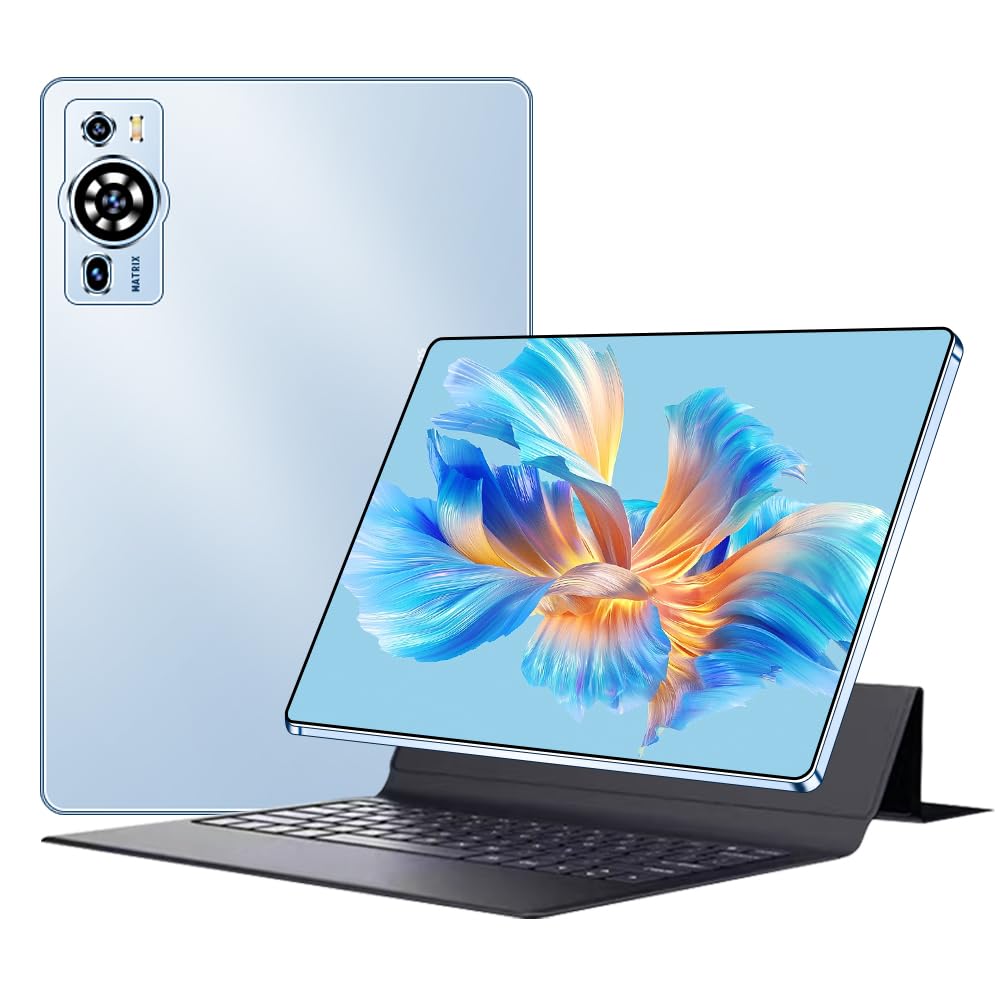
Image 2.1: UXD A5 Tablet with keyboard, mouse, stylus, and other accessories.
3. Produs terminatview
Familiarizați-vă cu componentele fizice ale tabletei dvs.:

Image 3.1: Diagram illustrating the tablet's ports and buttons.
- Jack pentru căști: Pentru conectarea căștilor cu fir.
- Buton de alimentare: Press and hold to power on/off or restart. Press briefly to wake/sleep the screen.
- Taste de volum: Reglați volumul tabletei.
- Charging Port (Type C): Connect the provided USB-C cable for charging.
- Camera frontală: Pentru apeluri video și selfie-uri.
- Slot card SIM: Insert a Nano-SIM card for 4G cellular connectivity and a microSD card for expandable storage.
- Difuzoare: Difuzoare stereo pentru ieșire audio.
4. Configurare inițială
4.1. Încărcarea tabletei
Before first use, fully charge your tablet. Connect the provided USB-C charging cable to the tablet's charging port and plug the other end into a power adapter (not always included) or a computer's USB port. The battery indicator on the screen will show charging status.
4.2. Pornire/Oprire
- Pentru a porni: Press and hold the Power Button until the UXD logo appears.
- Pentru a opri: Press and hold the Power Button until the power options menu appears, then select "Power off."
- Pentru a reporni: Press and hold the Power Button until the power options menu appears, then select "Restart."
4.3. Introducerea cardurilor SIM și MicroSD
Locate the SIM card slot on the side of the tablet. Use the provided SIM ejector tool (if included) to open the tray. Carefully place your Nano-SIM card and/or microSD card into the designated slots on the tray, ensuring correct orientation. Insert the tray back into the tablet until it clicks into place.
4.4. Conectarea accesoriilor
- Tastatură și mouse: These accessories typically connect via Bluetooth. Go to Setări > Dispozitive conectate > Bluetooth on your tablet, turn on Bluetooth, and pair with the keyboard and mouse. Follow the specific pairing instructions for each accessory.
- Stilou: The stylus can be used directly on the screen for drawing, writing, and navigation. No pairing is usually required for basic functionality.
- OTG Dongle: Connect the OTG dongle to the tablet's USB-C port to connect USB devices like flash drives or external hard drives.
5. Instrucțiuni de utilizare
5.1. Navigarea în Android 13
Your tablet runs on Android 13, offering an intuitive user interface. Swipe up from the bottom for the app drawer, swipe down from the top for quick settings and notifications. Use gestures or the navigation bar for Home, Back, and Recent Apps functions.
5.2. Conectivitate
- Wi-Fi 6: Pentru a vă conecta la Wi-Fi, accesați Setări > Rețea și internet > Internet, select your desired network, and enter the password.
- Bluetooth 5.0: For connecting wireless headphones, speakers, or other Bluetooth devices, go to Setări > Dispozitive conectate > Bluetooth.
- Rețea celulară 4G: If you have inserted a SIM card, enable mobile data in Setări > Rețea și internet > Rețea mobilă.
5.3. Setări de afișare
The 10.1-inch HD IPS display offers vibrant visuals. Adjust brightness, dark theme, and font size in Setări > Afișare. The tablet supports features like eye protection modes to reduce strain.

Image 5.1: Tablet display highlighting key features like connectivity and eye protection.
5.4. Utilizarea camerei
Your tablet is equipped with dual cameras. Open the Camera app to take photos or record videos. Tap on the screen to focus and use the on-screen controls for various modes and settings.
5.5. Managementul bateriei
The 8000 mAh battery provides extended usage. To optimize battery life, adjust screen brightness, close unused apps, and enable battery saver mode when needed. Avoid extreme temperatures.

Imaginea 5.2: Performanța bateriei pesteview pentru diverse activitati.
5.6. Scenarii de utilizare
The UXD A5 tablet is versatile for various tasks:

Imaginea 5.3: Examples of tablet use for creative, entertainment, and productivity tasks.
- Painting & Drawing: Utilize the stylus for creative applications.
- Jocuri: Enjoy a smooth gaming experience with the Octa-Core processor and 12GB RAM.
- Studiu și muncă: Use the keyboard and mouse for productivity, and the stylus for note-taking.
- Media Consumption: Watch videos and listen to music on the HD display and stereo speakers.
6. Îngrijire și întreținere
- curatenie: Folosiți o lavetă moale, fără scame, pentru a curăța ecranul și carcasa. Evitați substanțele chimice dure.
- Depozitare: Depozitați comprimatul într-un loc răcoros și uscat, ferit de lumina directă a soarelui și de temperaturi extreme.
- Actualizări de software: Verificați și instalați periodic actualizări de sistem pentru a asigura performanță și securitate optime. Accesați Setări > Sistem > Actualizare sistem.
- Protejarea ecranului: Apply the included screen protector to prevent scratches.
7. Ghid de depanare
Această secțiune abordează problemele frecvente pe care le-ați putea întâmpina:
- Tableta nu pornește: Ensure the tablet is charged. Connect it to a charger for at least 30 minutes, then try powering on again. If it still doesn't turn on, perform a forced restart by holding the power button for 10-15 seconds.
- Ecranul nu răspunde: Reporniți tableta. Dacă problema persistă, asigurați-vă că ecranul este curat și fără reziduuri.
- Probleme cu conexiunea Wi-Fi: Verificați dacă Wi-Fi-ul este activat în setări. Reporniți routerul și tableta. Uitați de rețea și reconectați-vă.
- Performanță lentă: Close unused applications. Clear cache data from apps. Consider performing a factory reset (back up your data first).
- Accesoriile nu se conectează: Ensure Bluetooth is enabled on the tablet and the accessory is in pairing mode. Check battery levels of wireless accessories.
8. Specificatii tehnice
| Marca | UXD |
| Numărul de model | A5 |
| Sistem de operare | Android 13 |
| Marca procesorului | MediaTek Octa Core |
| RAM | 12 GB |
| Capacitate de stocare | 256 GB |
| Dimensiunea ecranului | 10.1 inchi |
| Rezoluția afișajului | 1920 x 1200 pixeli (HD IPS) |
| Capacitatea bateriei | 8000 mAh |
| Durata de viață a bateriei | Până la 8 ore |
| Conectivitate wireless | Wi-Fi 6 (802.11ax, 802.11b), Bluetooth 5.0, 4G Cellular |
| Interfețe | USB Type-C, Bluetooth |
| Dimensiuni (L x l x H) | 24 x 16 x 0.9 cm |
| Greutatea produsului | 1 kilogram |
| Caracteristici speciale | Detachable Keyboard, Stereo Speakers, USB OTG Support, Stylus Support |

Image 8.1: Tablet showcasing its ultra-slim design and weight.
9. Garanție și asistență
Information regarding specific warranty terms and availability of spare parts is not provided in the product details. For warranty claims, technical support, or inquiries about spare parts, please refer to the manufacturer's official website or contact their customer service directly. Please retain your proof of purchase for any warranty-related requests.


