1. Introducere
This manual provides detailed instructions for the installation, configuration, and operation of the GIGABYTE B860 Gaming X WIFI6E Motherboard. Designed to support Intel Core Ultra Processors (Series 2) with an LGA 1851 socket, this ATX motherboard features DDR5 memory support, multiple M.2 slots, PCIe 5.0 connectivity, USB-C, WIFI6E, and 2.5GbE LAN. Adherence to these instructions will ensure proper setup and optimal performance of your system.
2. Informații de siguranță
- Always disconnect the power cord from the electrical outlet before installing or removing any components.
- Purtați o curea antistatică la încheietura mâinii sau atingeți frecvent un obiect metalic împământat pentru a descărca electricitatea statică înainte de a manipula componentele.
- Manevrați componentele de marginile lor pentru a evita atingerea părților sensibile.
- Asigurați o ventilație corespunzătoare în interiorul carcasei PC-ului pentru a preveni supraîncălzirea.
- Păstrați placa de bază departe de umiditate și temperaturi extreme.
3. Conținutul pachetului
Verificați dacă toate articolele sunt prezente în colet. Dacă lipsește sau este deteriorat vreun articol, contactați distribuitorul.
- GIGABYTE B860 Gaming X WIFI6E Motherboard
- Manual de utilizare / Ghid de instalare rapidă
- Cabluri de date SATA
- Antena Wi-Fi
- Șuruburi și distanțiere M.2
- CD/USB cu drivere (sau instrucțiuni de descărcare)
4. Aspectul plăcii de bază
Familiarizați-vă cu diversele componente și conectori de pe placa de bază înainte de instalare.
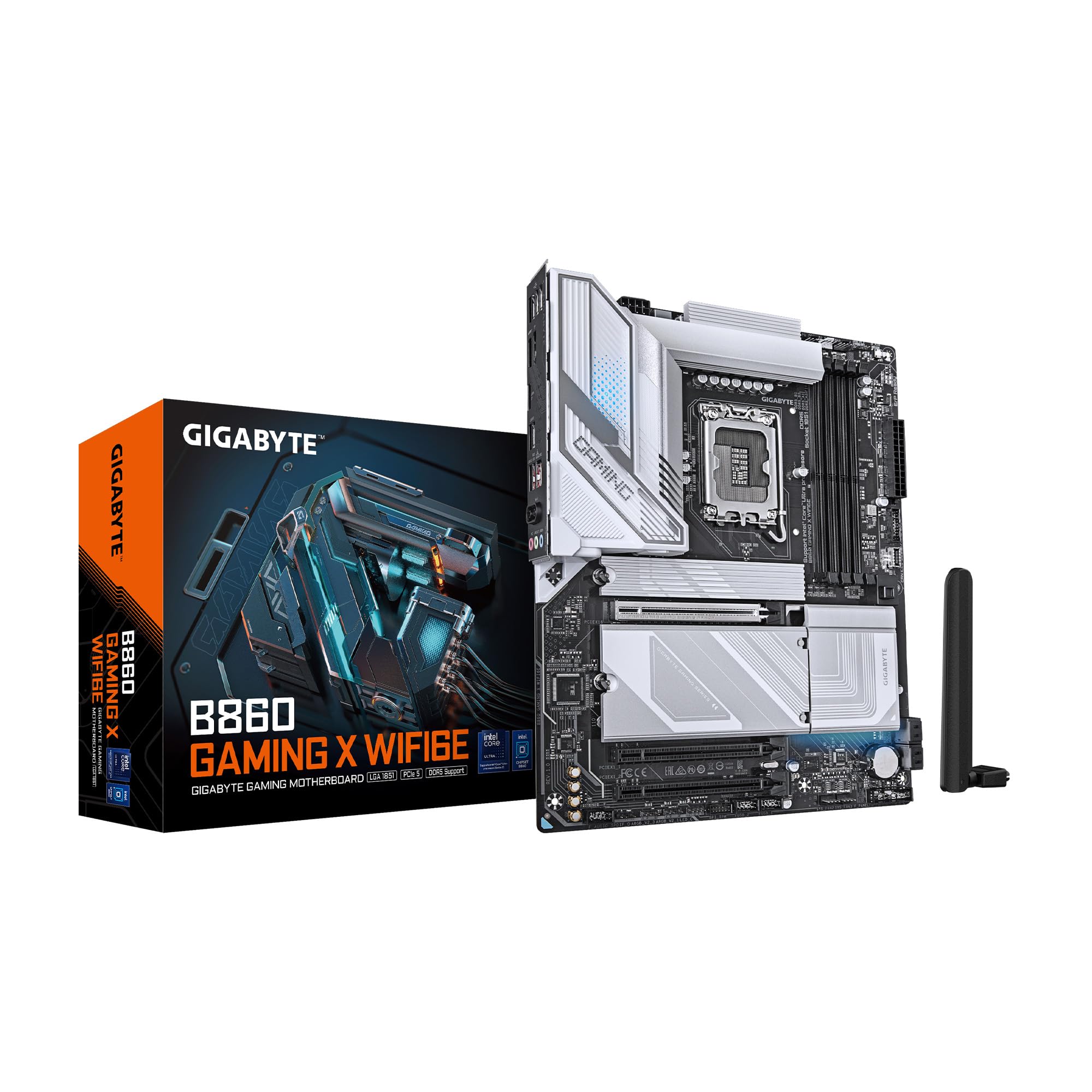
Figura 4.1: De sus în jos view of the GIGABYTE B860 Gaming X WIFI6E Motherboard, showing the CPU socket, DDR5 DIMM slots, PCIe slots, and M.2 slots with heatsinks.

Figura 4.2: Înclinat view of the GIGABYTE B860 Gaming X WIFI6E Motherboard, highlighting the VRM heatsinks, I/O shroud, and overall board design.
4.1 Rear I/O Panel Overview
Panoul I/O din spate oferă diverse porturi pentru conectarea dispozitivelor externe.

Figure 4.3: Rear I/O panel featuring USB ports, HDMI, DisplayPort, 2.5GbE LAN, Wi-Fi antenna connectors, and audio jacks.
- Porturi USB: Various USB 2.0, USB 3.2 Gen1, USB 3.2 Gen2, and USB4 Type-C ports for peripheral connectivity.
- Ieșiri video: HDMI and DisplayPort for integrated graphics output.
- Port LAN: 2.5 Gigabit Ethernet for high-speed wired network connections.
- Conectori de antenă Wi-Fi: For attaching the included Wi-Fi antenna.
- Mufe audio: Pentru conectarea difuzoarelor, căștilor și microfoanelor.
- BIOS Flash Button: Pentru actualizarea BIOS-ului fără a instala un procesor sau o memorie RAM.
5. Ghid de instalare
5.1 Instalarea CPU
- Deschideți maneta soclului procesorului și scoateți capacul de protecție.
- Aliniați cu grijă procesorul cu soclul, asigurându-vă că marcajul triunghiular de pe procesor se potrivește cu marcajul de pe soclu.
- Introduceți ușor procesorul în soclu, fără a-l forța.
- Închideți maneta soclului pentru a fixa procesorul.
5.2 Instalarea memoriei (RAM)
- Deschideți clemele de la ambele capete ale sloturilor DIMM DDR5.
- Aliniați crestătura de pe modulul de memorie DDR5 cu cheia de pe slotul DIMM.
- Introduceți ferm modulul de memorie în slot până când clemele se fixează în poziție.
- For dual-channel operation, install modules in matching color slots (e.g., A2 and B2).
5.3 Storage (M.2 SSDs, SATA Drives) Installation
- SSD M.2: Remove the M.2 Thermal Guard. Insert the M.2 SSD into the slot at an angle, then push it down and secure it with the EZ-Latch mechanism or screw. Reattach the Thermal Guard.
- Unități SATA: Connect one end of the SATA data cable to a SATA port on the motherboard and the other end to your SATA storage device. Connect a SATA power cable from your power supply to the device.
5.4 Expansion Card (PCIe) Installation
- Align your PCIe expansion card (e.g., graphics card) with the desired PCIe slot.
- Press down firmly until the card is seated correctly and the retention clip locks.
- Fixați placa pe carcasă cu un șurub.
5.5 Conexiuni la sursa de alimentare
- Conectați conectorul principal de alimentare ATX cu 24 de pini de la sursa de alimentare la placa de bază.
- Conectați conectorul de alimentare ATX 12V al procesorului cu 8 pini (sau 4+4 pini) la placa de bază.
5.6 Conexiuni la panoul frontal
Connect the cables from your PC case's front panel (power button, reset button, USB ports, audio jacks, LED indicators) to the corresponding headers on the motherboard. Refer to the motherboard diagram for exact header locations.
6. Prima pornire și configurarea BIOS-ului
6.1 Pornirea inițială
After assembling all components, connect your monitor, keyboard, and mouse. Power on your system. The system should display the GIGABYTE splash screen.
6.2 Accesarea BIOS-ului/UEFI
În timpul procesului de pornire, apăsați în mod repetat butonul DEL key to enter the BIOS/UEFI setup utility. Here you can configure system settings, boot order, and monitor hardware status.
6.3 Basic BIOS Settings
- Ordinea de pornire: Set the primary boot device (e.g., M.2 SSD with OS).
- Data și ora: Adjust system date and time.
- Controlul ventilatorului: Configurați vitezele ventilatorului pentru răcire optimă și niveluri de zgomot.
- XMP Profile: Enable XMP for your DDR5 memory to run at its rated speed.
7. Instalarea driverelor și a software-ului
For optimal system performance and stability, install the latest drivers and utilities for your motherboard.
- Drivere pentru chipset: Essential for proper communication between the CPU and other components.
- Drivere LAN: For the 2.5GbE wired network connection.
- Wi-Fi/Bluetooth Drivers: Pentru conectivitate fără fir.
- Drivere audio: For sound functionality.
- Software utilitar: GIGABYTE provides various utilities for system monitoring, RGB control, and BIOS updates.
Drivers can be found on the included CD/USB or downloaded from the official GIGABYTE website-ul.
8. Întreținere
8.1 Actualizări BIOS
Verificați periodic GIGABYTE website for the latest BIOS versions. BIOS updates can improve system stability, compatibility, and performance. Follow the instructions provided by GIGABYTE for safe BIOS flashing.
8.2 Actualizări de drivere
Keep your drivers updated to ensure compatibility with new software and hardware, and to benefit from performance improvements and bug fixes.
8.3 Curățare
Periodically clean your PC to prevent dust buildup, which can lead to overheating. Use compressed air to clear dust from heatsinks, fans, and other components. Ensure the system is powered off and unplugged before cleaning.
9. Depanare
- Fără putere: Verificați toate conexiunile de alimentare (ATX cu 24 de pini, CPU cu 8 pini, GPU). Asigurați-vă că sursa de alimentare este pornită.
- Fără afișare: Verify monitor connection and input source. Reseat the graphics card and RAM modules. Try booting with only one RAM stick.
- Sistemul nu pornește: Check for POST (Power-On Self-Test) error codes or beeps. Reseat all components. Clear CMOS by removing the battery or using the clear CMOS jumper.
- Componentă nedetectată: Ensure the component is properly seated and connected. Check BIOS settings to confirm it is enabled. Update drivers.
- Supraîncălzire: Ensure CPU cooler is properly installed. Check fan connections and fan speeds in BIOS. Clean dust from heatsinks and fans.
10. Specificații
| Caracteristică | Caietul de sarcini |
|---|---|
| Marca | GIGABYTE |
| Serie | B860 GAMING X WIFI6E |
| Numărul de model al articolului | B860 GAMING X WIFI6E |
| Soclu CPU | Intel LGA 1851 |
| Procesoare compatibile | Intel Ultra Core Series 2 |
| Tehnologia memoriei RAM | DDR5 |
| Sloturi RAM | 4 DIMM-uri |
| Viteza memoriei | 5600 MHz |
| Tipul chipset-ului | Intel B860 |
| Sloturi PCIe | PCIe 5.0 (for graphics card) |
| M.2 Fante | 3 sloturi M.2 |
| Conectivitate USB | USB-C and other USB ports |
| LAN | 2.5GbE LAN |
| Conectivitate wireless | WIFI6E |
| Power Design | 12+1+2+1, 50A PPAK VRM |
| Termice | MOSFET Heatsink, M.2 Thermal Guard |
| Factor de formă | ATX |
| Dimensiunile produsului | 12 x 9.6 x 1 inci |
| Greutatea articolului | 4.2 lire sterline |
| Platformă | Windows 11 |
11. Informații despre garanție
GIGABYTE motherboards typically come with a limited manufacturer's warranty. The specific terms and duration of the warranty may vary by region and retailer. Please retain your proof of purchase for warranty claims. For detailed warranty information, refer to the official GIGABYTE website-ul sau contactați punctul de vânzare.
12. Suport tehnic
If you encounter issues that cannot be resolved using this manual or the troubleshooting section, please contact GIGABYTE technical support.
- GIGABYTE Oficial Website: www.gigabyte.com
- Consultați secțiunea de asistență de pe website for FAQs, driver downloads, and contact information for your region.


