Introducere
Thank you for choosing the TECKNET Wireless Mouse. This manual provides detailed instructions for setting up, operating, and maintaining your mouse to ensure optimal performance. This mouse offers versatile connectivity options, precise control, and a comfortable, silent user experience.
Produs terminatview
Familiarize yourself with the components of your TECKNET Wireless Mouse.

Imagine: Față și jos view of the TECKNET Wireless Mouse, highlighting the scroll wheel, left/right buttons, forward/backward buttons, DPI switch, Bluetooth pairing button, USB receiver storage, and battery compartment.
- Butoane stânga/dreapta: Funcții standard ale clicurilor mouse-ului.
- Rotiță de defilare: Pentru derulare verticală și funcția de clic din mijloc.
- Butoane Înainte/Înapoi: Navigați web pages or documents. (Note: Side buttons are not compatible with macOS).
- Buton comutare DPI: Adjusts mouse sensitivity (4800/3200/2400/1600/1200/800 DPI).
- Buton de asociere Bluetooth: Inițiază modul de asociere Bluetooth.
- 2.4G/Off/BT Switch: Selects connection mode or turns off the mouse.
- Receptor USB: Stores securely within the mouse for 2.4G wireless connection.
- Compartiment baterie: Holds 2 AAA batteries (not included).
- Indicator LED: Displays connection status and low battery warning.
Înființat
1. Instalarea bateriilor
- Deschideți capacul compartimentului bateriilor de pe partea inferioară a mouse-ului.
- Introduceți 2 baterii AAA (nu sunt incluse), asigurându-vă că polaritatea este corectă (+/-).
- Închideți capacul compartimentului bateriei.

Image: The underside of the mouse with the battery cover removed, showing two AAA batteries correctly inserted.
2. Conectarea mouse-ului
The TECKNET Wireless Mouse supports two connection modes: 2.4G Wireless (via USB receiver) and Bluetooth.
2.1. Conexiune wireless 2.4G (receptor USB)
- Localizați receptorul USB din compartimentul pentru baterii al mouse-ului.
- Conectați receptorul USB la un port USB-A disponibil de pe computer.
- Glisați comutatorul din partea inferioară a mouse-ului în poziția „2.4G”.
- Mouse-ul ar trebui să se conecteze automat la computer.

Image: A green TECKNET Wireless Mouse positioned between a laptop with a USB-A receiver plugged in and a tablet, illustrating dual connectivity options.
Text Description for Video: This video demonstrates the process of installing AAA batteries into the TECKNET Wireless Mouse and connecting it via the 2.4G USB receiver. It shows the location of the battery compartment and the USB receiver, as well as the power/mode switch on the underside of the mouse. The video also highlights the forward/backward buttons and DPI switch on the top of the mouse.
2.2. Conexiune Bluetooth
- Glisați comutatorul din partea inferioară a mouse-ului în poziția „BT”.
- Press and hold the Bluetooth pairing button (usually located near the mode switch) for 3-5 seconds until the LED indicator starts blinking blue, indicating pairing mode.
- Pe computer sau dispozitiv, accesați setările Bluetooth și căutați dispozitive noi.
- Selectați „TECKNET Mouse” (sau un nume similar) din lista de dispozitive disponibile pentru asociere.
- The LED indicator will stop blinking and remain solid blue once connected.
Text Description for Video: This video provides a detailed demonstration of how to set up and pair the TECKNET Wireless Mouse using its Bluetooth functionality. It shows the user switching the mouse to Bluetooth mode, pressing the pairing button, and then connecting it to a computer. The video also briefly showcases the silent click feature and the ergonomic design of the mouse.
Text Description for Video: This video highlights the silent click feature of the TECKNET Wireless Mouse and demonstrates its easy pairing process via Bluetooth. The user shows the mouse's underside, including the battery compartment and the mode switch, and then performs a silent click to emphasize the quiet operation. The video also briefly mentions the convenience of using AAA batteries.
Instrucțiuni de operare
Ajustare DPI
Press the DPI switch button located on the top of the mouse to cycle through 6 adjustable DPI settings: 800, 1200, 1600, 2400, 3200, and 4800. This allows you to customize cursor speed and precision to your preference.

Image: The TECKNET Wireless Mouse with an overlay showing the 6 adjustable DPI settings, emphasizing precise control.
Funcția de clic silențios
The mouse is designed for silent operation, providing whisper-quiet clicks. This feature is ideal for environments where noise reduction is important, such as libraries, offices, or late-night use.

Image: A person using the TECKNET Wireless Mouse in a quiet environment, with text indicating "Silent Click" and "Inaudible click sound, quiet and focused, without disturbing others."
Modul de repaus automat
To conserve battery life, the mouse will automatically enter sleep mode after approximately 5 minutes of inactivity. To wake the mouse, simply click any button.
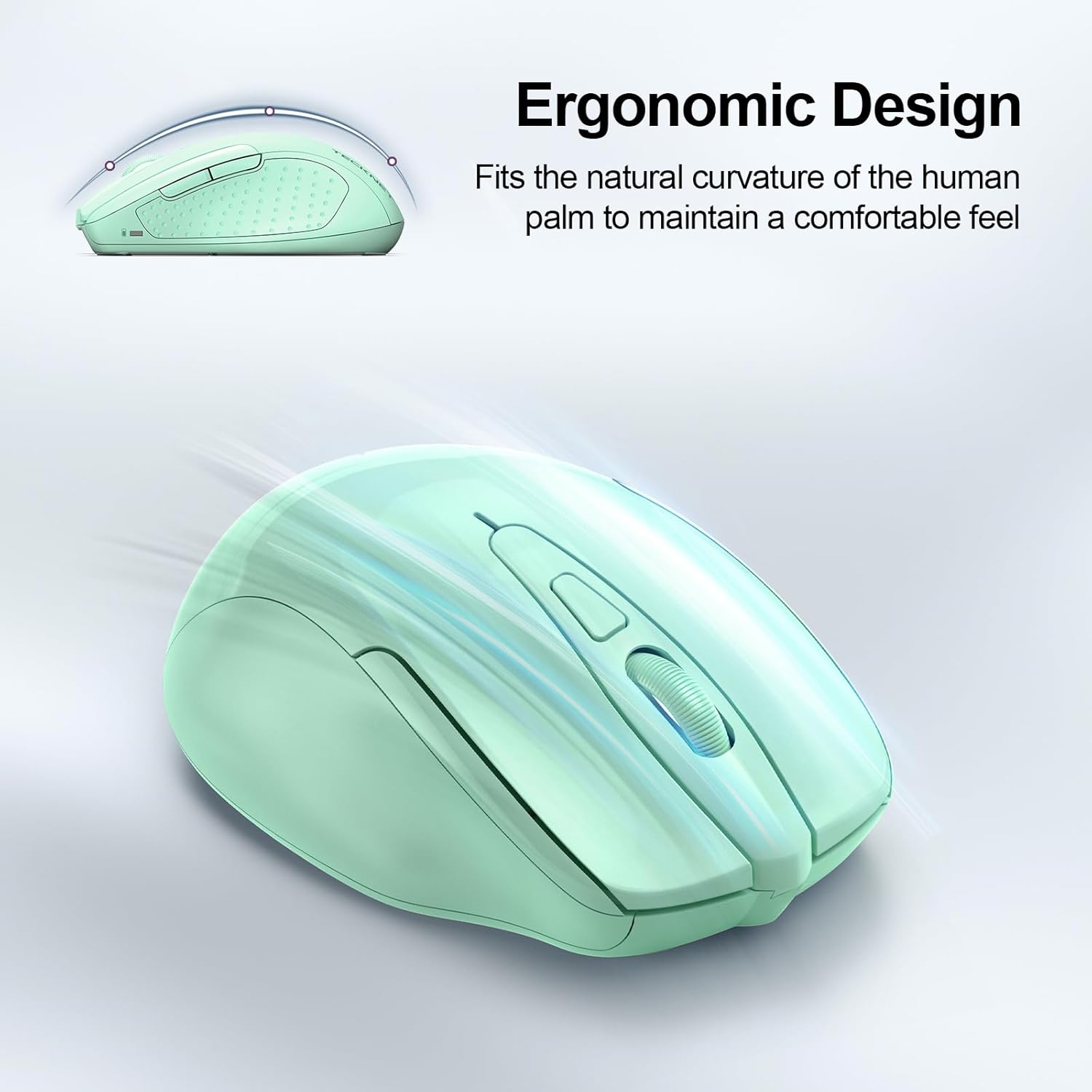
Image: A visual representation of the mouse's power states: Working, Stand-by, Auto-sleep, and how to activate it by pressing a button.
Întreţinere
- curatenie: Folosiți o lavetă moale și uscată pentru a curăța mouse-ul. Evitați utilizarea substanțelor chimice dure sau a materialelor abrazive.
- Înlocuire baterie: Replace batteries when the LED indicator shows a low battery warning (red light).
- Depozitare: When not in use for extended periods, turn off the mouse using the switch on the bottom to further conserve battery life.
Depanare
| Problemă | Soluţie |
|---|---|
| Mouse-ul nu răspunde. |
|
| Mișcarea cursorului este neregulată sau lentă. |
|
| Conexiunea Bluetooth se întrerupe frecvent. |
|
| Butoanele laterale nu funcționează pe macOS. | Side buttons are not compatible with macOS. This is a known limitation. |
Specificații
| Caracteristică | Detaliu |
|---|---|
| Model | BM307 |
| Conectivitate | 2.4G Wireless (USB-A receiver), Bluetooth 5.0/3.0 |
| Niveluri DPI | 800, 1200, 1600, 2400, 3200, 4800 (reglabil) |
| Butoane | 6 Buttons (Left/Right, Scroll Wheel, Forward/Backward, DPI Switch, Bluetooth Pairing) |
| Sursa de alimentare | 2 x baterii AAA (nu sunt incluse) |
| Caracteristici speciale | Silent Click, Ergonomic Design, Automatic Sleep Mode |
| Compatibilitate | Windows, macOS (side buttons not compatible), Chrome OS, Linux |
| Dimensiuni | 4.53 x 3.15 x 1.85 inci |
| Greutate | 3.52 uncii |
Garanție și suport
TECKNET oferă o 36 luni garanție (Registered Only) for this product. If you encounter any problems or have questions regarding the use of your TECKNET Wireless Mouse, please contact our professional customer service team for assistance.
Contact information can typically be found on the TECKNET official website sau prin intermediul platformei dvs. de achiziții.


