1. Introducere
This user manual provides comprehensive instructions for the MoreJoy Smart Projector CUBE2. It covers setup, operation, maintenance, and troubleshooting to ensure optimal performance and longevity of your device. Please read this manual thoroughly before using the projector.
2. Conținutul pachetului
La deschiderea pachetului, verificați dacă sunt incluse toate următoarele articole:
- MoreJoy Smart Projector CUBE2
- dongle TV
- Telecomanda
- Adaptor de alimentare
- Manual de utilizare (acest document)

Image: The MoreJoy Smart Projector CUBE2 shown with its included accessories, including the remote control and power cable.
3. Caracteristicile produsului
The MoreJoy Smart Projector CUBE2 is equipped with advanced features for an enhanced viewexperiență:
- 4K Projector & HDR10: Supports 4K resolution input with HDR10 for vibrant and clear images, even in well-lit environments. Features 1300 ANSI lumens brightness.
- Auto Focus & Auto 6D Keystone Correction: Built-in displacement gyroscope and sensor automatically adjust picture clarity and shape without manual intervention.
- Funcție de zoom 50%: Allows image size reduction from 100% to 50% without moving the projector.
- Display mare: Capabil să proiecteze pe un ecran de până la 500 de inci.
- Android TV Integration: Access to over 8000+ apps, including popular streaming services like Prime Video, YouTube, Disney+, and HBO Max. The TV dongle is detachable.
- WiFi6 & Dual-band (2.4G+5G): Provides faster and more stable wireless screen mirroring connections.
- Bluetooth 5.2: Bidirectional Bluetooth for easy connection to headphones, speakers, or other audio devices.
- Fully Sealed Engine: Optical core designed to prevent dust entry, reducing black spots and maintaining image quality.
- USB Presentation: Supports direct reading of PPT, XLSX, and DOCX fileprin USB.

Image: A visual comparison demonstrating the enhanced brightness and clarity of the MoreJoy projector (1080P Native, Support 4K) compared to other 720P native projectors.

Image: The projector displaying a high-quality image in a room during both daytime and nighttime conditions, highlighting its adaptability to different lighting environments.
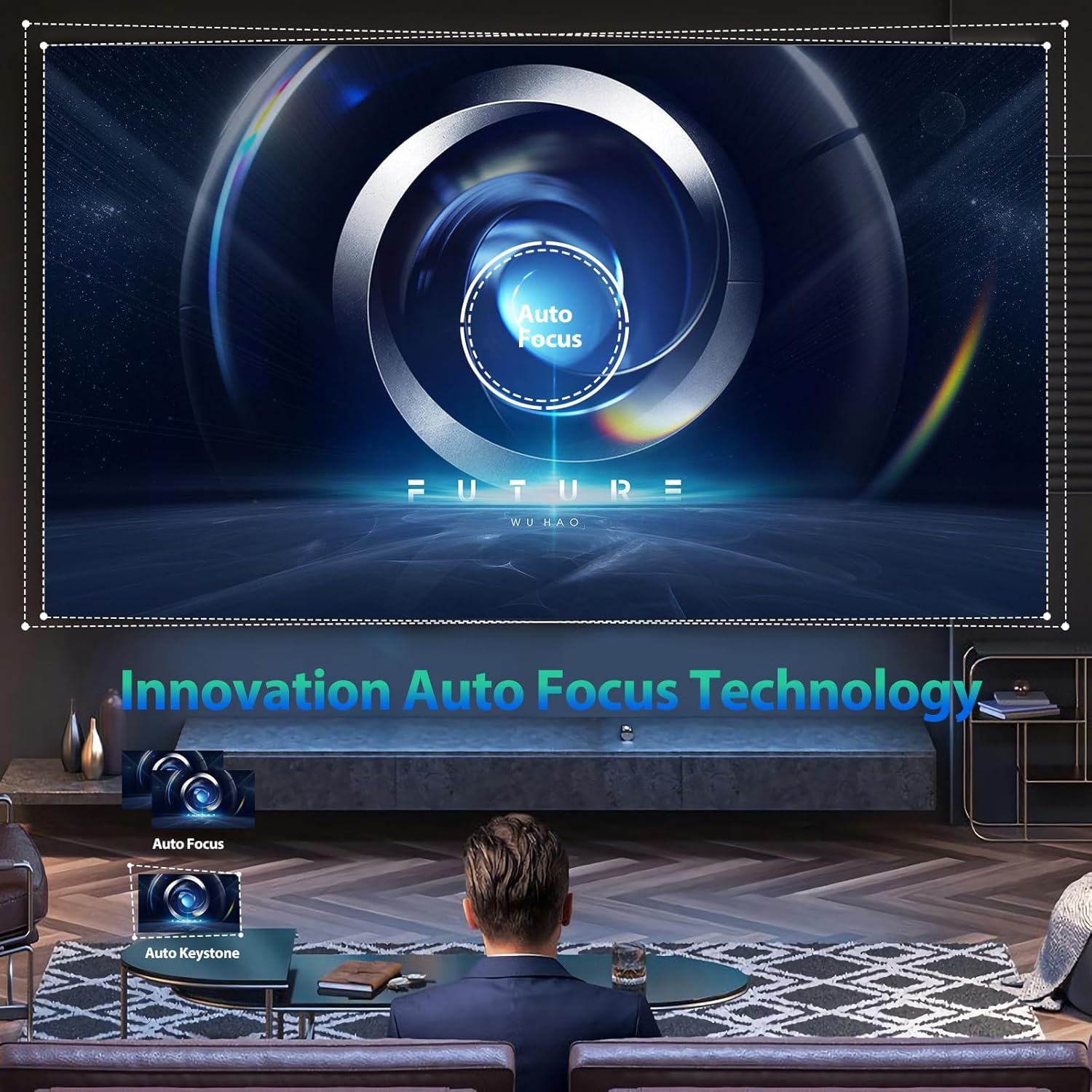
Image: An illustration of the projector's innovative auto-focus and auto-keystone correction technology, showing how it automatically adjusts the image for optimal clarity and shape.

Image: The projector demonstrating its capability to project adjustable screen sizes, ranging from 220 inches at 3.2 meters distance to 500 inches at 8 meters distance.
4. Configurare
4.1 Plasarea fizică
Place the projector on a stable, flat surface. Ensure there is adequate ventilation around the device to prevent overheating. Position the projector at a suitable distance from the projection surface (wall or screen) to achieve the desired screen size. Refer to the specifications for recommended projection distances.
4.2 Conexiune la alimentare
- Conectați adaptorul de alimentare la portul de intrare a proiectorului.
- Conectați adaptorul de alimentare la o priză electrică standard.
- Apăsați butonul de pornire de pe proiector sau telecomandă pentru a porni dispozitivul.
4.3 Reglarea focalizării și a trapezului
The CUBE2 projector features automatic focus and 6D keystone correction. Upon power-on or movement, the projector will automatically adjust the image for clarity and correct geometric distortion. Manual adjustments are generally not required.
4.4 Conexiune la rețea (Wi-Fi)
To access online content and streaming services, connect the projector to a Wi-Fi network:
- Navigați la meniul „Setări” din interfața proiectorului.
- Selectați „Rețea și internet” sau „Setări Wi-Fi”.
- Activați Wi-Fi-ul și selectați rețeaua dorită din listă.
- Enter the Wi-Fi password if prompted and confirm the connection.

Image: The projector illustrating its 2.4G and 5G dual-band WiFi screen synchronization technology, showing seamless connectivity with Android, iOS, and Windows devices.
4.5 Asociere Bluetooth
Pair Bluetooth audio devices (e.g., speakers, headphones) with the projector:
- Accesați „Setări” și selectați „Bluetooth”.
- Ensure Bluetooth is enabled on both the projector and your audio device.
- Selectați dispozitivul audio din lista de dispozitive disponibile pentru asociere.

Image: The projector's display showing the Android TV interface with a wide selection of streaming applications such as Netflix, YouTube, Prime Video, and Hulu, indicating its smart capabilities.
5. Instrucțiuni de utilizare
5.1 Conectarea dispozitivelor externe
Proiectorul acceptă diverse surse de intrare:
- HDMI: Connect gaming consoles, Blu-ray players, laptops, or other HDMI-enabled devices using an HDMI cable. Select the corresponding HDMI input from the projector's source menu.
- USB: Introduceți o unitate USB în portul USB pentru a reda fișiere media files (photos, videos, music) or view documents (PPT, XLSX, DOCX).
- Ethernet: Pentru o conexiune stabilă la internet prin cablu, conectați un cablu Ethernet la portul LAN.

Image: The projector highlighting its wide compatibility, showing connections for HDMI devices (Fire TV stick, X-BOX, Switch, PC), 5G WiFi for mobile phones (Android and iOS) and tablets, and USB for photos, videos, music, and office files.
Image: The projector demonstrating its versatility for different applications, including video yoga, competitive gaming, and business office presentations, all projected onto a large 500-inch screen.
5.2 Using Android TV
The integrated Android TV system allows you to stream content directly. Use the remote control to navigate the interface, download apps from the Google Play Store, and access your favorite movies and TV shows.
5.3 Oglindirea ecranului
To mirror your smartphone or tablet screen:
- Ensure both the projector and your mobile device are connected to the same Wi-Fi network.
- On the projector, select the "Screen Mirroring" or "Cast" option.
- Pe dispozitivul mobil, activați oglindirea ecranului (de exemplu, „Smart View„pe Android, „Screen Mirroring” pe iOS) și selectați proiectorul din lista de dispozitive disponibile.
5.4 Ajustarea setărilor
Access the "Settings" menu to customize various aspects of the projector:
- Setări imagine: Adjust brightness, contrast, color saturation, and sharpness.
- Setări de sunet: Control volume, audio output mode, and equalizer settings.
- Mod de proiecție: Change projection orientation (front, rear, ceiling front, ceiling rear).
- Limbă: Selectați limba preferată pentru interfața cu utilizatorul.
6. Întreținere
6.1 Curățare
- Obiectiv: Use a soft, lint-free cloth specifically designed for optical lenses. Gently wipe the lens in a circular motion. Do not use abrasive cleaners or excessive force.
- Exterior: Ștergeți exteriorul proiectorului cu o cârpă moale și uscată. Pentru petele persistente, ștergeți ușoramp se poate folosi o lavetă, urmată de o ștergere uscată.
- Orificii de ventilație: Periodically check and clean the ventilation ports to ensure unobstructed airflow. Use a soft brush or compressed air to remove dust.
Nota: The CUBE2 features a fully sealed optical engine, which significantly reduces dust accumulation inside the projector, minimizing the need for internal cleaning.

Image: A visual representation highlighting the benefits of the MoreJoy projector's fully sealed optical engine, which prevents light decay and the appearance of black spots, ensuring a longer lifespan compared to normal non-sealed designs.
6.2 Depozitare
Când nu este utilizat pentru perioade lungi de timp, depozitați proiectorul într-un mediu răcoros, uscat și fără praf. Folosiți ambalajul original sau o husă de protecție pentru a preveni deteriorarea.
7. Depanare
If you encounter issues with your MoreJoy Smart Projector CUBE2, refer to the following common problems and solutions:
| Problemă | Cauza posibila | Soluţie |
|---|---|---|
| Fără putere | Cablul de alimentare nu este conectat; Problemă cu priza. | Asigurați-vă că este conectat corect cablul de alimentare. Încercați o altă priză. |
| Nicio imagine | Incorrect input source; Device not connected properly. | Select the correct input source (HDMI, USB). Check cable connections. |
| Fuzzy/Blurry Image | Projector moved; Auto-focus issue. | Allow the auto-focus to recalibrate. Ensure the lens is clean. |
| Fără sunet | Volume too low; Incorrect audio output; Bluetooth not paired. | Increase volume. Check audio output settings. Re-pair Bluetooth device. |
| Probleme de conexiune Wi-Fi | Parolă incorectă; Router prea departe; Interferențe de rețea. | Verificați parola Wi-Fi. Mutați proiectorul mai aproape de router. Reporniți routerul. |
If the problem persists after trying these solutions, please contact MoreJoy customer support for assistance.
8. Specificații
| Caracteristică | Detaliu |
|---|---|
| Marca | MoreJoy |
| Model | CUBUL 2 |
| Rezoluția afișajului | 1920 x 1080 (Native), Supports 4K input |
| Luminozitate | 1300 ANSI Lumens |
| Dimensiunea proiecției | Până la 500 inci |
| Concentrează-te | Focalizare automată |
| Corecție corecție | Auto 6D Keystone Correction |
| Funcția Zoom | 50% Digital Zoom |
| Sistem de operare | Android TV |
| Conectivitate Wi-Fi | WiFi6, 2.4G + 5G Dual-band |
| Bluetooth | Bluetooth 5.2 (Bidirecțional) |
| Porturi de intrare | HDMI, USB, Ethernet |
| Caracteristici speciale | Fully Sealed Optical Engine, HDR10, USB Document Playback |
| Greutatea articolului | 7.87 lire sterline |
| Dimensiunile produsului | 500 x 500 x 500 inches (Note: This dimension seems incorrect for a projector, likely a placeholder or error in source data.) |
9. Garanție și asistență
The MoreJoy Smart Projector CUBE2 comes with a Lifetime Warranty as stated in the product features. For warranty claims, technical support, or any inquiries not covered in this manual, please contact MoreJoy customer service through the official channels provided at the point of purchase or on the MoreJoy official website-ul.
Vă rugăm să păstrați dovada achiziției în scopul garanției.


