1. Introducere
Mulțumesc pentru achizițieasing the Yifeng Wireless Keyboard. This keyboard offers versatile connectivity options, supporting both 2.4 GHz USB wireless and Bluetooth connections. It is designed for multi-device use, allowing simultaneous pairing with up to four devices and quick switching between them. Featuring a comfortable scissor-switch mechanism and an integrated stand, it enhances productivity across various platforms including Windows, iOS, and Android devices.
2. Informații de siguranță
- Nu expuneți tastatura la lichide sau temperaturi extreme.
- Avoid disassembling or attempting to repair the device yourself.
- A nu se lăsa la îndemâna copiilor.
- Utilizați numai cablul USB furnizat pentru încărcare.
3. Conținutul pachetului
Vă rugăm să verificați dacă toate articolele sunt prezente:
- Yifeng Wireless Keyboard
- Cablu de încărcare USB
- 2.4 GHz USB Receiver (may be stored in the keyboard's battery compartment)
- Manual de utilizare (acest document)
4. Configurare
4.1. 2.4 GHz USB Wireless Connection
- Locate the 2.4 GHz USB receiver. It is often stored in a dedicated slot on the keyboard.
- Conectați receptorul USB la un port USB disponibil de pe computer sau dispozitiv.
- Turn on the keyboard using the power switch (usually located on the side or back).
- The keyboard should automatically connect to your device. If not, press the dedicated 2.4GHz connection key (often labeled with a '4' or '2.4G' icon) to activate pairing mode.
4.2. Conexiune Bluetooth
- Asigurați-vă că tastatura este încărcată și pornită.
- Press and hold one of the Bluetooth channel keys (e.g., Bluetooth 1, Bluetooth 2, sau Bluetooth 3) for 3-5 seconds until the indicator light flashes, indicating pairing mode.
- On your device (tablet, smartphone, PC), go to Bluetooth settings and enable Bluetooth.
- Caută available devices. The keyboard should appear as "Yifeng Keyboard" or similar.
- Select the keyboard to pair. Follow any on-screen prompts, such as entering a pairing code.
- După asociere, indicatorul luminos va înceta să clipească și va rămâne aprins continuu timp de câteva secunde.
4.3. Multi-Device Pairing
This keyboard supports connecting up to 4 devices simultaneously: one via 2.4 GHz USB and three via Bluetooth. Follow the steps above to pair each device to a different channel (2.4GHz, Bluetooth 1, Bluetooth 2, Bluetooth 3).
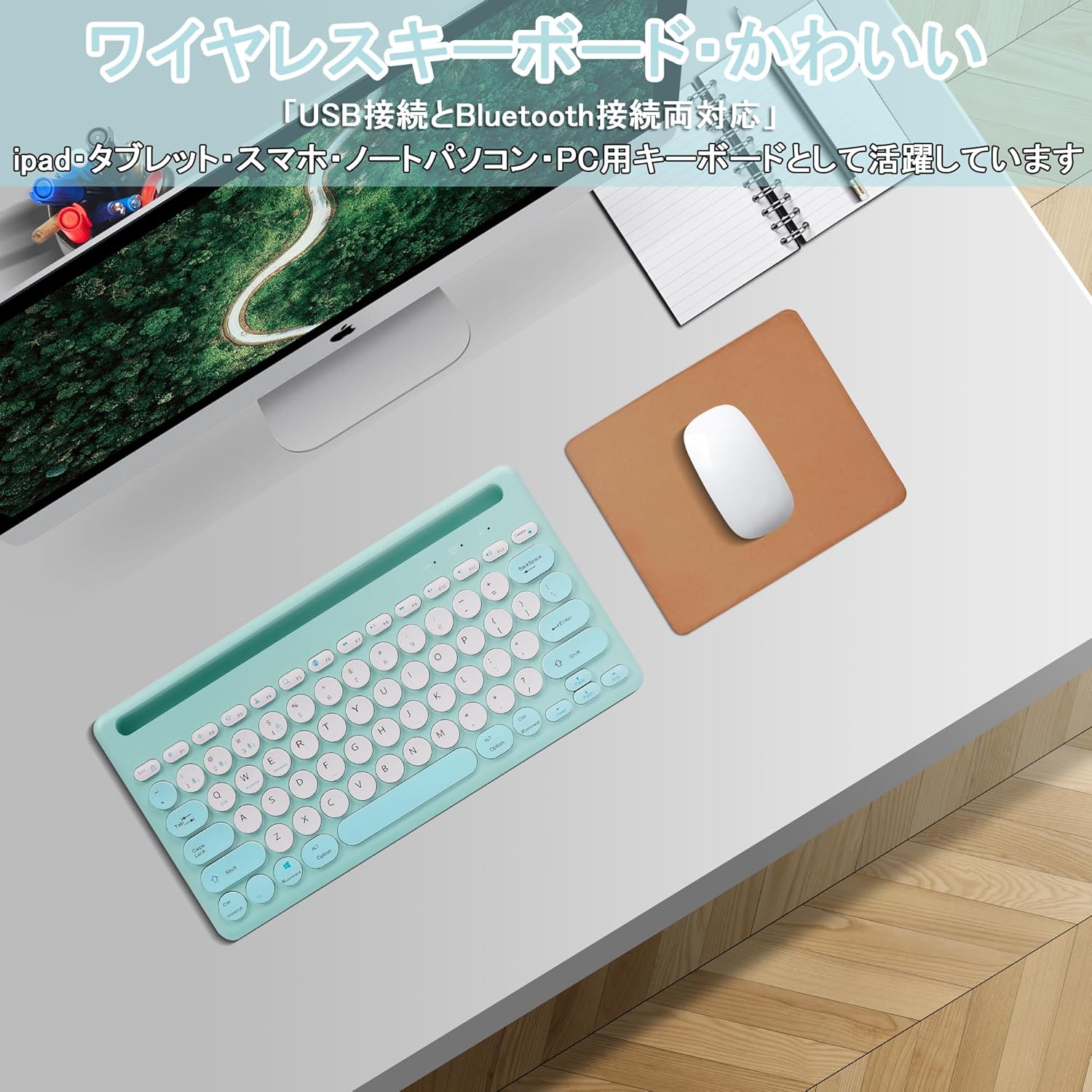
Image: The Yifeng Wireless Keyboard connected to a tablet, smartphone, and laptop, demonstrating its multi-device pairing capability.
5. Instrucțiuni de utilizare
5.1. Comutarea între dispozitivele conectate
To switch between your paired devices, simply press the corresponding connection key:
- Presa Bluetooth 1 to switch to the first Bluetooth device.
- Presa Bluetooth 2 to switch to the second Bluetooth device.
- Presa Bluetooth 3 to switch to the third Bluetooth device.
- Apăsați tasta 2.4GHz key (often labeled with a '4' or '2.4G' icon) to switch to the USB wireless device.
5.2. System Compatibility Switching
The keyboard supports Windows, iOS, and Android operating systems. Use the dedicated system keys to optimize key functions for your current device:
- Presa Fn + Q pentru iOS.
- Presa Fn + W pentru Android.
- Presa Fn + E pentru Windows.
5.3. Încărcarea tastaturii
The keyboard features a built-in rechargeable lithium-ion battery. A single full charge provides approximately 30 days of continuous use.
- Connect the included USB charging cable to the charging port on the keyboard.
- Conectați celălalt capăt al cablului USB la o sursă de alimentare USB (de exemplu, portul USB al computerului, adaptorul USB de perete).
- Indicatorul luminos de încărcare se va aprinde în timpul încărcării și se va stinge când bateria este complet încărcată.

Image: The Yifeng Wireless Keyboard connected to a power strip via its USB charging cable, indicating the rechargeable feature.
5.4. Using the Integrated Stand
The keyboard includes an integrated stand slot at the top, designed to hold your tablet or smartphone upright. This allows for comfortable viewing and typing, making it ideal for document creation, chatting, or watching media while commenting.
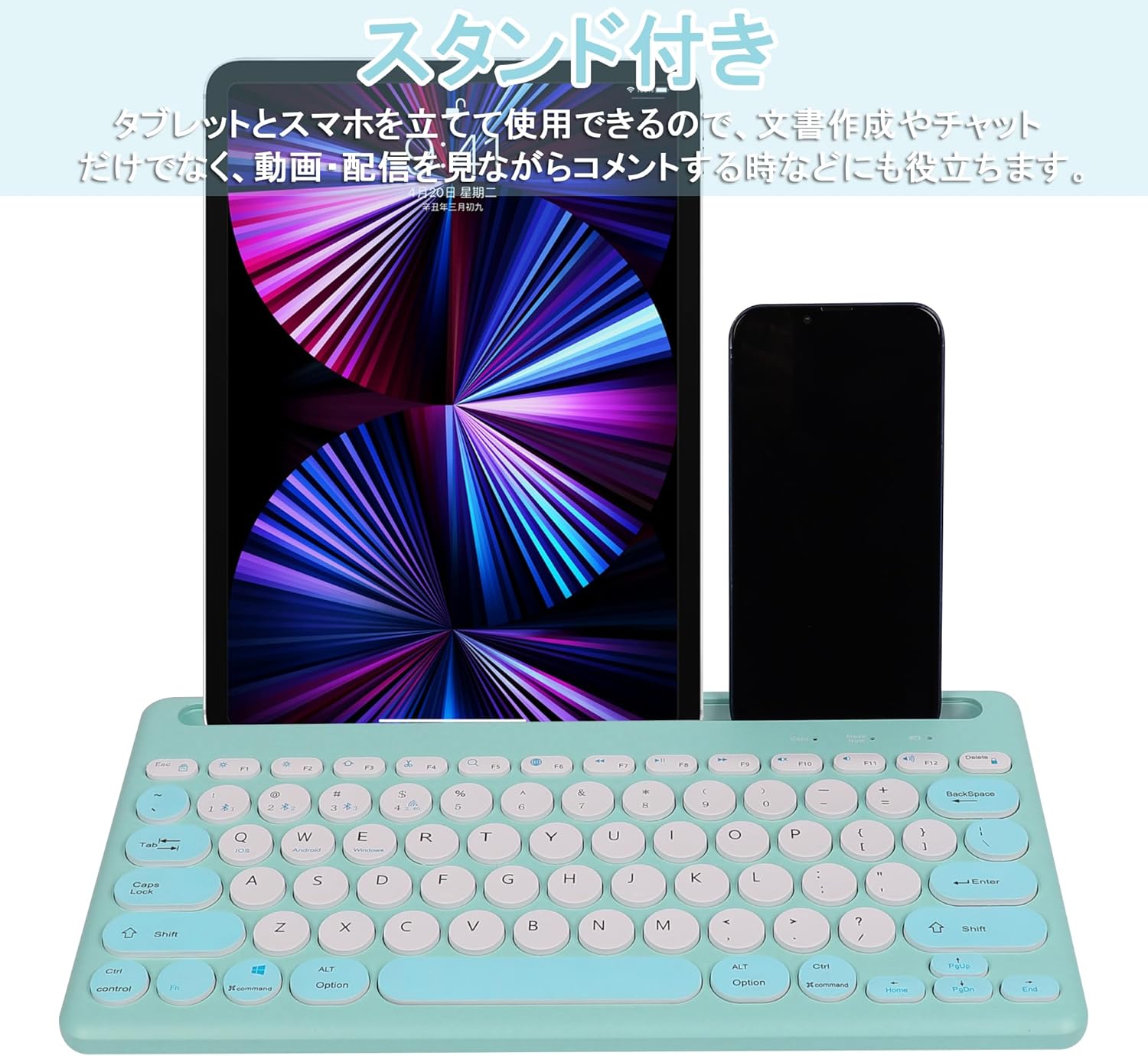
Image: The Yifeng Wireless Keyboard with a tablet and smartphone securely positioned in its integrated stand, demonstrating its utility for multi-device setups.
6. Întreținere
- Clean the keyboard regularly with a soft, dry cloth. For stubborn dirt, a slightly damp cloth can be used, ensuring no moisture enters the keyboard.
- Evitați utilizarea substanțelor chimice dure sau a agenților de curățare abrazivi.
- Store the keyboard in a cool, dry place when not in use.
- The keyboard features anti-slip pads on the back for stable use. Ensure these pads are clean and intact for optimal stability.

Image: The underside of the Yifeng Wireless Keyboard, highlighting the four anti-slip pads designed for stable placement on various surfaces.
7. Depanare
7.1. Tastatura nu se conectează
- Verificați puterea: Asigurați-vă că tastatura este pornită și are bateria suficient încărcată.
- Repara: For Bluetooth, delete the keyboard from your device's Bluetooth list and attempt to pair again. For 2.4 GHz USB, try plugging the receiver into a different USB port.
- Schimbă canale: Ensure you have selected the correct channel (Bluetooth 1/2/3 or 2.4GHz) for your device.
- Bluetooth al dispozitivului: Verify that Bluetooth is enabled on your device and that it is discoverable.
7.2. Tastele nu răspund
- Nivel baterie: Reîncărcați tastatura dacă bateria este descărcată.
- Modul sistem: Ensure the keyboard is set to the correct operating system mode (Windows, iOS, Android) using Fn + Q/W/E.
- Interferență: Mutați tastatura mai aproape de dispozitiv și departe de alte dispozitive wireless care ar putea cauza interferențe.
7.3. Probleme de încărcare
- Verificare cablu: Ensure the USB charging cable is securely connected to both the keyboard and the power source.
- Sursa de alimentare: Încercați un alt port USB sau adaptor de perete.
- Indicator luminos: If the charging indicator light does not turn on, the cable or power source may be faulty.
8. Specificații
| Marca | Yifeng |
| Numărul de model | AMWS0584A-L |
| Tehnologia de conectivitate | Bluetooth, 2.4 GHz Wireless (USB) |
| Dispozitive compatibile | Tablets, Smartphones, PCs, Laptops (Windows, iOS, Android) |
| Aspectul tastaturii | QWERTY (layout SUA) |
| Mecanism cheie | Comutator-foarfecă |
| Caracteristica specială | Rechargeable, Integrated Stand, Multi-Pairing (4 devices) |
| Tip baterie | 1 baterie litiu-ion (inclusă) |
| Durata de viață a bateriei | Approx. 30 days (per charge) |
| Dimensiuni | 33.7 x 16.7 x 2.9 cm |
| Greutate | 820 g |
| Componente incluse | Cablu USB |
9. Garanție și asistență
Acest produs vine cu un 1 ani garanție de calitate from the date of purchase. In case of initial defects or malfunctions occurring within the warranty period, we offer return or exchange services.
Should you encounter any issues or require assistance, please contact us directly through your purchase platform:
- Du-te la ta Istoricul comenzilor.
- Select the order for this product.
- Faceți clic pe Contacteaza vanzatorul.
Our support team will be happy to assist you.


