Introducere
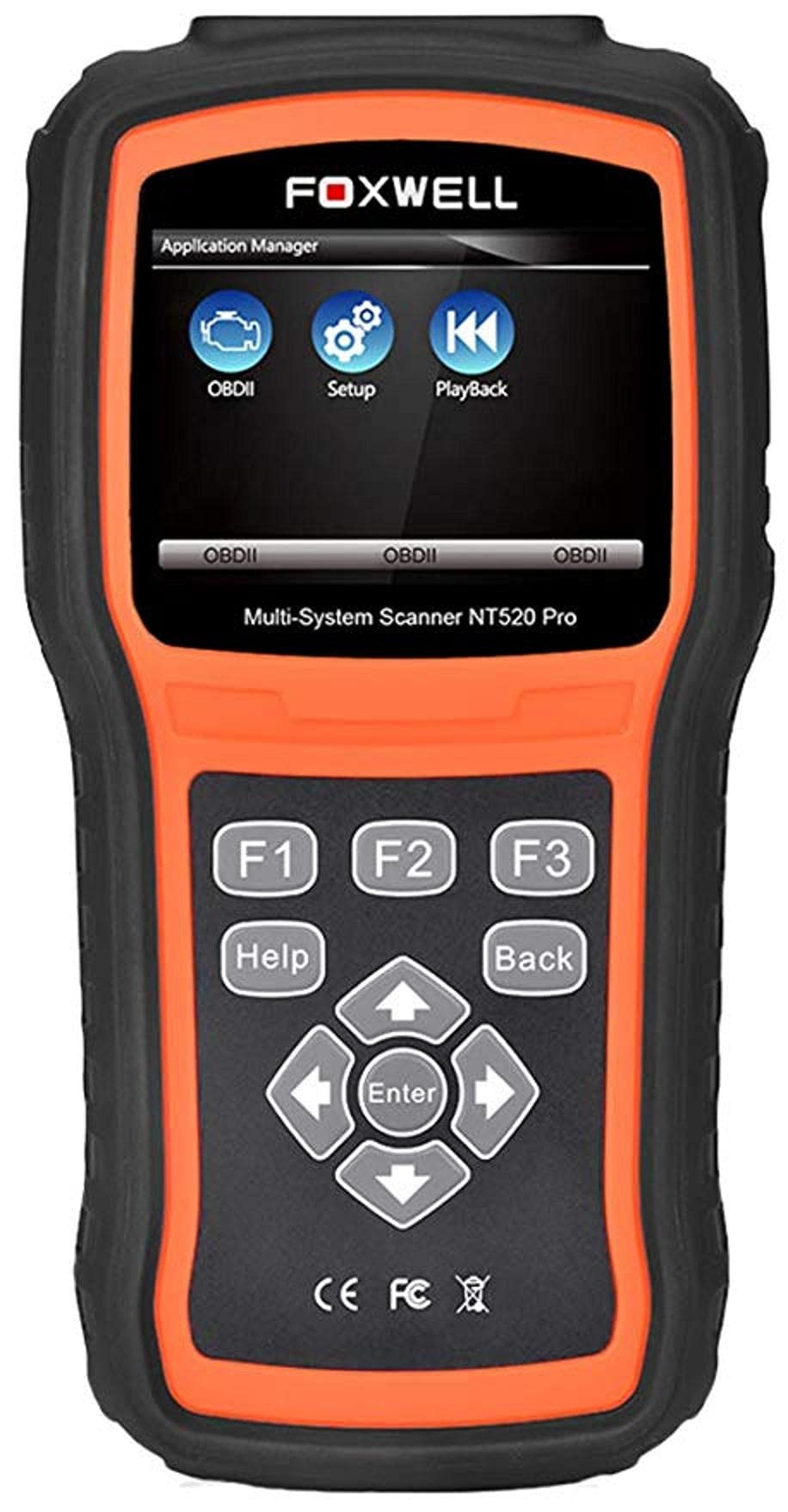
The Foxwell NT520 PRO is a professional-grade car fault diagnostic tool designed to help users identify and resolve issues in various vehicle systems. This device offers comprehensive diagnostic functions, including reading and clearing fault codes, viewing live data streams, and performing specialized tests and coding functions. It supports a wide range of car makes and models equipped with an OBD II - 16 pin connector.
1. Configurare
1.1 Conținutul pachetului
- Foxwell NT520 PRO Diagnostic Tool
- Cablu de diagnosticare OBD II
- USB Cable (for updates and data transfer)
- Manual de utilizare (acest document)
1.2 Pornirea inițială a dispozitivului
- Connect the OBD II diagnostic cable to the NT520 PRO device.
- Locate the vehicle's OBD II port, typically found under the dashboard on the driver's side.
- Plug the diagnostic cable into the vehicle's OBD II port. The device should power on automatically. If not, ensure the vehicle's ignition is in the ON position.
1.3 Actualizări de software
The NT520 PRO offers free updates for one selected car brand. Additional brands (up to five) can be added via internet for a fee. Regular software updates ensure compatibility with newer vehicle models and provide access to the latest diagnostic features.
- Conectați dispozitivul la un computer utilizând cablul USB furnizat.
- Install the Foxwell update client software on your computer (refer to the official Foxwell website for download).
- Follow the on-screen instructions in the update client to register your device and perform software updates.
2. Instrucțiuni de utilizare
The NT520 PRO features a color screen for easy navigation and data display.
2.1 Navigare de bază
- Folosește tastele săgeată pentru a naviga prin meniuri.
- Press the 'Enter' or 'OK' button to select an option.
- Press the 'Back' or 'Exit' button to return to the previous screen.
2.2 Funcții de diagnosticare
The device supports diagnostics for most available control units in a vehicle, including:
- Modulul de control al motorului (ECM)
- Modulul de control al transmisiei (TCM)
- Sistem de frânare antiblocare (ABS)
- Sistem Airbag
- Modul de control al caroseriei (BCM)
2.2.1 Citirea și ștergerea codurilor de eroare
- From the main menu, select 'Diagnostics' or 'Scan'.
- Choose the vehicle make and model.
- Select the desired control unit (e.g., Engine, ABS).
- Selectați „Citiți coduri” pentru a view current and stored Diagnostic Trouble Codes (DTCs).
- Select 'Clear Codes' to erase the detected fault codes. This will also turn off the Malfunction Indicator Lamp (MIL) if the fault is no longer present.
2.2.2 Flux de date în direct
View real-time data from various sensors and components.
- After selecting the control unit, choose 'Live Data'.
- Select the parameters you wish to monitor.
- Datele vor fi afișate în format numeric sau grafic.
2.2.3 Informații ECU
Access information about the Electronic Control Unit.
- After selecting the control unit, choose 'ECU Information'.
- View details such as VIN, calibration ID, and software version.
2.2.4 Component Testing and Coding
The device can perform tests on various car parts and supports programming and coding for different components.
- Component Tests: Select 'Active Test' or 'Component Test' from the menu to activate specific components and check their functionality.
- Programming and Coding: This function allows for programming and coding of various parts. Use with caution and only if you are familiar with the specific vehicle's requirements.
- Key Coding: For certain models, the device supports key coding functionality. Refer to your vehicle's service manual for specific procedures.
3. Întreținere
3.1 Îngrijirea dispozitivului
- Păstrați dispozitivul curat și ferit de praf și umezeală.
- Păstrați dispozitivul într-un loc răcoros și uscat atunci când nu este utilizat.
- Evitați să scăpați dispozitivul sau să îl supuneți la impacturi puternice.
- Do not use harsh chemicals for cleaning; a soft, damp pânza este suficientă.
3.2 Întreținerea software-ului
Regularly check for and install software updates to ensure optimal performance and compatibility with the latest vehicle models. Refer to section 1.3 for update instructions.
4. Depanare
4.1 Dispozitivul nu pornește
- Ensure the OBD II cable is securely connected to both the device and the vehicle's OBD II port.
- Verificați dacă aprinderea vehiculului este în poziția ON.
- Check the vehicle's fuse for the OBD II port (consult your vehicle's owner's manual).
4.2 Eroare de comunicare
- Confirm the vehicle supports the OBD II protocol (most vehicles manufactured after 1996 do).
- Asigurați-vă că cablul de diagnosticare nu este deteriorat.
- Încearcă să te conectezi la un alt vehicul pentru a exclude o problemă specifică vehiculului.
- Actualizați software-ul dispozitivului la cea mai recentă versiune.
4.3 Indicator de defecțiune Lamp (MIL) Remains On
After clearing fault codes, if the MIL (Check Engine Light) remains illuminated, it indicates that the underlying fault has not been resolved or a new fault has occurred. Address the root cause of the fault before attempting to clear codes again.
5. Specificații
| Caracteristică | Detaliu |
|---|---|
| Producător | Foxwell |
| Marca | Foxwell |
| Numărul de model | 111111111111 |
| Numărul piesei producătorului | 111111111111 |
| Sursa de alimentare | Electric cu fir |
| Greutatea articolului | 818 g |
| Dimensiuni de livrare | 21.2 x 17.8 x 8.2 cm |
| ASIN | B092326PXZ |
| Prima dată disponibilă | 8 aprilie 2021 |
6. Garanție și asistență
6.1 Garanția produsului
Please refer to the warranty card included with your product or visit the official Foxwell website for detailed warranty information. Warranty terms typically cover manufacturing defects for a specified period from the date of purchase.
6.2 Suport tehnic
For technical assistance, software updates, or troubleshooting not covered in this manual, please contact Foxwell customer support through their official website or authorized service centers. Have your product model and serial number ready when contacting support.


