1. Introducere
The Zenec Z-E1010 is an advanced 10.1-inch infotainment system designed for vehicle integration. This system provides a wide range of features including digital radio (DAB+), FM radio, Bluetooth connectivity, USB media playback, and smartphone integration capabilities. It is part of the ZENEC E>GO CORE series, offering a large display and intuitive operation for an enhanced in-car experience. This manual provides essential information for the proper installation, operation, and maintenance of your Z-E1010 unit.
2. Informații de siguranță
- Citiți cu atenție toate instrucțiunile înainte de instalare și utilizare.
- Installation should be performed by a qualified professional to prevent damage to the unit or vehicle.
- Nu utilizați dispozitivul într-un mod care vă distrage atenția de la condus. Prioritizați întotdeauna siguranța rutieră.
- Evitați expunerea unității la temperaturi extreme, la lumina directă a soarelui pentru perioade lungi de timp sau la umiditate excesivă.
- Use only approved accessories and parts with the Z-E1010.
3. Conținutul pachetului
Verificați dacă toate articolele sunt prezente în colet:
- Zenec Z-E1010 Infotainment Unit
- Cablajul principal
- USB Extension Cables (2x)
- Antena GPS
- Microfon
- Manual de utilizare (acest document)
- Note: Vehicle-specific mounting kits and DAB+ antenna are optional and sold separately.
4. Configurare și instalare
The Z-E1010 is designed for integration into specific vehicle models using dedicated installation kits. These kits typically include mounting frames and necessary components for vehicle connection.
4.1. Verificări înainte de instalare
- Asigurați-vă că contactul vehiculului este oprit și bateria este deconectată înainte de a începe instalarea.
- Confirm compatibility with your vehicle model and that you have the correct vehicle-specific mounting kit.
4.2. Conexiuni de cablare
Connect the main wiring harness to the vehicle's electrical system. The Z-E1010 features an integrated CAN BUS adapter for automatic vehicle model detection and simplified connection. Connect the GPS antenna, microphone, and USB extension cables to the designated ports on the unit.
4.3. Montarea unității
Follow the instructions provided with your vehicle-specific mounting kit to securely install the Z-E1010 into the dashboard. Ensure all cables are routed safely and do not interfere with vehicle operation.
5. Instrucțiuni de utilizare
The Zenec Z-E1010 features a 10.1-inch capacitive touchscreen for intuitive control. The main interface provides access to various functions via distinct icons.
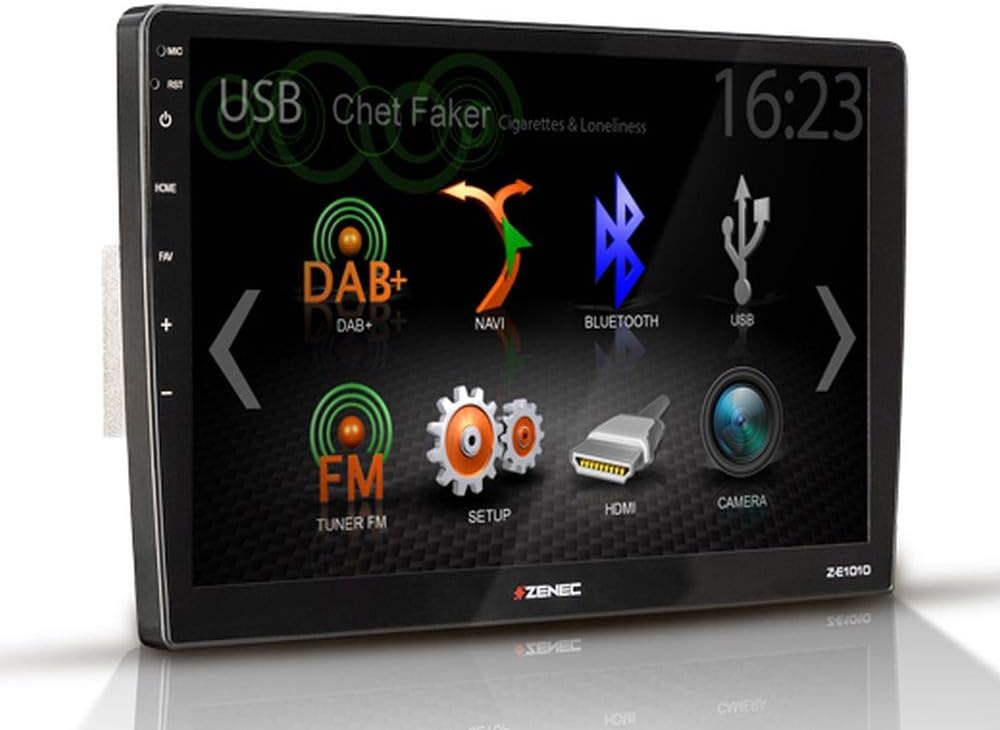
Figura 5.1: Zenec Z-E1010 Infotainment System main screen. This image illustrates the primary user interface of the Zenec Z-E1010 Infotainment System. The screen shows various selectable icons for core functions such as USB media playback, DAB+ digital radio, navigation, Bluetooth connectivity, FM radio, system setup, HDMI input, and camera view. The current time '16:23' is visible in the top right corner, and 'Chet Faker - Cigarettes & Loneliness' is displayed as the currently playing track via USB.
5.1. Funcționare generală
- Pornire/Oprire: Press and hold the power button (usually on the left side) to turn the unit on or off. A short press may mute audio or switch modes.
- Touch screen: Navigate through menus and select functions by tapping the corresponding icons on the capacitive touchscreen.
- Controlul volumului: Use the physical volume buttons or on-screen controls to adjust audio levels.
5.2. Caracteristici audio
- Tuner DAB+: Select the 'DAB+' icon to access digital radio. Features include service following, MOT Slideshow, DLS (Dynamic Label Segment), and DLS text. The tuner provides clear digital radio reception.
- Tuner FM: Select the 'FM Tuner' icon for analog radio. It supports RDS (Radio Data System) functions.
- Redare USB: Connect USB storage devices to the two USB 2.0 ports for audio and video file redare.
- Egalizator: The unit includes a 3-band equalizer for audio customization.
5.3. Conectivitate
- Bluetooth 4.1: Access the 'Bluetooth' function for hands-free calling with good voice quality and A2DP music streaming. Pair your smartphone via the Bluetooth settings menu.
- SmartLink: This feature allows direct connection for Apple CarPlay and Android Auto, making smartphone applications available on the infotainment screen.
- WebLink 2.0: Extends integration of online content such as YouTube, ShoutCast, and various audio/video players, controllable via the Z-E1010.
5.4. Navigare
The Z-E1010 can be upgraded to a fully equipped GPS receiver with the optional Z-EMAP-CORE navigation package. Once installed, select the 'NAVI' icon to access navigation functions.
5.5. RealDash Application
The RealDash application provides a virtual dashboard display. This feature requires an optional OBDII dongle to connect to your vehicle's diagnostic port and display various vehicle data on the Z-E1010 screen.
5.6. System Settings ('SETUP')
Access the 'SETUP' menu to configure various system parameters, including audio settings, display preferences, Bluetooth pairing, and general device settings.
5.7. Funcția camerei
Dacă este compatibilă o parte spateview camera is connected, select the 'CAMERA' icon to view the camera feed. This function is typically activated automatically when the vehicle is put into reverse gear.
6. Întreținere
- Curățarea ecranului: Folosiți o lavetă moale, fără scame, pentru a șterge ușor ecranul tactil. Pentru petele persistente, ștergeți ușor.ampClătiți laveta cu apă sau cu o soluție de curățare a ecranului. Evitați substanțele chimice dure sau materialele abrazive.
- Curatenie generala: Păstrați unitatea curată de praf și resturi. Folosiți o perie moale sau aer comprimat pentru a curăța crăpăturile.
- Actualizări de software: Periodically check the Zenec official website-ul pentru actualizări de software disponibile, pentru a asigura performanțe optime și acces la funcții noi.
7. Depanare
This section addresses common issues you might encounter with your Z-E1010 unit.
- Fără putere: Check all power connections and vehicle fuses. Ensure the ignition is on.
- Fără audio: Verificați setările de volum, verificați conexiunile difuzoarelor și asigurați-vă că este selectată sursa audio corectă.
- Probleme de asociere Bluetooth: Ensure Bluetooth is enabled on both the Z-E1010 and your smartphone. Delete previous pairings and attempt to pair again.
- Ecranul tactil nu răspunde: Try restarting the unit. If the issue persists, a factory reset might be necessary (refer to the 'SETUP' menu).
- DAB+ Reception Poor: Ensure the DAB+ antenna is correctly installed and positioned. Check for signal strength in your area.
If you experience persistent issues not covered here, please contact Zenec customer support or a qualified service technician.
8. Specificații
| Caracteristică | Caietul de sarcini |
|---|---|
| Marca | zenec |
| Numărul de model | Z-E1010 |
| Dimensiunea ecranului | 10.1 inchi (25.7 cm) |
| Rezoluția ecranului | 1024 x 600 pixeli |
| Tip de afișare | Ecran tactil capacitiv |
| Conectivitate | USB (2x), Bluetooth 4.1 |
| Caracteristici speciale | DAB+, RDS, SmartLink (Apple CarPlay, Android Auto), WebLink 2.0, RealDash App, Integrated CAN BUS Adapter |
| Dispozitive compatibile | Smartphone-uri |
| Mod ieșire audio | Stereo |
| Configurare sunet surround | 4.0 |
| Total porturi HDMI | 1 |
| Putere de ieșire | 4 x 50 W |
9. Garanție și asistență
For detailed warranty information, please refer to the warranty card included with your product or visit the official Zenec website. For technical support, troubleshooting assistance beyond this manual, or inquiries about spare parts, please contact your authorized Zenec dealer or Zenec customer service directly. Keep your proof of purchase for warranty claims.


