1. Introducere
This manual provides essential information for the safe and efficient use of your Canon PIXUS MG7730 Black Inkjet Multifunction Printer. Please read this manual thoroughly before using the printer and keep it for future reference. The PIXUS MG7730 is designed for high-quality photo and document printing, copying, and scanning, featuring advanced connectivity and user-friendly operation.
2. Produs terminatview
The Canon PIXUS MG7730 is a versatile multifunction printer equipped with a 6-color hybrid ink system, ensuring vibrant photos and crisp text. It offers seamless wireless connectivity and intuitive controls for a streamlined user experience.
Caracteristici cheie:
- 6-Color Hybrid Ink System: Utilizes both dye-based and pigment-based inks for superior photo quality and sharp black text.
- Conectivitate wireless: Supports Wi-Fi (802.11n) and NFC for easy printing from various devices.
- Panou tactil intuitiv: Features a 3.5-inch LCD touch screen with an intelligent touch system for simple navigation.
- Imprimare duplex automată: Saves paper by automatically printing on both sides of the page.
- CD/DVD Label Printing: Print directly onto compatible CD/DVD discs.
- PIXUS Cloud Link: Print from and scan to cloud services like Instagram, Facebook, and Dropbox.
- Tăvi duble pentru hârtie: Front 2-stage cassette paper feeding allows for simultaneous loading of different paper types (e.g., photo paper and plain paper).

Figura 2.1: Față view of the Canon PIXUS MG7730 printer.

Figure 2.2: The Canon PIXUS MG7730 printer integrated into a modern home office environment.

Figure 2.3: Close-up of the 3.5-inch LCD touch panel display for intuitive operation.
3. Configurare
Follow these steps to set up your Canon PIXUS MG7730 printer for the first time.
3.1 Despachetarea și plasarea
- Scoateți imprimanta din ambalaj și îndepărtați toate benzile și materialele de protecție.
- Place the printer on a stable, level surface with adequate space around it for ventilation and operation.
3.2 Conexiune la alimentare
- Conectați cablul de alimentare la imprimantă și apoi la o priză de perete.
- Apăsați butonul de pornire pentru a porni imprimanta.
3.3 Instalarea cartușului de cerneală
The PIXUS MG7730 uses BCI-371 and BCI-370 series ink cartridges.
- Open the printer's top cover to access the ink cartridge slots.
- Unpack each ink cartridge (BCI-371XL BK, BCI-371XL C, BCI-371XL M, BCI-371XL Y, BCI-371XL GY, BCI-370XL PGBK).
- Insert each cartridge into its corresponding slot until it clicks into place. Ensure all cartridges are correctly seated.
- Închideți capacul superior.

Figure 3.1: Proper installation of BCI-371 and BCI-370 series ink cartridges.
Relevant Ink Cartridge Links:BCI-370XL (PGBK),BCI-371XL (BK),BCI-371XL (M),BCI-371XL (GY),BCI-371XL (Y),BCI-371XL (C)
3.4 Încărcarea hârtiei
The printer features front 2-stage paper feeding. You can load different paper types simultaneously.
- Pull out the upper paper cassette for photo paper or the lower cassette for plain paper.
- Load the paper with the print side facing down. Adjust the paper guides to fit the paper size.
- Push the paper cassette back into the printer.

Figure 3.2: Demonstrating the front 2-stage paper feeding system for loading different paper types.
3.5 Software and Network Connection
- Install the printer drivers and software from the provided CD-ROM or Canon's official website-ul.
- Follow the on-screen instructions to connect the printer to your Wi-Fi network.
- For NFC-enabled devices, touch your smartphone to the NFC mark on the printer to establish a direct connection for printing.
4. Instrucțiuni de utilizare
This section covers the basic operations of your PIXUS MG7730 printer.
4.1 Basic Printing (Documents and Photos)
- Asigurați-vă că imprimanta este pornită și conectată la dispozitiv.
- Load the appropriate paper into the paper tray.
- From your computer or smart device, open the document or photo you wish to print.
- Select "Print" from the application's menu. Adjust print settings (e.g., paper size, print quality, duplex printing) as needed.
- Faceți clic pe „Imprimare” pentru a începe procesul de imprimare.

Figure 4.1: The printer actively printing a photo from the front paper tray.
4.2 Copiere
- Place the document face down on the scanner glass or face up in the Automatic Document Feeder (if available).
- On the printer's touch panel, select "Copy".
- Adjust settings such as number of copies, paper type, and copy quality.
- Press the "Start" button (Color or Black) to begin copying.
4.3 Scanare
- Așezați documentul pe geamul scanerului.
- On the printer's touch panel, select "Scan".
- Choose the destination for the scanned file (e.g., computer, cloud service).
- Adjust scan settings (e.g., resolution, color mode) and press "Start".
4.4 CD/DVD Label Printing
- Open the disc tray cover on the printer.
- Place a printable CD/DVD onto the disc tray, ensuring it is correctly aligned.
- Insert the disc tray into the printer's disc printing slot.
- Use the Canon software on your computer to design and print the label.

Figure 4.2: The printer performing CD/DVD label printing with a disc in the tray.
4.5 Smartphone/Tablet Printing
The PIXUS MG7730 supports printing directly from smartphones and tablets via Wi-Fi or NFC.
- Canon PRINT Inkjet/SELPHY App: Download and install the app on your smart device. Connect to the same Wi-Fi network as your printer to print photos and documents.
- NFC Printing: For NFC-enabled Android devices, simply touch the device to the NFC mark on the printer to initiate printing.
- PIXUS Cloud Link: Access and print photos from online services like Instagram directly from the printer's touch panel or via the app.
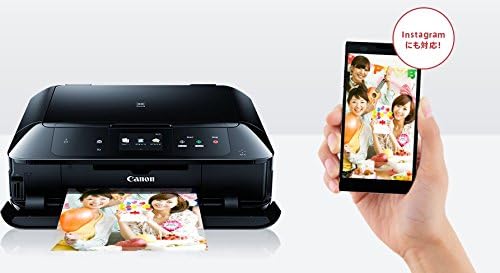
Figure 4.3: Printing photos wirelessly from a smartphone, highlighting Instagram compatibility.

Figure 4.4: Visual representation of PIXUS Cloud Link connectivity with various online services.
5. Întreținere
Întreținerea regulată asigură performanța optimă și durata de viață a imprimantei dumneavoastră.
5.1 Înlocuirea cartușului de cerneală
When an ink cartridge runs low or is empty, a message will appear on the LCD screen. Replace cartridges as follows:
- Ensure the printer is on. Open the top cover.
- Press the tab on the empty cartridge to release it, then lift it out.
- Unpack a new genuine Canon BCI-371 or BCI-370 series ink cartridge.
- Insert the new cartridge into the correct slot and push down until it clicks.
- Închideți capacul superior.
5.2 Curățarea capului de imprimare
If print quality declines (e.g., streaks, faded colors), perform a print head cleaning:
- From the printer's touch panel, navigate to "Setup" > "Maintenance" > "Cleaning".
- Follow the on-screen prompts to perform a standard or deep cleaning.
- Print a nozzle check pattern to verify improvement.
5.3 Curățare generală
- Ștergeți exteriorul imprimantei cu o lavetă moale șiamp, cârpă fără scame.
- Clean the scanner glass regularly with a glass cleaner and a soft cloth to prevent dust and smudges from affecting scan quality.
- Periodically clean the paper feed rollers using the maintenance option in the printer's menu to prevent paper jams.
6. Depanare
This section addresses common issues you might encounter with your PIXUS MG7730 printer.
6.1 Imprimanta nu răspunde
- Verificați dacă imprimanta este pornită.
- Verificați dacă cablul de alimentare este bine conectat.
- Ensure the printer is properly connected to your computer or network (Wi-Fi status light should be on).
- Restart both the printer and your computer/router.
6.2 Calitate slabă a imprimării
- Verificați nivelurile de cerneală și înlocuiți orice cartușe goale sau cu nivel scăzut.
- Efectuați o curățare a capului de imprimare și o verificare a duzelor (consultați Secțiunea 5.2).
- Ensure you are using genuine Canon ink cartridges and appropriate paper types for your print settings.
- Align the print head if print quality issues persist.
6.3 Blocaje de hârtie
- Opriți imprimanta și deconectați cablul de alimentare.
- Carefully open all covers and remove any jammed paper, pulling gently to avoid tearing.
- Check both front and rear paper trays, as well as the internal paper path.
- Asigurați-vă că hârtia este încărcată corect și nu este umplută excesiv.
- Închideți toate capacele, conectați cablul de alimentare și porniți imprimanta.
6.4 Probleme de conectivitate la rețea
- Verificați dacă routerul Wi-Fi funcționează corect.
- Asigurați-vă că imprimanta se află în raza de acțiune a routerului Wi-Fi.
- Re-enter your Wi-Fi password on the printer's touch panel.
- If using a direct connection, ensure your smart device's Wi-Fi is enabled and connected to the printer's direct connection network.
7. Specificații
| Caracteristică | Caietul de sarcini |
|---|---|
| Numele modelului | MG7730 |
| Marca | Canon |
| Dimensiuni produs (D x L x H) | 37 x 43.5 x 14.8 cm |
| Greutatea articolului | 9.32 kilograme |
| Culoare | Negru |
| Ieșire imprimantă | Culoare |
| Tehnologia de imprimare | Inkjet (Photo Print, Document Print, Copy, Scan) |
| Rezoluție maximă de imprimare (color) | 9600 x 2400 dpi |
| Viteză maximă de imprimare (color) | 10 pagini/min |
| Viteză maximă de imprimare (monocrom) | 15 pagini/min |
| Tip scaner | Fotografie |
| Capacitate maximă de coli | 125 de coli |
| Dimensiunea foii | A4, Hagaki (Postcard) |
| Imprimare duplex | Da (Automat) |
| Tehnologia de conectivitate | NFC, WiFi |
| Tip fără fir | 802.11n |
| Dispozitive compatibile | Smartphone, Tabletă |
| Dimensiunea ecranului în picioare | 3.5 inci |
| Caracteristici speciale | Wireless LAN (Wi-Fi), Memory card printing, Disc label printing, Wired LAN, LCD monitor, Automatic duplex printing, Smartphone compatible, Wi-Fi Direct, 2-stage paper tray |
| Întrerupt de producător | Nu |
8. Garanție și asistență
Your Canon PIXUS MG7730 printer comes with a standard manufacturer's warranty. For detailed information regarding warranty terms, coverage, and duration, please refer to the warranty card included with your product or visit the official Canon website pentru regiunea dvs.
For technical support, driver downloads, and additional resources, please visit the Canon support website or contact Canon customer service. Keep your product model number (MG7730) and serial number handy when seeking support.
Asistență Canon Website: global.canon/en/support/


