1. Introdução
Thank you for choosing the LG 34 Inch UltraWide WQHD Curved Monitor. This manual provides essential information for the safe and efficient use of your new monitor. Please read it thoroughly before operating the device and keep it for future reference.
Conteúdo da embalagem
- LG 34 Inch UltraWide Curved Monitor
- Suporte para monitor (base e braço)
- Cabo de energia
- Cabo HDMI
- Cabo DisplayPort
- Cabo USB-C
- Manual do usuário e cartão de garantia
2. Principais características
- 34-inch WQHD UltraWide Curved Display: Expansive 21:9 screen (3440 x 1440) for enhanced productivity and immersive viewindo.
- HDR Display with 99% sRGB: Delivers vibrant, natural colors and distinct image layers, supporting HDR brightness performance.
- Alta taxa de atualização de 120Hz: Ensures fluid scrolling and dynamic content for a comfortable visual experience.
- 5ms (GTG) Response Time: Provides quick pixel response for smooth motion.
- LG Switch for Multitasking & Eye Care: Enables quick split-screen functionality, customizable layouts, and Reader Mode to reduce eye strain.
- Suporte ajustável: Supports height, tilt, and swivel adjustments for optimal viewângulos de inclinação.
- Alto-falantes embutidos: Integrated audio for convenience.
- Múltiplas opções de conectividade: Includes DisplayPort and HDMI inputs.
3. Configuração
3.1 Montagem do suporte
Carefully remove the monitor and stand components from the packaging. Follow the instructions below to attach the stand to the monitor.
- Coloque o monitor com a tela virada para baixo sobre uma superfície macia e limpa para evitar arranhões.
- Fixe o suporte na parte traseira do monitor. Certifique-se de que ele se encaixe firmemente no lugar.
- Attach the stand base to the bottom of the stand neck. Tighten the screw(s) firmly to secure the base.
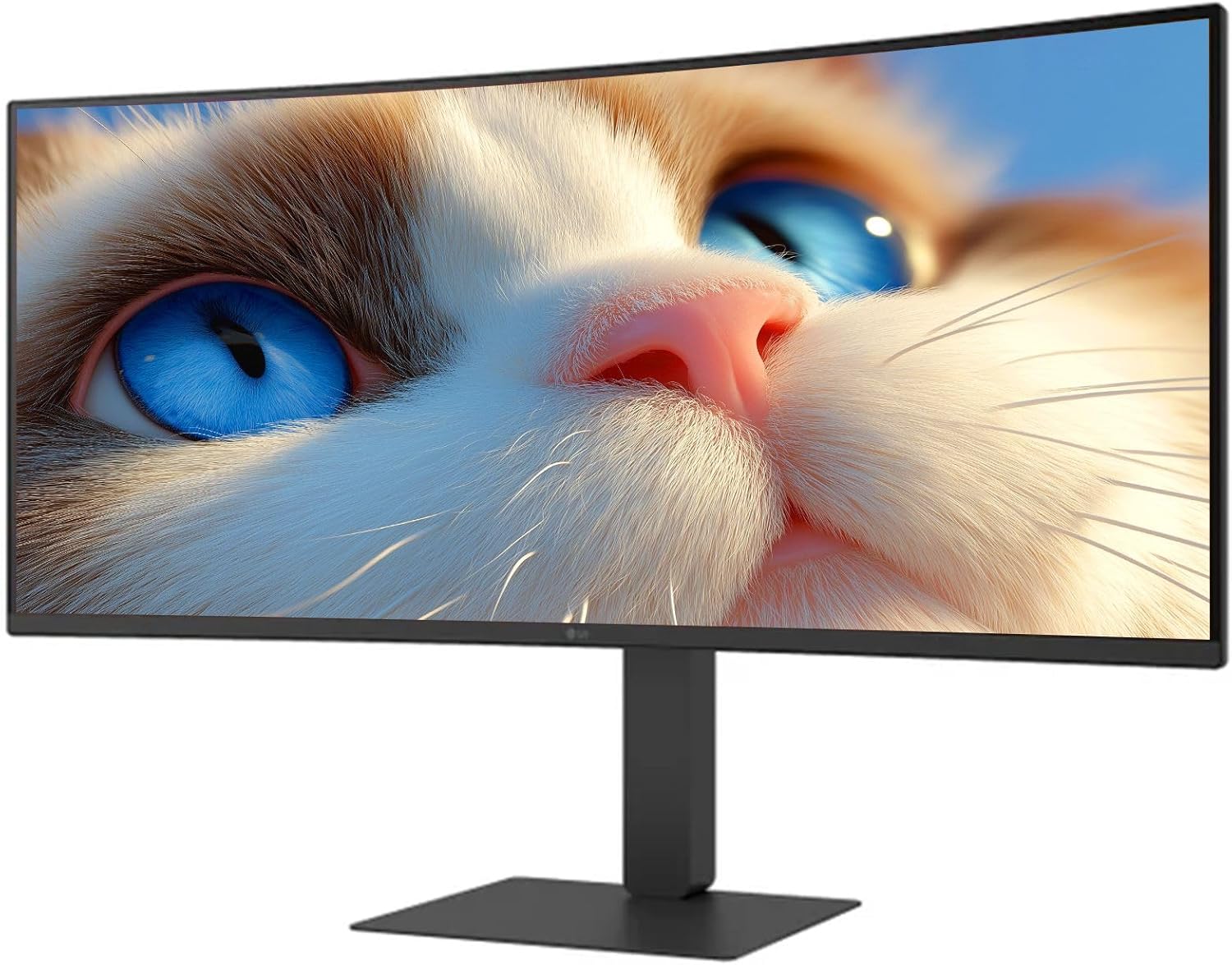
Figura 1: Frente view of the LG 34 Inch UltraWide Curved Monitor with stand.

Figura 2: Lateral view of the LG 34 Inch UltraWide Curved Monitor with stand.
3.2 Conectando o Monitor
Conecte o monitor ao seu computador ou outros dispositivos usando os cabos apropriados.
- Conecte o cabo de alimentação à entrada de energia do monitor e, em seguida, a uma tomada elétrica.
- For video input, connect either an HDMI cable or a DisplayPort cable from your computer's graphics card to the corresponding port on the monitor.
- If your computer supports USB-C, you can use the provided USB-C cable for video, audio, and data transfer.

Figura 3: Traseira view of the monitor showing available ports for connectivity.
4. Operando o monitor
4.1 Ligar/Desligar
Press the power button, usually located on the bottom center of the monitor, to turn the monitor on or off. The power indicator light will illuminate when the monitor is on.
4.2 Menu de exibição na tela (OSD)
The OSD menu allows you to adjust various monitor settings. Use the joystick button (typically located on the bottom center) to navigate the menu.
- Modo de imagem: Select from various preset modes (e.g., Custom, Reader, HDR Effect) or customize settings like brightness, contrast, and sharpness.
- Entrada: Manually select the input source (HDMI, DisplayPort, USB-C).
- Em geral: Access settings for language, OSD transparency, and power-saving options.
4.3 Ajustando o suporte
The monitor stand offers ergonomic adjustments for your comfort:
- Ajuste de altura: Empurre ou puxe o monitor suavemente para cima ou para baixo até a altura desejada.
- Ajuste de inclinação: Hold both sides of the monitor and tilt it forwards or backwards.
- Ajuste giratório: Gire o monitor para a esquerda ou para a direita em sua base.
5. Manutenção
5.1 Limpando o Monitor
Para garantir a longevidade e o desempenho ideal do seu monitor, siga estas orientações de limpeza:
- Desligue sempre o monitor da tomada antes de limpá-lo.
- Use um pano macio e sem fiapos levementeampLimpe com água ou um produto de limpeza específico para telas.
- Não aplique o produto de limpeza diretamente na tela.
- Avoid using abrasive cleaners, solvents, or ammonia-based products.
6. Solução De Problemas
Se você encontrar problemas com seu monitor, consulte as seguintes soluções comuns:
- Sem energia: Certifique-se de que o cabo de alimentação esteja firmemente conectado tanto ao monitor quanto à tomada. Verifique se a tomada está funcionando.
- Sem Sinal: Verify that the video cable (HDMI, DisplayPort, or USB-C) is correctly connected to both the monitor and your computer. Ensure the correct input source is selected in the OSD menu.
- Tela piscando: Check the video cable connection. Try adjusting the refresh rate in your computer's display settings.
- Distorção de imagem: Reset the monitor to factory settings via the OSD menu. Ensure your computer's display resolution matches the monitor's native resolution (3440 x 1440).
- Sem som nos alto-falantes integrados: Check the volume settings on both the monitor and your computer. Ensure the audio output is correctly routed to the monitor.
If the problem persists after trying these steps, please contact LG customer support.
7. Especificações
| Recurso | Especificação |
|---|---|
| Marca | LG |
| Número do modelo | 195174134092 |
| Tamanho da tela | 34 polegadas |
| Resolução Máxima | Resolução WQHD (3440 x 1440) |
| Taxa de atualização | 120Hz |
| Tempo de resposta | 5ms (GTG) |
| Proporção da tela | 21:9 |
| Gama de cores | sRGB 99% |
| Suporte HDR | HDR10 |
| Viewângulo de engate | 178 degrees (R/L), 178 degrees (U/D) |
| Conectores de exibição | 1 x HDMI, 1 x DisplayPort |
| Eye Relief Features | Low blue light, Flicker-free, Anti-glare, Reader Mode |
| Alto-falantes embutidos | Sim |
| Dimensões do produto (com suporte) | 8.7"P x 32.1"L x 19.2"A |
| Peso do produto (com suporte) | 16.8 libras |
8. Garantia e Suporte
Your LG 34 Inch UltraWide Curved Monitor comes with a standard manufacturer's warranty. Please refer to the warranty card included in your package for detailed terms and conditions.
For technical support, service, or further inquiries, please visit the official LG website or contact their customer service hotline. Keep your purchase receipt and product serial number (located on the back of the monitor) handy when contacting support.