1. Introdução
This manual provides comprehensive instructions for the BenQ GW2790Q 27-inch 2K QHD 100Hz IPS Eye-Care Monitor. It covers setup, operation, key features, maintenance, and troubleshooting to ensure optimal performance and user experience. Please read this manual thoroughly before using your monitor.

Figure 1.1: BenQ GW2790Q Monitor Overview. This image showcases the monitor's sleek design and highlights its key features such as 100Hz refresh rate, 99% sRGB color gamut, VESA MediaSync compatibility, and 2K Quad HD resolution, displayed with dynamic content.
2. Conteúdo da embalagem
Verify that all items listed below are present in your package. If any item is missing or damaged, please contact your retailer or BenQ customer support.
- BenQ GW2790Q Monitor
- Suporte para monitor (base e braço)
- Cabo de alimentação
- Cabo HDMI
- Guia de início rápido
- Cartão de garantia
3. Configuração
3.1 Montagem do suporte do monitor
- Retire cuidadosamente o monitor da embalagem, mantendo-o protegido sobre uma superfície macia.
- Fixe o suporte ao painel do monitor alinhando as abas e pressionando até ouvir um clique.
- Secure the stand base to the neck using the captive screw at the bottom of the base.
3.2 cabos de conexão
Connect the necessary cables to the corresponding ports on the monitor and your computer.
- Cabo de energia: Conecte uma extremidade à entrada de energia do monitor e a outra a uma tomada elétrica.
- Cabo de vídeo: Connect either an HDMI cable or a DisplayPort cable from your computer's video output to the corresponding input on the monitor.

Figure 3.1: Monitor Rear Ports. This image illustrates the various connectivity options available on the back of the BenQ GW2790Q monitor, including the power input, two HDMI ports, one DisplayPort, and an audio output jack, along with the VESA mounting area.
4. Instruções de operação
4.1 Ligar/Desligar
Press the power button located on the bottom right of the monitor bezel to turn the monitor on or off. The power indicator light will illuminate when the monitor is active.
4.2 Menu de exibição na tela (OSD)
The OSD menu allows you to adjust various monitor settings such as brightness, contrast, color modes, and input sources. Use the navigation buttons located near the power button to access and navigate the OSD menu.
4.3 Input Hotkey
The GW2790Q features a dedicated Input Hotkey for quick switching between connected devices. Press this button to cycle through HDMI 1, HDMI 2, and DisplayPort inputs without navigating the full OSD menu.
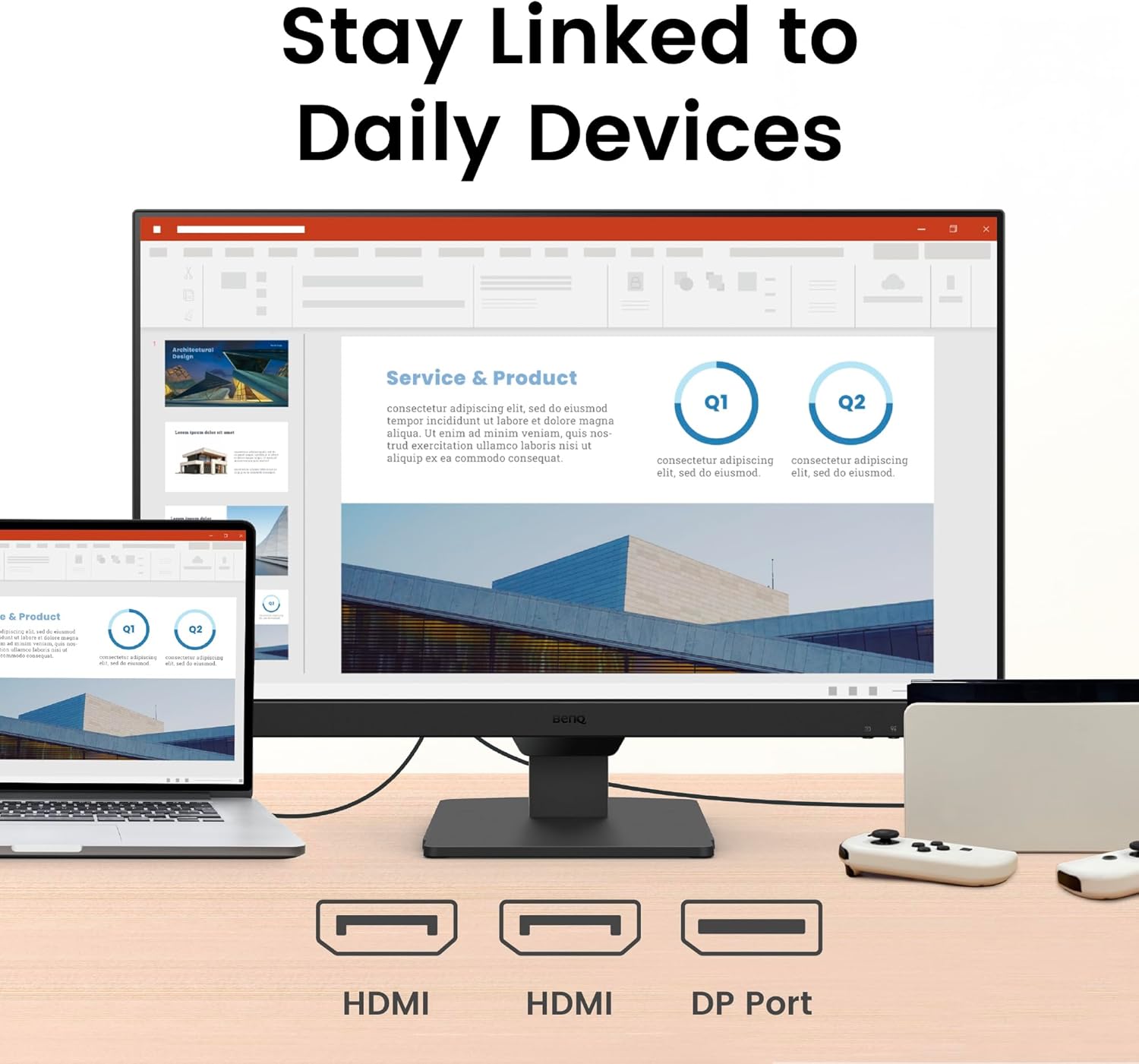
Figure 4.1: Monitor in Use. This image shows the BenQ GW2790Q monitor displaying a professional presentation, demonstrating its suitability for work and productivity tasks.

Figure 4.2: Seamless Work and Play. This image demonstrates the BenQ GW2790Q monitor's ability to smoothly transition between different uses, showing a split screen with productivity content on one side and entertainment on the other, highlighting its flexible lifestyle integration.
5. Principais características
5.1 Tecnologia de exibição
- 27-inch 2K QHD IPS Panel: Experience sharp details and vibrant colors with a 2560x1440 resolution and wide viewângulos de inclinação.
- Taxa de atualização de 100Hz: Enjoy smoother visuals and more responsive interaction, reducing motion blur for a comfortable viewexperiência.

Figure 5.1: Smooth Viewing at 100Hz. This image visually represents the benefit of a 100Hz refresh rate, showing a runner with a smooth motion trail, indicating reduced motion blur and a fluid visual experience on the BenQ GW2790Q monitor.
5.2 Tecnologias para Cuidados com os Olhos
The BenQ GW2790Q incorporates advanced Eye-Care features designed to reduce eye strain during extended use.
- Brightness Intelligence Tech (B.I. Gen2): Automatically adjusts screen brightness based on ambient light conditions and on-screen content, ensuring optimal viewconforto.
- Luz Azul Baixa Plus: Filters out harmful blue-violet light while maintaining accurate color reproduction, protecting your eyes without compromising image quality.
- Coding Mode & ePaper Mode: Specialized color modes that enhance readability for text-heavy tasks, reducing eye fatigue during long reading or coding sessions.
- Software Eye-CareU: Compatible software for personalized eye-care settings and reminders.
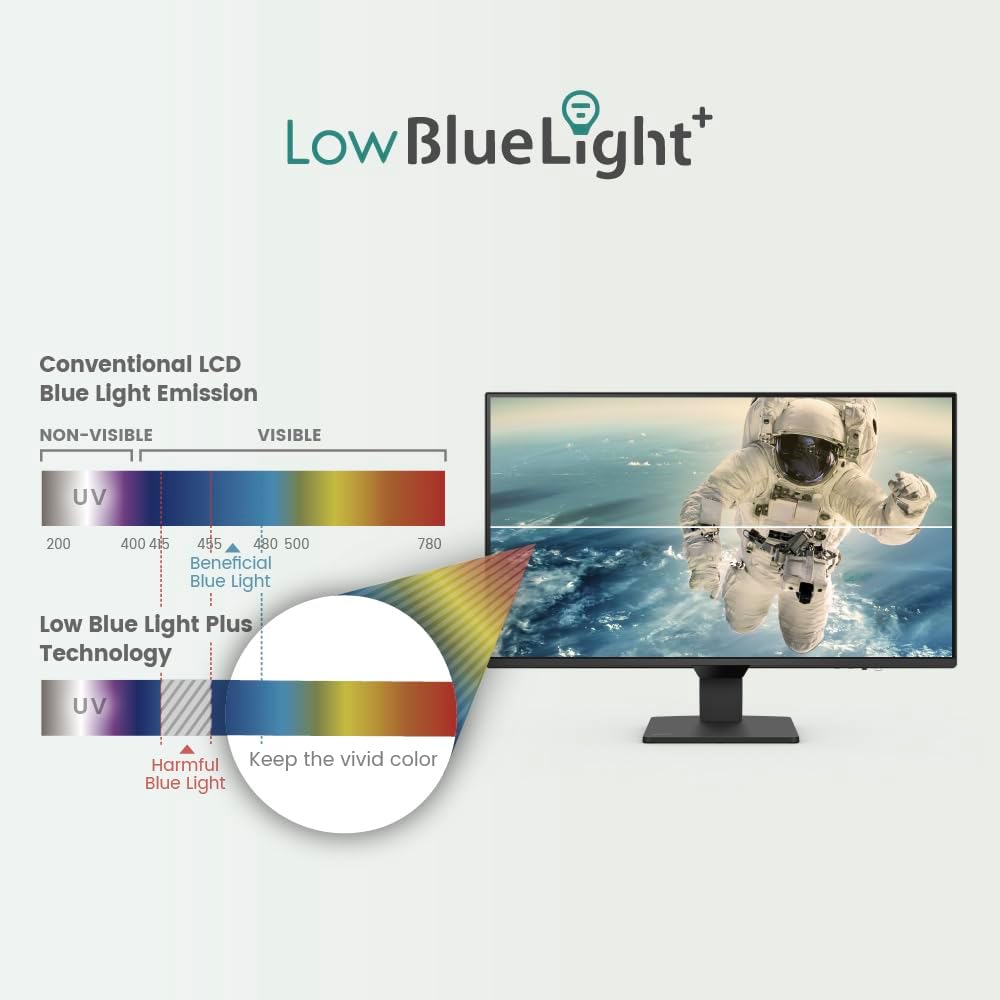
Figure 5.2: Smart Brightness Optimization. This image illustrates the monitor's Brightness Intelligence feature, showing a split screen where one side is optimized for a darker environment and the other for a brighter one, demonstrating automatic adjustment for visual comfort.
Figure 5.3: Low Blue Light Plus Technology. This diagram visually explains how BenQ's Low Blue Light Plus technology works, differentiating between harmful blue-violet radiation and beneficial blue light, and demonstrating its ability to filter the former while maintaining vivid color quality.

Figure 5.4: Enhanced Eye-Care Experience. This image highlights the monitor's focus on eye comfort, featuring an eye graphic superimposed over the screen, suggesting advanced features for visual health and detailed data display.
5.3 Conectividade
The monitor offers versatile connectivity options to integrate with various devices.
- Portas HDMI: Two HDMI inputs for connecting multiple devices such as computers, gaming consoles, or media players.
- Porta de exibição: One DisplayPort input for high-resolution and high-refresh-rate connections.
- Saída de áudio: A 3.5mm audio jack for connecting external speakers or headphones.

Figure 5.5: Multi-Device Connectivity. This image demonstrates the BenQ GW2790Q monitor's ability to connect to various devices, showing it linked to a laptop and a game controller via its HDMI and DisplayPort inputs, facilitating seamless switching between work and entertainment.
6. Manutenção
6.1 Limpando o Monitor
To maintain optimal display quality, clean your monitor regularly.
- Sempre desligue o monitor e desconecte o cabo de alimentação antes de limpá-lo.
- Use um pano macio e sem fiapos levemente dampLimpe com água ou um produto de limpeza específico para telas.
- Avoid using abrasive cleaners, alcohol, or ammonia-based solutions, as these can damage the screen surface.
- Gently wipe the screen and bezel. Do not apply excessive pressure.
7. Solução De Problemas
Se você encontrar problemas com seu monitor, consulte os problemas e soluções comuns a seguir.
| Problema | Possível causa | Solução |
|---|---|---|
| Sem imagem na tela | Cabo de alimentação desconectado; Cabo de vídeo desconectado; Fonte de entrada incorreta selecionada. | Ensure power and video cables are securely connected. Use the Input Hotkey or OSD to select the correct input source. |
| A imagem está desfocada ou distorcida. | Configuração de resolução incorreta; problema no cabo de vídeo. | Set the display resolution to 2560x1440. Check or replace the video cable. |
| O monitor não liga. | Cabo de alimentação desconectado; Problema na tomada. | Verify the power cable is firmly connected to both the monitor and a working power outlet. |
| No sound from speakers/audio out | Cabo de áudio não conectado; Volume muito baixo; Saída de áudio incorreta selecionada no computador. | Ensure external speakers/headphones are connected. Adjust monitor and computer volume. Select the monitor as the audio output device on your computer. |
8. Especificações
Below are the technical specifications for the BenQ GW2790Q monitor.
| Recurso | Detalhe |
|---|---|
| Nome do modelo | GW2790Q |
| Tamanho da tela | 27 polegadas |
| Tipo de painel | IPS |
| Resolução | 2560x1440 (QHD) |
| Taxa de atualização | 100Hz |
| Proporção da tela | 16:9 |
| Brilho | (Typical value not provided, refer to product page) |
| Taxa de contraste | (Typical value not provided, refer to product page) |
| Gama de cores | 99% sRGB |
| Viewângulo de engate | (Typical IPS values apply, not explicitly stated) |
| Conectividade | 2x HDMI, 1x DisplayPort, 1x Audio Out (3.5mm) |
| Montagem VESA | Sim |
| Dimensões (LxAxP) | 24.1 x 12 x 2.4 polegadas (sem suporte) |
| Peso | 10.34 libras (sem suporte) |
| Consumo de energia | (Not explicitly stated, refer to product page) |
9. Garantia e Suporte
BenQ provides a limited warranty for this product. For detailed warranty terms and conditions, please refer to the warranty card included in your package or visit the official BenQ website.
For technical support, driver downloads, or service inquiries, please visit the BenQ support webou entre em contato com o departamento de atendimento ao cliente. Tenha em mãos o comprovante de compra e o número de série do produto ao solicitar suporte.
Suporte BenQ Website: www.benq.com/en-us/support.html