Introdução
This manual provides comprehensive instructions for the setup, operation, and maintenance of your Targus Ambidextrous Bluetooth Mouse (Model: PMB58102GL). This compact, multi-device wireless mouse offers dual-mode connectivity (2.4 GHz and Bluetooth 5.0) and is compatible with Windows and macOS. It also features Targus DefenseGuard Protection, an antimicrobial additive that helps prevent the growth of microorganisms on the mouse surface.
Características do produto
- Design Ambidestro: The mouse features an oval, pebble-shaped design suitable for both left and right-handed users.
- Conectividade multidispositivo: Connects to up to three devices using either 2.4 GHz wireless (via USB receiver) or Bluetooth 5.0.
- DefenseGuard Protection: Infused with an antimicrobial additive (Silver Phosphate Glass (nano-)) that works continuously to protect the mouse surface by inhibiting microbial growth. This protection does not wear off.
- Essential Controls: Equipped with three essential buttons for clicking, pointing, and scrolling.
- Compatibilidade ampla: Fully compatible with Windows and macOS operating systems.
Configurar
Conteúdo da embalagem
- Targus Ambidextrous Bluetooth Mouse (PMB58102GL)
- Receptor USB (armazenado dentro do mouse)
- Pilha AA (pré-instalada ou incluída)
- Guia de início rápido
Instalação da bateria
- Localize a tampa do compartimento da bateria na parte inferior do mouse.
- Deslize a tampa aberta.
- Insira uma pilha AA, certificando-se da polaridade correta (+/-).
- Feche bem a tampa do compartimento da bateria.
Note: The USB receiver is typically stored inside the battery compartment for safekeeping.

Image: The underside of the Targus mouse, displaying the battery compartment, the power switch, and the multi-device pairing button.
Connecting via 2.4 GHz USB Receiver
- Remova o receptor USB do compartimento de armazenamento dentro do mouse.
- Conecte o receptor USB a uma porta USB-A disponível no seu computador.
- Ligue o mouse usando o botão liga/desliga na parte inferior.
- O mouse deve se conectar automaticamente ao seu computador.
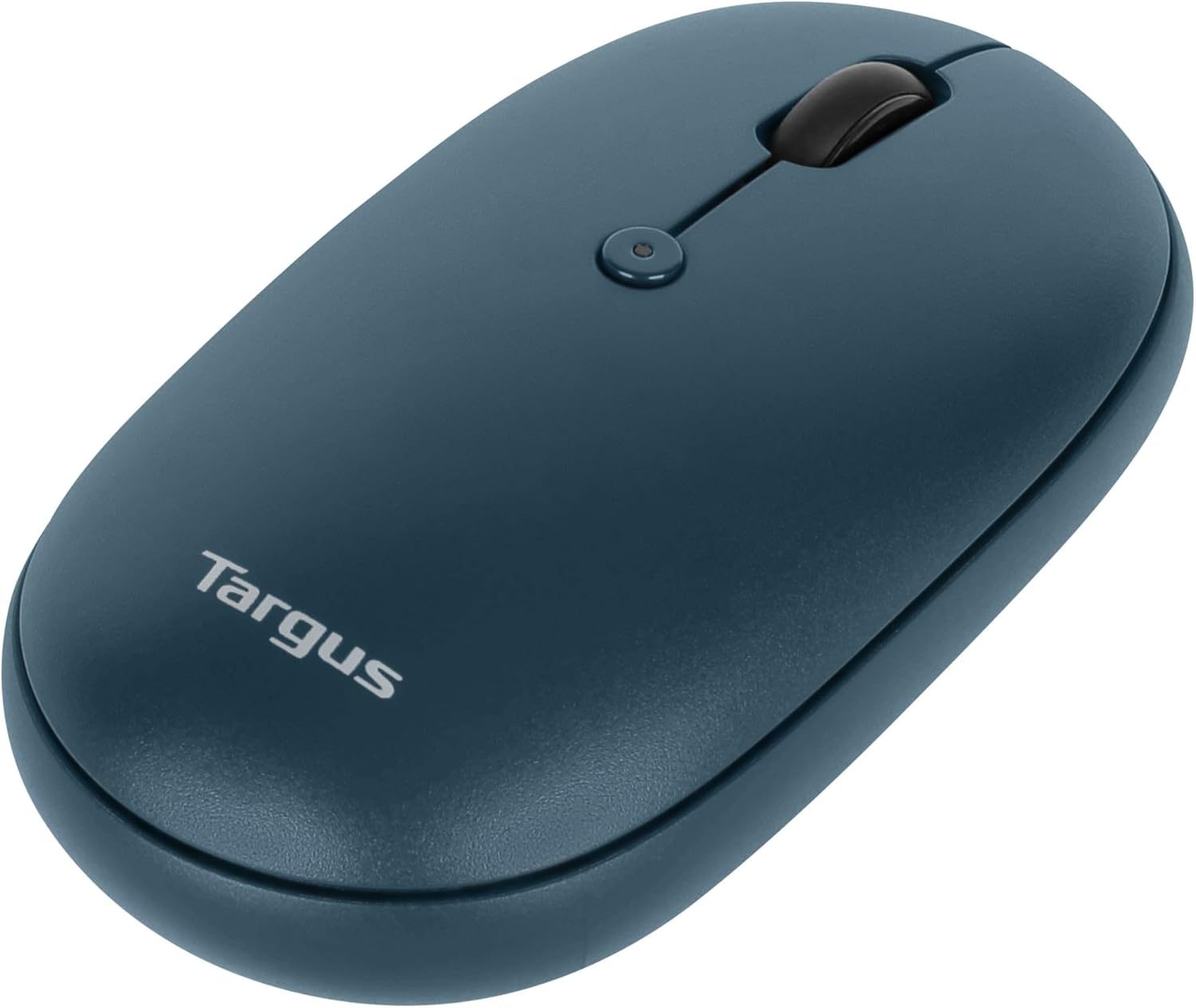
Imagem: Um ângulo view of the Targus mouse, with its small USB receiver placed beside it, illustrating the 2.4 GHz wireless connection component.
Connecting via Bluetooth 5.0
- Ligue o mouse usando o botão liga/desliga na parte inferior.
- Press the multi-device pairing button on the underside of the mouse to select a Bluetooth channel (indicated by LED lights 1, 2, or 3).
- Press and hold the pairing button for 3-5 seconds until the selected LED light blinks rapidly, indicating pairing mode.
- On your computer (Windows or macOS), go to Bluetooth settings and search for new devices.
- Select "Targus Mouse" from the list of available devices to complete the pairing process.
Note: You can pair up to three devices (one via 2.4 GHz USB receiver, two via Bluetooth).
Instruções de operação
Ligar/Desligar
Use the ON/OFF switch located on the underside of the mouse to power it on or off. Turning the mouse off when not in use conserves battery life.
Alternando entre dispositivos conectados
If you have paired the mouse with multiple devices, press the multi-device pairing button on the underside of the mouse to cycle through the connected devices (channels 1, 2, and 3). The corresponding LED light will indicate the currently active channel.
Funções básicas do mouse
- Clique esquerdo: Seleção e ativação primárias.
- Clique com o botão direito: Acessa os menus contextuais.
- Rodinha do mouse: Scrolls content vertically. The scroll wheel also functions as a middle click button.

Imagem: Uma visão de cima para baixo view of the Targus mouse, highlighting the left and right click buttons and the central scroll wheel.
DPI Adjustment (Scroll Speed)
The mouse features a button near the scroll wheel that allows you to adjust the DPI (Dots Per Inch) setting, which controls the cursor speed. Press this button to cycle through different sensitivity levels to match your preference.

Image: An angled top view of the Targus mouse, clearly showing the small button located behind the scroll wheel, used for DPI adjustment.
Manutenção
- Limpeza: Use um pano macio e macioamp cloth to clean the exterior of the mouse. Avoid harsh chemicals or abrasive materials.
- Substituição da bateria: When the mouse performance degrades or the indicator light signals low battery, replace the AA battery as described in the "Battery Installation" section.
- Armazenar: When not in use, store the USB receiver inside the mouse's battery compartment to prevent loss.
Solução de problemas
| Problema | Solução |
|---|---|
| O mouse não responde. |
|
| Conexão intermitente. |
|
| Scroll wheel not working correctly. |
|
Especificações
| Recurso | Detalhe |
|---|---|
| Marca | Targus |
| Número do modelo | PMB58102GL (also AUB09QC3P5LR) |
| Tecnologia de Conectividade | Conexão sem fio de 2.4 GHz, Bluetooth 5.0 |
| Tecnologia de detecção de movimento | Óptico |
| Compatibilidade do sistema operacional | Windows, macOS |
| Fonte de energia | Alimentado por pilhas (1 pilhas AA) |
| Peso do item | 5.3 onças |
| Dimensões da embalagem | 7.28 x 6.22 x 2.52 polegadas |
| Cor | Azul |
| Proteção antimicrobiana | Targus DefenseGuard (Silver Phosphate Glass (nano-)) |
Vídeo oficial do produto
Vídeo: Um oficial sobreview of the Targus Compact Multi-Device Wireless Mice, demonstrating key features like multi-device connectivity and design.
Garantia e Suporte
The Targus Ambidextrous Bluetooth Mouse (PMB58102GL) comes with a Garantia limitada de 2 ano. This warranty covers specific parts and types of damage for computer keyboards, mice, and accessories. For detailed warranty information and support, please refer to the official Targus website ou entre em contato com o atendimento ao cliente.
Para obter mais assistência, visite o Targus Store.


