1. Introdução
The Comfast CF-WU720N is a compact 150Mbps Wireless USB Adapter designed to provide high-speed wireless connectivity for your desktop or notebook computer. It allows you to connect to a wireless network and access the internet, share files, and enjoy online gaming at speeds up to 150Mbps. This adapter is compliant with IEEE 802.11b/g/n standards and supports USB 2.0 for efficient data transfer.
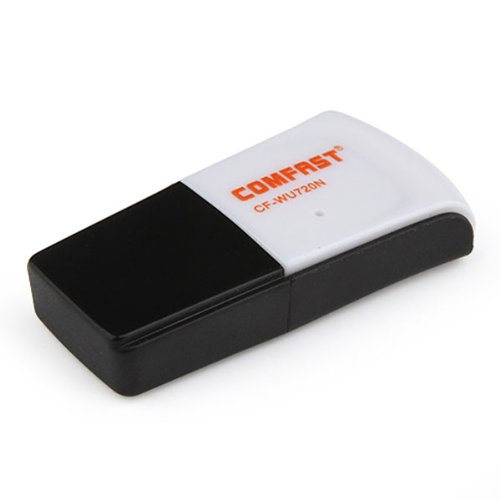
Image 1.1: The Comfast CF-WU720N Wireless USB Adapter, a compact device for wireless connectivity.
2. Recursos do Produto
- Meets IEEE 802.11b/g/n wireless standards.
- Supports USB 2.0 interface for broad compatibility.
- Utilizes Realtek 8191 SU chipset for reliable performance.
- Achieves wireless connection rates up to 150Mbps.
- Supports wireless roaming technology for seamless connectivity.
- Strong compatibility with various popular operating systems.
- Compact size: approximately 39 x 12 x 7mm (1.5 x 0.7 x 0.3 inches).
- Lightweight design: approximately 5g.
3. Conteúdo da embalagem
Por favor, verifique se todos os itens estão presentes na embalagem:
- 1 x Comfast CF-WU720N Wireless USB Adapter
- 1 x Guia de instalação rápida
- 1 x CD-ROM Driver
- 1 x Cartão de garantia

Image 3.1: The retail packaging for the Comfast CF-WU720N, showing the adapter inside.
4. Configuração e instalação
4.1. Instalação do driver
Before connecting the USB adapter, it is recommended to install the necessary drivers from the provided CD-ROM. This ensures proper functionality and compatibility with your operating system.
- Insert the driver CD-ROM into your computer's optical drive.
- If the installer does not launch automatically, navigate to "My Computer" or "This PC," open the CD-ROM drive, and run the setup executable (e.g., "setup.exe" or "autorun.exe").
- Follow the on-screen instructions to complete the driver installation. You may be prompted to restart your computer after installation.
- Observação: If your computer does not have an optical drive, you may need to download the latest drivers from the manufacturer's official website.
4.2. Connecting the USB Adapter
Once the drivers are installed, you can connect the Comfast CF-WU720N Wireless USB Adapter to your computer.
- Locate an available USB 2.0 or 3.0 port on your desktop or laptop computer.
- Carefully insert the Comfast CF-WU720N adapter into the USB port. Ensure it is fully seated.
- The operating system should automatically detect the adapter and configure it using the installed drivers. A small LED indicator on the adapter may light up or blink, indicating activity.
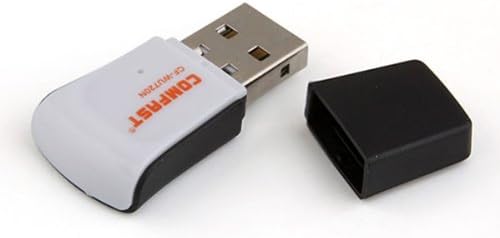
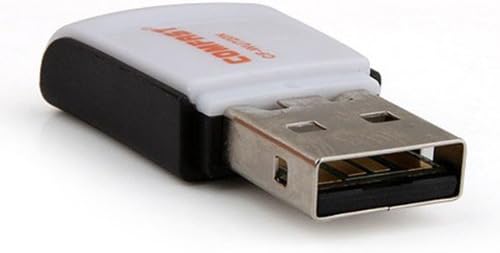
Image 4.1: The Comfast CF-WU720N adapter with its protective cap removed, revealing the USB connector. Image 4.2: A side view of the adapter, highlighting its compact design and USB interface.
5. Instruções de operação
After successful driver installation and adapter connection, you can now connect to a wireless network.
- Acessar configurações de rede:
- Windows: Click the wireless network icon in the system tray (usually bottom-right corner).
- MacOS: Click the Wi-Fi icon in the menu bar (usually top-right corner).
- Linux: Access network settings through your desktop environment's network manager.
- Selecione sua rede: A list of available wireless networks (SSIDs) will appear. Select the name of your desired network.
- Conectar: Click "Connect" or "Join." If the network is secured, you will be prompted to enter the network security key (password).
- Confirmar conexão: Once connected, the network icon will typically change to indicate a successful connection, and you should be able to access the internet.
6. Manutenção
To ensure optimal performance and longevity of your Comfast CF-WU720N Wireless USB Adapter, follow these simple maintenance guidelines:
- Mantenha limpo: Gently wipe the adapter with a soft, dry cloth to remove dust. Avoid using liquid cleaners or solvents.
- Proteger conector USB: When not in use, keep the protective cap on the USB connector to prevent dust and damage.
- Evite condições extremas: Não exponha o adaptador a temperaturas extremas, umidade ou luz solar direta.
- Manuseie com cuidado: Evite deixar o adaptador cair ou submetê-lo a impactos fortes.
- Atualizações de Driver: Verifique periodicamente as instruções do fabricante. website for updated drivers to ensure the best performance and compatibility.
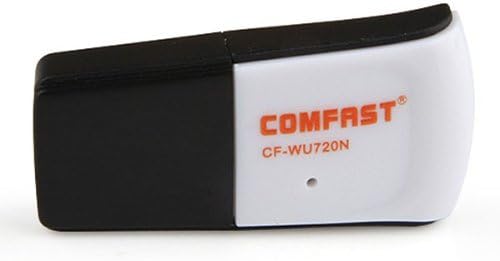
Image 6.1: The Comfast CF-WU720N adapter with its protective cap in place, ready for storage or transport.
7. Solução De Problemas
If you encounter issues with your Comfast CF-WU720N Wireless USB Adapter, refer to the following common solutions:
| Problema | Solução possível |
|---|---|
| Adaptador não detectado / Nenhuma rede Wi-Fi visível. |
|
| Cannot connect to a specific Wi-Fi network. |
|
| Slow connection speed or frequent disconnections. |
|
8. Especificações
| Recurso | Detalhe |
|---|---|
| Modelo | CF-WU720N |
| Padrões sem fio | Padrão IEEE 802.11b/g/n |
| Interface | USB 2.0 |
| Chipset | Realtek 8191 SU |
| Velocidade sem fio | Até 150 Mbps |
| Faixa de frequência | 2.4 GHz |
| Recursos de segurança | WPA/WPA2, WPA-PSK/WPA2-PSK, 64/128-bit WEP |
| Sistemas Operacionais | Windows XP/Vista/7/8/10, macOS, Linux (driver dependent) |
| Dimensões (C x L x A) | Aproximadamente 39 x 12 x 7 mm (1.5 x 0.7 x 0.3 polegadas) |
| Peso | Aprox. 5g |
9. Garantia e Suporte
This product comes with a warranty as specified on the included Warranty Card. Please refer to the card for details regarding warranty period, terms, and conditions.
For technical support, driver updates, or further assistance, please visit the official Comfast webou entre em contato com o departamento de atendimento ao cliente. As informações de contato geralmente podem ser encontradas na embalagem do produto ou no site do fabricante. website.
Guarde o comprovante de compra para fins de garantia.


