1. Introdução
Welcome to the user manual for your Logitech M705 Marathon Wireless Mouse. This document provides essential information for setting up, operating, and maintaining your device, ensuring optimal performance and longevity. The M705 mouse is designed for comfort and efficiency, featuring a long battery life and customizable controls for enhanced productivity.
2. Produto acabadoview
Principais características
- Vida útil da bateria estendida: Enjoy up to 3 years of battery life, reducing the need for frequent replacements.
- Design ergonômico: Sculpted to fit the natural curve of your right hand, providing comfort during prolonged use.
- Rolagem hiper-rápida: Navigate through long documents and web pages with a single spin of the scroll wheel, or switch to click-to-click scrolling for precision.
- Botões programáveis: Five customizable buttons, including forward/back thumb buttons, allow for personalized shortcuts and enhanced control.
- Receptor Unificador: A small USB Unifying receiver connects up to six compatible Logitech devices, freeing up USB ports.
- Ampla compatibilidade: Compatible with Windows, macOS, Chrome OS, and Linux operating systems.
Conteúdo da embalagem
The Logitech M705 Marathon Wireless Mouse package typically includes:
- Rato sem fios Logitech M705
- Receptor USB Logitech Unifying
- 2 AA Alkaline Batteries (may vary by region/packaging)

3. Instruções de configuração
3.1. Instalando baterias
- Turn the mouse over and locate the battery compartment cover on the underside.
- Press the release button or slide the cover to open the compartment.
- Insira as duas pilhas AA, certificando-se da polaridade correta (+/-).
- Recoloque a tampa do compartimento da bateria.

3.2. Conectando o receptor USB Unifying
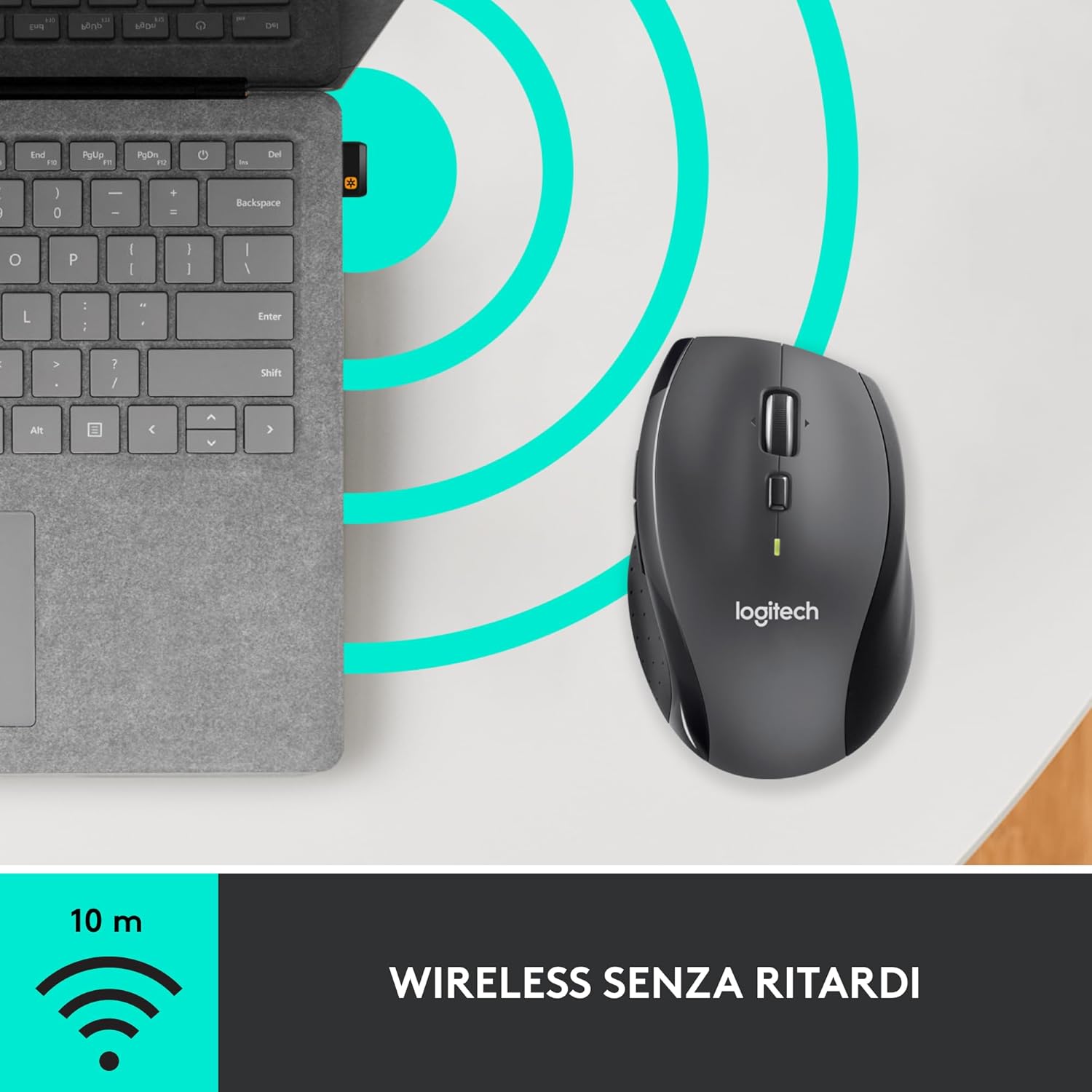
- Locate the small USB Unifying receiver. It may be stored inside the battery compartment of the mouse.
- Conecte o receptor USB a uma porta USB disponível em seu computador.
- Ligue o mouse usando o botão liga/desliga localizado na parte inferior.
- Your computer should automatically detect the mouse. If not, visit the Logitech support website for driver installation.
4. Instruções de operação
4.1. Funções básicas do mouse
The M705 mouse features standard left and right-click buttons, a scroll wheel, and additional programmable buttons.

4.2. Rolagem hiper-rápida
A roda de rolagem oferece dois modos:
- Modo Hiper-Rápido: Press the button directly below the scroll wheel to unlock it for smooth, rapid scrolling through long documents or web páginas.
- Modo Clique a Clique: Press the button again to engage precise, stepped scrolling, ideal for navigating lists or image galleries.

4.3. Botões programáveis
The M705 features five programmable buttons, including two thumb buttons and tilt-scroll functionality. These can be customized using the Logitech Options software.

5. Personalização
To unlock the full potential of your M705 mouse, download and install the Logitech Options software from the official Logitech website. Este software permite que você:
- Assign custom functions to the five programmable buttons.
- Adjust tracking speed (DPI).
- Configure application-specific settings.
- Verifique o status da bateria.

6. Manutenção
6.1. Limpeza
Para limpar o mouse, use um pano macio e sem fiapos. Para sujeira mais difícil de remover, umedeça levemente o mouse.ampen the cloth with water. Avoid using harsh chemicals or abrasive materials, as these can damage the mouse surface or internal components.
6.2. Substituição da bateria
When the battery indicator light on your mouse begins to flash or if performance degrades, it's time to replace the batteries. Follow the steps in Section 3.1 to replace the two AA batteries. Dispose of old batteries responsibly according to local regulations.
7. Solução De Problemas
7.1. Mouse não responde
- Certifique-se de que o mouse esteja ligado.
- Check the battery level and replace batteries if necessary.
- Verify the USB Unifying receiver is securely plugged into a working USB port.
- Tente conectar o receptor a uma porta USB diferente ou a um computador diferente para isolar o problema.
- Se estiver usando um hub USB, tente conectar diretamente ao computador.
7.2. Movimento errático do cursor
- Limpe o sensor óptico na parte inferior do mouse.
- Ensure you are using the mouse on a suitable surface. Highly reflective or transparent surfaces may cause tracking issues. A mouse pad is recommended.
- Verifique se há interferência de outros dispositivos sem fio. Aproxime o mouse do receptor USB.
7.3. Unifying Receiver Issues
If the mouse loses connection or you need to pair it with a new receiver, download the Logitech Unifying Software from the Logitech support website. This software guides you through the pairing process.
8. Especificações
| Recurso | Detalhe |
|---|---|
| Marca | Logitech |
| Nome do modelo | M705 |
| Número do modelo | 910-001949 |
| Tecnologia de Conectividade | Wireless (2.4 GHz USB Unifying Receiver) |
| Tecnologia de detecção de movimento | Laser |
| Resolução de Movimento | 1000 DPI (up to 3200 DPI maximum resolution) |
| Número de botões | 5 botões programáveis |
| Fonte de energia | Battery (2 x AA Alkaline) |
| Duração média da bateria | Até 3 anos |
| Distância wireless | Até 10 metros |
| Fator de forma | Right-hand ergonomic |
| Dimensões (C x L x A) | 20 x 13 x 12 cm (Product packaging dimensions) |
| Peso | 136 gramas |
| Sistemas operacionais compatíveis | Windows 7, 8, 10; macOS 10.11 or later; Chrome OS; Linux |
9. Garantia e Suporte
Para obter informações detalhadas sobre a garantia e suporte técnico, consulte o site oficial da Logitech. website or contact Logitech customer service. Keep your proof of purchase for warranty claims.


