1. پیژندنه
1.1 محصول پای ته ورسیدview
The DBIT AC1200 Dual Band Gigabit WiFi Router (Model T18-21K) is designed to provide wireless internet connectivity for home and small office environments. It supports dual-band operation (2.4GHz and 5GHz) and offers Gigabit Ethernet ports for wired connections. The router includes features such as MU-MIMO, Beamforming, and multiple operating modes to enhance network performance and coverage.
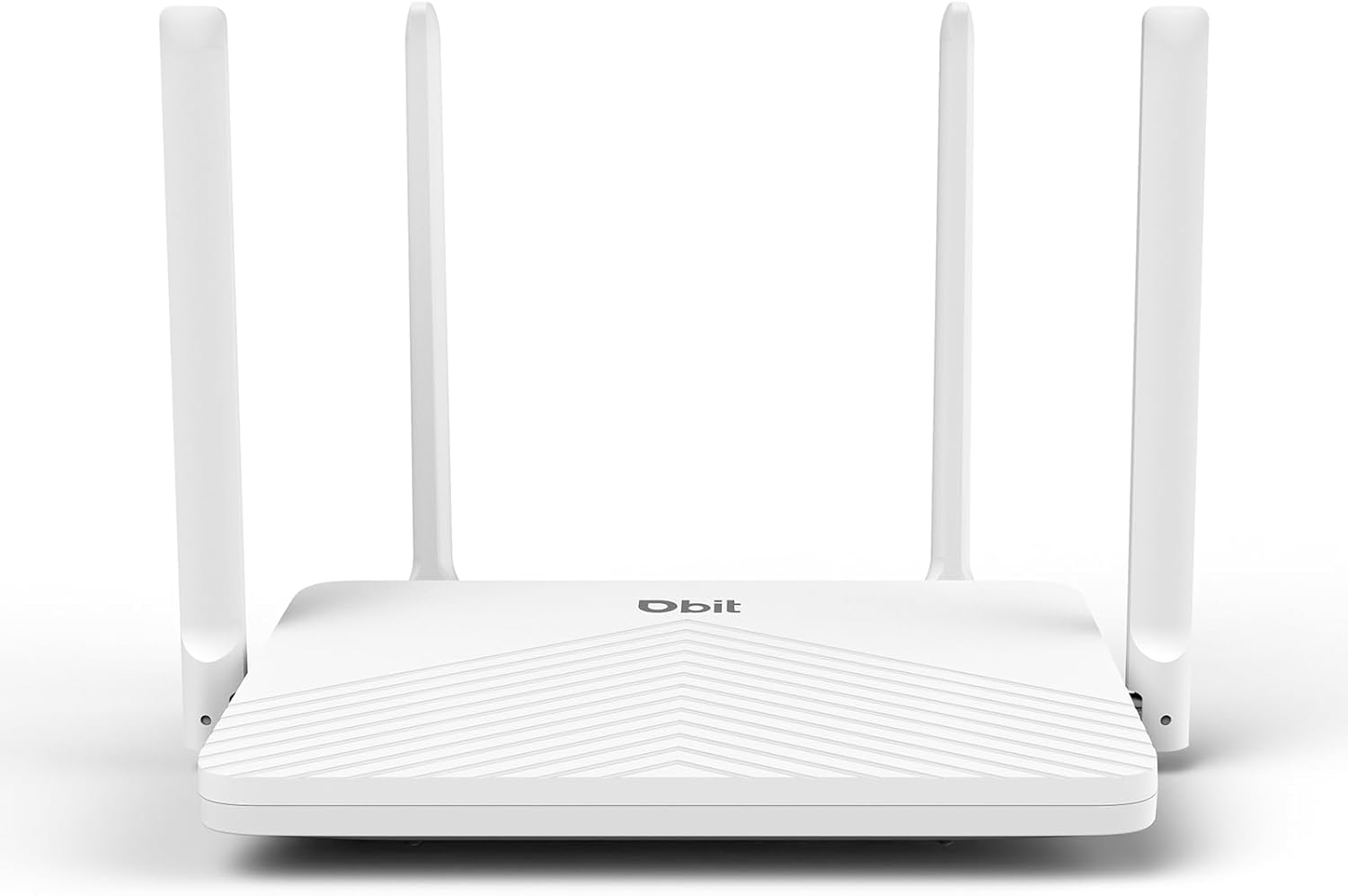
Figure 1: DBIT AC1200 WiFi Router
1.2 کلیدي ځانګړتیاوې
- AC1200 Dual-Band WiFi: Provides wireless speeds up to 1200Mbps (300 Mbps on 2.4GHz and 867 Mbps on 5GHz). The 2.4GHz band handles general tasks, while the 5GHz band supports bandwidth-intensive activities like gaming or 4K video streaming.
- بشپړ ګیګابایټ پورټونه: Equipped with one Gigabit WAN port and three Gigabit LAN ports for high-speed internet plans and stable wired connections to devices such as smart TVs, gaming consoles, or PCs.
- Triple-Mode Flexibility: Functions as a Router, Repeater, or Bridge to suit various network requirements.
- Whole-Home Coverage with Beamforming: Four external 5dBi high-gain antennas and Beamforming technology focus Wi-Fi signals towards connected devices, improving coverage.
- MU-MIMO ټیکنالوژي: Enables simultaneous communication with multiple devices, reducing network latency.
- قوي امنیت: Features WPA2-PSK encryption and access control to protect the network and connected devices.
- اسانه ترتیب: Configuration is managed through an intuitive web user interface. WPS button for quick device connection.
- نړیوال مطابقت: Compatible with major internet service providers (requires a functioning modem).
2. د بسته محتويات
ډاډ ترلاسه کړئ چې ټول توکي ستاسو په کڅوړه کې شتون لري:
- DBIT AC1200 WiFi Router
- د بریښنا اډاپټر
- ایترنیټ کیبل
- د چټک پیل لارښود
3. محصول ختم شوview (هارډویر)
3.1 مخکښ پینل
The front panel of the router typically features LED indicators that display the status of the power, internet connection, and wireless networks (2.4GHz and 5GHz).
۳.۲ شاته پینل (بندرونه او تڼۍ)
The rear panel contains all the physical connection ports and control buttons:
- د ری سیٹ تڼۍ: د روټر د فابریکې ډیفالټ ترتیباتو ته د بیرته راګرځولو لپاره کارول کیږي. د روټر د فعالولو پرمهال د نږدې 5-10 ثانیو لپاره فشار ورکړئ او ونیسئ.
- د WPS تڼۍ: For quickly connecting WPS-compatible devices to the wireless network without entering a password.
- د LAN پورټونه (LAN1، LAN2، LAN3): Three Gigabit Ethernet ports for connecting wired devices such as computers, gaming consoles, or smart TVs.
- د وان بندر: One Gigabit Ethernet port for connecting to your modem or primary internet source.
- په DC کې: د شامل شوي بریښنا اډاپټر سره د نښلولو لپاره د بریښنا ان پټ پورټ.

Figure 2: Router Rear Panel with Ports and Buttons
4. ابتدايي ترتیب
4.1 د هارډویر سره نښلول
- بندول: Disconnect power from your modem and router (if replacing an old one).
- د WAN پورټ سره وصل کړئ: Connect one end of the provided Ethernet cable to the WAN port of the DBIT router and the other end to your modem's Ethernet port.
- بریښنا وصل کړئ: Connect the power adapter to the router's DC IN port and plug it into a power outlet.
- پاور آن: لومړی خپل موډیم چالان کړئ، انتظار وکړئ چې دا په بشپړ ډول پیل شي (معمولا د مستحکم څراغونو لخوا ښودل کیږي)، بیا د DBIT روټر چالان کړئ.
- د انتن تنظیم کول: د غوره سیګنال استقبال لپاره څلور بهرني انتنونه تنظیم کړئ.
4.2 Web د انٹرفیس ترتیب
After hardware connection, configure the router via its web انٹرفیس:
- د روټر وای فای سره وصل شئ: On your computer or mobile device, connect to the default Wi-Fi network broadcast by the router. The default SSID and password are usually found on a label on the bottom of the router or in the Quick Start Guide.
- لاسرسی Web انٹرفیس: خلاص a web browser and enter the default login URL, typically
192.168.10.1، د پتې بار ته. - د تنظیم وزرډ تعقیب کړئ: د روټر web interface will guide you through the initial setup process, including setting up your internet connection type, Wi-Fi network name (SSID), and password.
- بیا اړیکه نیول: After configuration, reconnect your devices to the new Wi-Fi network using the updated SSID and password.

شکل 3: Web Management Setup Steps
5. عملیاتي طریقې
The DBIT AC1200 router supports multiple operating modes to adapt to different network setups.
5.1 روټر حالت
In Router Mode, the device acts as the primary internet gateway, connecting to your modem and distributing internet access to all connected wired and wireless devices. This is the default mode for most home networks.
5.2 د تکرار حالت
Repeater Mode extends the coverage of an existing wireless network. The router connects wirelessly to your main router and re-broadcasts the signal, eliminating Wi-Fi dead zones.

Figure 4: Repeater Mode Configuration
5.3 د پل حالت
Bridge Mode allows the router to convert a wired network connection into a wireless one, or to connect two separate networks. When configured as a bridge, the device can provide wireless access to devices connected to a wired network, or extend a network segment.
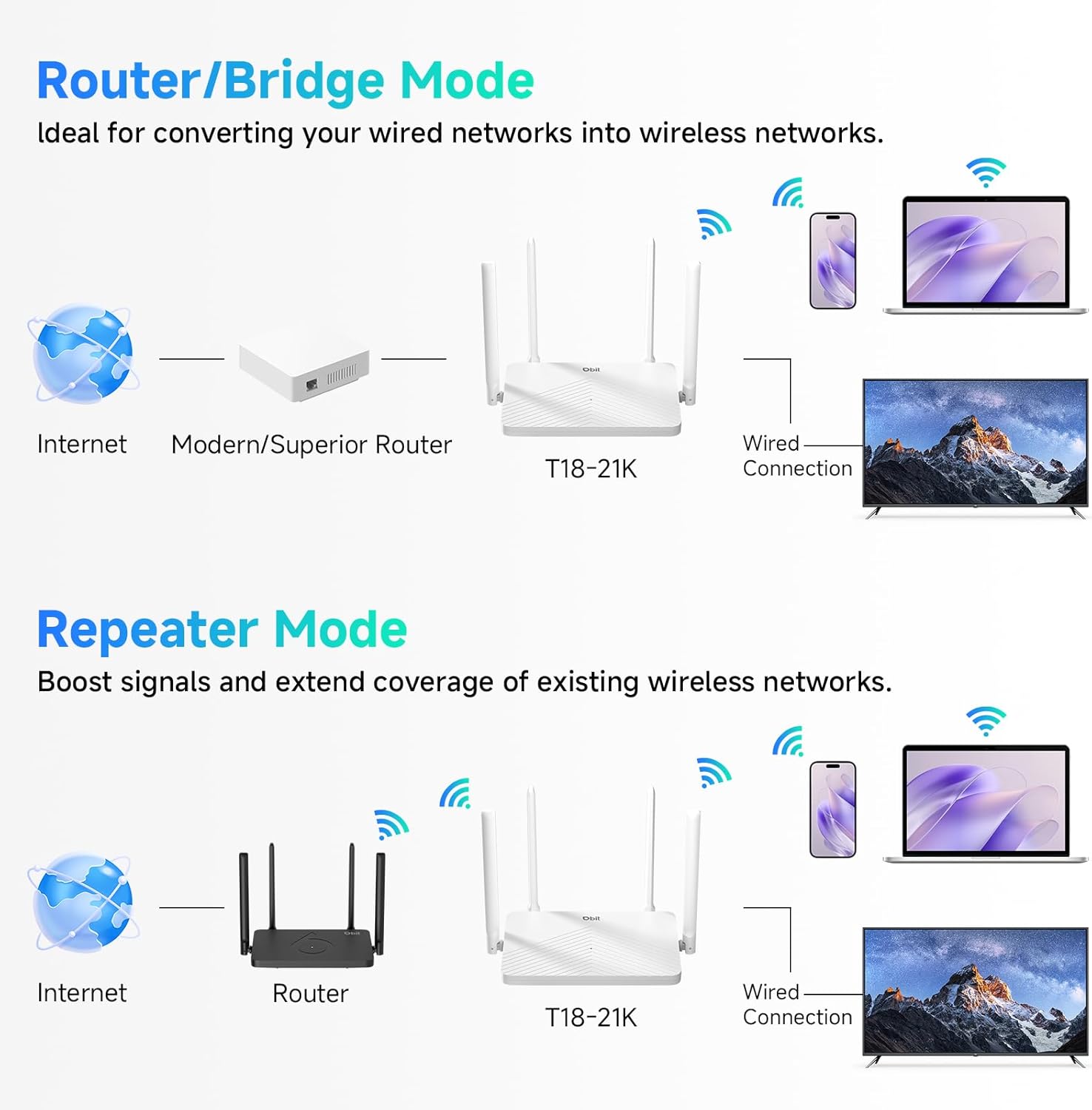
Figure 5: Router/Bridge Mode Setup
6. پرمختللي ځانګړتیاوې
6.1 Dual-Band Wireless
The router operates on two distinct frequency bands: 2.4GHz and 5GHz. The 2.4GHz band offers broader coverage and better penetration through obstacles, suitable for general internet use. The 5GHz band provides higher speeds and lower latency, ideal for online gaming and high-definition video streaming.

Figure 6: Dual-Band Speed Distribution
۴.۲ MU-MIMO ټیکنالوژي
Multi-User, Multiple-Input, Multiple-Output (MU-MIMO) technology allows the router to transmit data to multiple devices simultaneously, rather than sequentially. This improves network efficiency and reduces buffering when multiple devices are active on the network.

Figure 7: MU-MIMO Operation
6.3 Beamforming and Antennas
The router is equipped with four 5dBi high-gain antennas and utilizes Beamforming technology. Beamforming directs the Wi-Fi signal directly towards connected devices, improving signal strength and coverage, particularly in areas further from the router.

Figure 8: Beamforming Coverage
6.4 EasyMesh Functionality
The EasyMesh function allows for the creation of a seamless whole-home network. When multiple EasyMesh-compatible devices are used, they automatically select the best connection as you move around your home, ensuring consistent Wi-Fi coverage.

Figure 9: EasyMesh Network Coverage
6.5 د شبکې امنیت
The router supports WPA2-PSK encryption to secure your wireless network. Access control features allow you to manage which devices can connect to your network, enhancing overall security.
6.6 د میلمنو شبکه
A guest network feature allows you to provide separate Wi-Fi access for visitors, keeping your main network private and secure.
د والدینو کنټرول
Parental control features enable you to manage internet access times and block specific websites for connected devices, promoting a safer online environment.
7. ستونزه حل کول
- انټرنیټ ته لاسرسی نشته:
- Ensure your modem is working correctly and its internet indicator light is stable.
- Check that the Ethernet cable is securely connected between the modem's LAN port and the router's WAN port.
- خپل موډیم او روټر دواړه بیا پیل کړئ.
- د روټر په کمپیوټر کې د خپل انټرنیټ اتصال ترتیبات تایید کړئ web انٹرفیس
- د وای فای کمزوری سیګنال یا مړې سیمې:
- Adjust the router's antennas for optimal positioning.
- Relocate the router to a central location in your home, away from obstructions and interference sources (e.g., microwaves, cordless phones).
- Consider using Repeater Mode or adding another EasyMesh compatible device to extend coverage.
- روټر ته لاسرسی نشم کولی Web انٹرفیس:
- ډاډ ترلاسه کړئ چې ستاسو وسیله د روټر د وای فای شبکې سره یا د ایترنیټ کیبل له لارې د LAN پورټ سره وصل ده.
- Verify that you are entering the correct IP address (default is
192.168.10.1) ستاسو په براوزر کې. - د خپل براوزر کیش پاک کړئ یا بل براوزر هڅه وکړئ.
- If you have changed the router's IP address, use the new address. If forgotten, a factory reset may be necessary.
- د وای فای پټنوم یا د ننوتلو پټنوم هیر شوی:
- Perform a factory reset by pressing and holding the RESET button for 5-10 seconds while the router is powered on. This will revert all settings, including passwords, to their factory defaults.
8. مشخصات
| فیچر | تفصیل |
|---|---|
| د ماډل نوم | د AC1200 وائی فای روټر |
| د توکي ماډل شمیره | T18-21K |
| د محصول ابعاد | 8.99 x 5.78 x 6.89 انچه |
| د توکي وزن | ۲.۴۵ پونډه |
| برانډ | DBIT |
| جوړونکی | د شینزین Dbit شبکې تجهیزات Co., Ltd. |
| د فریکونسی بانډ ټولګی | دوه ګونی بانډ (2.4GHz، 5GHz) |
| د بې سیمه مواصلاتو معیار | ۸۰۲.۱۱a، ۸۰۲.۱۱ac، ۸۰۲.۱۱b، ۸۰۲.۱۱ ګرامه، ۸۰۲.۱۱ ن |
| د ارتباط ټیکنالوژي | ایترنیټ، وای فای |
| ایترنیټ بندرونه | 1 WAN, 3 LAN (Gigabit) |
| انتن | ۲ x ۳dBi بهرنۍ انتنونه |
| ځانګړي ځانګړتیاوې | Beamforming, Guest Mode, Internet Security, MU-MIMO, Parental Control |
| مطابقت لرونکې وسیلې | Gaming Console, Personal Computer, Tablet, Smart Television, Smartphone, Printer, Security Camera |
| وړاندیز شوي استعمالونه | سوداګري، کور |
9. تضمین او ملاتړ
9.1 د تضمین معلومات
Please refer to the warranty card included in your product packaging for detailed warranty terms and conditions. The warranty typically covers manufacturing defects for a specified period from the date of purchase.
9.2 تخنیکي ملاتړ
For technical assistance, troubleshooting, or further inquiries, please contact DBIT customer support. Contact information can usually be found on the manufacturer's official webسایټ یا د چټک پیل لارښود کې.
Online resources, including FAQs and firmware updates, may also be available on the DBIT support page.