1. پیژندنه
This manual provides essential instructions for the safe and efficient use of your Epson EcoTank L3156 multifunction printer. It covers initial setup, operational procedures for printing, scanning, and copying, routine maintenance, and troubleshooting common issues. Please read this manual thoroughly before using the product and retain it for future reference.
2. محصول ختم شوview
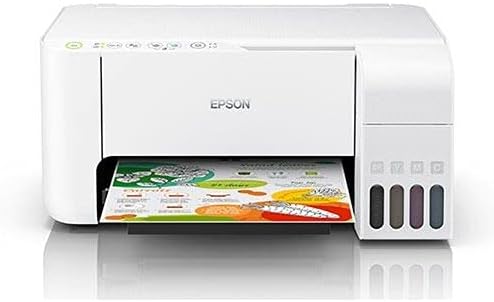
The Epson EcoTank L3156 is a 3-in-1 inkjet printer designed for home and small office use, offering print, scan, and copy functionalities. It features an integrated ink tank system for ultra-low-cost printing and supports wireless connectivity via Wi-Fi and Wi-Fi Direct.
کلیدي ځانګړتیاوې:
- Integrated Ink Tank System: Designed for high-volume, low-cost printing, eliminating the need for traditional cartridges.
- څو اړخیز فعالیت: Capable of printing, scanning, and copying documents and photos.
- د بیسیم اتصال: Supports Wi-Fi and Wi-Fi Direct for printing from various devices, including smartphones and tablets.
- د پاڼې لوړ حاصل: Delivers a high number of pages per ink refill, reducing operational costs.
- Borderless Photo Printing: Supports printing borderless photos up to 10x15cm.
د محصول اجزا:


3. ترتیب کول
۳.۱ د بسته بندۍ خلاصول او لومړني ځای پرځای کول
- پرنټر په احتیاط سره له بسته بندۍ څخه لرې کړئ.
- د پرنټر له بهرنۍ او داخلي برخې څخه ټول محافظتي ټیپونه او د بسته بندۍ مواد لرې کړئ.
- Place the printer on a flat, stable surface with adequate space around it for operation and ventilation.
۴.۲ د رنګ ټانکونو ډکول
The EcoTank system uses ink bottles for refilling. Ensure you use genuine Epson ink bottles designed for your model to prevent damage and ensure optimal print quality.
- د پرنټر په ښي اړخ کې د رنګ ټانک واحد پوښ خلاص کړئ.
- Open the cap for the ink tank you wish to fill (Black, Cyan, Magenta, Yellow).
- Uncap the corresponding ink bottle and insert it into the filling port. The bottle is designed to prevent overfilling and ensure the correct color is used.
- Allow the ink to drain into the tank. Do not squeeze the bottle.
- Once the tank is full, remove the bottle and securely close the ink tank cap and the unit cover.
- د ټولو رنګونو لپاره تکرار کړئ.
3.3 Power Connection and Initial Ink Charge
- د برېښنا تار د پرنټر سره وصل کړئ او بیا د برېښنايي آلې سره وصل کړئ.
- د پرنټر د فعالولو لپاره د بریښنا تڼۍ فشار ورکړئ.
- Follow the on-screen instructions on the printer's control panel (if applicable) or refer to the quick start guide for initiating the initial ink charge. This process primes the print head and can take several minutes. Do not turn off the printer during this process.
3.4 د سافټویر نصب کول
- Insert the software CD-ROM into your computer's CD/DVD drive, or download the latest drivers and software from the official Epson support webسایټ
- Follow the on-screen instructions to install the printer drivers and utility software.
- During installation, you will be prompted to choose a connection method (USB, Wi-Fi).
۳. د پرنټر چلول
4.1 د کاغذ پورته کول
- Open the paper support and pull out the output tray.
- Slide the edge guides to their outermost positions.
- Load paper print-side up into the rear paper feed slot.
- Slide the edge guides against the sides of the paper, ensuring the paper is straight.
۳ـ چاپول
- Ensure the printer is turned on and connected to your computer or network.
- هغه سند یا انځور خلاص کړئ چې تاسو یې غواړئ په خپل کمپیوټر کې چاپ کړئ.
- د اپلیکیشن مینو څخه "چاپ" غوره کړئ (د مثال په توګه، File > چاپ).
- Choose "Epson L3156 Series" as your printer.
- Adjust print settings such as paper size, type, orientation, and quality as needed.
- "چاپ" کلیک وکړئ.
4.3 سکین کول
- Place the document or photo face-down on the scanner glass, aligning it with the corner mark.
- د سکینر سر په نرمۍ سره وتړئ.
- On your computer, open the Epson Scan software or a compatible scanning application.
- Select your scanner (Epson L3156 Series) and choose your scanning mode (e.g., Home Mode, Professional Mode).
- Adjust settings such as resolution, document type, and destination folder.
- Click "Scan".
۵.۳ کاپي کول
- اصلي سند د سکینر په شیشه کې مخامخ کیږدئ.
- د سکینر پوټکی بند کړئ.
- On the printer's control panel, press the Black & White copy button or the Color copy button, depending on your desired output.
- د څو کاپيانو جوړولو لپاره، د کاپي کولو تڼۍ څو ځله فشار ورکړئ ترڅو مطلوب شمیر کاپي ترلاسه کړئ.
4.5 Wireless Connectivity (Wi-Fi / Wi-Fi Direct)
The Epson L3156 supports connecting to a wireless network (Wi-Fi) or directly to a device (Wi-Fi Direct).
Connecting to a Wi-Fi Network:
- ډاډ ترلاسه کړئ چې ستاسو بېسیم روټر فعال دی او کار کوي.
- Use the printer's control panel to navigate to the Wi-Fi setup menu.
- Select "Wi-Fi Setup Wizard" and follow the on-screen prompts to select your network and enter the password.
- Alternatively, use the WPS (Wi-Fi Protected Setup) button on your router and the printer for a simpler connection.
Using Wi-Fi Direct:
- Enable Wi-Fi Direct on your printer via the control panel.
- On your mobile device (smartphone or tablet), go to Wi-Fi settings and select the printer's Wi-Fi Direct network (e.g., DIRECT-xx-EpsonL3156).
- Enter the password displayed on the printer's control panel.
- You can now print directly from your mobile device using the Epson iPrint app or other compatible printing applications.
5. ساتنه
5.1 Checking Ink Levels and Refilling
Regularly check the ink levels in the transparent ink tanks. When an ink tank is low, refill it promptly using genuine Epson ink bottles. Refer to Section 3.2 for detailed ink refilling instructions.
۵.۲ د چاپ سر پاکول
If print quality declines (e.g., missing lines, faded prints), perform a print head cleaning. This can be done through the printer's utility software on your computer or via the printer's control panel. This process clears clogged nozzles.
5.3 Print Head Alignment
If prints appear blurry or misaligned, perform a print head alignment. This adjusts the print head position to ensure proper vertical and horizontal alignment. This function is typically accessed through the printer's utility software.
5.4 د پرنټر پاکول
- بهر: د پرنټر بهرنۍ برخه د نرم، d سره پاک کړئamp, lint-free cloth. Avoid using abrasive cleaners or solvents.
- د سکینر شیشه: Gently clean the scanner glass with a soft, lint-free cloth moistened with a small amount of glass cleaner. Do not spray cleaner directly onto the glass.
6. ستونزه حل کول
This section addresses common issues you might encounter with your Epson EcoTank L3156 printer.
۷.۱ چاپګر ځواب نه ورکوي
- ډاډ ترلاسه کړئ چې پرنټر فعال دی او د بریښنا تار په خوندي ډول وصل دی.
- Check the USB cable connection (if using USB) or Wi-Fi connection status.
- پرنټر او کمپیوټر دواړه بیا پیل کړئ.
- Verify that the correct printer is selected in your application's print dialog.
۵.۲ د چاپ خراب کیفیت
- د رنګ کچه وګورئ او هر ټیټ ټانک ډک کړئ.
- د چاپ سر پاکول ترسره کړئ (۴.۲ برخې ته مراجعه وکړئ).
- Perform a print head alignment (refer to Section 5.3).
- Ensure you are using appropriate paper settings for your media type.
6.3 د کاغذ جامونه
- پرنټر بند کړئ او د بریښنا تار خلاص کړئ.
- Carefully remove any jammed paper from the input tray, output tray, or inside the printer. Pull paper slowly to avoid tearing.
- ډاډ ترلاسه کړئ چې کاغذ په سمه توګه بار شوی او له اعظمي ظرفیت څخه ډیر نه وي.
- Remove any small pieces of torn paper.
- Reconnect power and turn on the printer.
۷.۳ د وای فای اتصال ستونزې
- Ensure your wireless router is powered on and broadcasting.
- Check that the printer is within range of your wireless router.
- تایید کړئ چې داخل شوی د وای فای پټنوم سم دی.
- خپل روټر، پرنټر، او کمپیوټر/موبایل وسیله بیا پیل کړئ.
- Try re-running the Wi-Fi setup wizard on the printer.
7. مشخصات
| فیچر | مشخصات |
|---|---|
| د ماډل شمیره | C11CG86414 |
| د چاپګر ډول | Inkjet Multifunction (Print, Scan, Copy) |
| ارتباط | USB, Wi-Fi, Wi-Fi Direct |
| رنګ | سپین |
| مطابقت لرونکې وسیلې | Computers, Smartphones (Android, iOS) |
| چاپي رسنۍ | Plain paper, Glossy photo paper |
| د توکي وزن | 5.66 کیلوګرامه |
| د کڅوړې ابعاد | 42.2 x 40.4 x 23.8 سانتي متره |
| EAN-13 | 8715946667522 |
8. تضمین او ملاتړ
For information regarding your product's warranty, please refer to the warranty card included with your printer or visit the official Epson support website for your region. The website also provides access to drivers, FAQs, and contact information for technical support.
Epson Official Support: www.epson.com/support


